> ## Documentation Index
> Fetch the complete documentation index at: https://parabola.io/docs/llms.txt
> Use this file to discover all available pages before exploring further.

# Sending data

<Frame>
  <iframe src="https://www.youtube.com/embed/1xZlNHSHK-o" title="Sending data" frameborder="0" allow="accelerometer; autoplay; clipboard-write; encrypted-media; gyroscope; picture-in-picture; web-share" referrerpolicy="strict-origin-when-cross-origin" allowfullscreen />
</Frame>

In this lesson, you'll learn the four categories of data exports in Parabola and see how to add send steps to your flow by prompting or searching the canvas.

***

<Card icon="sparkles" title="Building challenge">
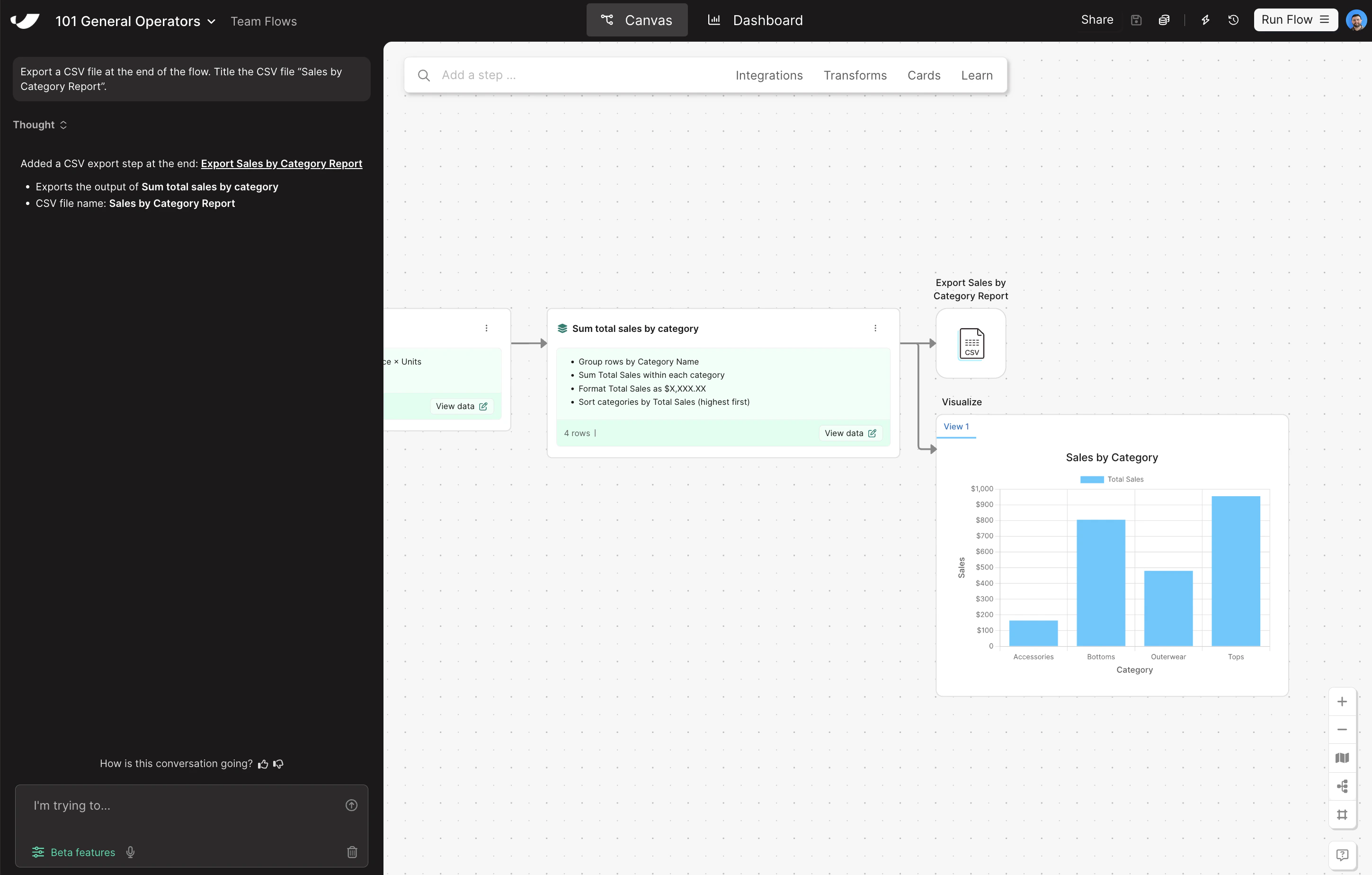
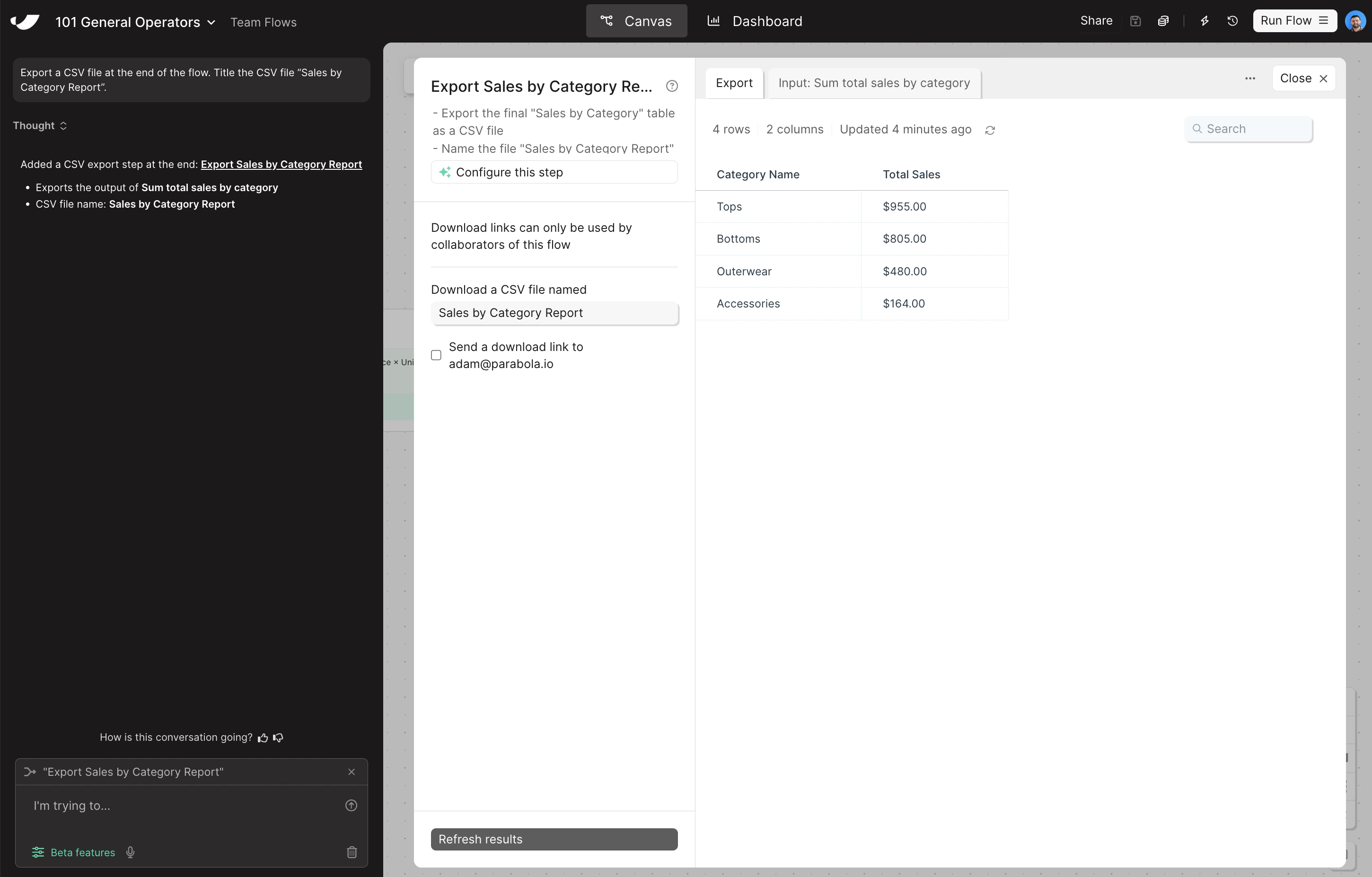
  Your data is ready — now export it as a CSV and build a quick visualization so your Sales by Category Report is easy to read at a glance.

  <Steps>
    <Step title="Copy and paste this prompt into Parabola to export your report as a CSV">
      ```text wrap theme={null}
      Export a CSV file at the end of the flow. Title the CSV file "Sales by Category Report".
      ```
    </Step>

    <Step title="Add a Visualization step and configure it as a column chart">
      * Search for the **Visualize** step and drag it onto the canvas below your **Generate CSV file** step
      * Grab an arrow from your previous data transformation step and connect it to your **Visualize** step so data is flowing in
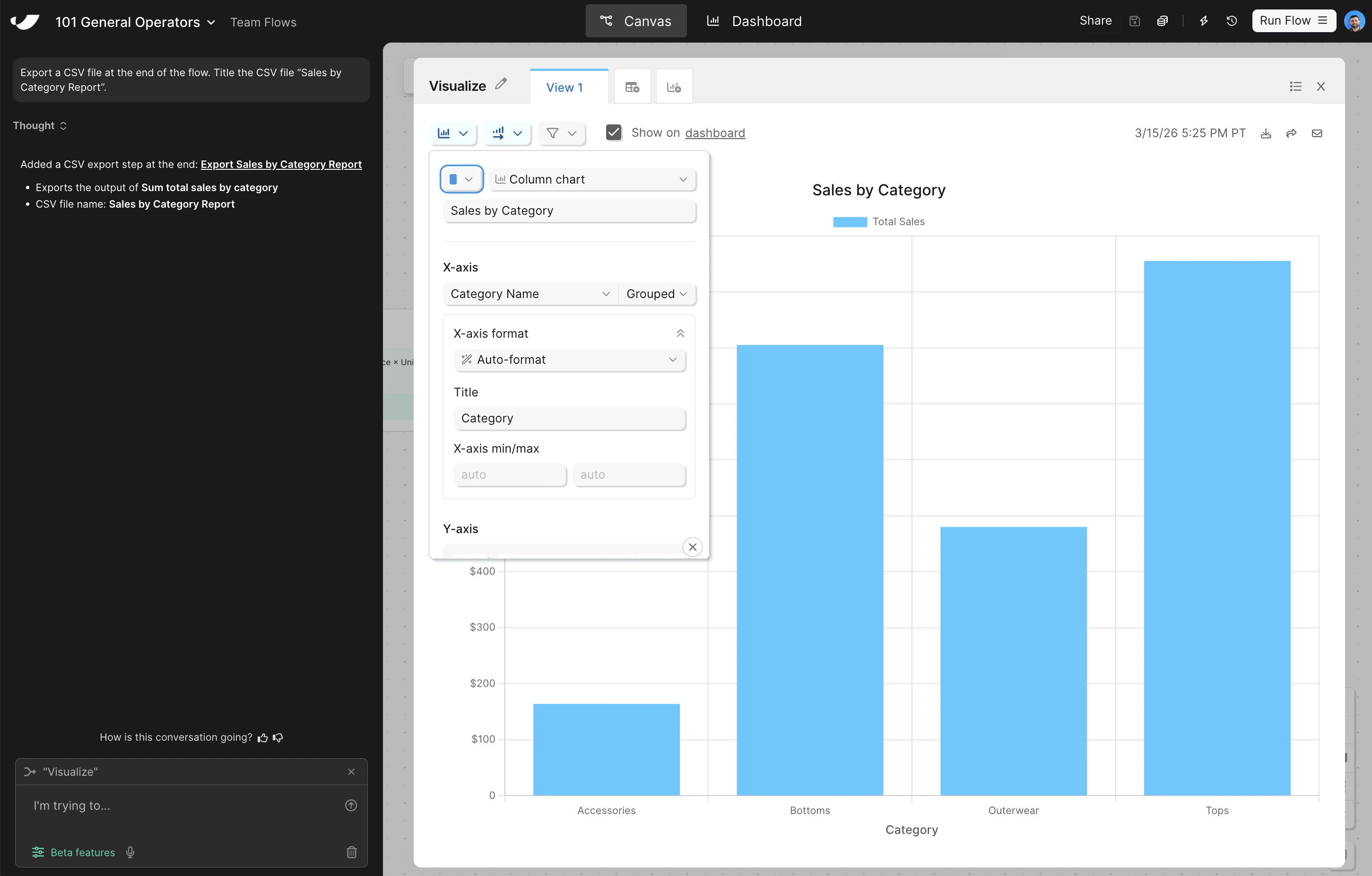
      * Open the step and change the chart type to **Column chart**. Title the chart "Sales by Category" and set the X-axis to **Category Name**
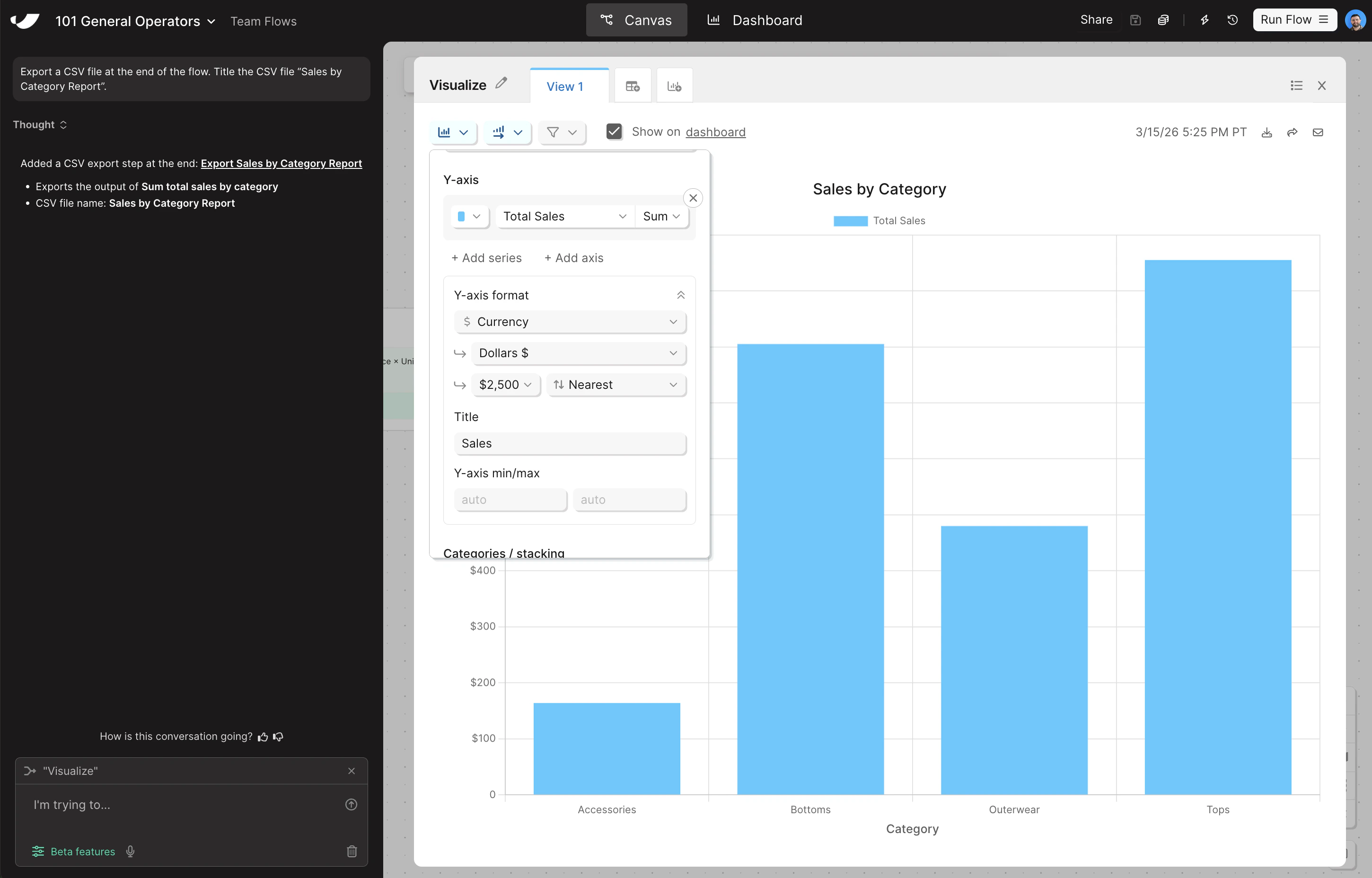
      * To configure the Y-axis, click **Add Series**, set **Total Sales** as the Y-axis, and format your Y-axis as currency
      * Change the aggregation method on **Total Sales** from **Count** to **Sum**, and give both your X and Y axes a title
    </Step>

    <Step title="Click &#x22;Run flow&#x22; in the top right to officially run your flow" />
  </Steps>
</Card>

<Accordion title="Check your work">
  <Note>The steps added to your canvas and their exact documentation may differ from what you see below — every AI response is unique. The important thing is that your resulting data set matches what you see here.</Note>

  <Frame>
    <img src="https://mintcdn.com/parabola-7119dfb0/CAGXdc7-yLmtAwae/images/general-operators-send-canvas.png?fit=max&auto=format&n=CAGXdc7-yLmtAwae&q=85&s=d8c1f79ff6eef8bd59a8a0eb2984a92c" alt="Send data canvas view" width="2898" height="1848" data-path="images/general-operators-send-canvas.png" />

    <img src="https://mintcdn.com/parabola-7119dfb0/CAGXdc7-yLmtAwae/images/general-operators-send-csv.png?fit=max&auto=format&n=CAGXdc7-yLmtAwae&q=85&s=bab9d00f8f049f247d19005da2e9a612" alt="CSV export step" width="2900" height="1854" data-path="images/general-operators-send-csv.png" />

    <img src="https://mintcdn.com/parabola-7119dfb0/CAGXdc7-yLmtAwae/images/general-operators-send-viz-xaxis.png?fit=max&auto=format&n=CAGXdc7-yLmtAwae&q=85&s=625b2a26fb318b772804f027216793ba" alt="Visualization X-axis config" width="2902" height="1852" data-path="images/general-operators-send-viz-xaxis.png" />

    <img src="https://mintcdn.com/parabola-7119dfb0/CAGXdc7-yLmtAwae/images/general-operators-send-viz-yaxis.png?fit=max&auto=format&n=CAGXdc7-yLmtAwae&q=85&s=4902132e420eb8c91007ff76d33b5e8f" alt="Visualization Y-axis config" width="2900" height="1856" data-path="images/general-operators-send-viz-yaxis.png" />
  </Frame>
</Accordion>