> ## Documentation Index
> Fetch the complete documentation index at: https://parabola.io/docs/llms.txt
> Use this file to discover all available pages before exploring further.
# Extracting from CSV & Excel files
> To get started with the Extract from email step, we'll focus on pulling in CSV & Excel files.
## Step setup
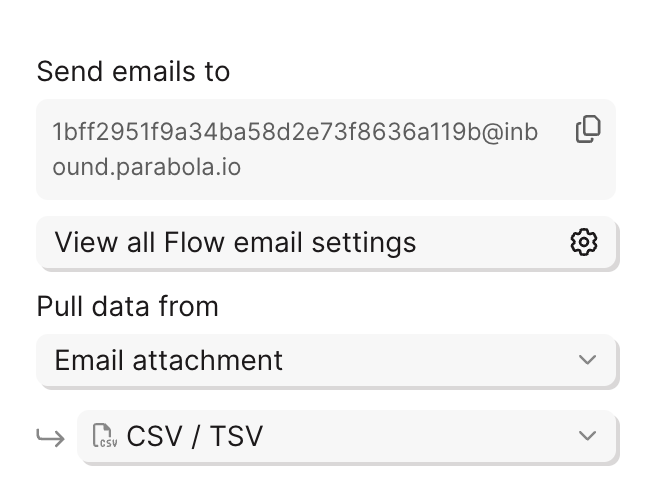
Whenever you're setting up an **Extract from email** step, you'll always start by specifying the file type (unless you're working with just "Email content").
Make sure the **file attachment type** dropdown in your step matches the file you're expecting:
* **CSV/TSV** for comma- or tab-separated files
* **Excel** for `.xlsx` or `.xls` files
 ***
## Selecting a sheet (Excel only)
If you send in an Excel file, you'll be prompted to select which sheet to pull data from. You can identify the sheet by:
* **Name** — e.g., "Sheet1" or "Data Export"
* **Position** — e.g., the 1st sheet, the 2nd sheet
**We recommend using position, not name.** Sheet names can change without warning when vendors update their templates. Selecting by position (e.g., "1st sheet") keeps your flow working even when the name changes (though it's also possible that vendors change position as well).
***
## Parsing settings
The step offers three parsing modes. The right choice depends on how structured and consistent your file is.
Imports the file exactly as it looks — headers, rows, and all. This works for most standardized Excel and CSV files.
Under Basic, you can also:
* **Skip rows** — if headers aren't in the first row, or there's extra content at the top
* **Skip columns** — if there's padding or extra data at the left edge of the sheet
* **Import as formatted values** *(default)* or unformatted values
Uses Parabola's AI to detect where the actual data table starts. This is useful when files include branding, headers, or extra rows above the data — especially if the data table frequently starts on different row numbers.
If the AI can't find a table, you configure fallback options:
* **Fail the run** — the flow stops and flags an error
* **Fall back to the last successful table position** — uses whatever worked last time
* **Fall back to basic parsing** — defaults to a standard import
The most flexible option. Use this when your file is inconsistent, combines multiple tables, or uses non-standard layouts. You define exactly what data to extract.
Two extraction types are available:
**Extract a table**
Define the columns you want to pull. For each column you can provide:
* A **name** — what you want the column called in Parabola
* **Example values** — helps the AI recognize the right data
* **Additional instructions** — useful for ambiguous column names or unusual formatting
**Extract individual values**
For single data points that apply to the entire document — like an invoice number, a report date, or a vendor name. Each value gets its own definition with the same name/example/instructions structure.
## Column and value data types
Every column and individual value defaults to **Text**, but you can set a specific type for cleaner output:
| Type | Behavior |
| ------------------- | ------------------------------------------------------------------------- |
| **Text** | Returns the value as-is |
| **True / False** | Returns "True" or "False" — useful for detecting checkboxes or indicators |
| **Number** | Strips trailing zeros and currency symbols |
| **Currency** | Converts any currency format to a clean number |
| **Date** | Returns in ISO 8601 format: `2022-09-27T18:00:00.000` |
| **Signature** | Converts signatures to readable text |
| **List of options** | Constrains results to a set of valid values you define |
Each step can extract **1 table** and any number of **individual values** simultaneously.
***
## FAQs
Emails queue up in the order they're received — up to 1,000 can be queued at a time. Each is processed sequentially once the current run finishes.
The Extract from email step reads data, but can't download a file from a URL. To handle this pattern:
1. Use Extract from email to pull the download URL out of the email body
2. Pass that URL into a **Run another flow** step
3. In the destination flow, start with **Pull from file queue** and end with **Generate CSV file**
Files must be **under 5MB**. Larger files will not process.
If your flow has **multiple Extract from email steps**, all of them read from the same email/file. You can't send different files to different steps within the same flow.
***
## What's next
Next, we'll move on to PDFs — a fundamentally different challenge that unlocks a lot of powerful use cases.
***
Pull the CSV file you downloaded in lesson 1 into your flow:
Looks like: [d9af5437a96e40ef9160ed4a5ee7656@inbound.parabola.io](mailto:d9af5437a96e40ef9160ed4a5ee76e56@inbound.parabola.io)
Don't worry about the subject and body
You'll see the flow run a few seconds after sending an email
***
## Selecting a sheet (Excel only)
If you send in an Excel file, you'll be prompted to select which sheet to pull data from. You can identify the sheet by:
* **Name** — e.g., "Sheet1" or "Data Export"
* **Position** — e.g., the 1st sheet, the 2nd sheet
**We recommend using position, not name.** Sheet names can change without warning when vendors update their templates. Selecting by position (e.g., "1st sheet") keeps your flow working even when the name changes (though it's also possible that vendors change position as well).
***
## Parsing settings
The step offers three parsing modes. The right choice depends on how structured and consistent your file is.
Imports the file exactly as it looks — headers, rows, and all. This works for most standardized Excel and CSV files.
Under Basic, you can also:
* **Skip rows** — if headers aren't in the first row, or there's extra content at the top
* **Skip columns** — if there's padding or extra data at the left edge of the sheet
* **Import as formatted values** *(default)* or unformatted values
Uses Parabola's AI to detect where the actual data table starts. This is useful when files include branding, headers, or extra rows above the data — especially if the data table frequently starts on different row numbers.
If the AI can't find a table, you configure fallback options:
* **Fail the run** — the flow stops and flags an error
* **Fall back to the last successful table position** — uses whatever worked last time
* **Fall back to basic parsing** — defaults to a standard import
The most flexible option. Use this when your file is inconsistent, combines multiple tables, or uses non-standard layouts. You define exactly what data to extract.
Two extraction types are available:
**Extract a table**
Define the columns you want to pull. For each column you can provide:
* A **name** — what you want the column called in Parabola
* **Example values** — helps the AI recognize the right data
* **Additional instructions** — useful for ambiguous column names or unusual formatting
**Extract individual values**
For single data points that apply to the entire document — like an invoice number, a report date, or a vendor name. Each value gets its own definition with the same name/example/instructions structure.
## Column and value data types
Every column and individual value defaults to **Text**, but you can set a specific type for cleaner output:
| Type | Behavior |
| ------------------- | ------------------------------------------------------------------------- |
| **Text** | Returns the value as-is |
| **True / False** | Returns "True" or "False" — useful for detecting checkboxes or indicators |
| **Number** | Strips trailing zeros and currency symbols |
| **Currency** | Converts any currency format to a clean number |
| **Date** | Returns in ISO 8601 format: `2022-09-27T18:00:00.000` |
| **Signature** | Converts signatures to readable text |
| **List of options** | Constrains results to a set of valid values you define |
Each step can extract **1 table** and any number of **individual values** simultaneously.
***
## FAQs
Emails queue up in the order they're received — up to 1,000 can be queued at a time. Each is processed sequentially once the current run finishes.
The Extract from email step reads data, but can't download a file from a URL. To handle this pattern:
1. Use Extract from email to pull the download URL out of the email body
2. Pass that URL into a **Run another flow** step
3. In the destination flow, start with **Pull from file queue** and end with **Generate CSV file**
Files must be **under 5MB**. Larger files will not process.
If your flow has **multiple Extract from email steps**, all of them read from the same email/file. You can't send different files to different steps within the same flow.
***
## What's next
Next, we'll move on to PDFs — a fundamentally different challenge that unlocks a lot of powerful use cases.
***
Pull the CSV file you downloaded in lesson 1 into your flow:
Looks like: [d9af5437a96e40ef9160ed4a5ee7656@inbound.parabola.io](mailto:d9af5437a96e40ef9160ed4a5ee76e56@inbound.parabola.io)
Don't worry about the subject and body
You'll see the flow run a few seconds after sending an email