> ## Documentation Index
> Fetch the complete documentation index at: https://parabola.io/docs/llms.txt
> Use this file to discover all available pages before exploring further.
# Extracting email content
> Pull structured data directly from email subjects, bodies, and metadata — no attachment required.
## What is email content extraction?
Not all useful data lives in attachments. Sometimes what you actually need is in the email itself — a confirmation number in the subject line, a list of shipment IDs in the body, or details about who sent the message and when.
**Email content extraction** lets you pull that data into Parabola without needing a file attachment at all. It's also how you capture email metadata alongside attachment data when you need both at once.
***
## Setting up the step
In the **Pull data from** dropdown, select **Email content** or **Email content and attachment**.
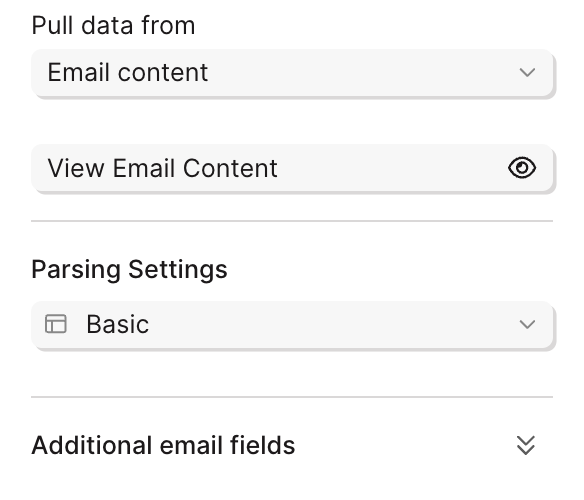 Once selected, parsing settings will appear below.
***
## Parsing settings
When you select **Email content**, you have two parsing options:
Pulls in standard email fields as individual columns. No AI required — fast and straightforward.
**Included by default:**
* Subject
* Body (plain text)
* From
* CC
* Attached file name
**Optional fields you can add:**
* Body (HTML) — the full HTML version of the email body
* Body (all URLs) — extracts every link from the email body as separate values
* Attached file URL — the Parabola-hosted download link for the attachment
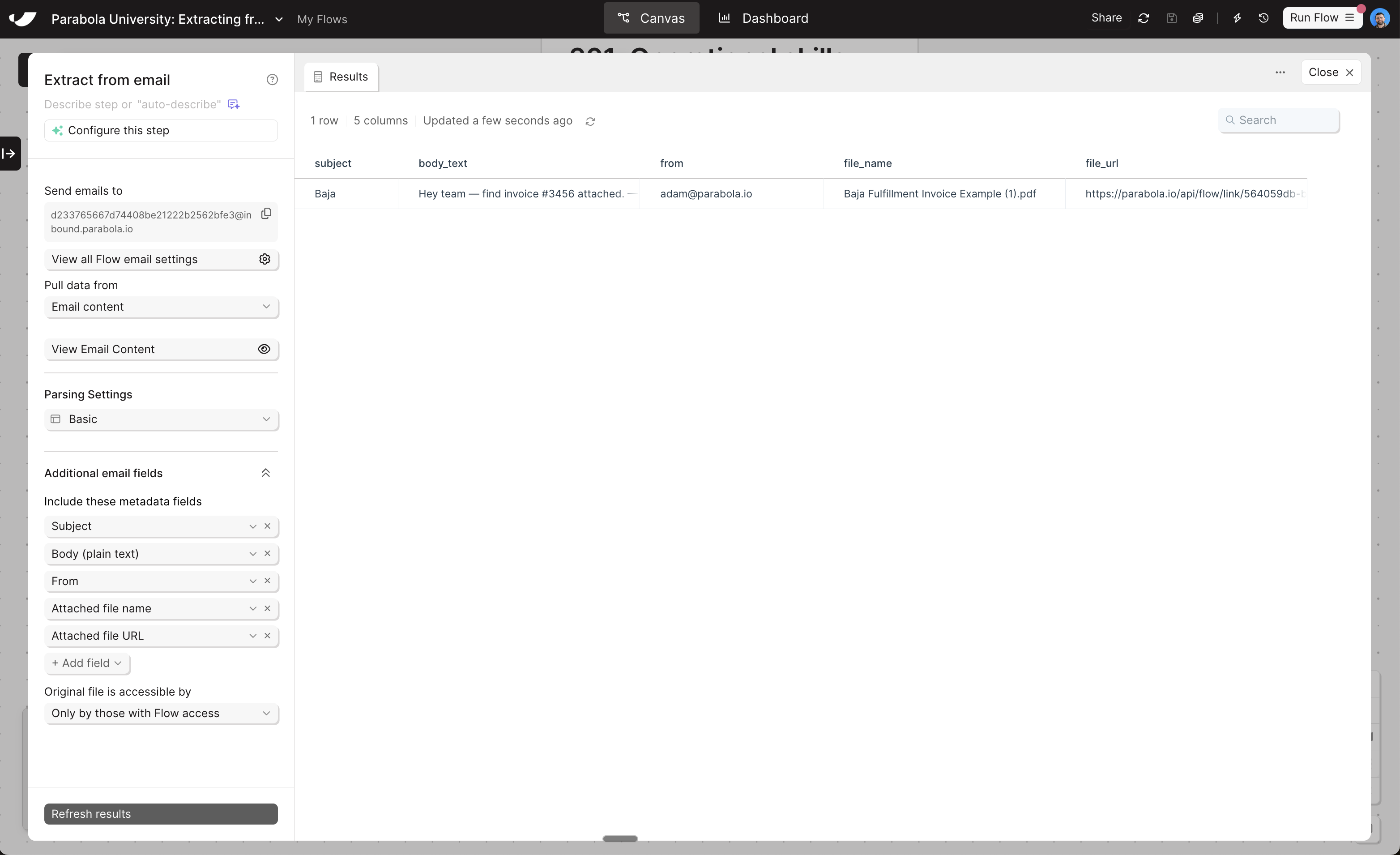
Once selected, parsing settings will appear below.
***
## Parsing settings
When you select **Email content**, you have two parsing options:
Pulls in standard email fields as individual columns. No AI required — fast and straightforward.
**Included by default:**
* Subject
* Body (plain text)
* From
* CC
* Attached file name
**Optional fields you can add:**
* Body (HTML) — the full HTML version of the email body
* Body (all URLs) — extracts every link from the email body as separate values
* Attached file URL — the Parabola-hosted download link for the attachment
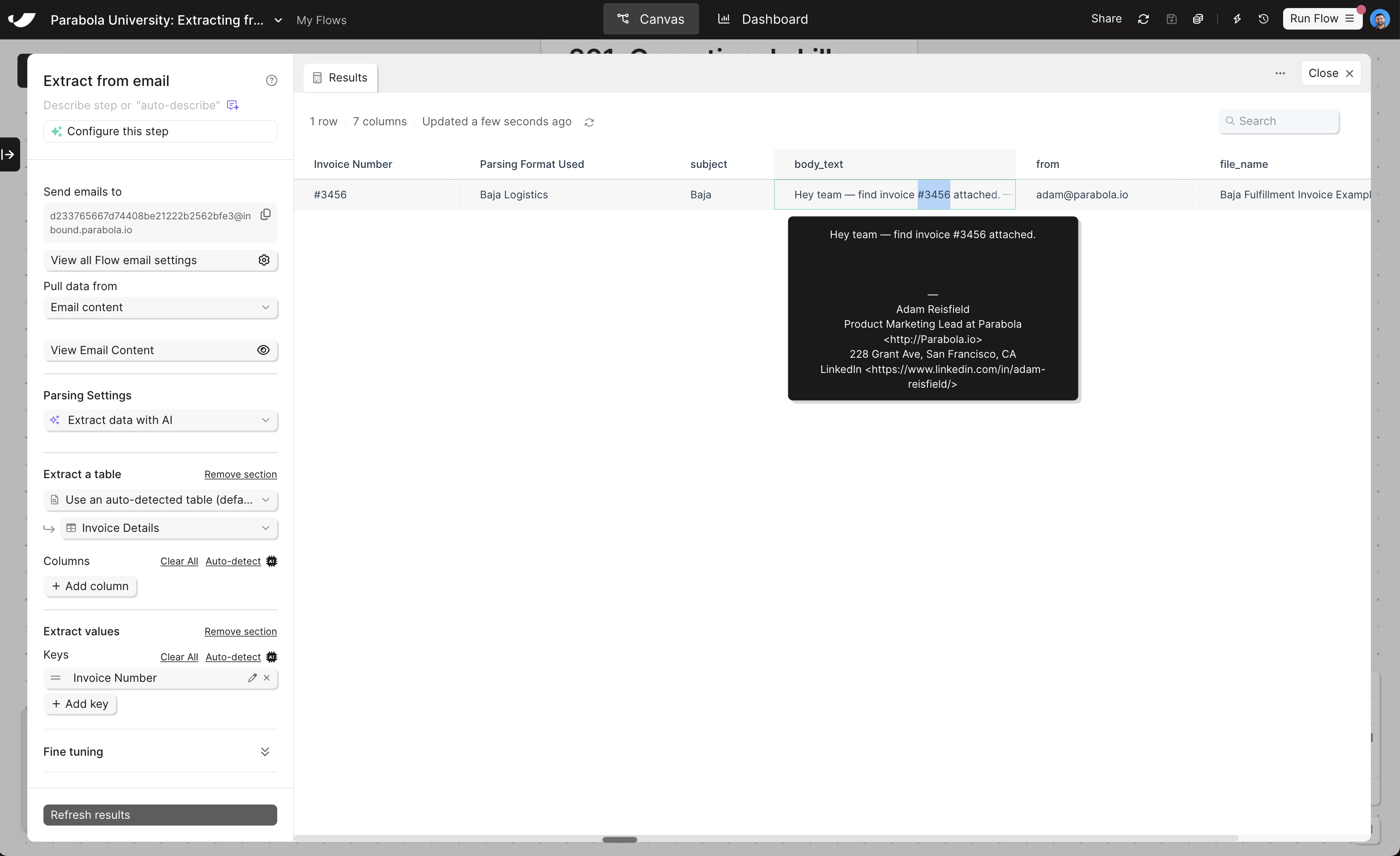
 Includes all the same Basic fields, plus the ability to **extract a table** and **extract individual values** from the email body using AI — the same configuration options covered in the CSV/Excel and PDF lessons.
Use this when:
* The email body contains structured data pasted inline (e.g., a table of shipment details)
* You need to extract specific values from a long, unstructured body
* You want to combine email metadata with parsed body content in one step
The setup is identical to defining columns and keys in a PDF extraction step — give each piece of data a name, example values, and optional additional instructions.
Includes all the same Basic fields, plus the ability to **extract a table** and **extract individual values** from the email body using AI — the same configuration options covered in the CSV/Excel and PDF lessons.
Use this when:
* The email body contains structured data pasted inline (e.g., a table of shipment details)
* You need to extract specific values from a long, unstructured body
* You want to combine email metadata with parsed body content in one step
The setup is identical to defining columns and keys in a PDF extraction step — give each piece of data a name, example values, and optional additional instructions.
 ***
## Combining email content with attachments
You don't have to choose between email content and attachment data. Selecting **Email content and attachment** from the **Pull data from** dropdown brings both into the same step.
This is the right configuration when you want:
* The sender's address or subject line alongside the data from an attachment
* A complete record of who sent what and when, paired with the structured data from the file
This combination is one of the most powerful setups in the step. You get full context from the email wrapped around the structured data from the file — all in one place, no merging required downstream.
***
## File access control
For emails with attachments, at the bottom of the panel, **"Original file is accessible by"** controls who can access any file URL associated with this step. Available options include:
* **Anyone with the link**
* **Anyone within your Parabola team**
* **Only those with flow access**
**Pro tip**
You can use two seperate steps if you want one step to parse the attachment, and another step to parse the body. This can be useful if you want to leverage the **Extract with AI** option, which is only available if the step is set to parse just the **Email content.**
***
## What's next
In the final lesson, we'll set up auto-forwarding so that emails route into Parabola automatically — no manual forwarding required, and no action needed when a new email arrives.
***
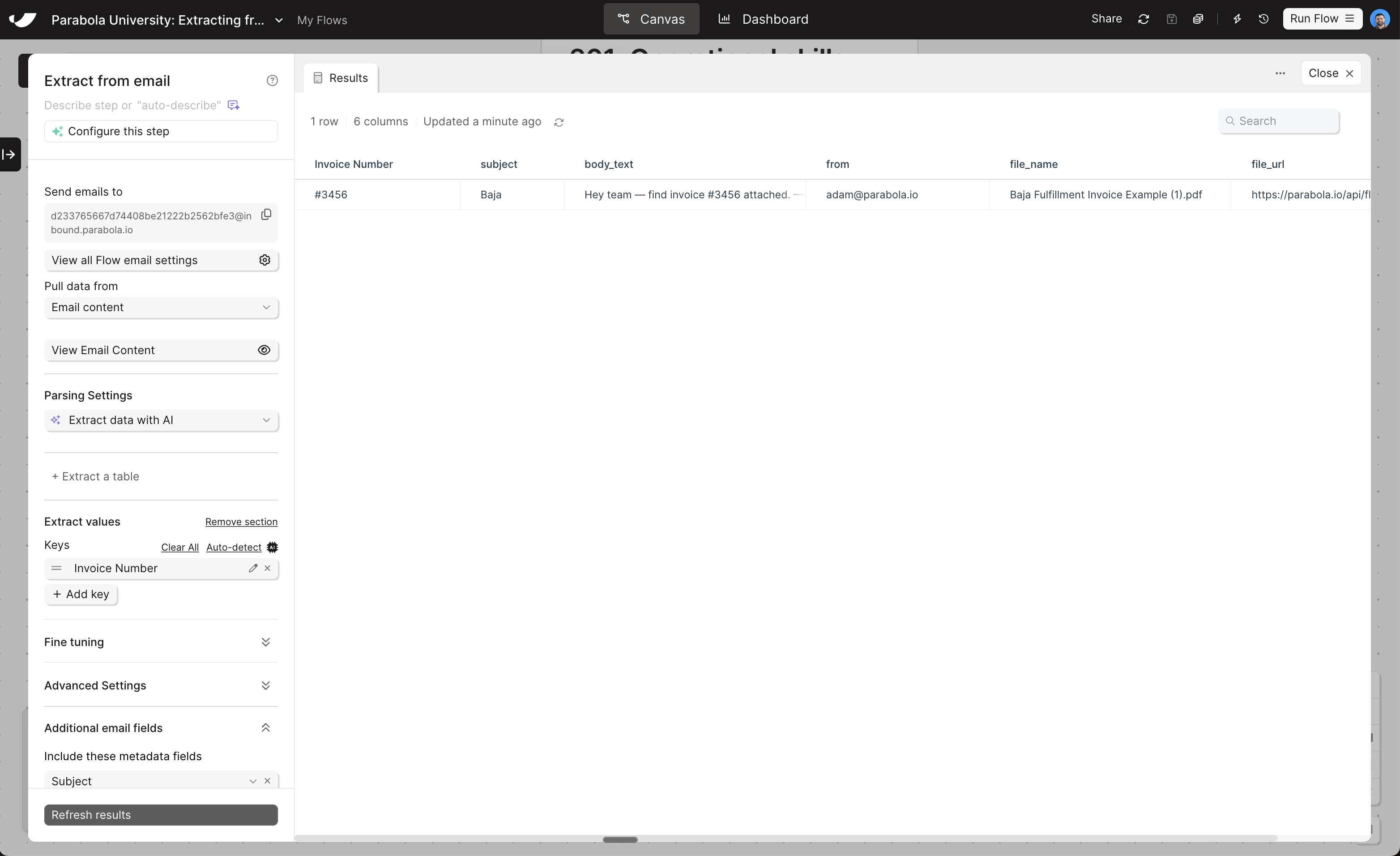
In the same flow that we just used in the last lesson, add a new **Extract from email** step to the canvas.
Click "Update results" after making the change, using "Basic" parsing
* Click "Extract individual values"
* Add "Invoice Number" under "Keys"
* Remember: We put the invoice number in the body of the email in the previous lesson
***
## Combining email content with attachments
You don't have to choose between email content and attachment data. Selecting **Email content and attachment** from the **Pull data from** dropdown brings both into the same step.
This is the right configuration when you want:
* The sender's address or subject line alongside the data from an attachment
* A complete record of who sent what and when, paired with the structured data from the file
This combination is one of the most powerful setups in the step. You get full context from the email wrapped around the structured data from the file — all in one place, no merging required downstream.
***
## File access control
For emails with attachments, at the bottom of the panel, **"Original file is accessible by"** controls who can access any file URL associated with this step. Available options include:
* **Anyone with the link**
* **Anyone within your Parabola team**
* **Only those with flow access**
**Pro tip**
You can use two seperate steps if you want one step to parse the attachment, and another step to parse the body. This can be useful if you want to leverage the **Extract with AI** option, which is only available if the step is set to parse just the **Email content.**
***
## What's next
In the final lesson, we'll set up auto-forwarding so that emails route into Parabola automatically — no manual forwarding required, and no action needed when a new email arrives.
***
In the same flow that we just used in the last lesson, add a new **Extract from email** step to the canvas.
Click "Update results" after making the change, using "Basic" parsing
* Click "Extract individual values"
* Add "Invoice Number" under "Keys"
* Remember: We put the invoice number in the body of the email in the previous lesson
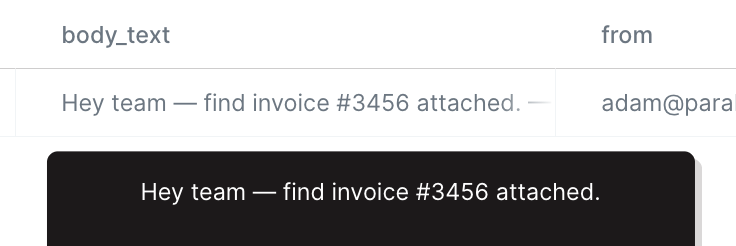 You should see "Invoice Number" outputting a clean value in the first column, plus your other email values