> ## Documentation Index
> Fetch the complete documentation index at: https://parabola.io/docs/llms.txt
> Use this file to discover all available pages before exploring further.
# Creating saved searches
> How to build NetSuite saved searches that pull clean, joined data into Parabola — including how to add related fields and avoid common pitfalls.
The **Pull from NetSuite** step works by running a saved search from your NetSuite account and bringing the results into Parabola. The quality of your saved search directly determines the quality of your data — so building good ones is the most valuable skill in this course.
***
## Saved searches, not reports
The NetSuite integration connects specifically to **saved searches** — not reports. If you've built a report in NetSuite that shows the data you need, you'll need to recreate that as a saved search before you can pull it into Parabola.
In a saved search:
* **Criteria** = filters that limit which records are returned
* **Results** = the columns that get returned (what you'll see in Parabola)
You can configure multiple saved searches across different search types within a single Parabola flow.
***
## Making a saved search public
Parabola can only access **public** saved searches. A search is private by default — you'll need to make it public before it appears in the step.
To make a saved search public:
1. Open the saved search in NetSuite
2. Check the **Public** checkbox in the search settings
3. Save the record
You can create the search under your own profile and then make it public — Parabola just needs the search to be publicly accessible. If a search isn't showing up in Parabola, the most likely explanation is that it's still set to private, or there's a visibility or ownership issue on the search.
***
## Adding joined / related fields
This is the most important concept in this lesson.
By default, NetSuite's API only returns the data that lives **directly on the record** you're searching. For any field that references a related table — like Class, Department, Location, Vendor, or Customer — NetSuite returns just the **internal ID** of that related record. A raw ID like `14` doesn't mean anything on its own.
To get human-readable values, you need to add **joined fields** (also called related fields) to your saved search results.
**Example:** When pulling a Transactions search, the "Location" field on its own returns `14`. But if you add "Location : Name" as a joined field, you get `Warehouse - Chicago` instead.
### How to add joined fields in NetSuite
1. Open your saved search and go to the **Results** tab
2. In the **Field** column dropdown, you'll see a list of available fields to add to your search. Scroll to the bottom of the list to find fields ending in "..." — like **Item Fields...**, **Location Fields...**, or **Vendor Fields...**. These are related record types that contain subfields.
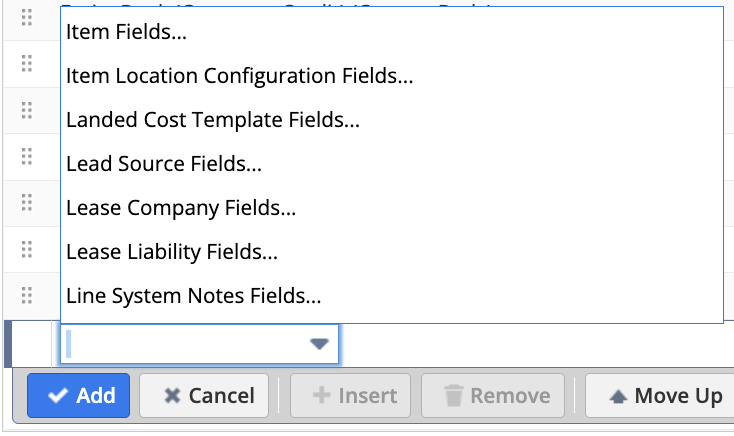 3. Select the parent object first (e.g., "Item Fields...")
4. A second dropdown will appear where you can select the specific subfield you want (e.g., "Name")
3. Select the parent object first (e.g., "Item Fields...")
4. A second dropdown will appear where you can select the specific subfield you want (e.g., "Name")
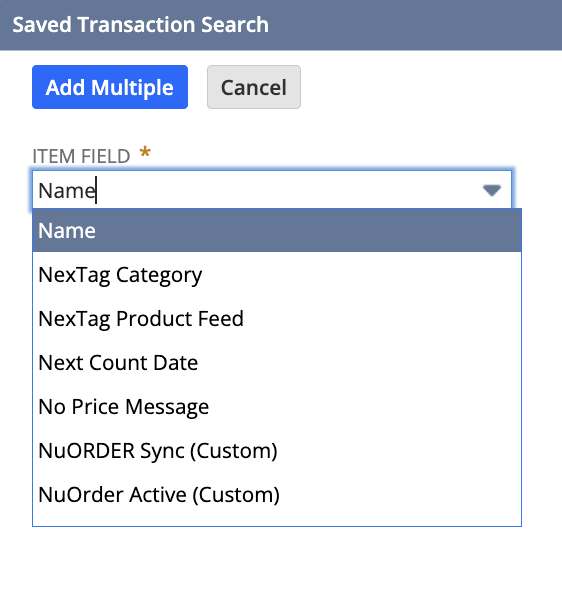 5. The joined field will be added to your results as "Item : Name"
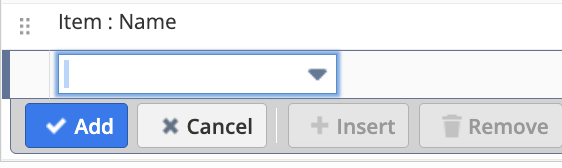 6. Save the search and re-run it in Parabola
As a general rule: if you're pulling any field that represents a related record — a classification, a reference to another object type, a dimension — add the joined name subfield instead of the field itself. Otherwise you'll spend time mapping IDs in Parabola that you could have avoided entirely.
Some fields in NetSuite only return internal IDs and cannot be resolved to human-readable names:
* **Custom Lists** — only internal IDs are returned, not the display labels
* **Accounting Periods** — calculated per-account in NetSuite, so only IDs are available
* **Currencies** — only the internal currency ID is returned
For these fields, you may need to maintain a reference table in Parabola to map IDs to names.
***
## The "Return only columns in search" checkbox
In the Parabola step settings, you'll see a **Return only columns specified in the search** checkbox.
* **Checked (recommended):** Parabola returns only the columns you explicitly added to the Results tab of your saved search. This keeps your dataset clean and predictable.
* **Unchecked:** Parabola returns all available columns from the underlying record type — which can be a large, messy dataset with many columns you don't need.
Start with this checked. If you later realize you need a field you didn't include in the search, add it to the search results instead of unchecking this option.
***
## Formula fields
NetSuite's API does **not** return formula fields — they're calculated in the NetSuite UI but not exposed via the API. If your saved search includes formula columns, those columns will be missing from the results in Parabola.
**Workaround:** Recreate the formula logic using Parabola's transform steps, or run separate searches and join the results using a Combine Tables step.
***
## A note on complexity
Good saved searches take time to build. Teams new to NetSuite often underestimate how much iteration is involved — choosing the right search type, adding the right joined fields, narrowing criteria so the search runs fast, and verifying the results match expectations.
If you're starting from scratch, expect to spend real time getting a search right. The payoff is that once the search is well-constructed, Parabola can run it automatically on any schedule with no manual effort.
***
## What's next
In the next lesson, we'll cover what to do when data comes back wrong — custom fields that return IDs instead of labels, summary searches that fail to load, and large searches that time out. You'll also inspect the saved search you built here for any of those issues.
***
## FAQs
The most common reasons:
1. **It's not public** — check the search in NetSuite and make sure the Public checkbox is checked
2. **It's the wrong search type** — the search type you select in the Parabola step must match the type the saved search was created under (e.g., if you created a Transaction search, you need to select "Transaction" in the step)
3. **Permissions** — the role used to authorize the connection may not have access to the search's underlying record type. Double-check the role permissions from Lesson 2.
No — the Pull from NetSuite step only supports **saved searches**. NetSuite reports use a different API that isn't accessible from Parabola. If you have a report with the data you need, you'll need to recreate the equivalent logic as a saved search.
Match the search type to the record you're querying. Common mappings:
| What you need | Search type |
| ----------------------- | --------------- |
| Orders, invoices, bills | **Transaction** |
| Products, SKUs | **Item** |
| Customers, accounts | **Customer** |
| Vendors, suppliers | **Vendor** |
| Employees | **Employee** |
When in doubt, create a saved search in NetSuite and check which type it was saved under.
Two likely causes:
* **"Return only columns in search" is unchecked** — the step is returning all available columns from the record type, which may not include the ones you added. Check the step settings.
* **Permissions on the joined table** — if you added a joined field (e.g., Vendor : Name) and the role doesn't have access to the Vendor record type, that column will be dropped. Add the appropriate List or Transaction permission to the role.
***
Build a saved search for your use case and pull it into Parabola. Start with whatever data is most relevant to your business — you know your data best. If you don't have a specific use case in mind yet, an open PO report is a great place to start.
Go to **Reports > Saved Searches > All Saved Searches > New**. Select the search type that matches the records you want to pull — for example, **Transaction** for orders or invoices, **Item** for products, **Vendor** for suppliers.
Under the **Criteria** tab, add filters to narrow to the records you care about. Keep the result set small during testing — add a date range or status filter if needed. For example, if you're building an open PO report: Type = Purchase Order, Status = Pending Receipt.
Under the **Results** tab, add the fields that matter for your use case. For any column that references a related record — a vendor, customer, location, class — add the joined Name subfield instead of the raw field, so you get readable values instead of internal IDs. For the PO example: Document Number, Date, Amount, Status, and a joined Vendor : Name field.
Check the **Public** checkbox and save the search.
In the Pull from NetSuite step you authorized in Lesson 2, select the matching search type and find your new search. Confirm the results come through with readable values in the columns you added.
**You're done when:** Your Parabola step returns rows with human-readable values in the key columns — not raw internal IDs.
6. Save the search and re-run it in Parabola
As a general rule: if you're pulling any field that represents a related record — a classification, a reference to another object type, a dimension — add the joined name subfield instead of the field itself. Otherwise you'll spend time mapping IDs in Parabola that you could have avoided entirely.
Some fields in NetSuite only return internal IDs and cannot be resolved to human-readable names:
* **Custom Lists** — only internal IDs are returned, not the display labels
* **Accounting Periods** — calculated per-account in NetSuite, so only IDs are available
* **Currencies** — only the internal currency ID is returned
For these fields, you may need to maintain a reference table in Parabola to map IDs to names.
***
## The "Return only columns in search" checkbox
In the Parabola step settings, you'll see a **Return only columns specified in the search** checkbox.
* **Checked (recommended):** Parabola returns only the columns you explicitly added to the Results tab of your saved search. This keeps your dataset clean and predictable.
* **Unchecked:** Parabola returns all available columns from the underlying record type — which can be a large, messy dataset with many columns you don't need.
Start with this checked. If you later realize you need a field you didn't include in the search, add it to the search results instead of unchecking this option.
***
## Formula fields
NetSuite's API does **not** return formula fields — they're calculated in the NetSuite UI but not exposed via the API. If your saved search includes formula columns, those columns will be missing from the results in Parabola.
**Workaround:** Recreate the formula logic using Parabola's transform steps, or run separate searches and join the results using a Combine Tables step.
***
## A note on complexity
Good saved searches take time to build. Teams new to NetSuite often underestimate how much iteration is involved — choosing the right search type, adding the right joined fields, narrowing criteria so the search runs fast, and verifying the results match expectations.
If you're starting from scratch, expect to spend real time getting a search right. The payoff is that once the search is well-constructed, Parabola can run it automatically on any schedule with no manual effort.
***
## What's next
In the next lesson, we'll cover what to do when data comes back wrong — custom fields that return IDs instead of labels, summary searches that fail to load, and large searches that time out. You'll also inspect the saved search you built here for any of those issues.
***
## FAQs
The most common reasons:
1. **It's not public** — check the search in NetSuite and make sure the Public checkbox is checked
2. **It's the wrong search type** — the search type you select in the Parabola step must match the type the saved search was created under (e.g., if you created a Transaction search, you need to select "Transaction" in the step)
3. **Permissions** — the role used to authorize the connection may not have access to the search's underlying record type. Double-check the role permissions from Lesson 2.
No — the Pull from NetSuite step only supports **saved searches**. NetSuite reports use a different API that isn't accessible from Parabola. If you have a report with the data you need, you'll need to recreate the equivalent logic as a saved search.
Match the search type to the record you're querying. Common mappings:
| What you need | Search type |
| ----------------------- | --------------- |
| Orders, invoices, bills | **Transaction** |
| Products, SKUs | **Item** |
| Customers, accounts | **Customer** |
| Vendors, suppliers | **Vendor** |
| Employees | **Employee** |
When in doubt, create a saved search in NetSuite and check which type it was saved under.
Two likely causes:
* **"Return only columns in search" is unchecked** — the step is returning all available columns from the record type, which may not include the ones you added. Check the step settings.
* **Permissions on the joined table** — if you added a joined field (e.g., Vendor : Name) and the role doesn't have access to the Vendor record type, that column will be dropped. Add the appropriate List or Transaction permission to the role.
***
Build a saved search for your use case and pull it into Parabola. Start with whatever data is most relevant to your business — you know your data best. If you don't have a specific use case in mind yet, an open PO report is a great place to start.
Go to **Reports > Saved Searches > All Saved Searches > New**. Select the search type that matches the records you want to pull — for example, **Transaction** for orders or invoices, **Item** for products, **Vendor** for suppliers.
Under the **Criteria** tab, add filters to narrow to the records you care about. Keep the result set small during testing — add a date range or status filter if needed. For example, if you're building an open PO report: Type = Purchase Order, Status = Pending Receipt.
Under the **Results** tab, add the fields that matter for your use case. For any column that references a related record — a vendor, customer, location, class — add the joined Name subfield instead of the raw field, so you get readable values instead of internal IDs. For the PO example: Document Number, Date, Amount, Status, and a joined Vendor : Name field.
Check the **Public** checkbox and save the search.
In the Pull from NetSuite step you authorized in Lesson 2, select the matching search type and find your new search. Confirm the results come through with readable values in the columns you added.
**You're done when:** Your Parabola step returns rows with human-readable values in the key columns — not raw internal IDs.