> ## Documentation Index
> Fetch the complete documentation index at: https://parabola.io/docs/llms.txt
> Use this file to discover all available pages before exploring further.
# Usage Reporting & Analytics
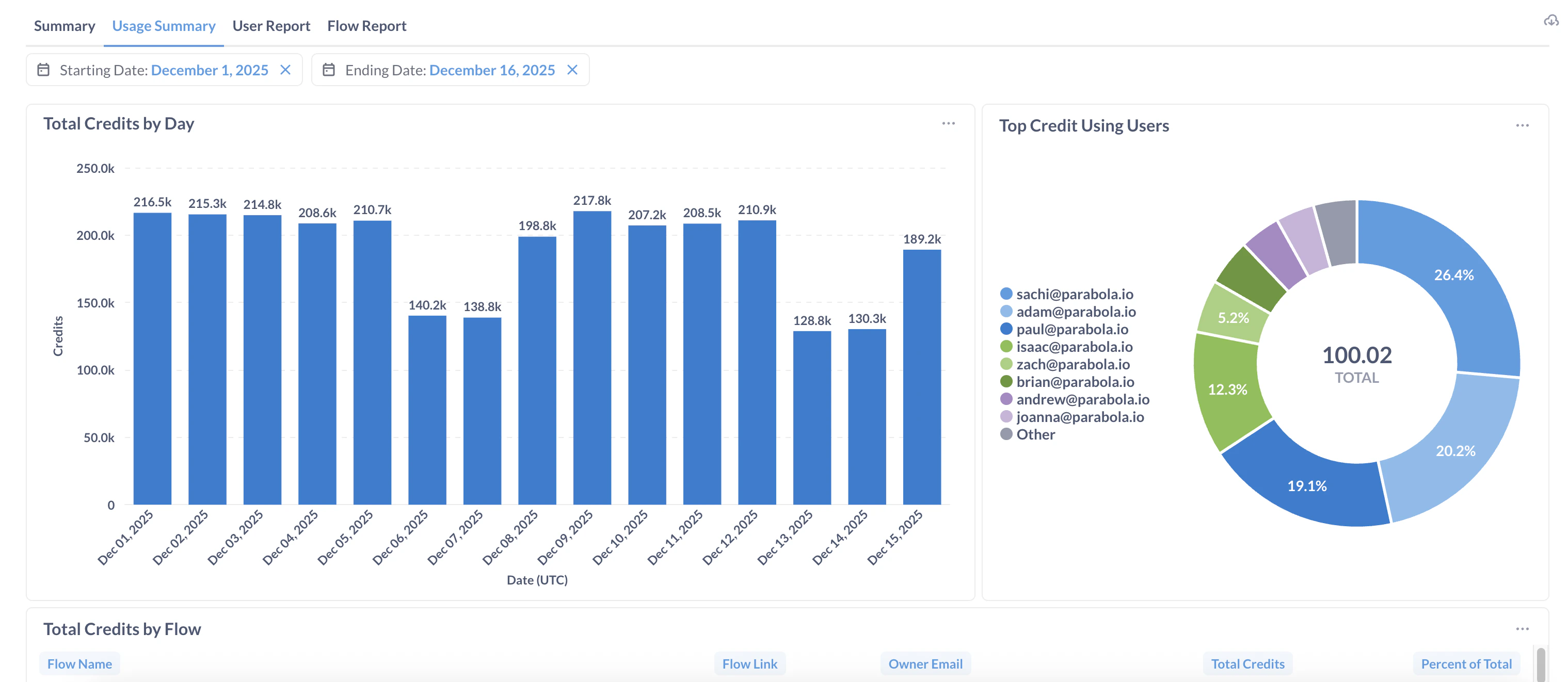 Users across all Parabola plans have access to embedded usage analytics and reports. These reports are meant purely for analytical purposes and do not impact any account-specific billing. Only account "admins" have access to these reports.
For accounts that have access to these reports, they can be found in the [Billing](https://parabola.io/app/billing) page of your Parabola account. All credit usage data is updated once per day, the previous day's credits are reflected in reports at approximately 3am EST the following day.
If you'd like to explore usage reports on your Parabola account and do not currently have access, please reach out to your Account Manager.
## Accessing Usage Reports
All data in the Usage Reports is downloadable, as a PDF, CSV, Excel, or JSON file. In both cases the files will download to the default download location on your device.
**For a *PDF*:**
* Select the cloud icon in the top right of the report
* Click download as a PDF
**For *CSV, Excel, or JSON:***
* Hover over the three dots icon of the specific report you want to download
* Click download results
## Overview of the specific fields included
*Summary*
* *Total Flows* = The count of *all* flows in the account, regardless of last run date
* *Flows Created Last 30 Days* = The count of flows that were created in the past 30 days
* *Users Added Last 30 Days* = The count of users who were added to the account, regardless of if the end-user verified their account
* *Total Credits Last 30 Days* = The total number of credits consumed by the team in the last 30 days, regardless of the current billing period. Remember that these reports are for analytical purposes and do not reflect billing cycles.
*Usage Summary*
* Contains usage information across the entire team, focused on credits. You can adjust the time frame with the adjustable "Starting Date" and "Ending Date" parameters.
* Total Credits by Day, Top Credit Using Users (by percentage), Total Credits by Flow
*User Report*
* Contains usage information on a per-user level
* User Name, User Email, Total Flows Owned, Total Flows Owned with AI, Created Flows Last 30 Days, Unique Flows Run Last 30 Days, Total Flow Runs Last 30 Days, Total Credits Last 30 Days
* *Total Flows with AI* = flows that, in their most recent successful run, included AI steps / features.
* Data is a snapshot from the most recent date with usage (as of yesterday at midnight UTC)
*Flow Report*
* Contains usage information on a per-flow level
* Unique Flow ID, Flow Name, Owner Email, Includes AI, Total Runs Last 30 Days, Total Credits Last 30 Days
* *Includes AI =* Did the most recent execution of this flow include AI steps / features. Flows that have not run are left blank.
* Data is a snapshot from the most recent date with usage (as of yesterday at midnight UTC)
Flow names and user emails reflect the current state. If a user email or flow name was changed, the *old* name will not be reflected in these reports
Users across all Parabola plans have access to embedded usage analytics and reports. These reports are meant purely for analytical purposes and do not impact any account-specific billing. Only account "admins" have access to these reports.
For accounts that have access to these reports, they can be found in the [Billing](https://parabola.io/app/billing) page of your Parabola account. All credit usage data is updated once per day, the previous day's credits are reflected in reports at approximately 3am EST the following day.
If you'd like to explore usage reports on your Parabola account and do not currently have access, please reach out to your Account Manager.
## Accessing Usage Reports
All data in the Usage Reports is downloadable, as a PDF, CSV, Excel, or JSON file. In both cases the files will download to the default download location on your device.
**For a *PDF*:**
* Select the cloud icon in the top right of the report
* Click download as a PDF
**For *CSV, Excel, or JSON:***
* Hover over the three dots icon of the specific report you want to download
* Click download results
## Overview of the specific fields included
*Summary*
* *Total Flows* = The count of *all* flows in the account, regardless of last run date
* *Flows Created Last 30 Days* = The count of flows that were created in the past 30 days
* *Users Added Last 30 Days* = The count of users who were added to the account, regardless of if the end-user verified their account
* *Total Credits Last 30 Days* = The total number of credits consumed by the team in the last 30 days, regardless of the current billing period. Remember that these reports are for analytical purposes and do not reflect billing cycles.
*Usage Summary*
* Contains usage information across the entire team, focused on credits. You can adjust the time frame with the adjustable "Starting Date" and "Ending Date" parameters.
* Total Credits by Day, Top Credit Using Users (by percentage), Total Credits by Flow
*User Report*
* Contains usage information on a per-user level
* User Name, User Email, Total Flows Owned, Total Flows Owned with AI, Created Flows Last 30 Days, Unique Flows Run Last 30 Days, Total Flow Runs Last 30 Days, Total Credits Last 30 Days
* *Total Flows with AI* = flows that, in their most recent successful run, included AI steps / features.
* Data is a snapshot from the most recent date with usage (as of yesterday at midnight UTC)
*Flow Report*
* Contains usage information on a per-flow level
* Unique Flow ID, Flow Name, Owner Email, Includes AI, Total Runs Last 30 Days, Total Credits Last 30 Days
* *Includes AI =* Did the most recent execution of this flow include AI steps / features. Flows that have not run are left blank.
* Data is a snapshot from the most recent date with usage (as of yesterday at midnight UTC)
Flow names and user emails reflect the current state. If a user email or flow name was changed, the *old* name will not be reflected in these reports