> ## Documentation Index
> Fetch the complete documentation index at: https://parabola.io/docs/llms.txt
> Use this file to discover all available pages before exploring further.
# Steps
> How steps connect on the canvas, what you see when you open one, and how to pin a step's data as context for chat.
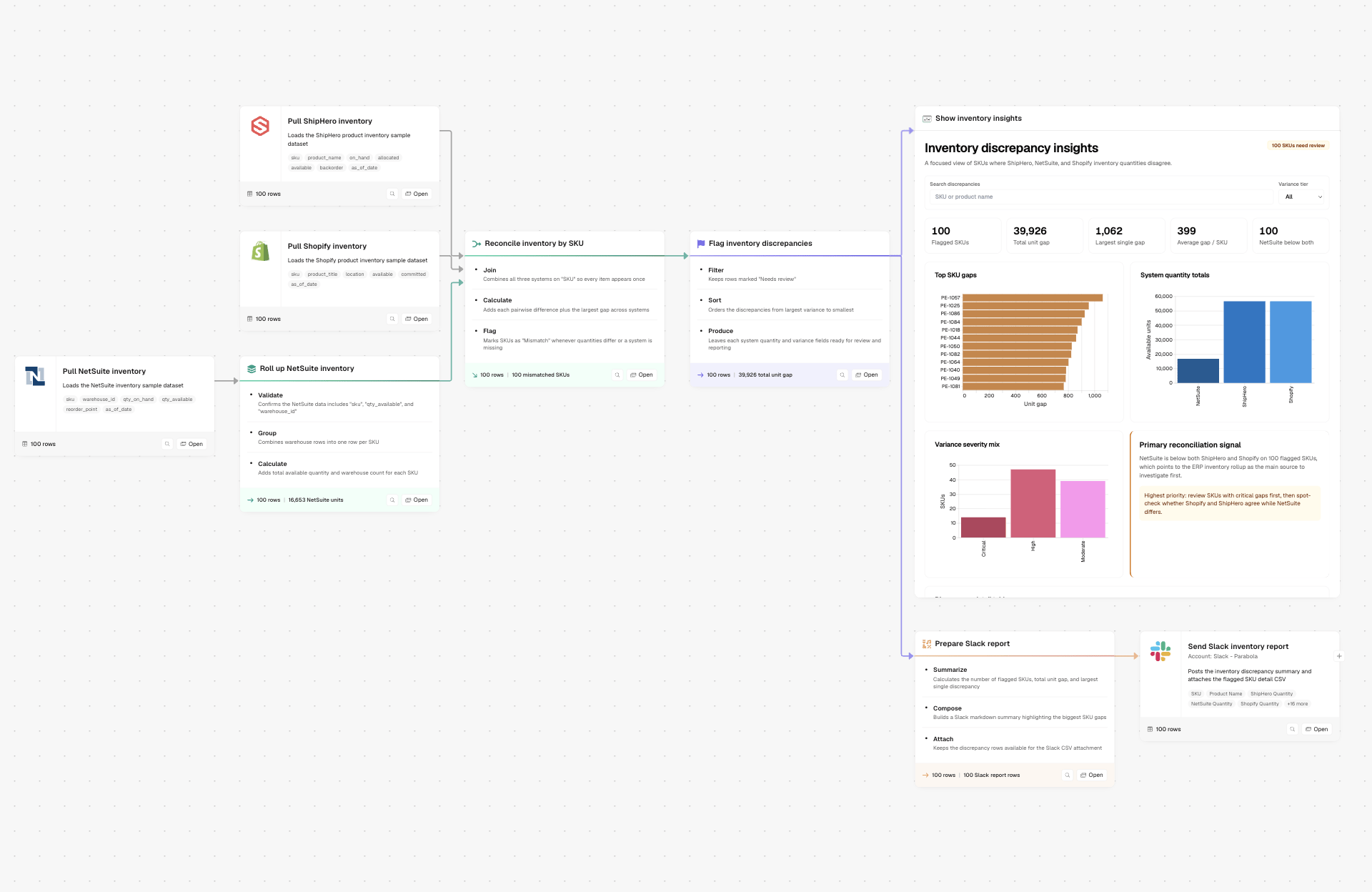
Every step documents itself: what it does, the logic behind it, the data it's working with. Whether you built the flow yesterday or you're opening it for the first time, the logic lives on the canvas.
## How a flow is built
A flow is a sequence of steps connected by arrows. Every step does one of three things:
* **Pulls data in.** From a file, an integration, an API, an inbox
* **Transforms data.** Filters, joins, calculates, extracts, reshapes
* **Sends data out.** To another system, a file, an email, a dashboard
Arrows connect steps and carry data between them, left to right. A step can take input from more than one source and send output to more than one place.
## Open a step
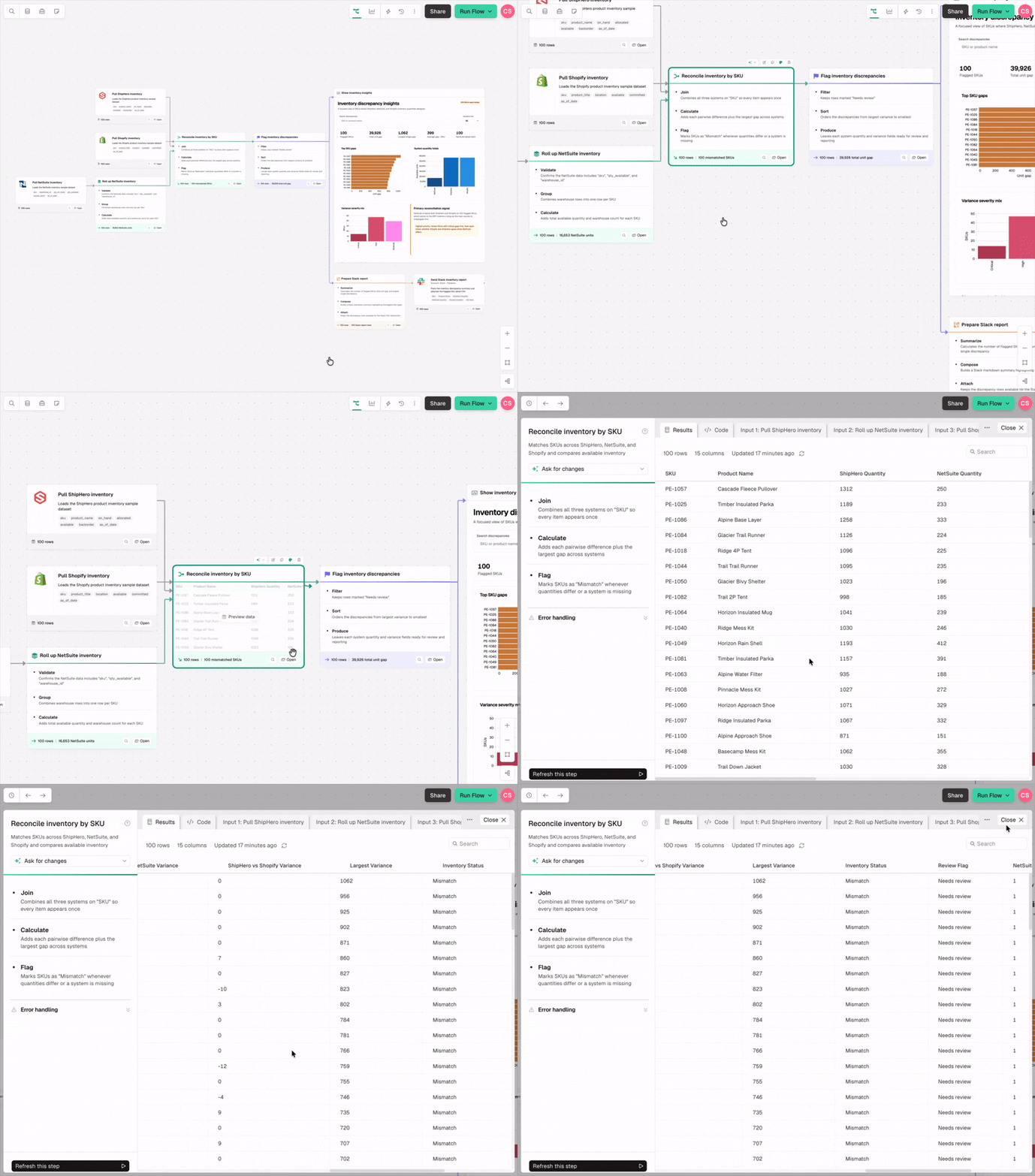
Prowork configures each step, and the step itself is inspectable at any time by anyone who can open the flow. Click a step's **Open** button to see what it's doing and change it. Each step shows:
* **What it does:** The operation, in plain language
* **The logic applied:** The specific rule, condition, or transformation
* **The data at that stage:** A live preview of the actual rows and columns
This is what makes a flow readable by someone who didn't build it. The person maintaining a flow six months from now, or the auditor checking a number, doesn't need to reverse-engineer a step's intent. It's written down, inside the step, and stays updated as you refine your process.
## Integration authentication
Steps that connect to external systems require authentication. Click **Edit Accounts** in the step settings to add or manage connections. Authentications can be shared across your team.
## Pin context from the canvas
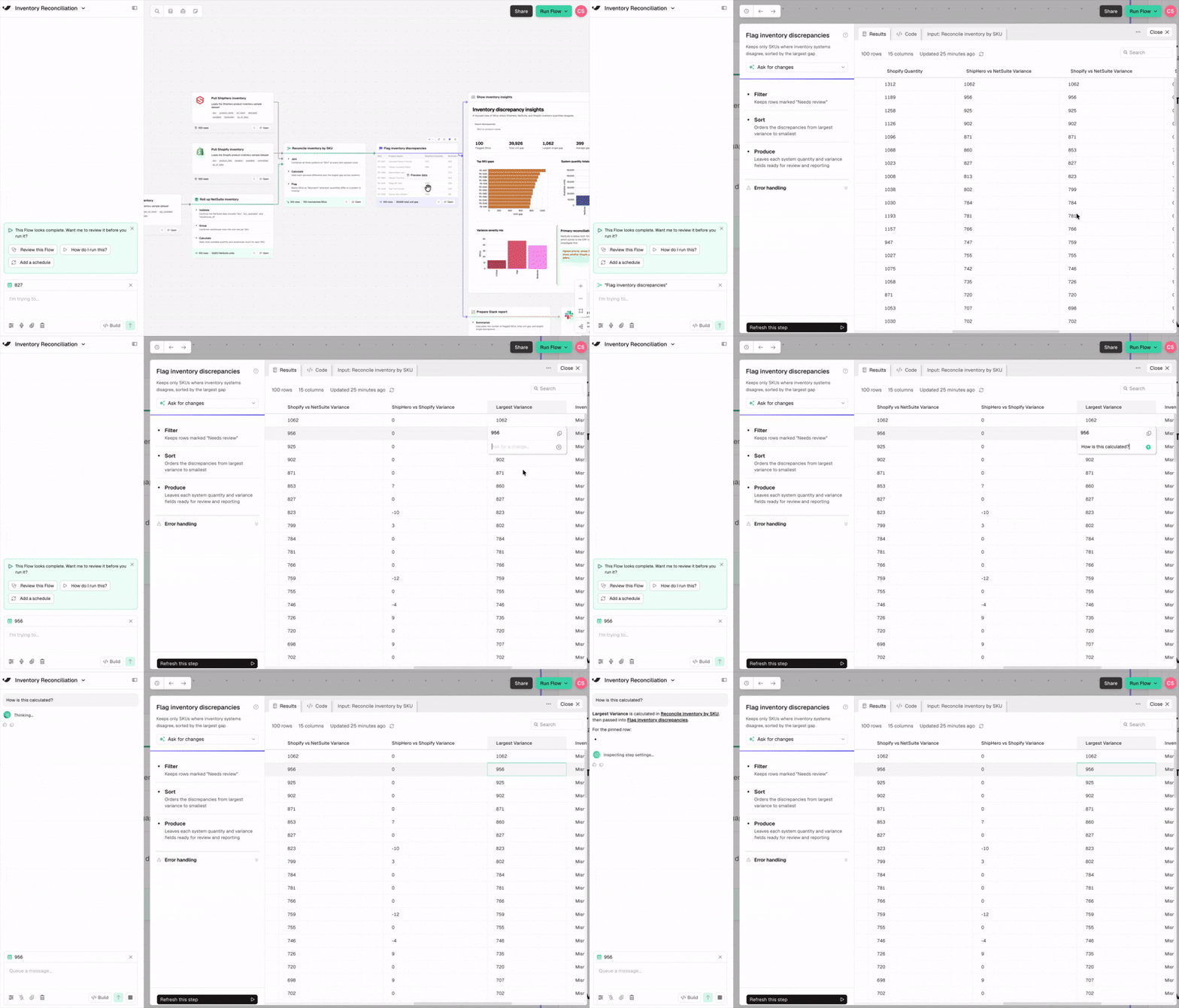
You can point Prowork at a specific step, column, row, or cell so its next answer is grounded in exactly the data you're asking about. Click a cell, column header, or even a whole step to highlight it and watch it pin to the chat. The highlight sticks as you navigate around the flow.
Anything you highlight this way is added to the chat context. Prowork can then answer questions like:
* "How was this cell calculated?"
* "Why is this column blank for these rows?"
* "What upstream data feeds this row?"
For deeper lineage questions, use [Data tracing](/docs/product/canvas/data-tracing) to click a row and see which upstream rows contributed to it across the entire flow.