> ## Documentation Index
> Fetch the complete documentation index at: https://parabola.io/docs/llms.txt
> Use this file to discover all available pages before exploring further.
# Version history
Version history is rolled out to select customers on our Advanced and Enterprise plans. If your organization is on one of these plans and you'd like access, reach out to your account manager or [help@parabola.io](mailto:help@parabola.io).
When you build and iterate on a flow, Parabola automatically captures snapshots of your work as you go. Version history gives you a record of those snapshots — so you can see what changed, who changed it, and roll back to a previous version when you need to.
This is especially useful when you're collaborating on a flow with teammates, want to undo a change made days ago, or need a record of who edited a flow at a particular point in time.
## Viewing your flow's version history
You can view the version history for any flow by opening the **Flow history** panel from the upper right corner of the canvas and selecting the **Version history** tab. From here, you'll see a list of versions grouped by day, with the most recent versions at the top.
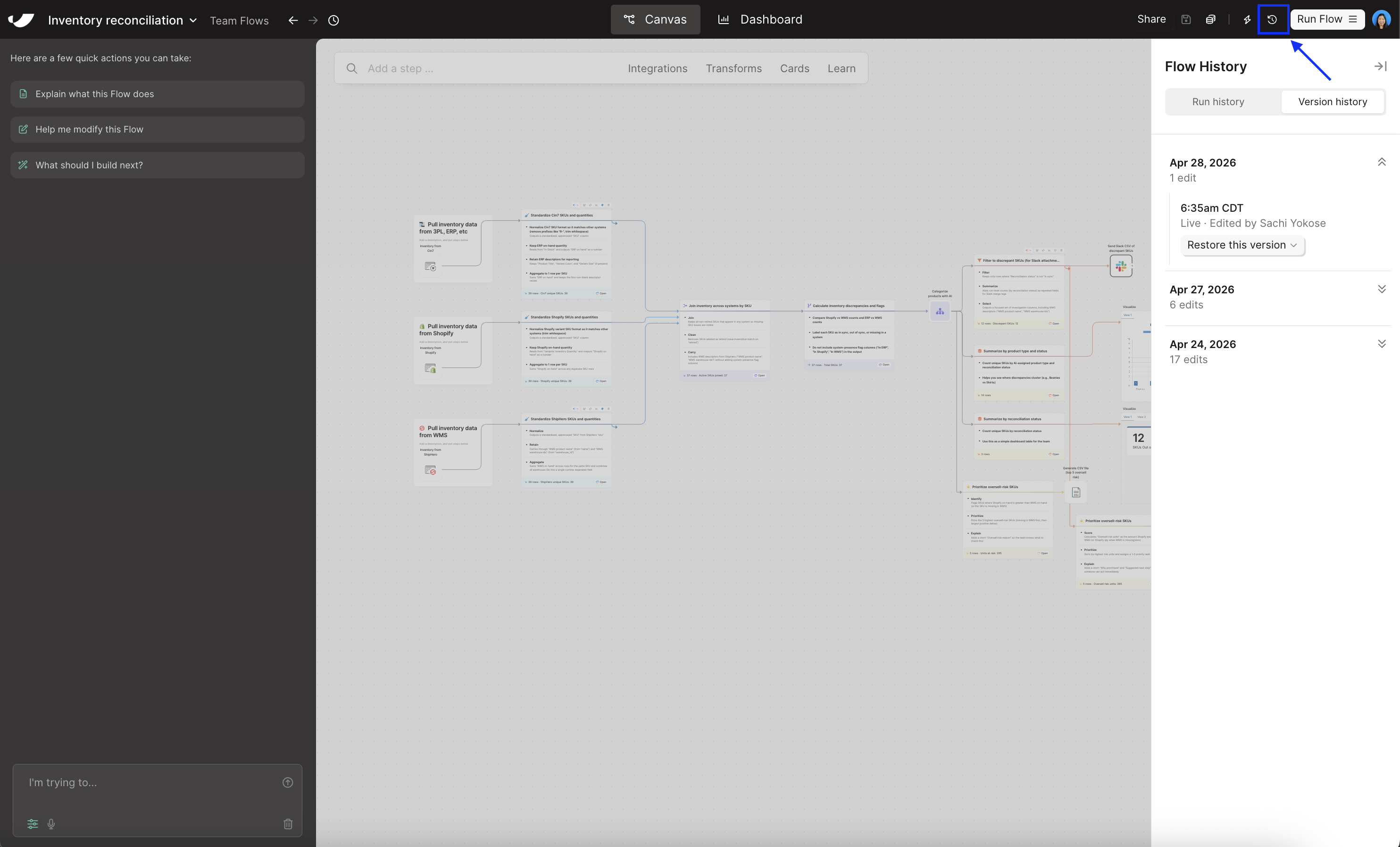 Each version entry includes:
* The name of the user who made the changes
* The timestamp of the version
* Whether the changes were made on the live or draft version of the flow
* A note if the version was restored from an earlier one
Versions are coalesced into 5-minute chunks to keep the timeline easy to scan. So if you make a series of edits over a short period, those will roll up into a single entry rather than cluttering your history with every individual save.
By default, we load 50 versions at a time. To see older versions, click **Load more** at the bottom of the panel.
## Restoring a previous version
When you find a version you'd like to restore, click the dropdown below it. The available actions depend on whether you're working in the live or draft version of the flow.
**From the live version of a flow, you can:**
* **Restore this version** — Overwrites the live version of your flow with the content from the selected version.
* **Restore/replace as draft** — Writes the content from the selected version to a new draft, or replaces your existing draft if you have one.
* **Restore in a new flow** — Creates a brand new flow with the content from the selected version. You'll be redirected to the new flow once it's created, and you'll be set as the owner.
**From a draft version of a flow, you can:**
* **Restore as draft / Replace draft** — Writes the content from the selected version to a new draft, or replaces your existing draft if you have one.
* **Restore in a new flow** — Creates a brand new flow with the content from the selected version. You'll be redirected to the new flow once it's created, and you'll be set as the owner.
When you restore a version, it becomes a new entry at the top of your version history and includes a reference to the version it was restored from. The original version stays where it was in the timeline — nothing is overwritten or deleted.
If you change your mind right after restoring, you can use **⌘/Ctrl + Z** to undo and revert back to the version you were just working on.
## Permissions
* **Editors, content admins, and org admins** can view version history and restore any version.
* **Viewers** can see the version history, but restore actions are disabled.
## Retention
The current version of a live or draft flow is retained for the life of the flow. Once a version is superseded by a newer one, the prior version is retained for up to 30 days before being deleted.
## FAQs
Their name stays on any version entries they created. Version history is part of your organization's audit trail, so we preserve attribution even after a user is removed — similar to how Notion, Figma, and other tools handle this.
Most changes that happen on the canvas create a snapshot — adding new steps, moving steps around, or modifying a card, to name a few. To keep your version history readable, we coalesce activity within a 5-minute window into a single entry.
Yes. If you restore a version and immediately realize you'd rather not have, you can undo to revert to where you were. Note that undo history clears on page refresh, so don't refresh between restoring and undoing.
Yes. We capture versions for both, so you can restore from a draft state as well as a published one.
Not directly from the UI yet. If you need to recover content from a deleted flow, reach out to [help@parabola.io](mailto:help@parabola.io) and we can help. If this is something you'd like to do yourself, let us know — we're tracking interest in this as a future enhancement!
We capture those snapshots and display them in version history the same way we do for changes made by a person editing the canvas directly. The user interacting with the AI chat is the one attributed to the snapshot.
For some existing customers, we backfilled versions that existed before this feature was released. Those backfilled versions don't include user attribution because that information wasn't being captured previously. Any version created after the feature was turned on for your organization will include the editor's name.
Each version entry includes:
* The name of the user who made the changes
* The timestamp of the version
* Whether the changes were made on the live or draft version of the flow
* A note if the version was restored from an earlier one
Versions are coalesced into 5-minute chunks to keep the timeline easy to scan. So if you make a series of edits over a short period, those will roll up into a single entry rather than cluttering your history with every individual save.
By default, we load 50 versions at a time. To see older versions, click **Load more** at the bottom of the panel.
## Restoring a previous version
When you find a version you'd like to restore, click the dropdown below it. The available actions depend on whether you're working in the live or draft version of the flow.
**From the live version of a flow, you can:**
* **Restore this version** — Overwrites the live version of your flow with the content from the selected version.
* **Restore/replace as draft** — Writes the content from the selected version to a new draft, or replaces your existing draft if you have one.
* **Restore in a new flow** — Creates a brand new flow with the content from the selected version. You'll be redirected to the new flow once it's created, and you'll be set as the owner.
**From a draft version of a flow, you can:**
* **Restore as draft / Replace draft** — Writes the content from the selected version to a new draft, or replaces your existing draft if you have one.
* **Restore in a new flow** — Creates a brand new flow with the content from the selected version. You'll be redirected to the new flow once it's created, and you'll be set as the owner.
When you restore a version, it becomes a new entry at the top of your version history and includes a reference to the version it was restored from. The original version stays where it was in the timeline — nothing is overwritten or deleted.
If you change your mind right after restoring, you can use **⌘/Ctrl + Z** to undo and revert back to the version you were just working on.
## Permissions
* **Editors, content admins, and org admins** can view version history and restore any version.
* **Viewers** can see the version history, but restore actions are disabled.
## Retention
The current version of a live or draft flow is retained for the life of the flow. Once a version is superseded by a newer one, the prior version is retained for up to 30 days before being deleted.
## FAQs
Their name stays on any version entries they created. Version history is part of your organization's audit trail, so we preserve attribution even after a user is removed — similar to how Notion, Figma, and other tools handle this.
Most changes that happen on the canvas create a snapshot — adding new steps, moving steps around, or modifying a card, to name a few. To keep your version history readable, we coalesce activity within a 5-minute window into a single entry.
Yes. If you restore a version and immediately realize you'd rather not have, you can undo to revert to where you were. Note that undo history clears on page refresh, so don't refresh between restoring and undoing.
Yes. We capture versions for both, so you can restore from a draft state as well as a published one.
Not directly from the UI yet. If you need to recover content from a deleted flow, reach out to [help@parabola.io](mailto:help@parabola.io) and we can help. If this is something you'd like to do yourself, let us know — we're tracking interest in this as a future enhancement!
We capture those snapshots and display them in version history the same way we do for changes made by a person editing the canvas directly. The user interacting with the AI chat is the one attributed to the snapshot.
For some existing customers, we backfilled versions that existed before this feature was released. Those backfilled versions don't include user attribution because that information wasn't being captured previously. Any version created after the feature was turned on for your organization will include the editor's name.