> ## Documentation Index
> Fetch the complete documentation index at: https://parabola.io/docs/llms.txt
> Use this file to discover all available pages before exploring further.
# Parabola's CSV parser
> Pull data from CSV, TSV, and semicolon-delimited files into a Parabola flow, or generate a CSV at the end of a flow for download or email delivery.
CSV files are the most common way operations teams move tabular data between systems. Parabola has two steps for working with them: **Pull from CSV file** to pull a CSV into your flow, and **Generate CSV file** to export a CSV at the end of a flow. Both steps handle TSV and semicolon-delimited variants too.
## Pull from CSV file
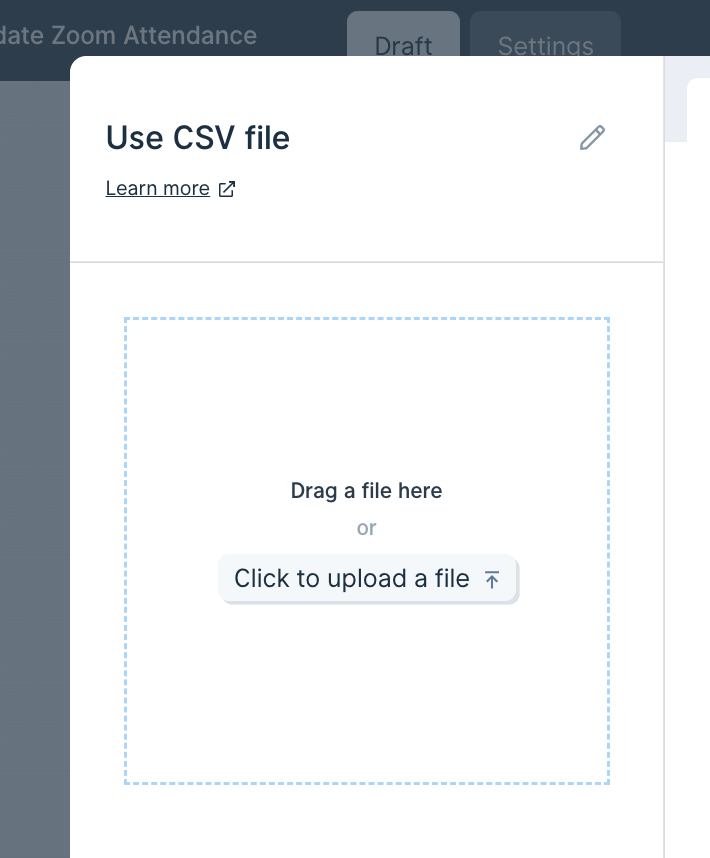
The **Pull from CSV file** step pulls tabular data from a CSV, TSV, or semicolon-delimited file you upload from your computer. Drop the file directly onto the canvas, or open the step and click "Click to upload a file."
### Configuration
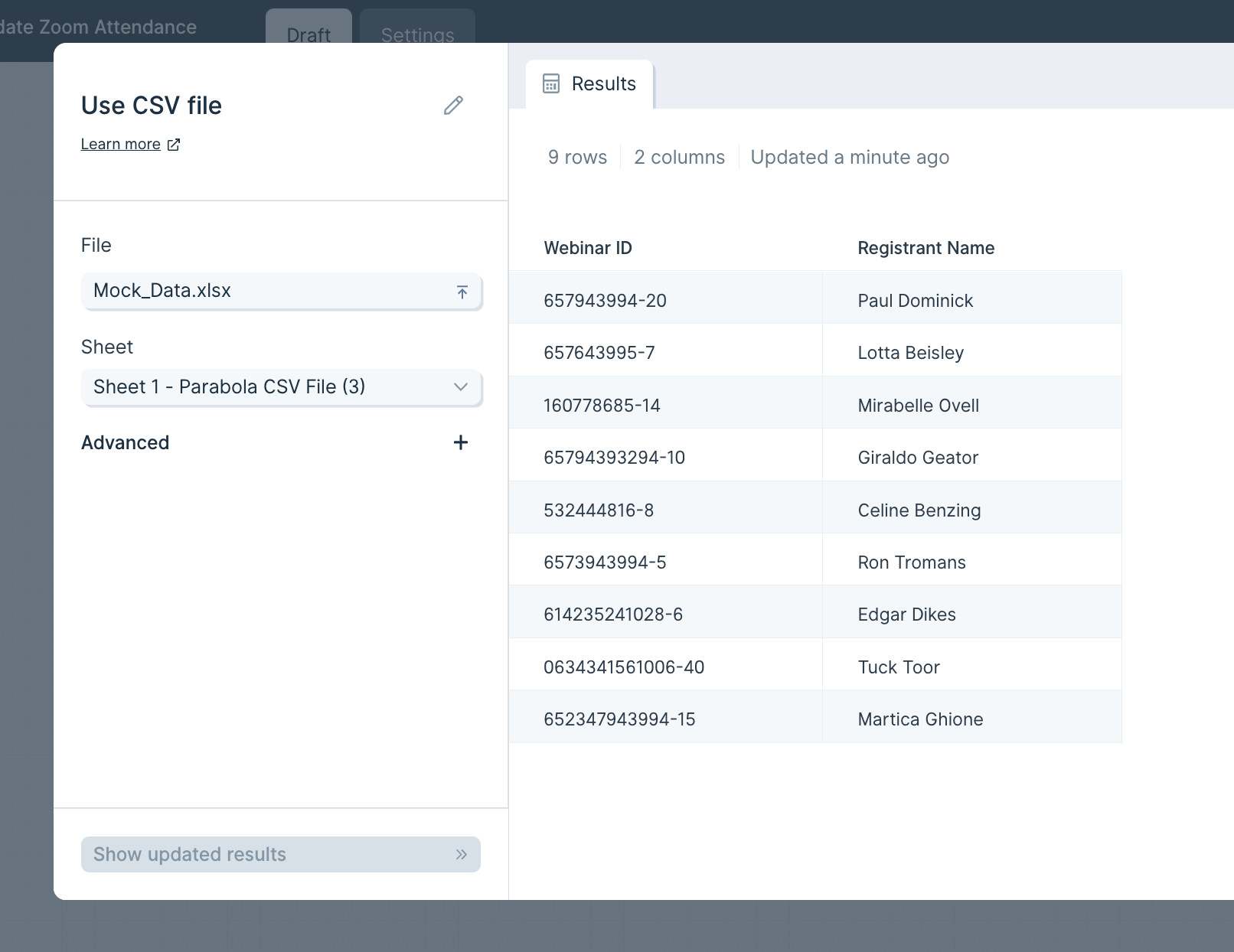
Once a file is uploaded, the Results tab shows your data and two settings appear on the left: **File** and **Delimiter**. Click **File** to swap in a different file at any time. Parabola defaults to a comma delimiter, but you can change it to tab (`\t`) or semicolon (`;`) from the dropdown.
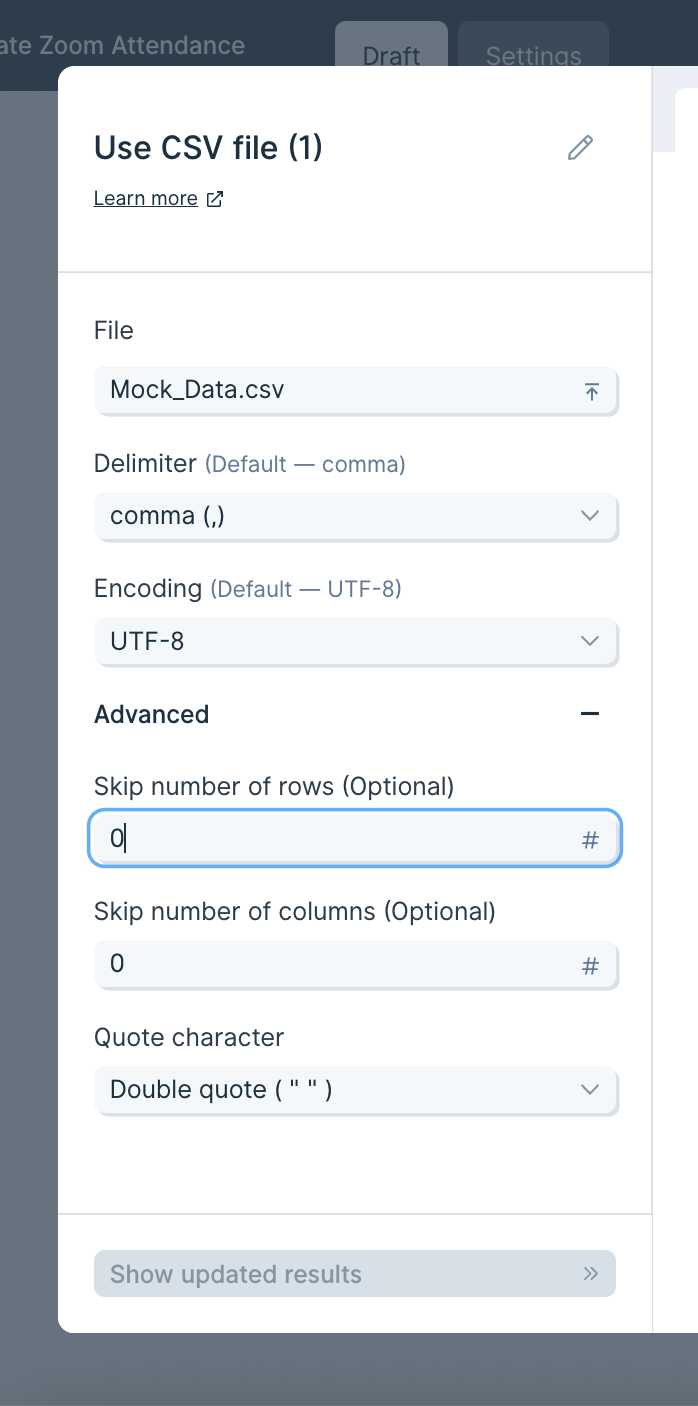
 In **Advanced Settings**, you can skip a number of rows or columns when importing (rows skip top-down, columns skip left-to-right). You can also set a **Quote Character** to keep cell values that contain commas from breaking the CSV structure.
 ### Helpful tips
* **Files don't auto-update.** Parabola can't pull updates from your computer automatically. If the original file changes, you need to re-upload it. To pull live updates on each run, use a step like Pull from SharePoint, OneDrive, or Google Drive instead.
* **Formulas and formatting are stripped.** On upload, formulas are converted to their values and any formatting is dropped.
* **Storage and security.** Uploaded files are stored in an Amazon S3 bucket so the data is still loaded the next time you open the flow. All connections use SSL and are encrypted.
## Generate CSV file
The **Generate CSV file** step exports the data flowing into it as a CSV at the end of a flow run. Once the flow runs, the file is available in the flow's Run History and can optionally be emailed as a download link to the flow owner.
### Configuration
Connect any step to **Generate CSV file** and the step shows a preview of the data that will be exported.
### Helpful tips
* **Files don't auto-update.** Parabola can't pull updates from your computer automatically. If the original file changes, you need to re-upload it. To pull live updates on each run, use a step like Pull from SharePoint, OneDrive, or Google Drive instead.
* **Formulas and formatting are stripped.** On upload, formulas are converted to their values and any formatting is dropped.
* **Storage and security.** Uploaded files are stored in an Amazon S3 bucket so the data is still loaded the next time you open the flow. All connections use SSL and are encrypted.
## Generate CSV file
The **Generate CSV file** step exports the data flowing into it as a CSV at the end of a flow run. Once the flow runs, the file is available in the flow's Run History and can optionally be emailed as a download link to the flow owner.
### Configuration
Connect any step to **Generate CSV file** and the step shows a preview of the data that will be exported.
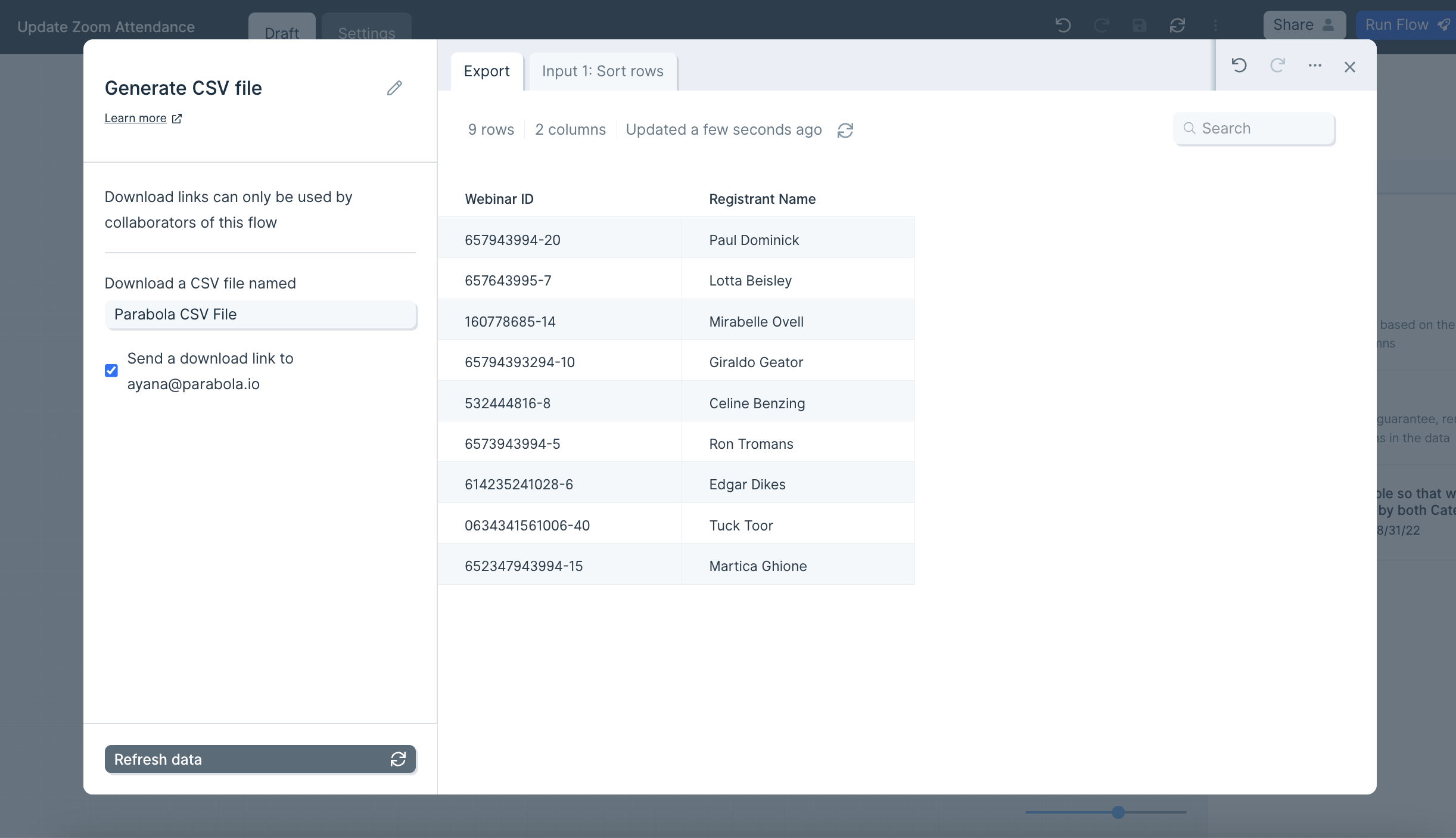 The generated file's name matches the step's title. Double-click the step title to rename it.
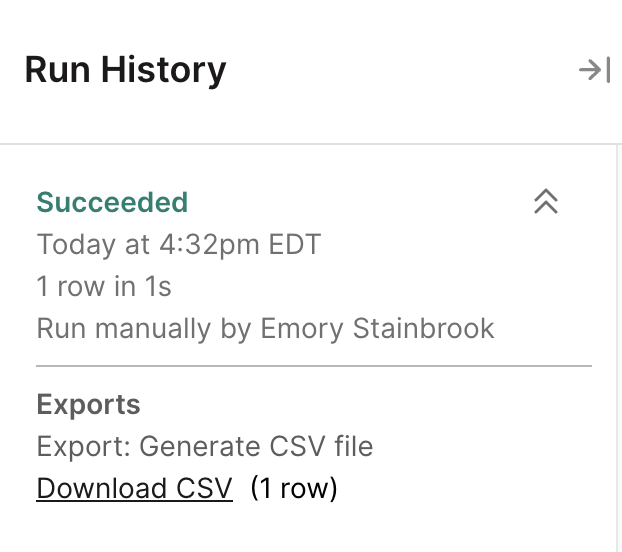
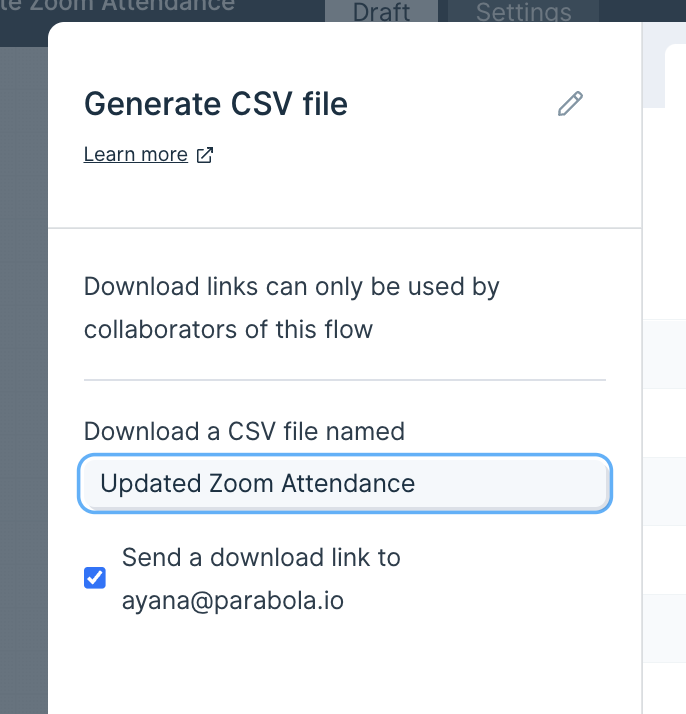 After publishing and running your flow, download the file from the **Run History** panel. Past runs of this step are kept there too. You can optionally email a download link to the flow owner — note that the link expires after 24 hours.
 ### Helpful tips
* **Zero-row runs do nothing.** If the input has no rows, no file is generated and no email is sent.
* **One input per step.** Each Generate CSV file step accepts a single input. To export multiple branches, add a separate Generate CSV file step for each one — or use **Generate Excel file**, which accepts multiple inputs and writes each to its own tab.
* **Files are stored in S3.** Generated files are saved in an Amazon S3 bucket so they reload the next time you open the flow. Connections use SSL and are encrypted.
## Related steps
* [Generate Excel file](/product/integration/excel-file) — for multi-tab exports or when recipients prefer XLSX
* [Email a file attachment](/product/integration/email-attachment) — to email a CSV directly to recipients
* [Send to Google Drive](/product/integration/google-drive) — to drop the file into a shared folder
* [Send to FTP](/product/integration/ftp) — for files that need to land on a partner's SFTP server
* [Filter rows](/product/transform/filter-rows) — to trim the dataset before export
* [Edit columns](/product/transform/edit-columns) — to control which fields end up in the CSV
### Helpful tips
* **Zero-row runs do nothing.** If the input has no rows, no file is generated and no email is sent.
* **One input per step.** Each Generate CSV file step accepts a single input. To export multiple branches, add a separate Generate CSV file step for each one — or use **Generate Excel file**, which accepts multiple inputs and writes each to its own tab.
* **Files are stored in S3.** Generated files are saved in an Amazon S3 bucket so they reload the next time you open the flow. Connections use SSL and are encrypted.
## Related steps
* [Generate Excel file](/product/integration/excel-file) — for multi-tab exports or when recipients prefer XLSX
* [Email a file attachment](/product/integration/email-attachment) — to email a CSV directly to recipients
* [Send to Google Drive](/product/integration/google-drive) — to drop the file into a shared folder
* [Send to FTP](/product/integration/ftp) — for files that need to land on a partner's SFTP server
* [Filter rows](/product/transform/filter-rows) — to trim the dataset before export
* [Edit columns](/product/transform/edit-columns) — to control which fields end up in the CSV