> ## Documentation Index
> Fetch the complete documentation index at: https://parabola.io/docs/llms.txt
> Use this file to discover all available pages before exploring further.
# Connect DHL to Parabola
> Enrich shipment tracking numbers with DHL Shipment Tracking API status, ETAs, and delivery details inside Parabola flows using a DHL Consumer Key.
## What is DHL?
DHL is a global logistics and shipping company that provides international and domestic delivery services for businesses and individuals. It specializes in express shipping, freight transportation, and supply chain management, with delivery service across more than 220 countries and territories. DHL is widely used by e-commerce businesses and enterprises for global shipping and fulfillment.
`This integration is currently in beta— additional functionality is available via API.`
## Enrich tracking from DHL
The **DHL Shipment Tracking API** is used to provide up-to-the-minute shipment status reports by retrieving tracking information for shipments, identifying DHL service providers, and verifying DHL delivery addresses.
DHL is a beta integration which requires a slightly more involved setup process than our native integrations. Following the guidance in this document should help even those without technical experience pull data from DHL. If you run into any questions, shoot our team an email at [support@parabola.io](mailto:support@parabola.io).
## Use Cases
| Use Case | Description |
| ------------------- | -------------------------------------------------------------------------------------------------------------------------------------------------- |
| Track DHL Shipments | Generate status reports by retrieving tracking information for shipments, identifying DHL service providers, and verifying DHL delivery addresses. |
## 🤝 DHL | Integration configuration
### **Instructions**
Click [My Apps](https://developer.dhl.com/user/apps) on the portal website.
Click the **+ Add App** button.
The "Add App" form appears.
Complete the Add App form.
You can select the APIs you want to access.
When you have completed the form, click the **Add App** button.
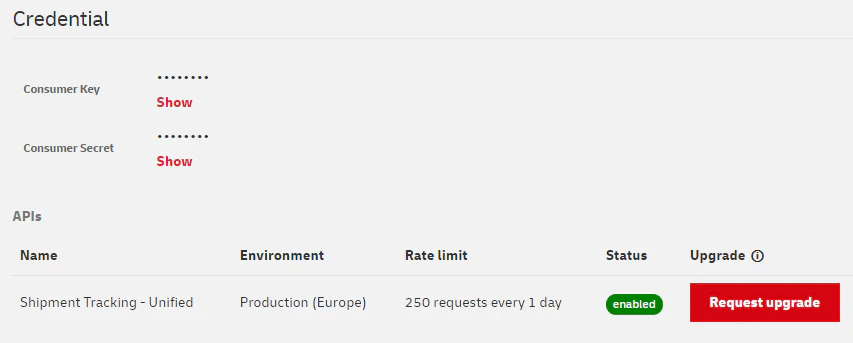
From the [My Apps](https://developer.dhl.com/user/apps) screen, click on the name of your app. The Details screen appears.
If you have access to more than one API, click the name of the relevant API.
**Note:** The APIs are listed under the **Credentials** section.
Click the **Show** link below the asterisk that is hiding the **Consumer Key**\*.\*
## 🔐 Parabola | Authentication configuration
Add an **Enrich tracking from DHL** step template to your canvas.
Click into the **Enrich with API: DHL Tracking** step to configure your authentication.
Under the Authentication Type, select **None**.
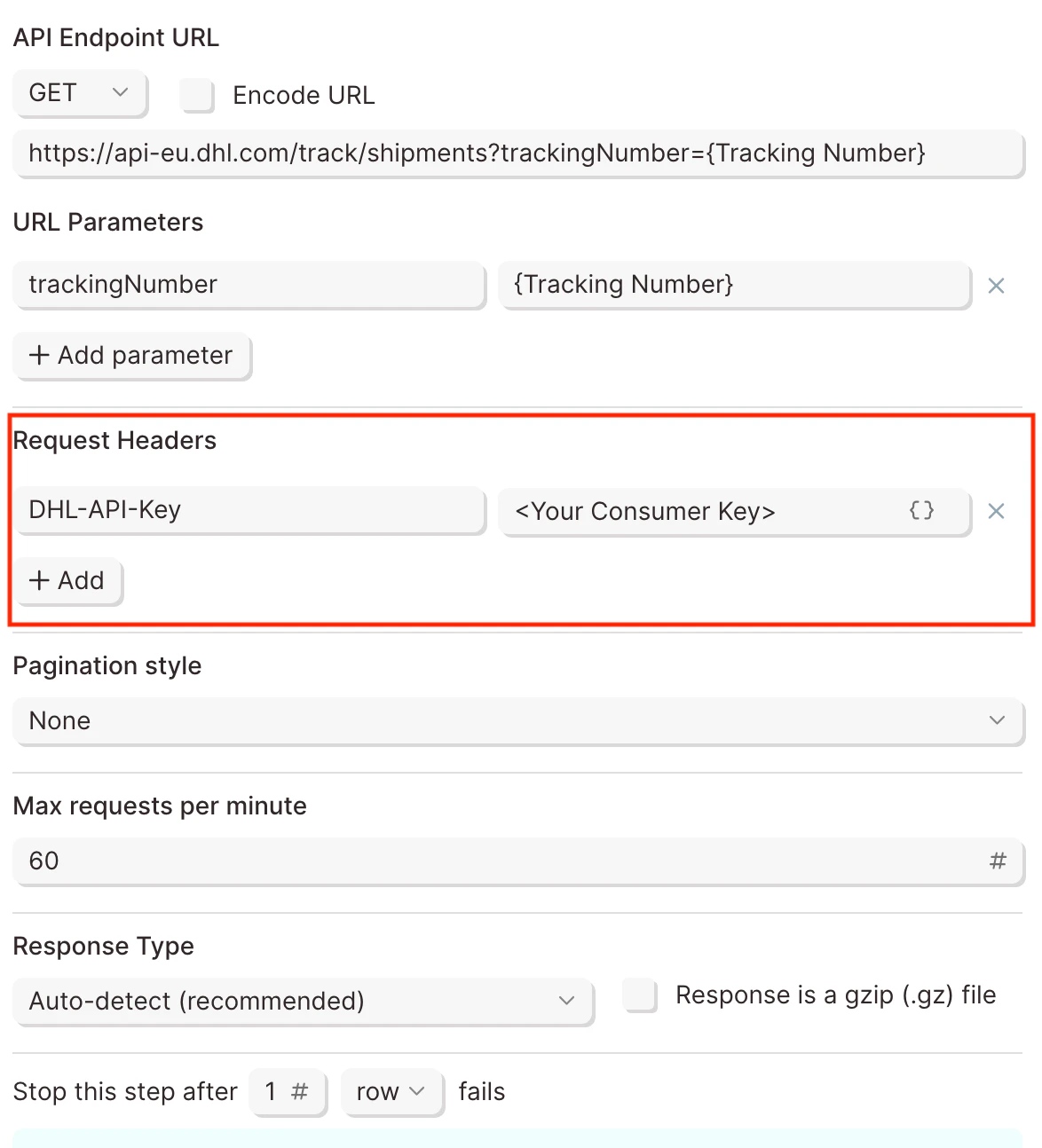
Click into the **Request Settings** to configure your request using the format below:
### **Request Headers**
| Header Key | Header Value |
| ------------- | --------------- |
| `DHL-API-Key` | `Consumer Key>` |
### **Example Screenshot**
 ## 🌐 DHL | Sample API Requests
### **Track DHL Shipment Statuses by tracking number**
Get started with [this template](https://parabola.io/api/clipboard/3a782f2a-7044-49ad-af2b-04abf38dd618/copy_to_flow?name=Track+DHL+shipment+statuses+by+tracking+number).
**Test URL**
`https://api-test.dhl.com/track/`
**Production URL**
`https://api-eu.dhl.com/track/`
Add a **Use sample data** step to your flow. You can also import a dataset with tracking numbers into your flow. (Pull from Excel File, Pull from Google Drive, Pull from API, Use [sample data](/product/integration/sample-data), etc.)
**Tip:**
When using your own data, use the [Edit columns](/product/transform/edit-columns) step to rename the tracking column in your source data to **Tracking Number**.
Connect it to the **Enrich with API: DHL Tracking** step.
Under **Authentication Type**, select **None.**
Click into the **Request Settings** to configure your request using the format below:
### **API Endpoint URL**
| Field | Value |
| ------------------ | ------------------------------------------------------------------------- |
| `Method` | `GET` |
| `API Endpoint URL` | `https://api-eu.dhl.com/track/shipments?trackingNumber={Tracking Number}` |
**Tip:** The **Enrich with API** step makes dynamic requests for each row in the table by inserting the tracking number in the **API Endpoint URL**.
The example above assumes, there is a **Tracking Number** column and is referenced using curly brackets: *`{Tracking Number}`*\
Enclose your column header containing tracking numbers with curly brackets to dynamically reference the tracking numbers in your table.
### **Request Headers**
| Header Key | Header Value |
| ------------- | --------------- |
| `DHL-API-Key` | `Consumer Key>` |
Click **Refresh data** to display the results.
### **Example Screenshot**
## 🌐 DHL | Sample API Requests
### **Track DHL Shipment Statuses by tracking number**
Get started with [this template](https://parabola.io/api/clipboard/3a782f2a-7044-49ad-af2b-04abf38dd618/copy_to_flow?name=Track+DHL+shipment+statuses+by+tracking+number).
**Test URL**
`https://api-test.dhl.com/track/`
**Production URL**
`https://api-eu.dhl.com/track/`
Add a **Use sample data** step to your flow. You can also import a dataset with tracking numbers into your flow. (Pull from Excel File, Pull from Google Drive, Pull from API, Use [sample data](/product/integration/sample-data), etc.)
**Tip:**
When using your own data, use the [Edit columns](/product/transform/edit-columns) step to rename the tracking column in your source data to **Tracking Number**.
Connect it to the **Enrich with API: DHL Tracking** step.
Under **Authentication Type**, select **None.**
Click into the **Request Settings** to configure your request using the format below:
### **API Endpoint URL**
| Field | Value |
| ------------------ | ------------------------------------------------------------------------- |
| `Method` | `GET` |
| `API Endpoint URL` | `https://api-eu.dhl.com/track/shipments?trackingNumber={Tracking Number}` |
**Tip:** The **Enrich with API** step makes dynamic requests for each row in the table by inserting the tracking number in the **API Endpoint URL**.
The example above assumes, there is a **Tracking Number** column and is referenced using curly brackets: *`{Tracking Number}`*\
Enclose your column header containing tracking numbers with curly brackets to dynamically reference the tracking numbers in your table.
### **Request Headers**
| Header Key | Header Value |
| ------------- | --------------- |
| `DHL-API-Key` | `Consumer Key>` |
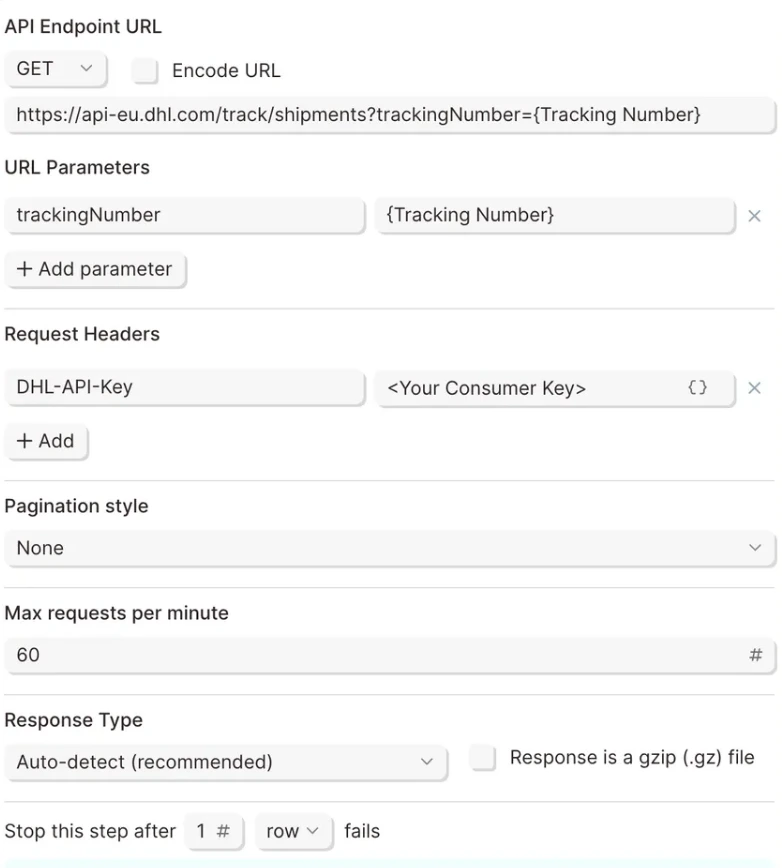
Click **Refresh data** to display the results.
### **Example Screenshot**
 ## 📣 Callouts
**Note:** Rate limits protect the DHL infrastructure from suspicious requests that exceed defined thresholds.
When you first request access to the API, you will get the initial service level which allows **250 calls per day** with a maximum of **1 call every 5 seconds**.
Additional rate limits are available and they are granted according to your specific use case. If you would like to request for additional limits, please proceed with the following steps:
Create an app as described under the [Get Access](https://developer.dhl.com/api-reference/shipment-tracking#get-started-section/user-guide%25get-access) section.
Click [My Apps](https://developer.dhl.com/user/apps) on the portal website.
Click on the App you created.
Scroll down to the APIs list and click on the "Request Upgrade" button.
## 📣 Callouts
**Note:** Rate limits protect the DHL infrastructure from suspicious requests that exceed defined thresholds.
When you first request access to the API, you will get the initial service level which allows **250 calls per day** with a maximum of **1 call every 5 seconds**.
Additional rate limits are available and they are granted according to your specific use case. If you would like to request for additional limits, please proceed with the following steps:
Create an app as described under the [Get Access](https://developer.dhl.com/api-reference/shipment-tracking#get-started-section/user-guide%25get-access) section.
Click [My Apps](https://developer.dhl.com/user/apps) on the portal website.
Click on the App you created.
Scroll down to the APIs list and click on the "Request Upgrade" button.