> ## Documentation Index
> Fetch the complete documentation index at: https://parabola.io/docs/llms.txt
> Use this file to discover all available pages before exploring further.
# Excel file steps
> Pull tabular data from an Excel workbook into a Parabola flow, or export your flow's output as a multi-sheet Excel file for download or email delivery.
Excel files are everywhere in finance, ops, and merchandising workflows. Parabola has two steps for handling them: **Pull from Excel file** to pull a workbook into your flow, and **Generate Excel file** to export your flow's output as a multi-sheet XLSX.
## Pull from Excel file
The **Pull from Excel file** step pulls tabular data from a single sheet in an Excel workbook you upload.
### Configuration
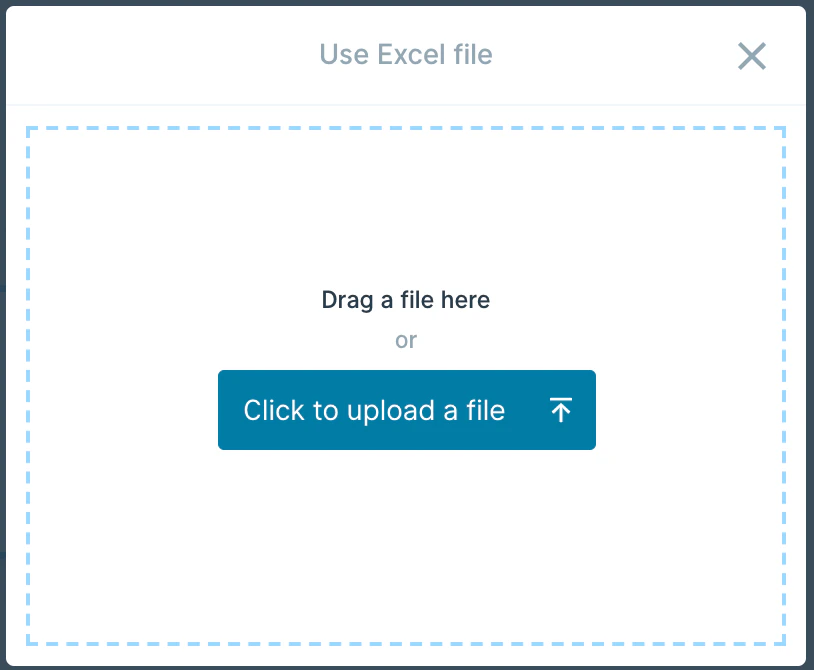
Click `Click to upload a file` (or drag a file onto the canvas).
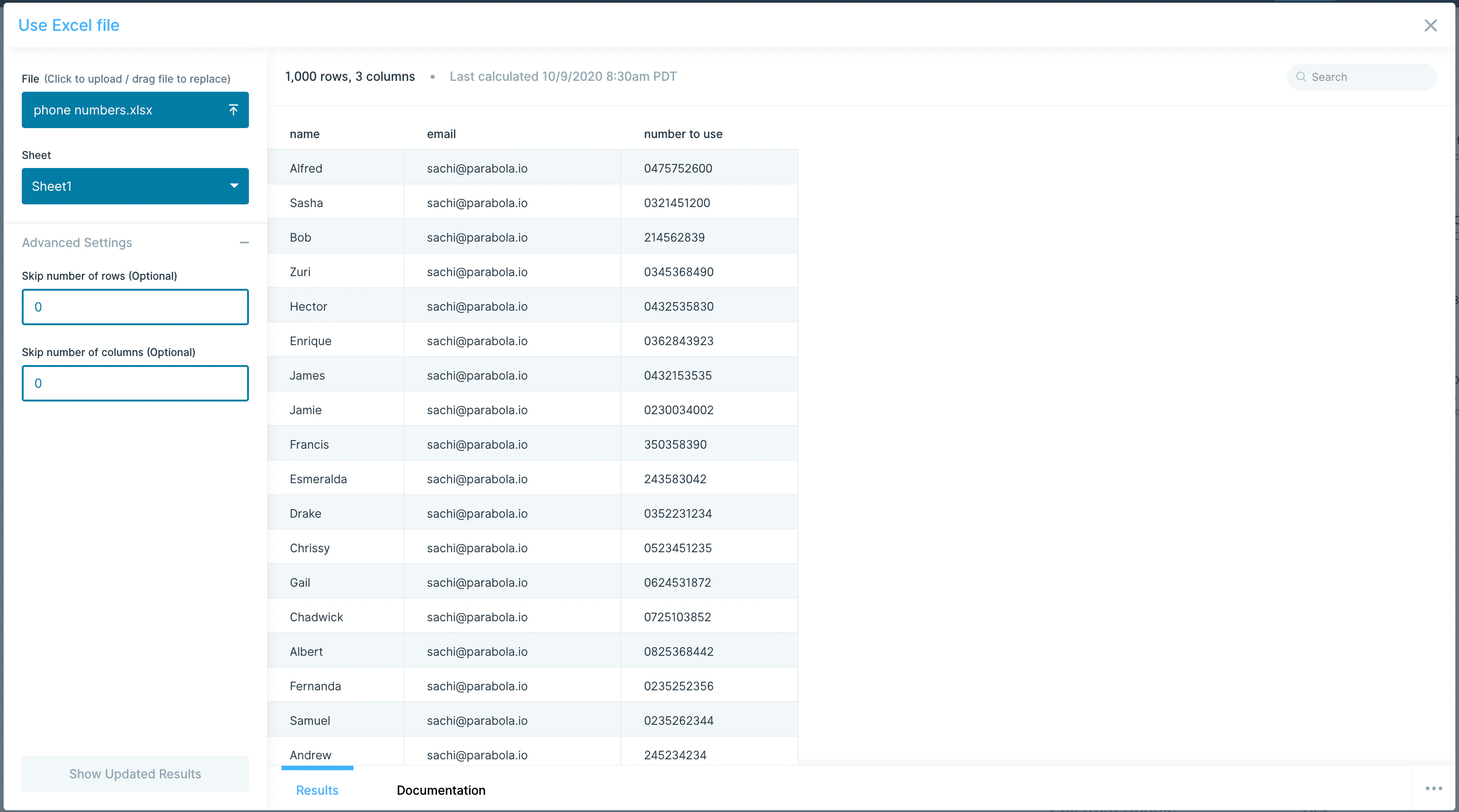
 If your workbook has multiple sheets, choose the one you want from the **Sheet** dropdown. In **Advanced Settings**, you can skip a number of rows or columns when importing — rows skip top-down, columns skip left-to-right.
 By default, cells are imported as **formatted values**, so dates, numbers, and currency render the way they appear in Excel.
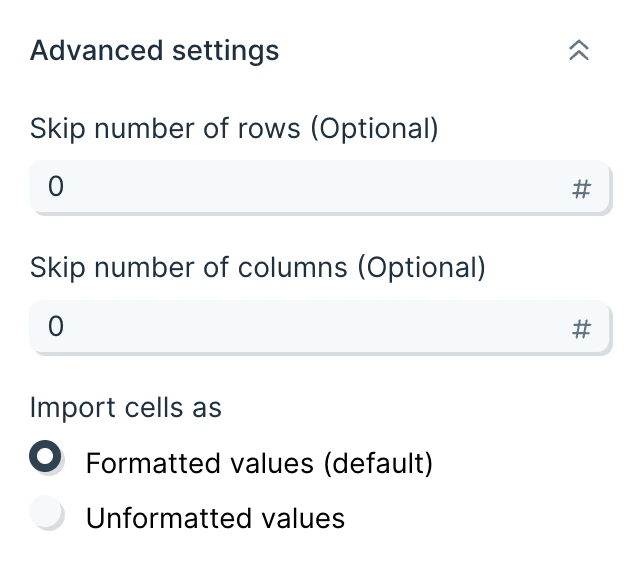 Enable **unformatted values** to import the raw underlying data instead. This shows numbers without rounding and converts dates to Excel's native serial format (the number of days since 1900-01-01).
### Helpful tips
* **Files don't auto-update.** If you change the original file on your computer, re-upload it. For live updates on each run, use Pull from SharePoint, OneDrive, or Google Drive.
* **Formulas and formatting are stripped on upload.** All formulas are converted to their values; cell formatting is dropped.
* **Storage and security.** Uploaded files are stored in an Amazon S3 bucket. Connections use SSL and are encrypted.
## Generate Excel file
The **Generate Excel file** step exports the data flowing into it as an `.xlsx` file. It can take multiple inputs — one per sheet — and the file is delivered to the flow owner's email address as a download link.
### Configuration
Connect a step to **Generate Excel file** and a preview of the output appears.
Enable **unformatted values** to import the raw underlying data instead. This shows numbers without rounding and converts dates to Excel's native serial format (the number of days since 1900-01-01).
### Helpful tips
* **Files don't auto-update.** If you change the original file on your computer, re-upload it. For live updates on each run, use Pull from SharePoint, OneDrive, or Google Drive.
* **Formulas and formatting are stripped on upload.** All formulas are converted to their values; cell formatting is dropped.
* **Storage and security.** Uploaded files are stored in an Amazon S3 bucket. Connections use SSL and are encrypted.
## Generate Excel file
The **Generate Excel file** step exports the data flowing into it as an `.xlsx` file. It can take multiple inputs — one per sheet — and the file is delivered to the flow owner's email address as a download link.
### Configuration
Connect a step to **Generate Excel file** and a preview of the output appears.
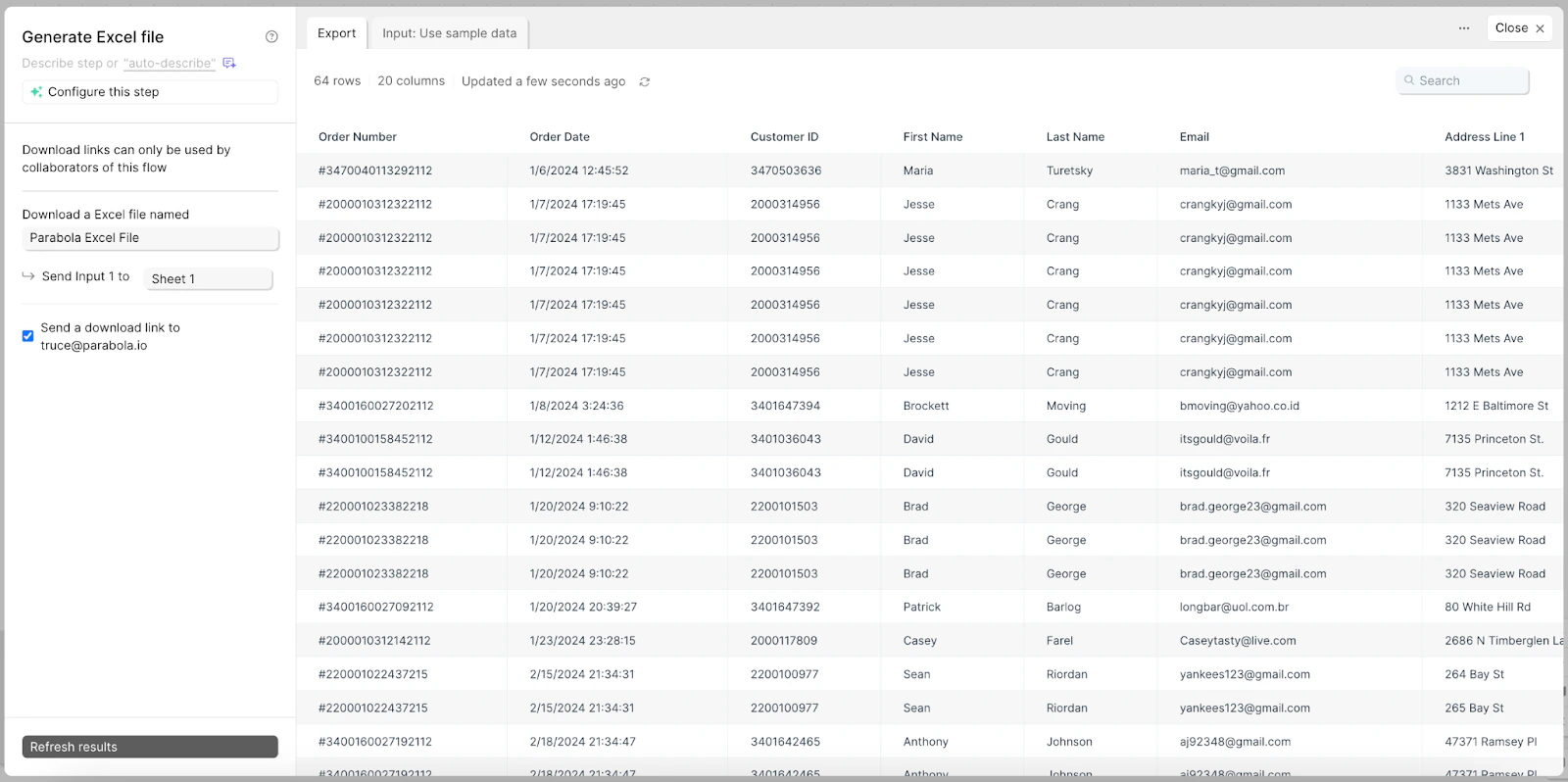 The default file name is `Parabola Excel File`. To rename it, type a new name in the box under "Download an Excel file named."
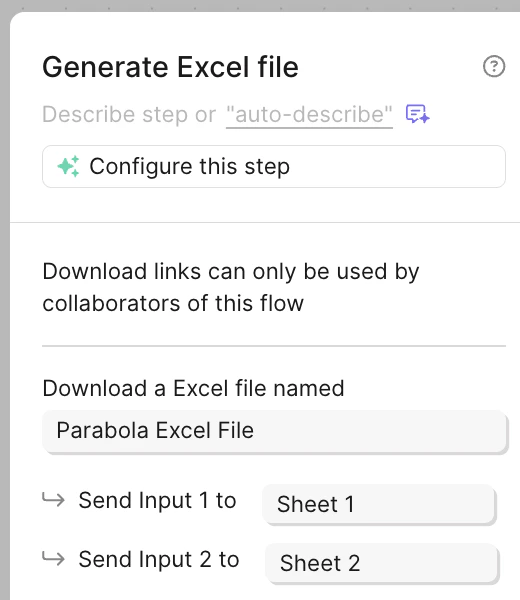 The step accepts multiple inputs. Each input writes to a separate sheet — Input 1 maps to Sheet 1, Input 2 to Sheet 2, and so on. Sheet names can be customized in the step settings. Use the input tabs at the top of the step to confirm each input is going where you expect.
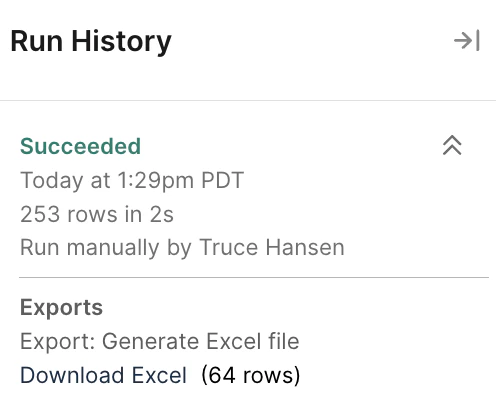
After publishing and running the flow, the email download link is valid for 24 hours. You can also download past Excel files from the **Run History** panel by clicking `Download Excel`.
The step accepts multiple inputs. Each input writes to a separate sheet — Input 1 maps to Sheet 1, Input 2 to Sheet 2, and so on. Sheet names can be customized in the step settings. Use the input tabs at the top of the step to confirm each input is going where you expect.
After publishing and running the flow, the email download link is valid for 24 hours. You can also download past Excel files from the **Run History** panel by clicking `Download Excel`.
 ### Helpful tips
* **Sheet names are limited to 31 characters.** Longer names cause the flow to fail. This is an Excel format constraint, not a Parabola one.
* **Zero rows means no email.** If the input has no rows, no file is sent.
* **Multi-tab beats multi-file.** When you need to send several related datasets to the same recipient, use one Generate Excel file step with multiple inputs instead of multiple Generate CSV file steps.
* **Files are stored in S3.** Generated files persist in an Amazon S3 bucket so they reload when you open the flow. Connections use SSL and are encrypted.
## Related steps
* [Generate CSV file](/product/integration/csv-file) — for single-table exports or when recipients need a CSV
* [Email a file attachment](/product/integration/email-attachment) — to send the file directly to a recipient list
* [Send to Google Drive](/product/integration/google-drive) — to write the file to a shared folder
* [Send to SharePoint](/product/integration/microsoft-sharepoint) — for SharePoint-based workflows
* [Stack tables](/product/transform/combine-tables) — to merge inputs before export when you want one sheet instead of many
### Helpful tips
* **Sheet names are limited to 31 characters.** Longer names cause the flow to fail. This is an Excel format constraint, not a Parabola one.
* **Zero rows means no email.** If the input has no rows, no file is sent.
* **Multi-tab beats multi-file.** When you need to send several related datasets to the same recipient, use one Generate Excel file step with multiple inputs instead of multiple Generate CSV file steps.
* **Files are stored in S3.** Generated files persist in an Amazon S3 bucket so they reload when you open the flow. Connections use SSL and are encrypted.
## Related steps
* [Generate CSV file](/product/integration/csv-file) — for single-table exports or when recipients need a CSV
* [Email a file attachment](/product/integration/email-attachment) — to send the file directly to a recipient list
* [Send to Google Drive](/product/integration/google-drive) — to write the file to a shared folder
* [Send to SharePoint](/product/integration/microsoft-sharepoint) — for SharePoint-based workflows
* [Stack tables](/product/transform/combine-tables) — to merge inputs before export when you want one sheet instead of many