> ## Documentation Index
> Fetch the complete documentation index at: https://parabola.io/docs/llms.txt
> Use this file to discover all available pages before exploring further.
# Connect FedEx to Parabola
> Pull FedEx tracking events, shipment statuses, and delivery details into Parabola to automate scorecarding, billing audits, and customer-facing alerts.
[FedEx](https://www.fedex.com/en-us/home.html) is a global parcel and freight carrier used by retailers, e-commerce brands, and enterprise shippers to move packages domestically and internationally. Connecting FedEx to Parabola lets ops, customer-service, and finance teams pull live tracking and shipment data into the same flows used for fulfillment dashboards, carrier billing audits, and delivery-exception alerts, without writing code.
## Pull from FedEx
The **Pull from FedEx** step retrieves tracking and shipment data from the FedEx Web Services API. It's a beta step pre-configured to authenticate with FedEx Client Credentials and return parsed event data ready for downstream transforms.
## How to authenticate
FedEx uses OAuth 2.0 client credentials.
Create an application in the FedEx Developer Portal to get your **Client ID** and **Client Secret** (full instructions below).
In Parabola, open the **Pull from FedEx** step and click **Authorize**. Enter your FedEx Client ID and Client Secret. If your account uses parent/child credentials, you can also enter a Child Key and Child Secret.
Parabola securely stores your credentials and uses them to authenticate each request.
## Creating an application in the FedEx Developer Portal
Go to the [FedEx Developer Portal](https://developer.fedex.com/api/en-us/home.html).
Click **Login** to access your FedEx account.
In the side menu, select **My Projects**.
Click **+ CREATE API PROJECT**.
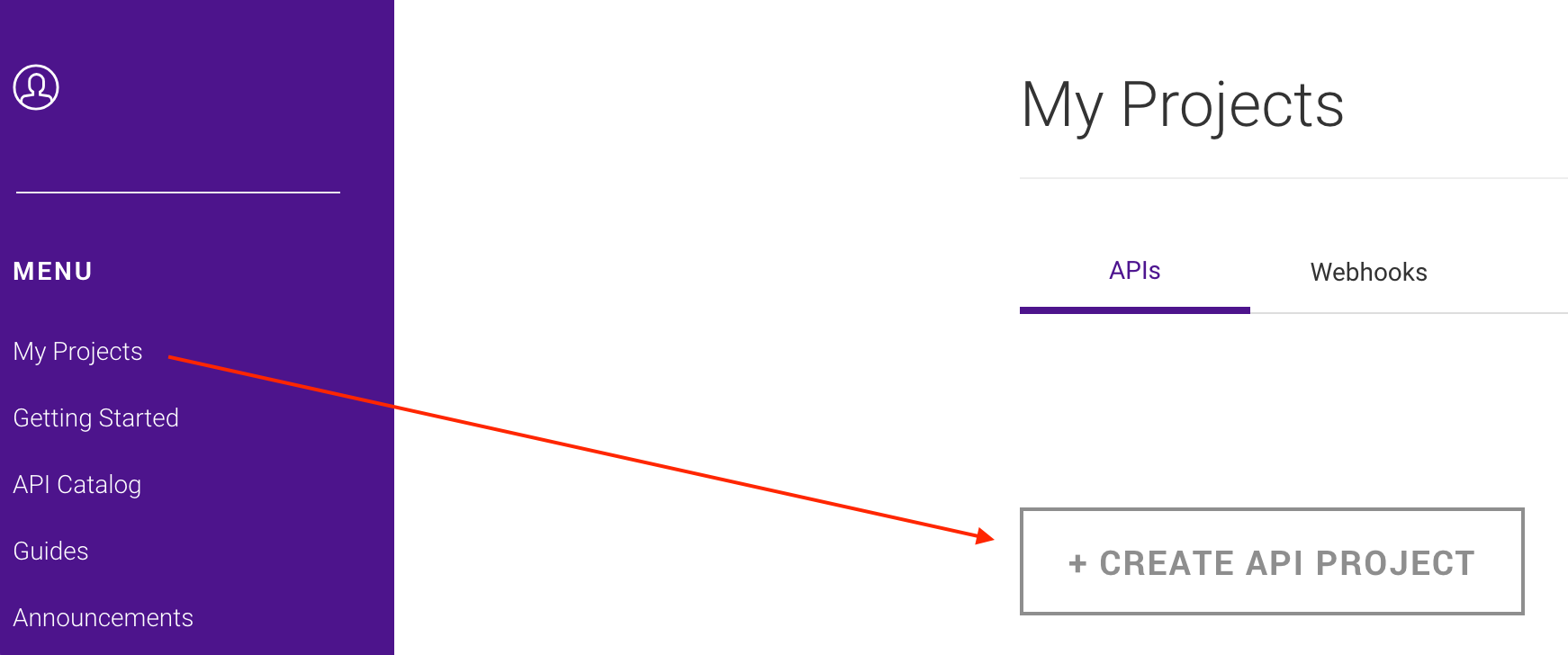 Complete the modal by selecting the option that best identifies your business needs for integrating with FedEx APIs.
Go to the **Select API(s)** tab.
Select the API(s) you want included in your project. Some APIs require additional selections.
Complete the modal by selecting the option that best identifies your business needs for integrating with FedEx APIs.
Go to the **Select API(s)** tab.
Select the API(s) you want included in your project. Some APIs require additional selections.
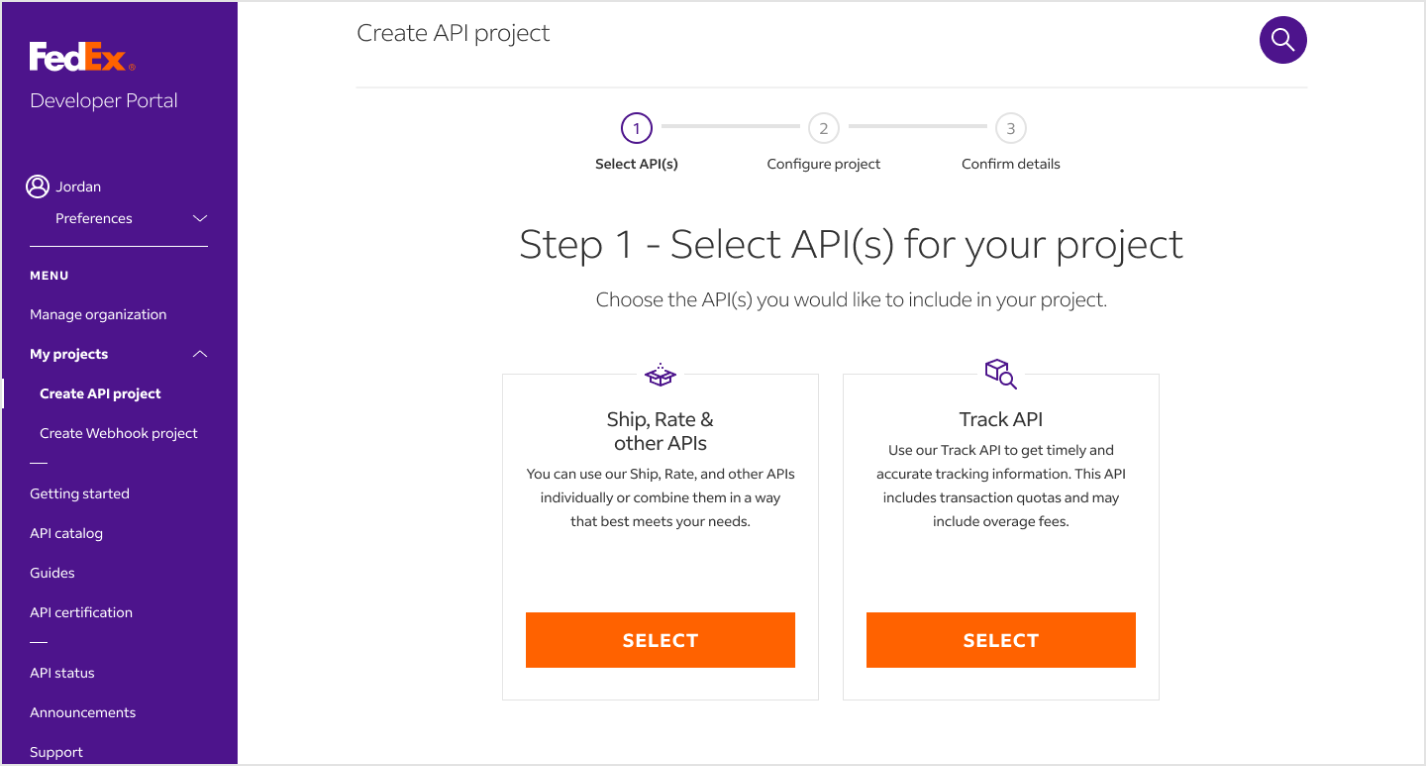 **Note:** If you select Track API, complete the additional steps below:
Select an account number to associate with your production key.
Review the Track API quotas, rate limits, and certification details.
Choose whether you want to opt in to emails that notify you if you exceed your quota.
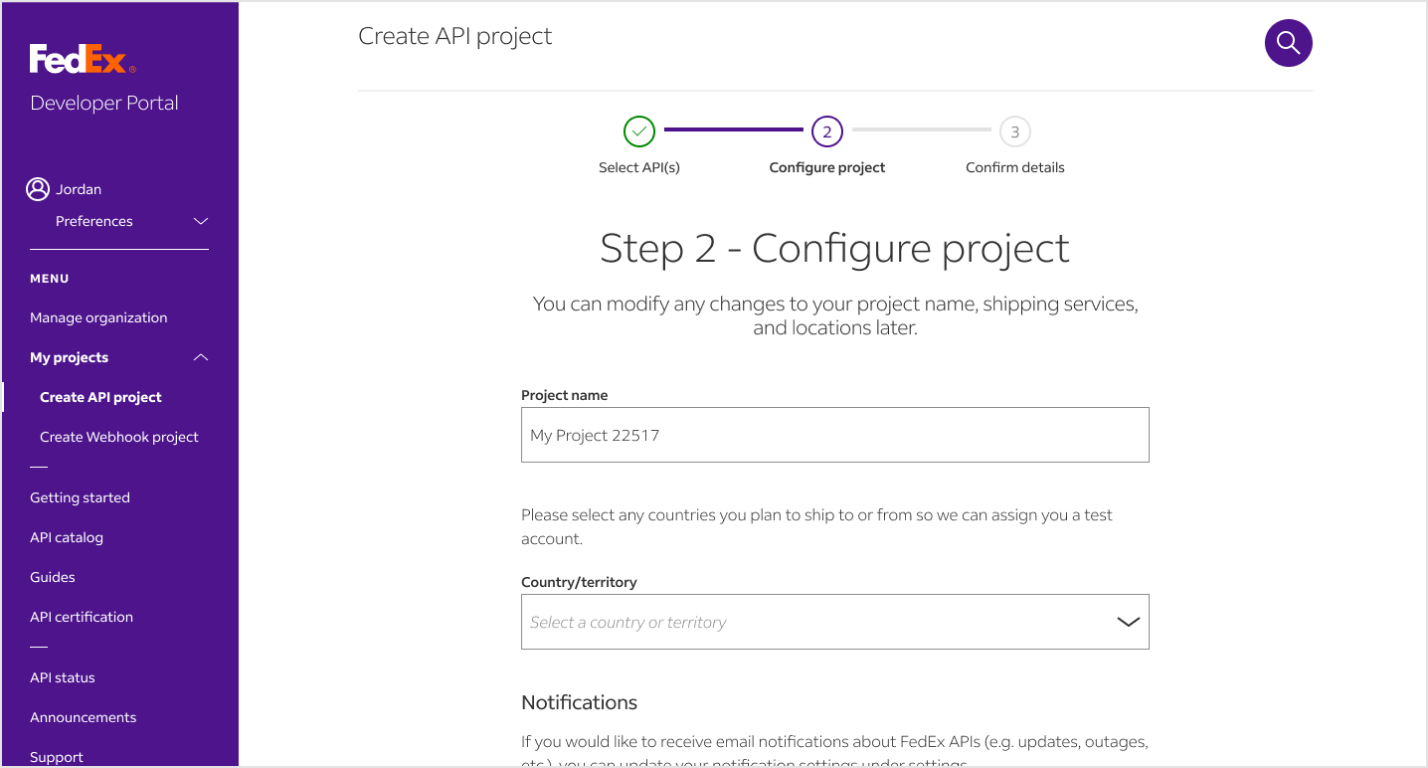
Go to the **Configure project** tab.
Configure your project settings with name, shipping location, and notification preferences.
**Note:** If you select Track API, complete the additional steps below:
Select an account number to associate with your production key.
Review the Track API quotas, rate limits, and certification details.
Choose whether you want to opt in to emails that notify you if you exceed your quota.
Go to the **Configure project** tab.
Configure your project settings with name, shipping location, and notification preferences.
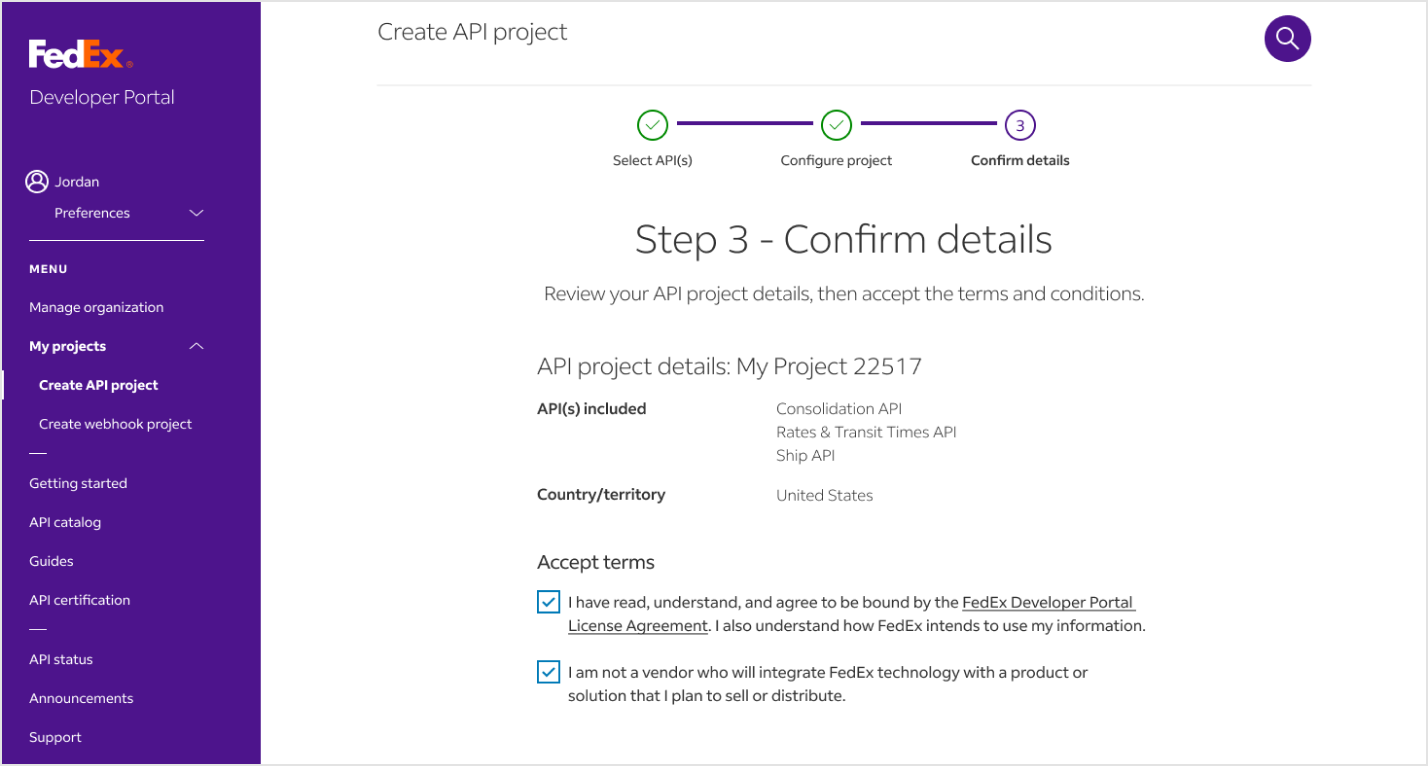
 Go to the **Confirm details** tab.
Review your project details, then accept the terms and conditions.
Go to the **Confirm details** tab.
Review your project details, then accept the terms and conditions.
 On the Project overview page, retrieve your **Client ID** and **Client Secret**.
Use **Production Keys** to connect to live production data in Parabola. Use **Test Keys** to review request and response formats from the documentation.
## Available data
Using the Pull from FedEx step, you can bring in:
* **Shipment tracking details**: Tracking numbers, carrier codes, and shipment identifiers.
* **Shipment events and scan history**: Time-stamped location scans, event types, and delivery milestones.
* **Package details**: Weight, dimensions, package counts, and service descriptions.
* **Origin and destination data**: Full address information including city, state, postal code, and country.
* **Status information**: Current status codes and descriptions such as "In Transit," "Delivered," or "Exception."
* **Associated shipments**: Multi-piece shipment data linked to a master tracking number.
* **Reference-based tracking**: Shipments tied to PO numbers, invoices, or customer references.
## Common use cases
* **Monitor delivery performance across regions and carriers**: Combine FedEx tracking with [UPS](/product/integration/ups), [DHL](/product/integration/dhl), and [EasyPost](/product/integration/easypost) data to build a single carrier scorecard for ops and customer service.
* **Reconcile proof-of-delivery against orders and invoices**: Join FedEx tracking events with order data from [Shopify](/product/integration/shopify), [Amazon Seller Central](/product/integration/amazon-seller-central), or [NetSuite](/product/integration/netsuite) to confirm delivery before posting revenue.
* **Trigger exception alerts to customer service**: Filter for stuck or failed shipments and send [Slack](/product/integration/slack) messages or emails when a shipment misses its expected delivery window.
* **Consolidate tracking from multiple warehouses or 3PLs**: Combine FedEx data with shipment records from [ShipBob](/product/integration/shipbob), [ShipStation](/product/integration/shipstation), or [Fulfil](/product/integration/fulfil) for a unified fulfillment dashboard.
* **Audit carrier invoices**: Compare FedEx billed weights and zones against actual delivery data to flag discrepancies before paying invoices.
* **Export delivery dashboards**: Push reconciled tracking data to [Google Drive](/product/integration/google-drive) or a [Smartsheet](/product/integration/smartsheet) so finance and operations work from the same numbers.
## Tips for using Parabola with FedEx
* **Use Production Keys for live data.** Test keys return mocked responses useful for building flows but not for real reporting.
* **Filter for stuck shipments.** Use a [Filter rows](/product/transform/filter-rows) step to flag any shipment that's been "In Transit" past its expected delivery date — those are your exception cases.
* **Schedule cadence to your needs.** Hourly for active customer-facing tracking, daily for performance scorecarding, weekly for billing audits.
* **Pair with order systems.** Tracking is more useful joined to order data — pull FedEx alongside [Shopify](/product/integration/shopify) or [NetSuite](/product/integration/netsuite) so each tracking event lives next to the customer and order it belongs to.
* **Watch your Track API quota.** FedEx applies rate limits per project. If your flow polls aggressively, increase the interval or batch tracking numbers.
## FAQ
### Does Parabola support FedEx webhooks?
The Pull from FedEx step is API-pull only. For closer-to-real-time updates, schedule your flow to run on a tight cadence (every 15–30 minutes), or trigger it from another service via Parabola's webhook trigger.
### Can I push data back to FedEx (create labels, schedule pickups)?
The Pull from FedEx step is read-only. To create shipments, generate labels, or schedule pickups, use a **Send to an API** step pointed at the relevant FedEx endpoint with your client credentials.
### What's the difference between Production and Test keys?
Production Keys connect to your real FedEx account and return live shipment data. Test Keys return canned sample responses, which is useful for building and validating a flow without consuming your production quota.
### How do I track shipments by PO or invoice number instead of tracking number?
FedEx supports reference-based tracking. Configure the API endpoint URL in the step to use the reference-tracking endpoint and pass your reference number type (PO, invoice, customer reference) along with the value.
***
With FedEx and Parabola connected, the tracking data that used to live in tabs of spreadsheets shows up where your team actually works, with delivery exceptions surfacing as alerts instead of after-the-fact discoveries.
On the Project overview page, retrieve your **Client ID** and **Client Secret**.
Use **Production Keys** to connect to live production data in Parabola. Use **Test Keys** to review request and response formats from the documentation.
## Available data
Using the Pull from FedEx step, you can bring in:
* **Shipment tracking details**: Tracking numbers, carrier codes, and shipment identifiers.
* **Shipment events and scan history**: Time-stamped location scans, event types, and delivery milestones.
* **Package details**: Weight, dimensions, package counts, and service descriptions.
* **Origin and destination data**: Full address information including city, state, postal code, and country.
* **Status information**: Current status codes and descriptions such as "In Transit," "Delivered," or "Exception."
* **Associated shipments**: Multi-piece shipment data linked to a master tracking number.
* **Reference-based tracking**: Shipments tied to PO numbers, invoices, or customer references.
## Common use cases
* **Monitor delivery performance across regions and carriers**: Combine FedEx tracking with [UPS](/product/integration/ups), [DHL](/product/integration/dhl), and [EasyPost](/product/integration/easypost) data to build a single carrier scorecard for ops and customer service.
* **Reconcile proof-of-delivery against orders and invoices**: Join FedEx tracking events with order data from [Shopify](/product/integration/shopify), [Amazon Seller Central](/product/integration/amazon-seller-central), or [NetSuite](/product/integration/netsuite) to confirm delivery before posting revenue.
* **Trigger exception alerts to customer service**: Filter for stuck or failed shipments and send [Slack](/product/integration/slack) messages or emails when a shipment misses its expected delivery window.
* **Consolidate tracking from multiple warehouses or 3PLs**: Combine FedEx data with shipment records from [ShipBob](/product/integration/shipbob), [ShipStation](/product/integration/shipstation), or [Fulfil](/product/integration/fulfil) for a unified fulfillment dashboard.
* **Audit carrier invoices**: Compare FedEx billed weights and zones against actual delivery data to flag discrepancies before paying invoices.
* **Export delivery dashboards**: Push reconciled tracking data to [Google Drive](/product/integration/google-drive) or a [Smartsheet](/product/integration/smartsheet) so finance and operations work from the same numbers.
## Tips for using Parabola with FedEx
* **Use Production Keys for live data.** Test keys return mocked responses useful for building flows but not for real reporting.
* **Filter for stuck shipments.** Use a [Filter rows](/product/transform/filter-rows) step to flag any shipment that's been "In Transit" past its expected delivery date — those are your exception cases.
* **Schedule cadence to your needs.** Hourly for active customer-facing tracking, daily for performance scorecarding, weekly for billing audits.
* **Pair with order systems.** Tracking is more useful joined to order data — pull FedEx alongside [Shopify](/product/integration/shopify) or [NetSuite](/product/integration/netsuite) so each tracking event lives next to the customer and order it belongs to.
* **Watch your Track API quota.** FedEx applies rate limits per project. If your flow polls aggressively, increase the interval or batch tracking numbers.
## FAQ
### Does Parabola support FedEx webhooks?
The Pull from FedEx step is API-pull only. For closer-to-real-time updates, schedule your flow to run on a tight cadence (every 15–30 minutes), or trigger it from another service via Parabola's webhook trigger.
### Can I push data back to FedEx (create labels, schedule pickups)?
The Pull from FedEx step is read-only. To create shipments, generate labels, or schedule pickups, use a **Send to an API** step pointed at the relevant FedEx endpoint with your client credentials.
### What's the difference between Production and Test keys?
Production Keys connect to your real FedEx account and return live shipment data. Test Keys return canned sample responses, which is useful for building and validating a flow without consuming your production quota.
### How do I track shipments by PO or invoice number instead of tracking number?
FedEx supports reference-based tracking. Configure the API endpoint URL in the step to use the reference-tracking endpoint and pass your reference number type (PO, invoice, customer reference) along with the value.
***
With FedEx and Parabola connected, the tracking data that used to live in tabs of spreadsheets shows up where your team actually works, with delivery exceptions surfacing as alerts instead of after-the-fact discoveries.