> ## Documentation Index
> Fetch the complete documentation index at: https://parabola.io/docs/llms.txt
> Use this file to discover all available pages before exploring further.
# Connect FTP to Parabola
> Pull CSV, TSV, Excel, XML, JSON, and EDI files from FTP, SFTP, and FTPS servers into Parabola, and write results back to remote folders with merge-tag file names.
## What is FTP?
[FTP (File Transfer Protocol)](https://en.wikipedia.org/wiki/File_Transfer_Protocol) is a standard network protocol used to transfer files between a client and a server over the internet. It enables businesses to securely upload, download, and manage files on remote servers. FTP is commonly used for bulk data transfers, website management, and automated file exchanges between systems.
## Pull from FTP
Pull in files from an FTP, SFTP, or FTPS server. Target exact files, or find files based on rules within a folder. Supports csv, tsv, excel, xml, and json file parsing. Can parse edi files as csv.
## Connecting to your FTP server
The first thing that you need to do is connect to your server in order to pull in any files.
When you first add an FTP step to a flow, you can open it and will see an Authorize button.
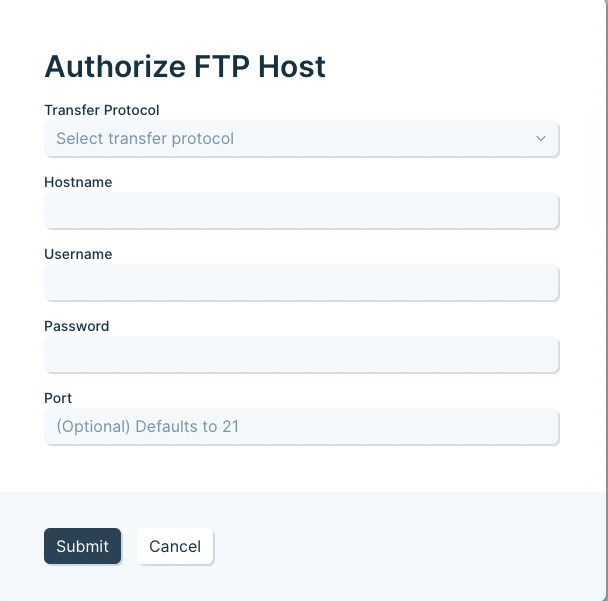
Click **Authorize**, and you will see this form:
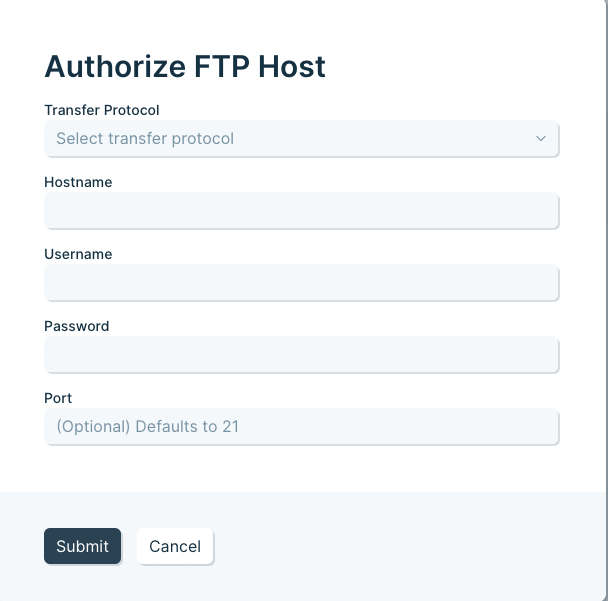 You will need to fill in each field in order to connect.
The **Port** can be manually set, or it will default to a port depending on which choice you have selected for the transfer protocol.
Using FTP (instead of SFTP or FTPS) is **not recommended**. Most FTP servers offer one of the other options.
If you are connecting via SFTP and are using a private key to connect, you will need to check the "Use public key authentication" box to see the option to upload that key and connect.
## Editing your FTP connection settings or adding another connection
If you need to edit or add another connection, open your FTP step, click on "**Select accounts**", and then either click to **add a new account**, or **edit** the existing one.
After editing your connection settings, click the **refresh** button to have the step re-connect with the new settings.
## Pulling in a specific file
The main option at the top of the step allows you to switch between pulling in a specific file and a file based on rules.
You will need to fill in each field in order to connect.
The **Port** can be manually set, or it will default to a port depending on which choice you have selected for the transfer protocol.
Using FTP (instead of SFTP or FTPS) is **not recommended**. Most FTP servers offer one of the other options.
If you are connecting via SFTP and are using a private key to connect, you will need to check the "Use public key authentication" box to see the option to upload that key and connect.
## Editing your FTP connection settings or adding another connection
If you need to edit or add another connection, open your FTP step, click on "**Select accounts**", and then either click to **add a new account**, or **edit** the existing one.
After editing your connection settings, click the **refresh** button to have the step re-connect with the new settings.
## Pulling in a specific file
The main option at the top of the step allows you to switch between pulling in a specific file and a file based on rules.
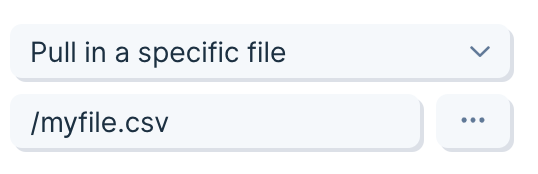 When pulling in a specific file, enter the path to that file. All paths should start with */* and then progress through any folders until ending in the name of the file and its extension.
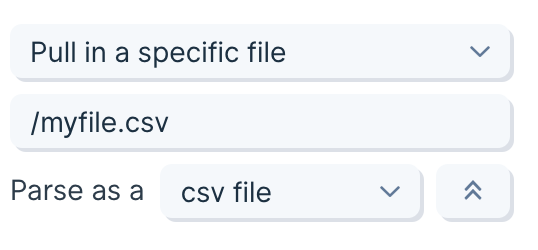
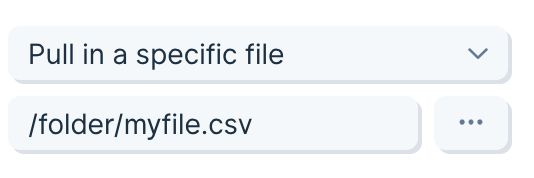 Click the `3-dot more` menu to override how to parse a file. By default, this step will parse the file based on the extension of the file. But you can change that. For example, if you have a .**txt** file that is really a **csv** file inside, you can choose to parse that txt file as if it were a csv.
 ## Pulling in a file based on rules
The main option at the top of the step allows you to switch between pulling in a specific file and a file based on rules.
When pulling a file based on rules, a new file will be pulled in every time the flow is run, or the step is refreshed.
A file can be selected based on:
* The **last\_modified** date of the file
* The **folder** the file is in
* Matching **part of the name** of the file
## Pulling in a file based on rules
The main option at the top of the step allows you to switch between pulling in a specific file and a file based on rules.
When pulling a file based on rules, a new file will be pulled in every time the flow is run, or the step is refreshed.
A file can be selected based on:
* The **last\_modified** date of the file
* The **folder** the file is in
* Matching **part of the name** of the file
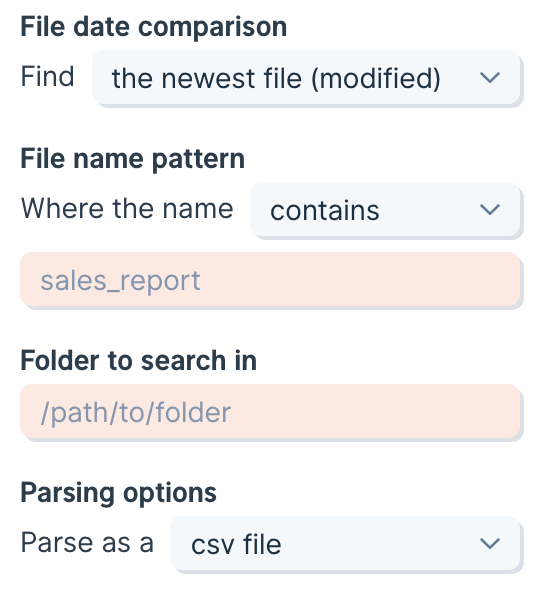 First, choose between pulling the **newest** file or the **oldest** file, based on its last modified date.
Second, choose a **file name pattern**. If you select `is anything`, no filtering based on file name will be applied. You can select to filter for files that `start with`, `end with`, or `contain` a certain set of characters. This can also be used to match the file extension (.csv for example).
Third, choose a folder to find the file within. If you use `/` then it will search the root folder. Other folders that are inside of the folder that you have indicated **will not be searched** and will be ignored.
Finally, select a **parsing option** if you want to override the default.
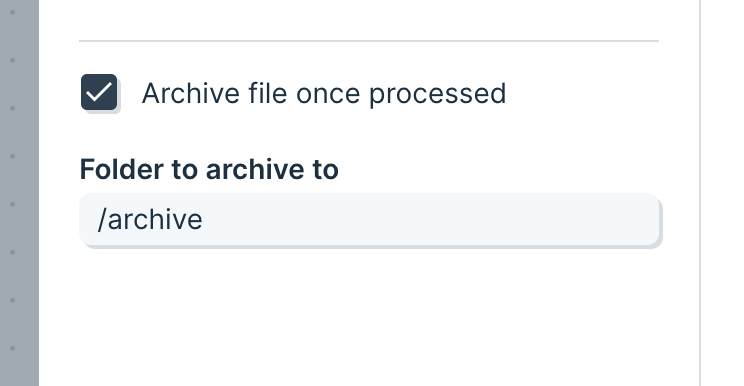
Every time a file is pulled in from a rule, the name will be displayed in the step settings.
First, choose between pulling the **newest** file or the **oldest** file, based on its last modified date.
Second, choose a **file name pattern**. If you select `is anything`, no filtering based on file name will be applied. You can select to filter for files that `start with`, `end with`, or `contain` a certain set of characters. This can also be used to match the file extension (.csv for example).
Third, choose a folder to find the file within. If you use `/` then it will search the root folder. Other folders that are inside of the folder that you have indicated **will not be searched** and will be ignored.
Finally, select a **parsing option** if you want to override the default.
Every time a file is pulled in from a rule, the name will be displayed in the step settings.
 ### Moving files after processing (archiving)
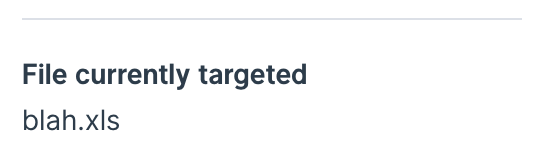
Enable the `Archive file once processed` setting to automatically move files from the target folder to a different folder.
Files will be moved immediately after the data from the file is fetched by the Pull from FTP step. If the step fails for some reason with an error, the file will not be moved.
If the file is pulled in successfully, but another step causes the flow to fail, then the file will still be archived, even if the overall flow failed to complete.
In the run history of the flow, the names of any files pulled in from FTP will be listed to show what file was moved during successful or failed runs.
Use of this setting is best combined with the "Pull in a file based on rules" setting. With this combination, a Pull from FTP step can continuously cycle through a specific FTP folder and process any files available within it.
### Moving files after processing (archiving)
Enable the `Archive file once processed` setting to automatically move files from the target folder to a different folder.
Files will be moved immediately after the data from the file is fetched by the Pull from FTP step. If the step fails for some reason with an error, the file will not be moved.
If the file is pulled in successfully, but another step causes the flow to fail, then the file will still be archived, even if the overall flow failed to complete.
In the run history of the flow, the names of any files pulled in from FTP will be listed to show what file was moved during successful or failed runs.
Use of this setting is best combined with the "Pull in a file based on rules" setting. With this combination, a Pull from FTP step can continuously cycle through a specific FTP folder and process any files available within it.
 ## Parsing XML Files
Sometimes XML files will not successfully pull into this step. In that case, it may be due to how the step is parsing the file by default. Use the Top Level Key field to indicate which key to expand into the table. This can help if there is a list of data, but there are other keys surrounding it, and you just need to get to that interior list. You can indicate a deeper key by placing dots between each key level. For example, if you have an object called `Cars`, and inside it is a list called `Colors`, which you want to expand, you would put `Cars.Colors` in the Top Level Keys field.
### File Metadata
To pull in file metadata like the date the file was last modified, it must be included as a value in a column.
### Limits
This FTP step can be used to pull in files up to 600MB. Contact us if you need larger files to be pulled in.
Global limits my stop your file before its size does, however. Steps can only run for 1 hour, and can only pull in 5 million rows and 5000 columns.
## Send to FTP
Create or overwrite files in an FTP, SFTP, or FTPS server. Supports CSV, TSV, Excel, JSON, and XML file creation.
## Connect to your FTP server
Add the **Send to FTP** step to your flow
Open the step and click the blue 'Authorize' button.
Fill out the authorization form and save
1. Transfer protocol
2. Hostname
3. Username
4. Password
5. Port
### Notes
* You can set the Port manually, or leave it blank to use the default for your selected protocol.
* Prefer SFTP or FTPS for secure transfers—plain FTP isn't recommended.
## Parsing XML Files
Sometimes XML files will not successfully pull into this step. In that case, it may be due to how the step is parsing the file by default. Use the Top Level Key field to indicate which key to expand into the table. This can help if there is a list of data, but there are other keys surrounding it, and you just need to get to that interior list. You can indicate a deeper key by placing dots between each key level. For example, if you have an object called `Cars`, and inside it is a list called `Colors`, which you want to expand, you would put `Cars.Colors` in the Top Level Keys field.
### File Metadata
To pull in file metadata like the date the file was last modified, it must be included as a value in a column.
### Limits
This FTP step can be used to pull in files up to 600MB. Contact us if you need larger files to be pulled in.
Global limits my stop your file before its size does, however. Steps can only run for 1 hour, and can only pull in 5 million rows and 5000 columns.
## Send to FTP
Create or overwrite files in an FTP, SFTP, or FTPS server. Supports CSV, TSV, Excel, JSON, and XML file creation.
## Connect to your FTP server
Add the **Send to FTP** step to your flow
Open the step and click the blue 'Authorize' button.
Fill out the authorization form and save
1. Transfer protocol
2. Hostname
3. Username
4. Password
5. Port
### Notes
* You can set the Port manually, or leave it blank to use the default for your selected protocol.
* Prefer SFTP or FTPS for secure transfers—plain FTP isn't recommended.
 ## Edit or add a connection
Open the step, click 'Select accounts,' then either add a new account or edit an existing one. After you edit, click the refresh icon to re-connect with the new settings.
## Choose your output mode
At the top of the step, choose one:
* **Create a new file** (recommended for dated or run-specific outputs)
* **Overwrite an existing file** (recommended for stable file names/paths)
## Edit or add a connection
Open the step, click 'Select accounts,' then either add a new account or edit an existing one. After you edit, click the refresh icon to re-connect with the new settings.
## Choose your output mode
At the top of the step, choose one:
* **Create a new file** (recommended for dated or run-specific outputs)
* **Overwrite an existing file** (recommended for stable file names/paths)
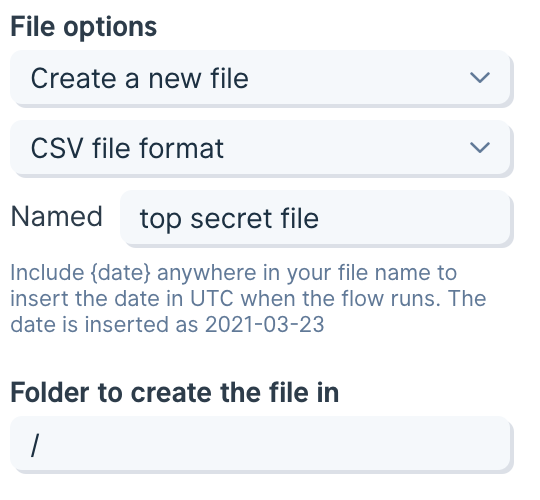 ## Create a new file
Configure three things:
**Format:** CSV, TSV, Excel, JSON, or XML
**File name:** Do not include an extension—Parabola adds it automatically
**Folder path:** The destination directory on your server
## Create a new file
Configure three things:
**Format:** CSV, TSV, Excel, JSON, or XML
**File name:** Do not include an extension—Parabola adds it automatically
**Folder path:** The destination directory on your server
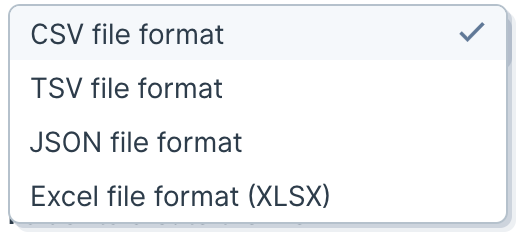 ### Supported formats
**CSV**
* Output extension: `.csv`.
**TSV**
* Tab-separated values.
* Output extension: `.tsv`.
**Excel**
* Output extension: `.xlsx`.
* No additional formatting is applied.
**JSON**
* Top-level JSON array; each row becomes an object.
* Output extension: `.json`.
**XML**
* The XML content must be stored in a single column in your input data—select this column in the step settings.
* Output extension: `.xml`.
* Supports exporting one file per row, up to 50 files per run.
* XML is validated during step edits by default (can be toggled off). Invalid XML will not be exported.
* Only creating new files is supported—overwriting is not available for XML.
### Name the file
Type the base file name without an extension. For example, enter `customers` (not `customers.csv`). If you include an extension, you'll end up with a duplicate (e.g., `customers.csv.csv`).
Use merge tags to make the name unique:
**Column merge tags (create mode only)**\
Reference values from your data to build the file name:
* Wrap the column name in curly braces like,` {CustomerId}`
* Examples:
* `invoices_{CustomerId}_{date}` → `invoices_12345_2025-09-30`
* `export_{Region}_{timestampDash}` → `export_APAC_2025-09-30_14-03-22`
### Advanced Settings
* Enable checkbox to omit header rows in exports (default is off)
* Enable checkout to remove merge columns from output (default is off)
### Tips
* Most servers reject duplicate names in the same folder. Use date/time or column merge tags to avoid collisions.
* Avoid special characters your server may not allow in file names.
### Supported formats
**CSV**
* Output extension: `.csv`.
**TSV**
* Tab-separated values.
* Output extension: `.tsv`.
**Excel**
* Output extension: `.xlsx`.
* No additional formatting is applied.
**JSON**
* Top-level JSON array; each row becomes an object.
* Output extension: `.json`.
**XML**
* The XML content must be stored in a single column in your input data—select this column in the step settings.
* Output extension: `.xml`.
* Supports exporting one file per row, up to 50 files per run.
* XML is validated during step edits by default (can be toggled off). Invalid XML will not be exported.
* Only creating new files is supported—overwriting is not available for XML.
### Name the file
Type the base file name without an extension. For example, enter `customers` (not `customers.csv`). If you include an extension, you'll end up with a duplicate (e.g., `customers.csv.csv`).
Use merge tags to make the name unique:
**Column merge tags (create mode only)**\
Reference values from your data to build the file name:
* Wrap the column name in curly braces like,` {CustomerId}`
* Examples:
* `invoices_{CustomerId}_{date}` → `invoices_12345_2025-09-30`
* `export_{Region}_{timestampDash}` → `export_APAC_2025-09-30_14-03-22`
### Advanced Settings
* Enable checkbox to omit header rows in exports (default is off)
* Enable checkout to remove merge columns from output (default is off)
### Tips
* Most servers reject duplicate names in the same folder. Use date/time or column merge tags to avoid collisions.
* Avoid special characters your server may not allow in file names.
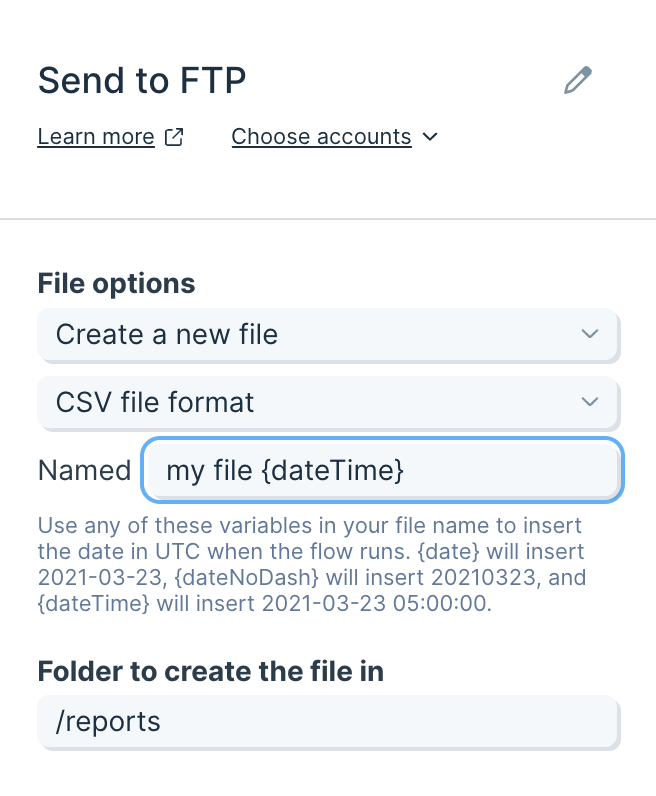 ### Choose a folder to put the file
Specify the destination folder path:
* Paths start at the root: `/`
* Example for a root-level folder named `reports`: `/reports`
* Example nested path: `/exports/daily`
## Overwrite an existing file
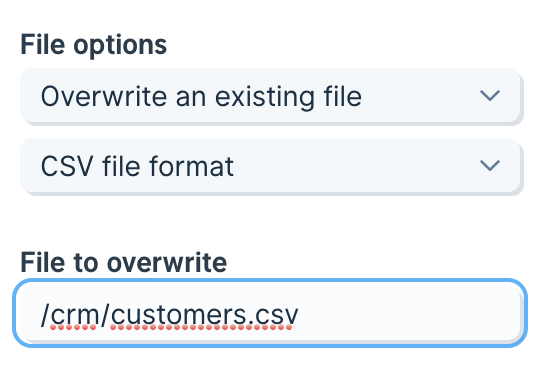
Set File options dropdown to "Overwrite an existing file". Select the output format and enter the full path (including the file name and extension) in the "File o overwrite" field.
### Choose a folder to put the file
Specify the destination folder path:
* Paths start at the root: `/`
* Example for a root-level folder named `reports`: `/reports`
* Example nested path: `/exports/daily`
## Overwrite an existing file
Set File options dropdown to "Overwrite an existing file". Select the output format and enter the full path (including the file name and extension) in the "File o overwrite" field.
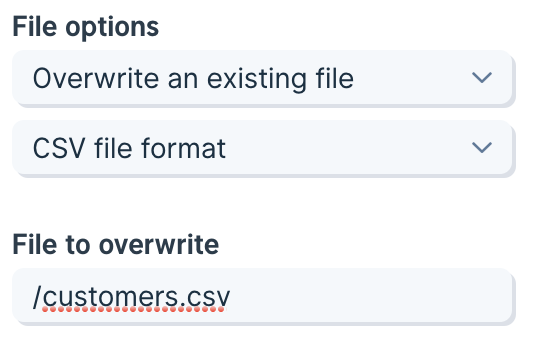 ### Select a format
Choose the format that matches the file's intended use. While Parabola replaces the file contents entirely (so mismatched extensions can still "work"), keeping the extension aligned with the actual format prevents downstream confusion.
### Choose the file path
Provide an absolute path from the root `/`:
* Root example: `/customers.csv`
* Nested example: `/crm/customers.csv`
### Select a format
Choose the format that matches the file's intended use. While Parabola replaces the file contents entirely (so mismatched extensions can still "work"), keeping the extension aligned with the actual format prevents downstream confusion.
### Choose the file path
Provide an absolute path from the root `/`:
* Root example: `/customers.csv`
* Nested example: `/crm/customers.csv`
 ### Advanced Settings
* Enable checkbox to omit header rows in exports (default is off)
### Advanced Settings
* Enable checkbox to omit header rows in exports (default is off)