> ## Documentation Index
> Fetch the complete documentation index at: https://parabola.io/docs/llms.txt
> Use this file to discover all available pages before exploring further.
# Connect HubSpot to Parabola
> Pull HubSpot contacts, companies, deals, and engagements — and push updates back — to automate CRM hygiene, lifecycle reporting, and marketing-to-sales handoffs.
HubSpot is a CRM and marketing platform used by sales, marketing, and CX teams to manage contacts, deals, and customer touchpoints. Connecting HubSpot to Parabola lets revenue and ops teams pull CRM data into the same flows used for product analytics, finance, and marketing reporting, and push enriched data back into HubSpot so reps work from current records, without manual exports or engineering work.
## Pull from HubSpot
Use the **Pull from HubSpot** step to pull Contacts, Companies, Deals, and Engagements from your [HubSpot](https://www.hubspot.com/) CRM.
### How to authenticate
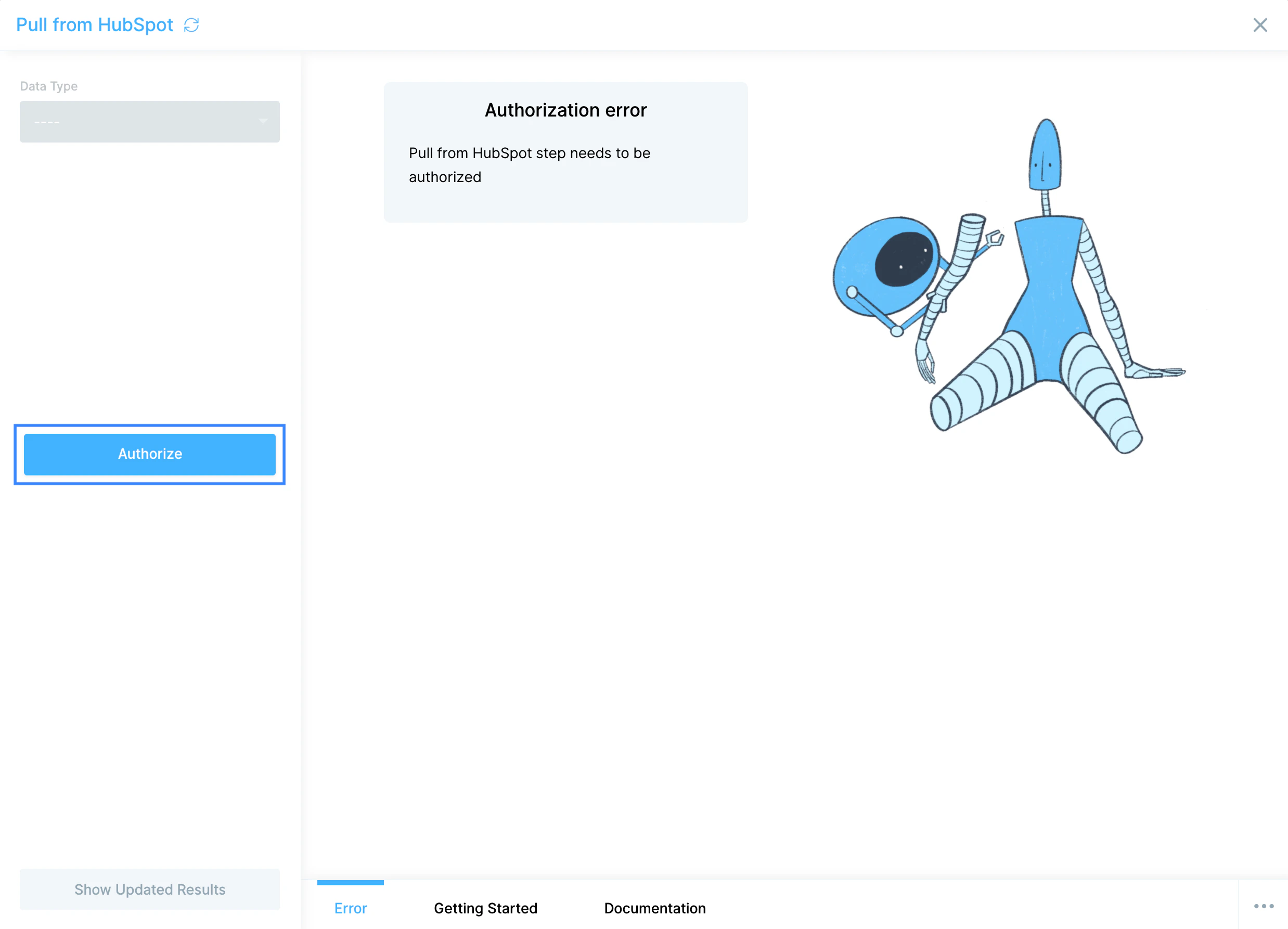
Add a **Pull from HubSpot** step to your flow.
Click **Authorize**. A pop-up opens to log in with your HubSpot credentials and approve the connection.
 ### Configure your settings
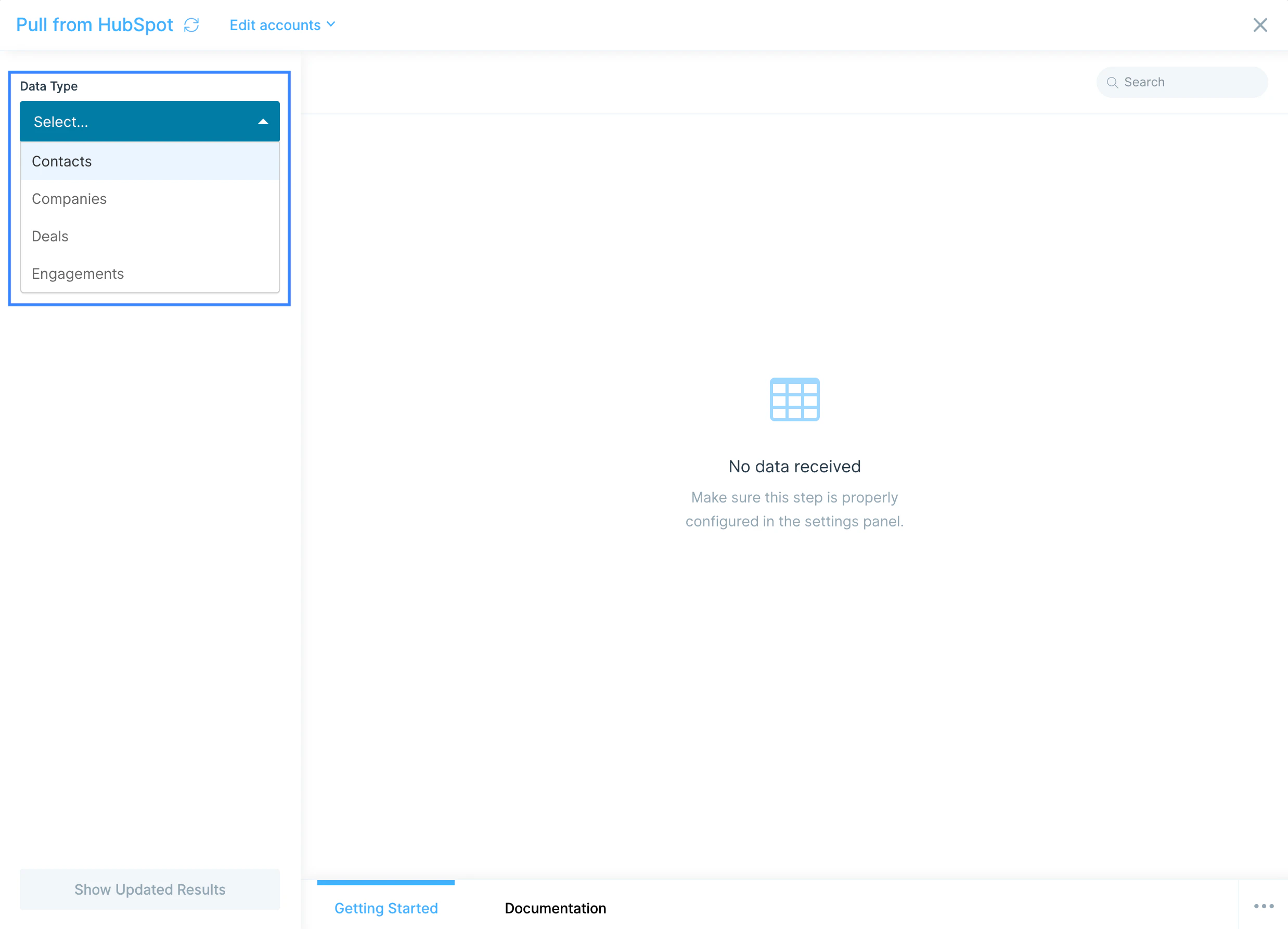
Pick a **Data Type**: **Contacts**, **Companies**, **Deals**, or **Engagements**.
### Configure your settings
Pick a **Data Type**: **Contacts**, **Companies**, **Deals**, or **Engagements**.
 Use the **Properties** dropdown to add or remove columns. By default, the step pulls a starter set of common properties for the selected object.
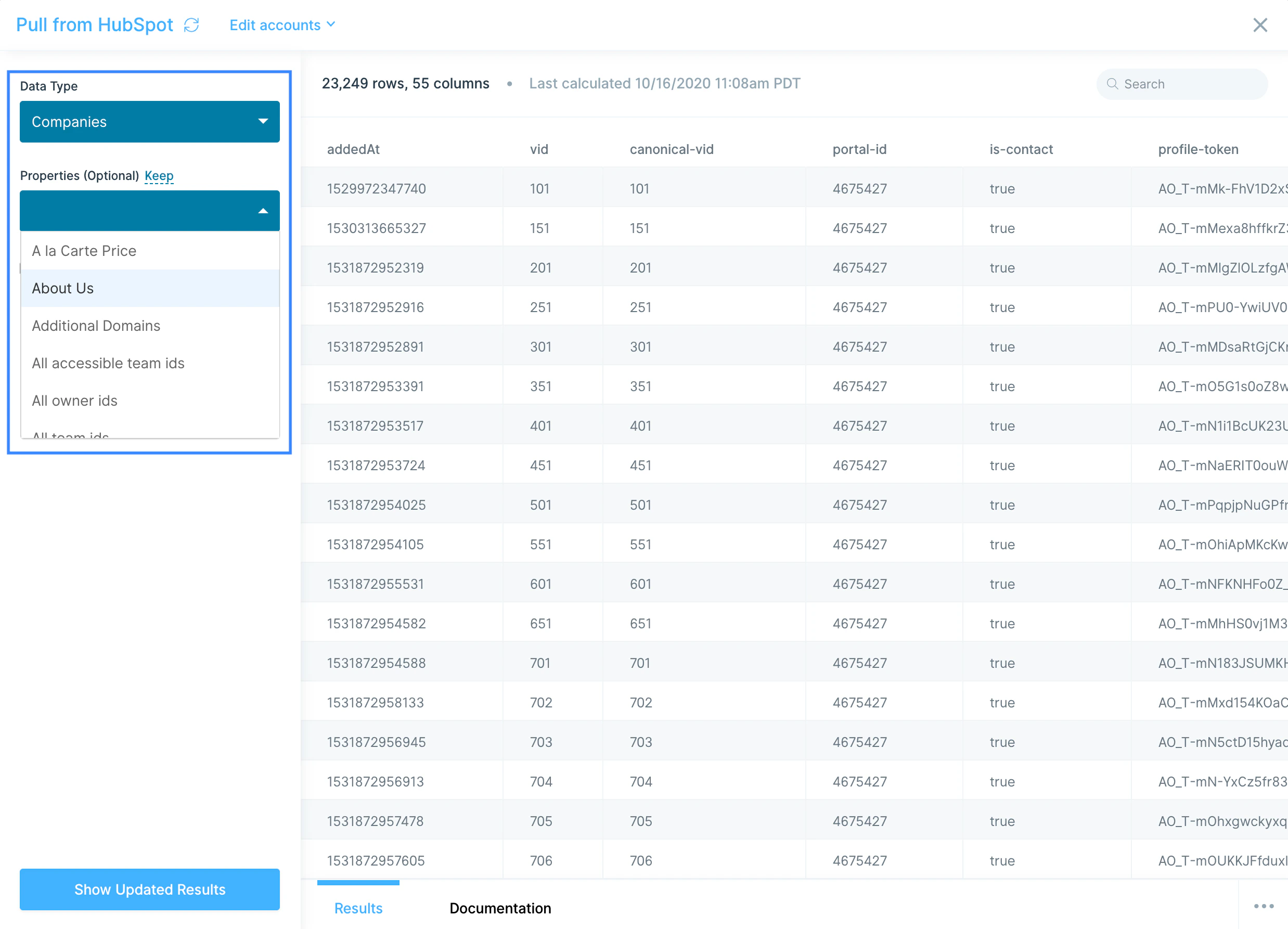 For **Contacts**, **Companies**, and **Deals**, optionally toggle **Include historical data for all properties** to bring in property-change history. Engagements doesn't support historical data.
 ## Available data
The native step exposes four object types:
* **Contacts** — person-level records with email, name, lifecycle stage, lead status, owner, source, lifecycle dates, custom contact properties, and (optionally) historical property changes.
* **Companies** — company-level records with domain, name, industry, size, owner, lifecycle stage, and any custom company properties, with optional history.
* **Deals** — opportunity records with deal name, amount, stage, pipeline, close date, owner, associated contacts and companies, and custom deal properties, with optional history.
* **Engagements** — calls, emails, meetings, notes, and tasks logged against contacts, companies, or deals, including the engagement type, owner, timestamp, and outcome.
For Tickets, Products, Line Items, Lists, Owners, Workflows, custom objects, and other HubSpot endpoints, use the **Pull from an API** step with a HubSpot private app token against the [HubSpot API reference](https://developers.hubspot.com/docs/api/overview).
## Send to HubSpot
Use the **Send to HubSpot** step to create or update Contacts, Companies, and Deals in your CRM.
### How to authenticate
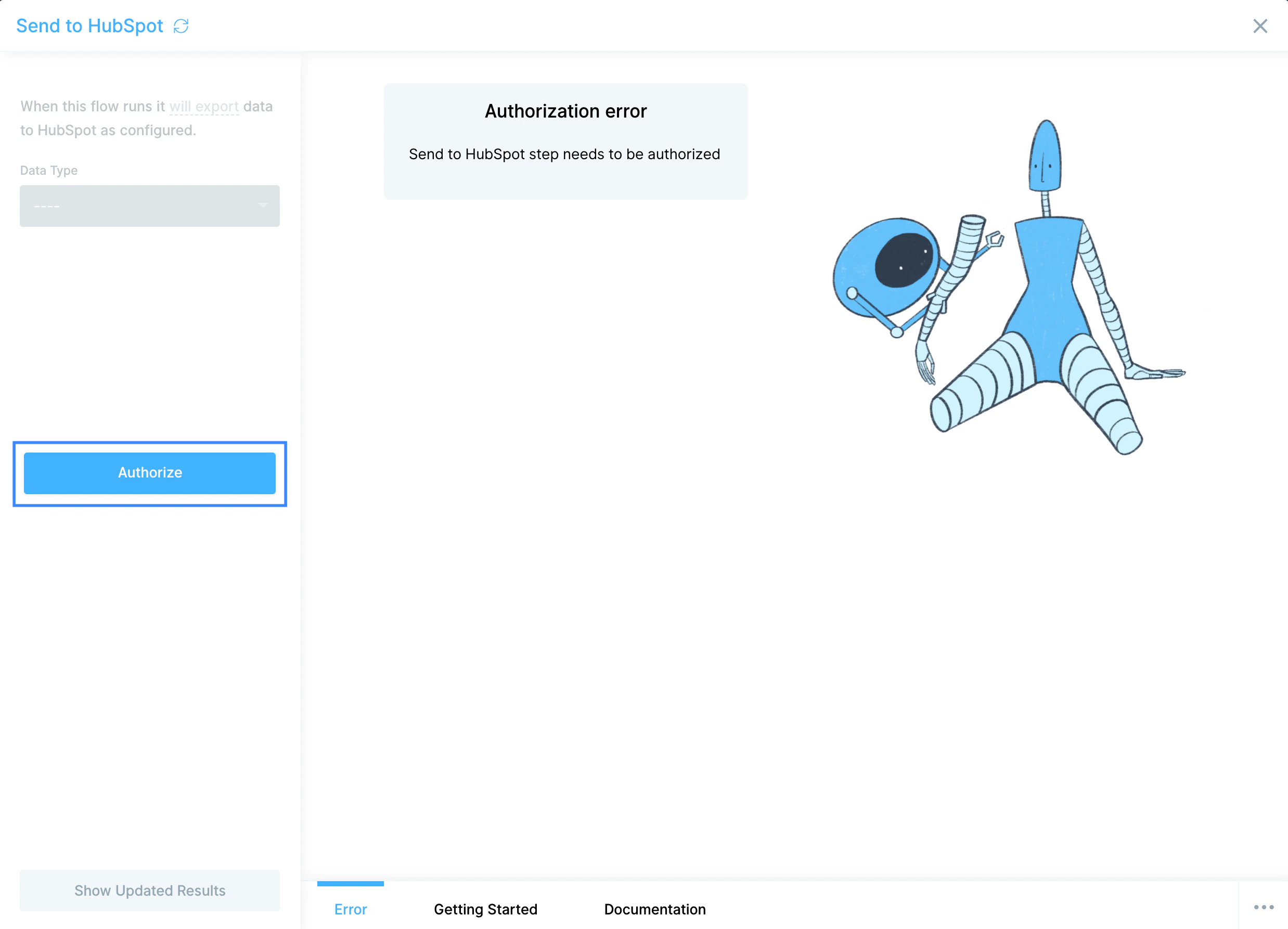
Click **Authorize** and log in with your HubSpot credentials.
## Available data
The native step exposes four object types:
* **Contacts** — person-level records with email, name, lifecycle stage, lead status, owner, source, lifecycle dates, custom contact properties, and (optionally) historical property changes.
* **Companies** — company-level records with domain, name, industry, size, owner, lifecycle stage, and any custom company properties, with optional history.
* **Deals** — opportunity records with deal name, amount, stage, pipeline, close date, owner, associated contacts and companies, and custom deal properties, with optional history.
* **Engagements** — calls, emails, meetings, notes, and tasks logged against contacts, companies, or deals, including the engagement type, owner, timestamp, and outcome.
For Tickets, Products, Line Items, Lists, Owners, Workflows, custom objects, and other HubSpot endpoints, use the **Pull from an API** step with a HubSpot private app token against the [HubSpot API reference](https://developers.hubspot.com/docs/api/overview).
## Send to HubSpot
Use the **Send to HubSpot** step to create or update Contacts, Companies, and Deals in your CRM.
### How to authenticate
Click **Authorize** and log in with your HubSpot credentials.
 ### Configure your settings
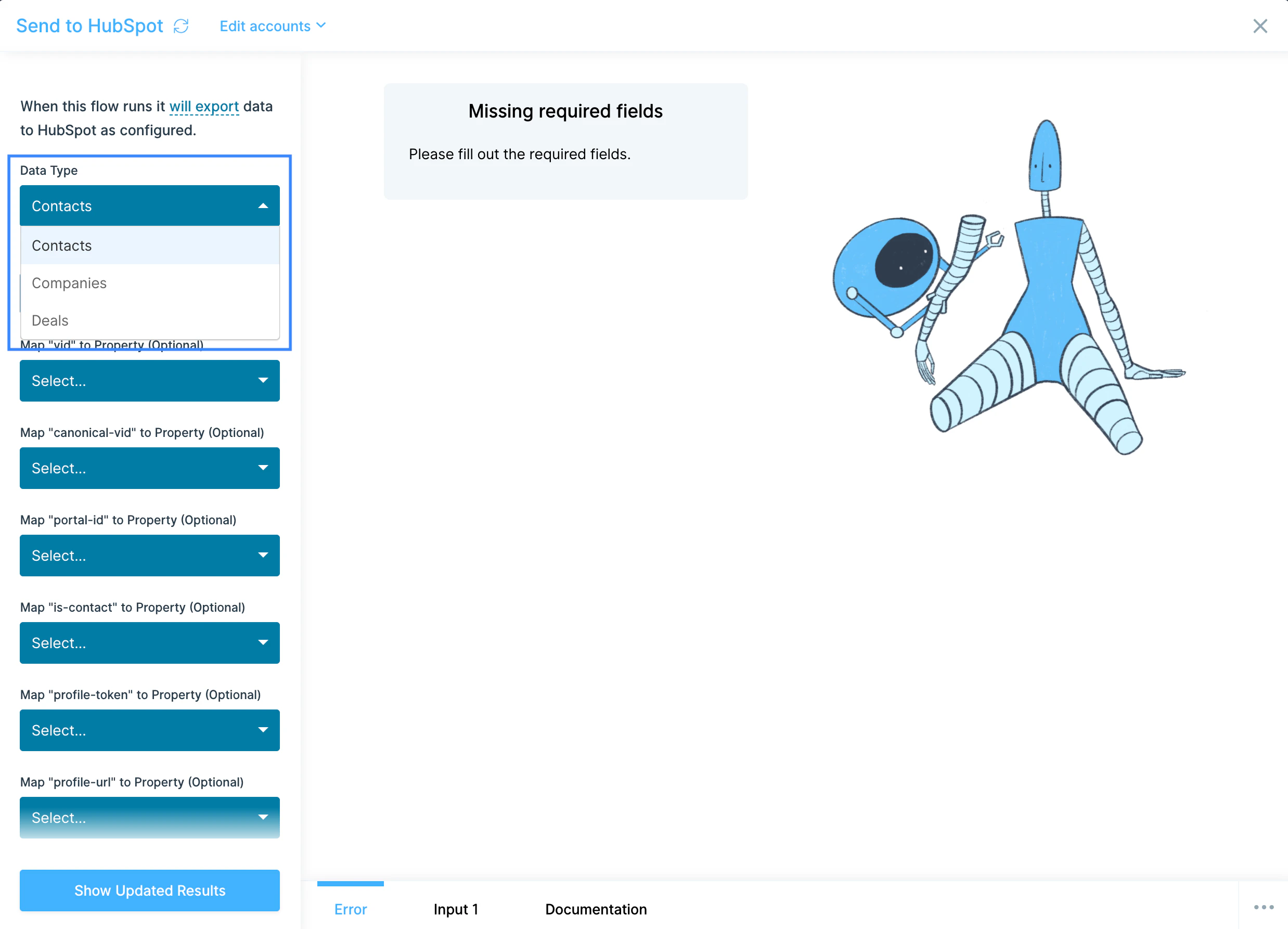
Pick the **Data Type** to update — Contacts, Companies, or Deals.
### Configure your settings
Pick the **Data Type** to update — Contacts, Companies, or Deals.
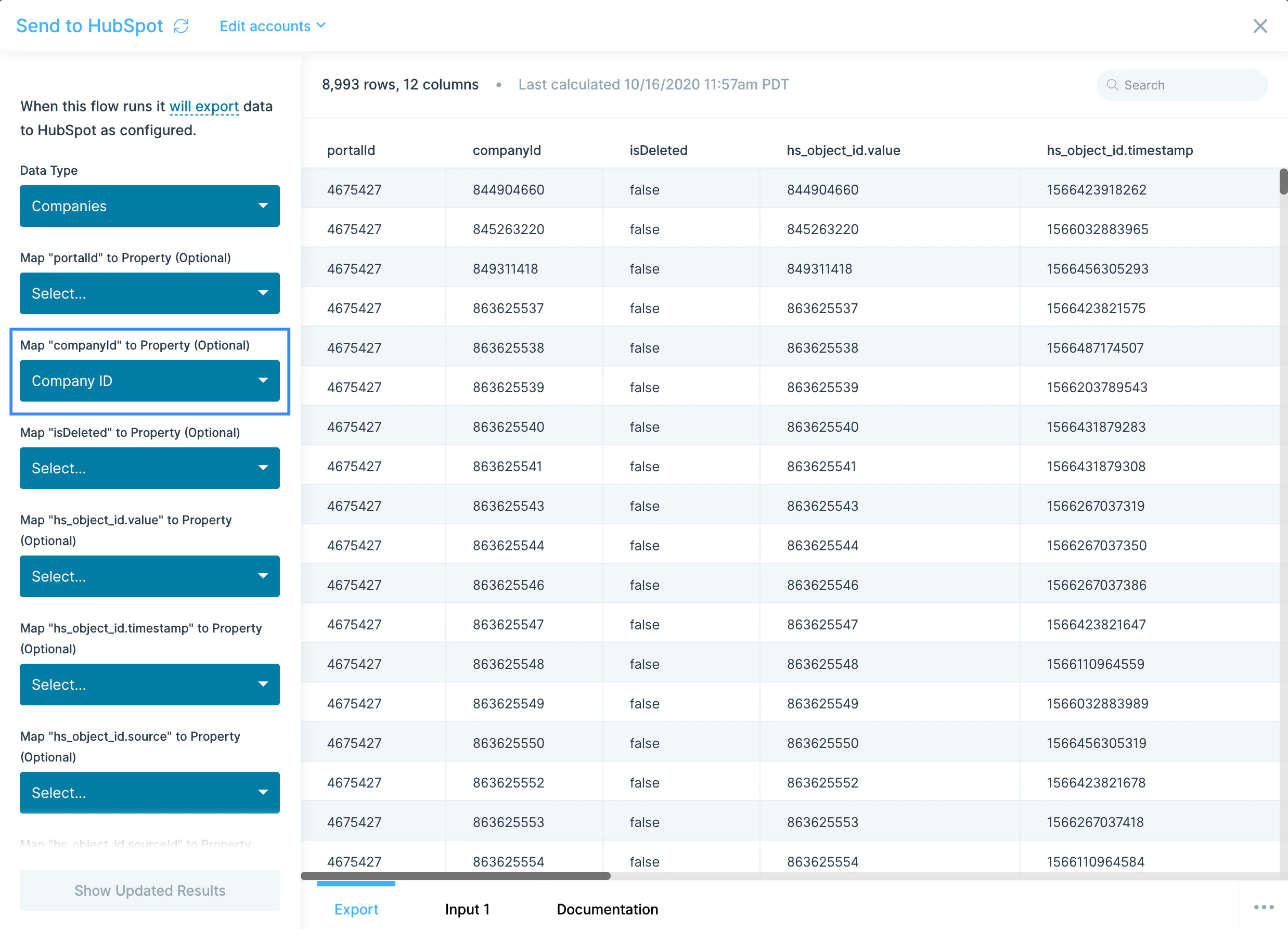
 Provide an ID column. Every Data Type needs a column that maps to a unique identifier:
* **Contacts** — `Email` works as the unique identifier.
* **Companies** — only `companyId` is accepted.
* **Deals** — `deal ID` is required to map your data to an existing deal.
Provide an ID column. Every Data Type needs a column that maps to a unique identifier:
* **Contacts** — `Email` works as the unique identifier.
* **Companies** — only `companyId` is accepted.
* **Deals** — `deal ID` is required to map your data to an existing deal.
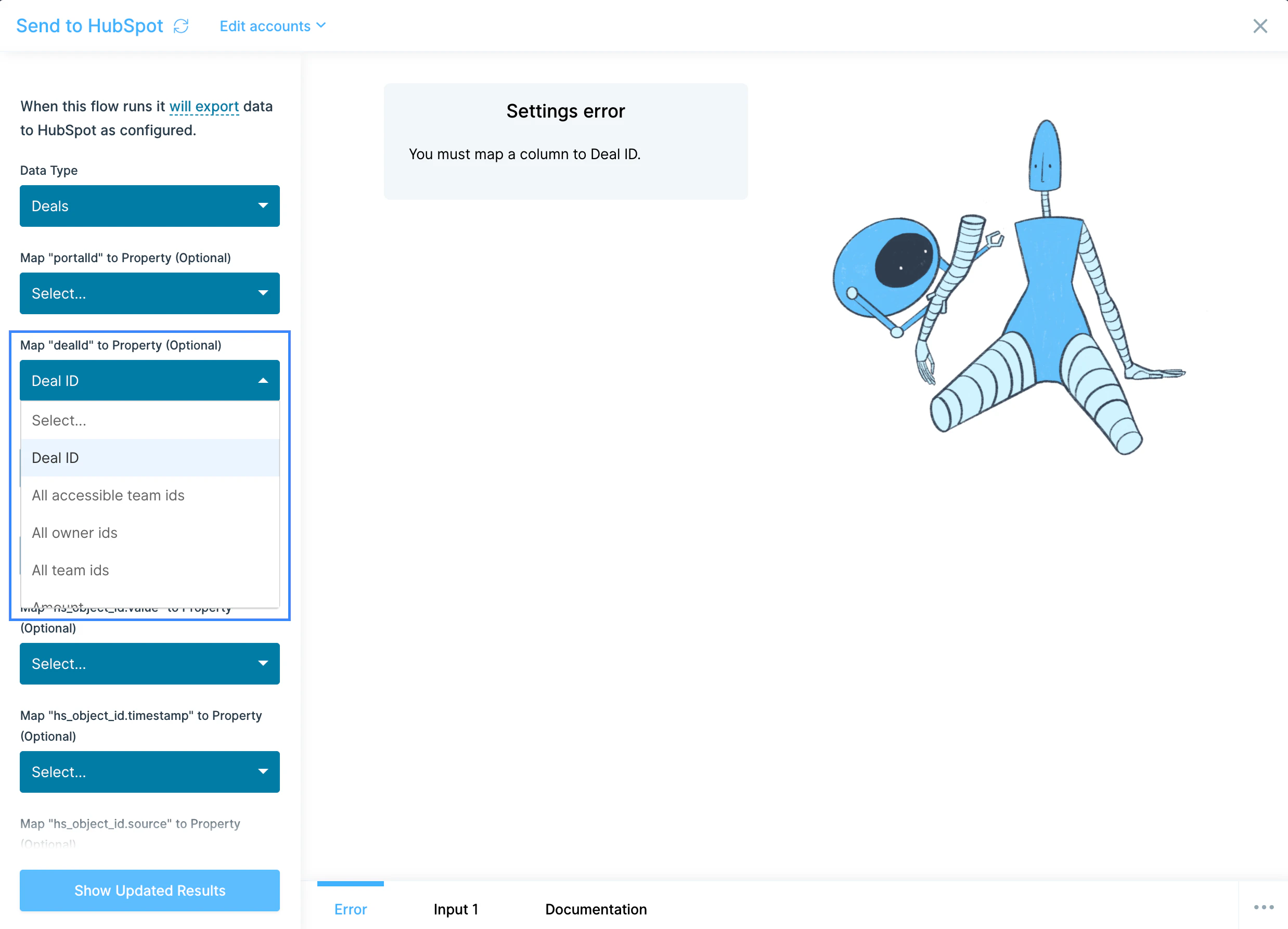 Map every column in your dataset to a HubSpot property. Columns you don't want to send to HubSpot should be removed upstream with a **Select columns** step before they reach Send to HubSpot. Properties not mapped to a column are optional.
## Common use cases
* **Sync product activity into the CRM**: Push usage and event data from your warehouse ([Snowflake](/product/integration/snowflake), [BigQuery](/product/integration/bigquery), [Redshift](/product/integration/redshift)) into HubSpot contact and company properties so AEs see who's active before a call.
* **Build a marketing-to-sales handoff**: Pull HubSpot contacts and lifecycle stages, score against signup and event data, and push the resulting MQL list back into HubSpot for routing — or into [Salesforce](/product/integration/salesforce) if your sales team works in SFDC.
* **Reconcile deals against billing**: Join HubSpot Deals with [Stripe](/product/integration/stripe) charges or [QuickBooks Online](/product/integration/quickbooks-online) and [NetSuite](/product/integration/netsuite) invoices to confirm closed-won amounts match what was actually billed and collected.
* **Sync e-commerce customers as CRM contacts**: Push customers from [Shopify](/product/integration/shopify), [Squarespace](/product/integration/squarespace), or [Recharge](/product/integration/recharge) into HubSpot as contacts, tagged by lifetime value and product, so marketing can run targeted campaigns.
* **Build CRM hygiene flows**: Pull Contacts, dedupe by email, fix casing on names, normalize country codes, and push the cleaned records back to HubSpot weekly.
* **Trigger ops alerts on pipeline movement**: When a deal over a threshold flips to a target stage, post a [Slack](/product/integration/slack) message to the AE and ops channel with deal context and next steps.
## Tips for using Parabola with HubSpot
* **The native step pulls default properties only.** For custom or rarely-used properties, expand the Properties dropdown — and if you need fields the step doesn't expose, use **Pull from an API** with a private app token.
* **Use the right unique identifier on Send.** Email for Contacts, `companyId` for Companies, `deal ID` for Deals. Mismatched IDs cause failed updates without obvious errors.
* **Strip extra columns before Send to HubSpot.** Every column reaching the step must map to a HubSpot property. Use **Select columns** upstream to keep only what you intend to write.
* **Match cadence to use case.** Hourly for live MQL routing, daily for CRM hygiene and lifecycle reporting, weekly for pipeline analytics.
* **Watch for silent Send failures.** A failed Send to HubSpot doesn't always surface a detailed error. If a downstream check shows missing updates, contact [help@parabola.io](mailto:help@parabola.io).
* **Combine HubSpot with marketing tools.** Pair pulls with [Mailchimp](/product/integration/mailchimp), [Klaviyo](/product/integration/klaviyo), or [Facebook Ads](/product/integration/facebook-ads) to compute blended CAC, list overlap, and channel-level ROI.
## FAQ
### Can I pull HubSpot Tickets, Lists, or custom objects?
The native Pull from HubSpot step covers Contacts, Companies, Deals, and Engagements. For Tickets, Lists, Owners, Products, Line Items, Workflows, and custom objects, use **Pull from an API** with a HubSpot private app token.
### Does Parabola support HubSpot webhooks?
The native step is API-pull only. For event-driven flows (new contact created, deal stage changed), point a HubSpot webhook at [Parabola's webhook trigger](/product/integration/webhook) on a separate flow.
### Why doesn't the Send to HubSpot step show me an error when records fail?
The HubSpot API doesn't always return granular error responses on bulk updates. If you're seeing missing updates or unexpected behavior, contact [help@parabola.io](mailto:help@parabola.io) with the flow and run details.
### How do I write custom properties back to HubSpot?
Send to HubSpot lets you map any column to a custom property that exists on the object in HubSpot. Make sure the property exists in HubSpot first — Parabola won't create it for you. For more advanced writes, use **Send to an API** against the [HubSpot CRM API](https://developers.hubspot.com/docs/api/crm/understanding-the-crm).
### Can I pull from multiple HubSpot accounts in one flow?
Yes. Add multiple Pull from HubSpot steps and authorize each one against a different HubSpot login, then union the results downstream.
***
With HubSpot and Parabola connected, the manual exports and CSV imports your revenue team relies on — list cleaning, lifecycle scoring, deal-to-billing reconciliation — run on a schedule, with clean data moving in and out of the CRM where sales and marketing actually work.
Map every column in your dataset to a HubSpot property. Columns you don't want to send to HubSpot should be removed upstream with a **Select columns** step before they reach Send to HubSpot. Properties not mapped to a column are optional.
## Common use cases
* **Sync product activity into the CRM**: Push usage and event data from your warehouse ([Snowflake](/product/integration/snowflake), [BigQuery](/product/integration/bigquery), [Redshift](/product/integration/redshift)) into HubSpot contact and company properties so AEs see who's active before a call.
* **Build a marketing-to-sales handoff**: Pull HubSpot contacts and lifecycle stages, score against signup and event data, and push the resulting MQL list back into HubSpot for routing — or into [Salesforce](/product/integration/salesforce) if your sales team works in SFDC.
* **Reconcile deals against billing**: Join HubSpot Deals with [Stripe](/product/integration/stripe) charges or [QuickBooks Online](/product/integration/quickbooks-online) and [NetSuite](/product/integration/netsuite) invoices to confirm closed-won amounts match what was actually billed and collected.
* **Sync e-commerce customers as CRM contacts**: Push customers from [Shopify](/product/integration/shopify), [Squarespace](/product/integration/squarespace), or [Recharge](/product/integration/recharge) into HubSpot as contacts, tagged by lifetime value and product, so marketing can run targeted campaigns.
* **Build CRM hygiene flows**: Pull Contacts, dedupe by email, fix casing on names, normalize country codes, and push the cleaned records back to HubSpot weekly.
* **Trigger ops alerts on pipeline movement**: When a deal over a threshold flips to a target stage, post a [Slack](/product/integration/slack) message to the AE and ops channel with deal context and next steps.
## Tips for using Parabola with HubSpot
* **The native step pulls default properties only.** For custom or rarely-used properties, expand the Properties dropdown — and if you need fields the step doesn't expose, use **Pull from an API** with a private app token.
* **Use the right unique identifier on Send.** Email for Contacts, `companyId` for Companies, `deal ID` for Deals. Mismatched IDs cause failed updates without obvious errors.
* **Strip extra columns before Send to HubSpot.** Every column reaching the step must map to a HubSpot property. Use **Select columns** upstream to keep only what you intend to write.
* **Match cadence to use case.** Hourly for live MQL routing, daily for CRM hygiene and lifecycle reporting, weekly for pipeline analytics.
* **Watch for silent Send failures.** A failed Send to HubSpot doesn't always surface a detailed error. If a downstream check shows missing updates, contact [help@parabola.io](mailto:help@parabola.io).
* **Combine HubSpot with marketing tools.** Pair pulls with [Mailchimp](/product/integration/mailchimp), [Klaviyo](/product/integration/klaviyo), or [Facebook Ads](/product/integration/facebook-ads) to compute blended CAC, list overlap, and channel-level ROI.
## FAQ
### Can I pull HubSpot Tickets, Lists, or custom objects?
The native Pull from HubSpot step covers Contacts, Companies, Deals, and Engagements. For Tickets, Lists, Owners, Products, Line Items, Workflows, and custom objects, use **Pull from an API** with a HubSpot private app token.
### Does Parabola support HubSpot webhooks?
The native step is API-pull only. For event-driven flows (new contact created, deal stage changed), point a HubSpot webhook at [Parabola's webhook trigger](/product/integration/webhook) on a separate flow.
### Why doesn't the Send to HubSpot step show me an error when records fail?
The HubSpot API doesn't always return granular error responses on bulk updates. If you're seeing missing updates or unexpected behavior, contact [help@parabola.io](mailto:help@parabola.io) with the flow and run details.
### How do I write custom properties back to HubSpot?
Send to HubSpot lets you map any column to a custom property that exists on the object in HubSpot. Make sure the property exists in HubSpot first — Parabola won't create it for you. For more advanced writes, use **Send to an API** against the [HubSpot CRM API](https://developers.hubspot.com/docs/api/crm/understanding-the-crm).
### Can I pull from multiple HubSpot accounts in one flow?
Yes. Add multiple Pull from HubSpot steps and authorize each one against a different HubSpot login, then union the results downstream.
***
With HubSpot and Parabola connected, the manual exports and CSV imports your revenue team relies on — list cleaning, lifecycle scoring, deal-to-billing reconciliation — run on a schedule, with clean data moving in and out of the CRM where sales and marketing actually work.