> ## Documentation Index
> Fetch the complete documentation index at: https://parabola.io/docs/llms.txt
> Use this file to discover all available pages before exploring further.
# JSON file step
> Pull data from a JSON file into Parabola to flatten nested objects and arrays into a tabular dataset you can clean, join, and route to other systems.
JSON is the format you get when you export from an API by hand, dump a payload from a webhook, or save a config file. The **Use JSON file** step pulls a JSON document into your Parabola flow and flattens it into a table you can transform like any other dataset.
## Use JSON file
The **Use JSON file** step pulls a dataset from a JSON file you upload. Once the data is in your flow, you can join, filter, and reshape it with the rest of Parabola's transform steps.
### Configuration
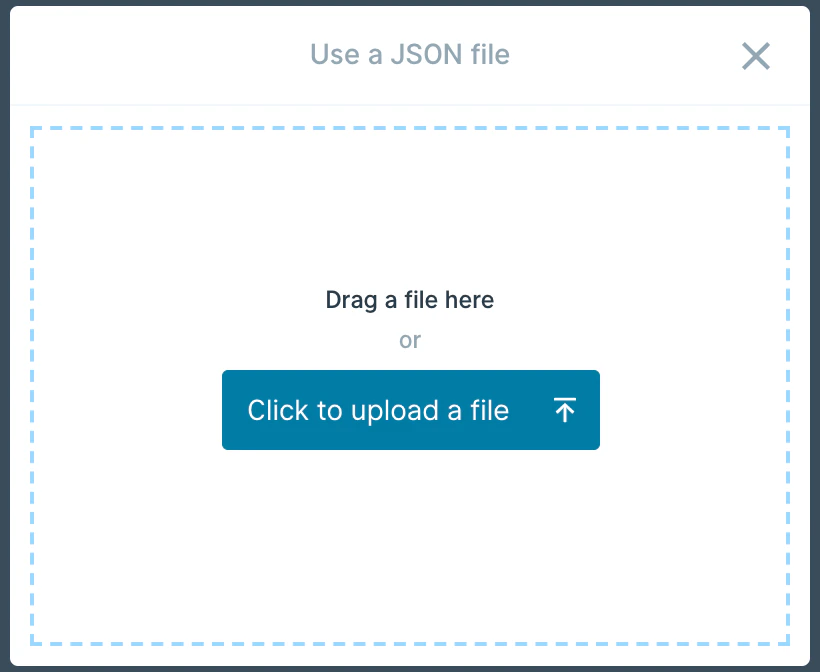
Drag a file onto the canvas or click `Click to upload a file`.
 After upload, the step opens to its settings page and shows the parsed JSON.
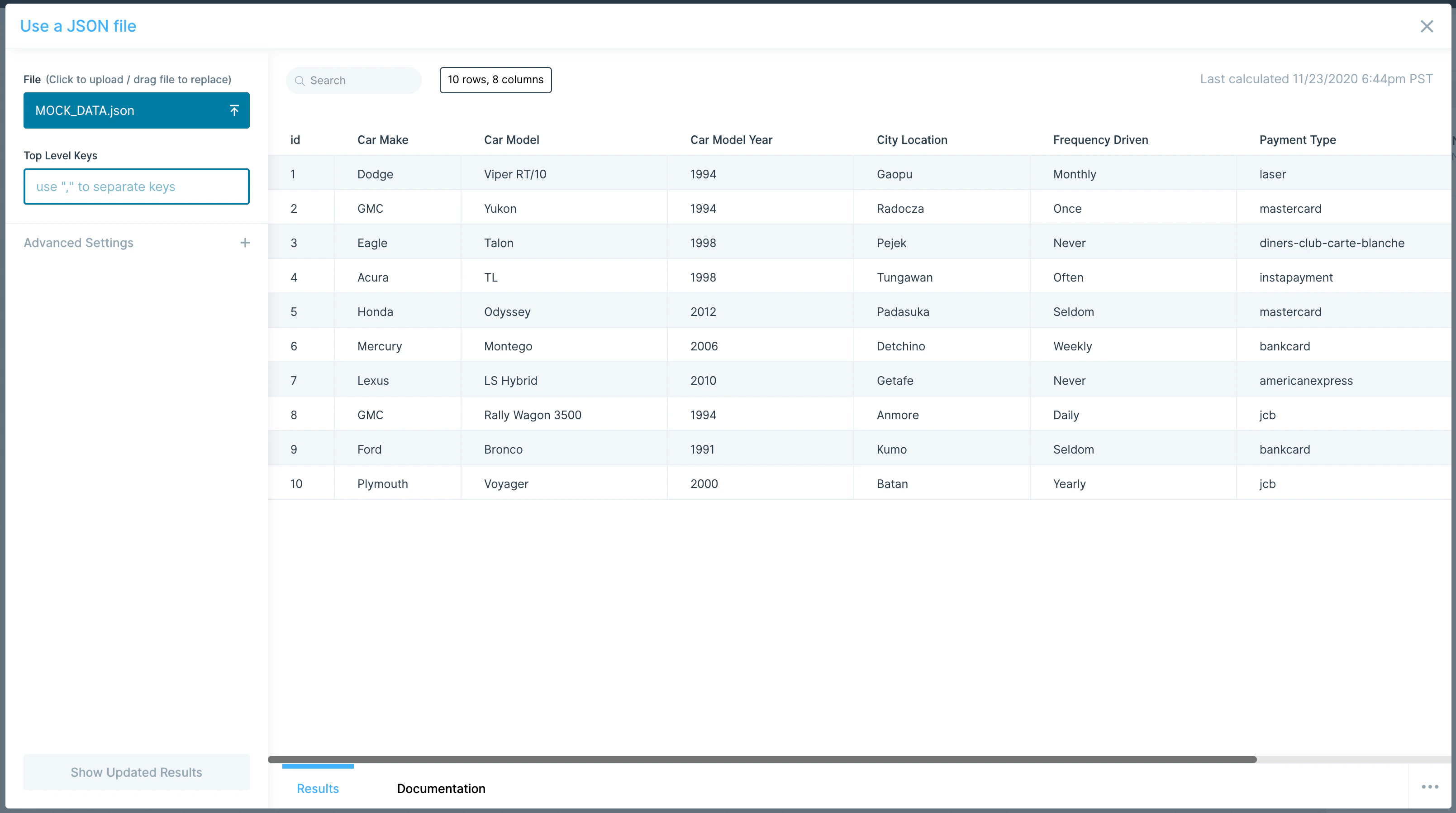 In **Advanced Settings**, you can skip a number of rows or columns when importing — rows skip top-down, columns skip left-to-right.
### Helpful tips
* **Files don't auto-update.** Parabola can't pull updates from your computer automatically. To pull live JSON on each run, use the **Pull from an API** step or grab the file from cloud storage.
* **Nested fields flatten by default.** Deeply nested JSON gets flattened into columns with dot-notation names. If your downstream logic needs them clean, use an [Edit columns](/product/transform/edit-columns) step to rename them.
* **Storage and security.** Uploaded files are stored in an Amazon S3 bucket. All connections use SSL and are encrypted.
## Related steps
* [Pull from an API](/product/integration/webhook) — for live JSON from a remote endpoint
* [Pull from webhook](/product/integration/webhook) — to receive JSON pushed by another service
* [Edit columns](/product/transform/edit-columns) — to rename flattened nested fields
* [Edit columns](/product/transform/edit-columns) — to drop fields you don't need
* [Custom transform](/product/transform/custom-transform) — to reshape complex nested arrays
In **Advanced Settings**, you can skip a number of rows or columns when importing — rows skip top-down, columns skip left-to-right.
### Helpful tips
* **Files don't auto-update.** Parabola can't pull updates from your computer automatically. To pull live JSON on each run, use the **Pull from an API** step or grab the file from cloud storage.
* **Nested fields flatten by default.** Deeply nested JSON gets flattened into columns with dot-notation names. If your downstream logic needs them clean, use an [Edit columns](/product/transform/edit-columns) step to rename them.
* **Storage and security.** Uploaded files are stored in an Amazon S3 bucket. All connections use SSL and are encrypted.
## Related steps
* [Pull from an API](/product/integration/webhook) — for live JSON from a remote endpoint
* [Pull from webhook](/product/integration/webhook) — to receive JSON pushed by another service
* [Edit columns](/product/transform/edit-columns) — to rename flattened nested fields
* [Edit columns](/product/transform/edit-columns) — to drop fields you don't need
* [Custom transform](/product/transform/custom-transform) — to reshape complex nested arrays