> ## Documentation Index
> Fetch the complete documentation index at: https://parabola.io/docs/llms.txt
> Use this file to discover all available pages before exploring further.
# Parabola tables
> Store data in a Parabola table to share results across flows, build historical reports, append new rows over time, or upsert based on a key.
Parabola tables are persistent storage that lives inside your account. Use them to hand data between flows, build a historical record that grows with each run, or hold reference data (a SKU mapping, for example) that other flows can pull from. Two steps make it work: **Pull from Parabola Table** to read, **Send to Parabola Table** to write.
## Pull from Parabola Table
The **Pull from Parabola Table** step reads from any Parabola table you have access to. If you're a Viewer, Editor, or Owner on a flow, the tables on that flow are available as a source.
The dropdown on the left lists every table you can read from. Select one to pull from it.
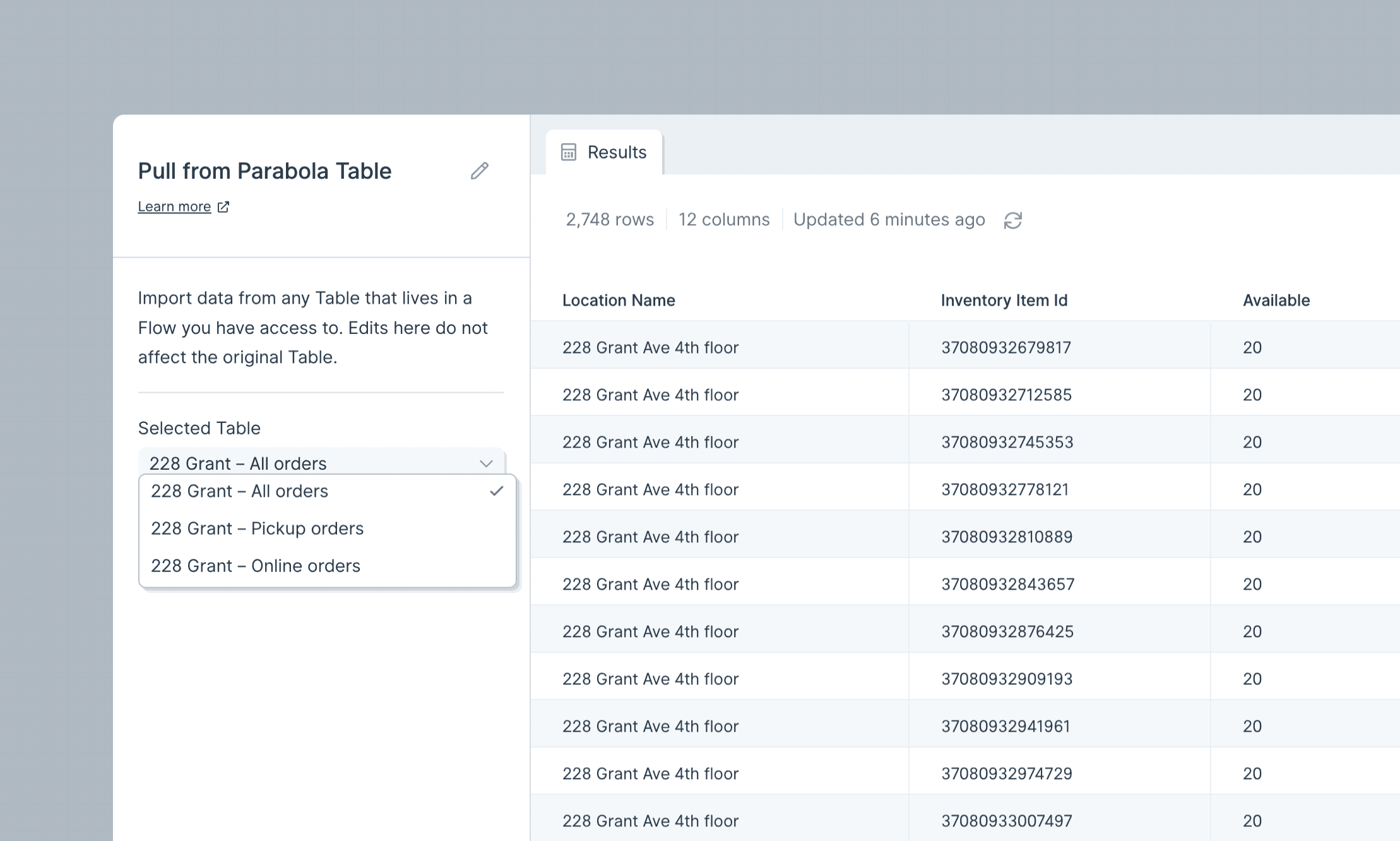 A few things to know:
* This step pulls the **base data** in the table. Any views applied on top — filters, sorts, aggregations, formatting — don't carry through.
* If a table isn't in the dropdown, check that **Allow other flows to pull data from this table** is enabled on the source **Send to Parabola Table** step.
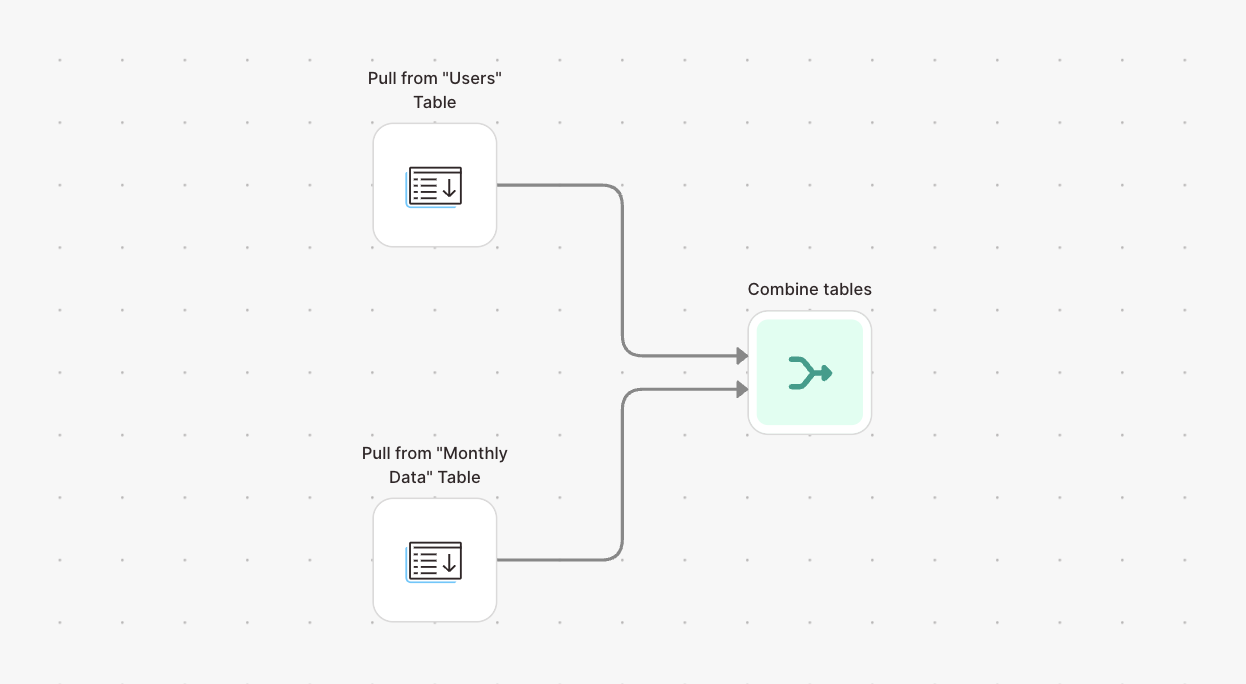
* To bring in multiple tables, use multiple Pull from Parabola Table steps and merge them with [**Stack tables**](/product/transform/stack-tables) or [**Combine tables**](/product/transform/combine-tables).
* **Cross-flow rule:** when reading from a different flow, the source table must have been published on a flow with at least one successful run. Within the same flow, you can also pull from a draft (unpublished) table.
A few things to know:
* This step pulls the **base data** in the table. Any views applied on top — filters, sorts, aggregations, formatting — don't carry through.
* If a table isn't in the dropdown, check that **Allow other flows to pull data from this table** is enabled on the source **Send to Parabola Table** step.
* To bring in multiple tables, use multiple Pull from Parabola Table steps and merge them with [**Stack tables**](/product/transform/stack-tables) or [**Combine tables**](/product/transform/combine-tables).
* **Cross-flow rule:** when reading from a different flow, the source table must have been published on a flow with at least one successful run. Within the same flow, you can also pull from a draft (unpublished) table.
 ## Send to Parabola Table
The **Send to Parabola Table** step writes data into a Parabola table. Anyone with flow access (Viewer, Editor, or Owner) can see the stored data.
A configured Send to Parabola Table step has two tabs:
* **Input** — what's currently flowing in. This is what would be written if you ran the flow now.
* **Existing Table** — what's already stored from prior runs. Downstream steps connected to this step receive the **Existing Table** data, not the Input.
### Setup
After connecting the step, name the table. You can rename it from this screen at any time.
## Send to Parabola Table
The **Send to Parabola Table** step writes data into a Parabola table. Anyone with flow access (Viewer, Editor, or Owner) can see the stored data.
A configured Send to Parabola Table step has two tabs:
* **Input** — what's currently flowing in. This is what would be written if you ran the flow now.
* **Existing Table** — what's already stored from prior runs. Downstream steps connected to this step receive the **Existing Table** data, not the Input.
### Setup
After connecting the step, name the table. You can rename it from this screen at any time.
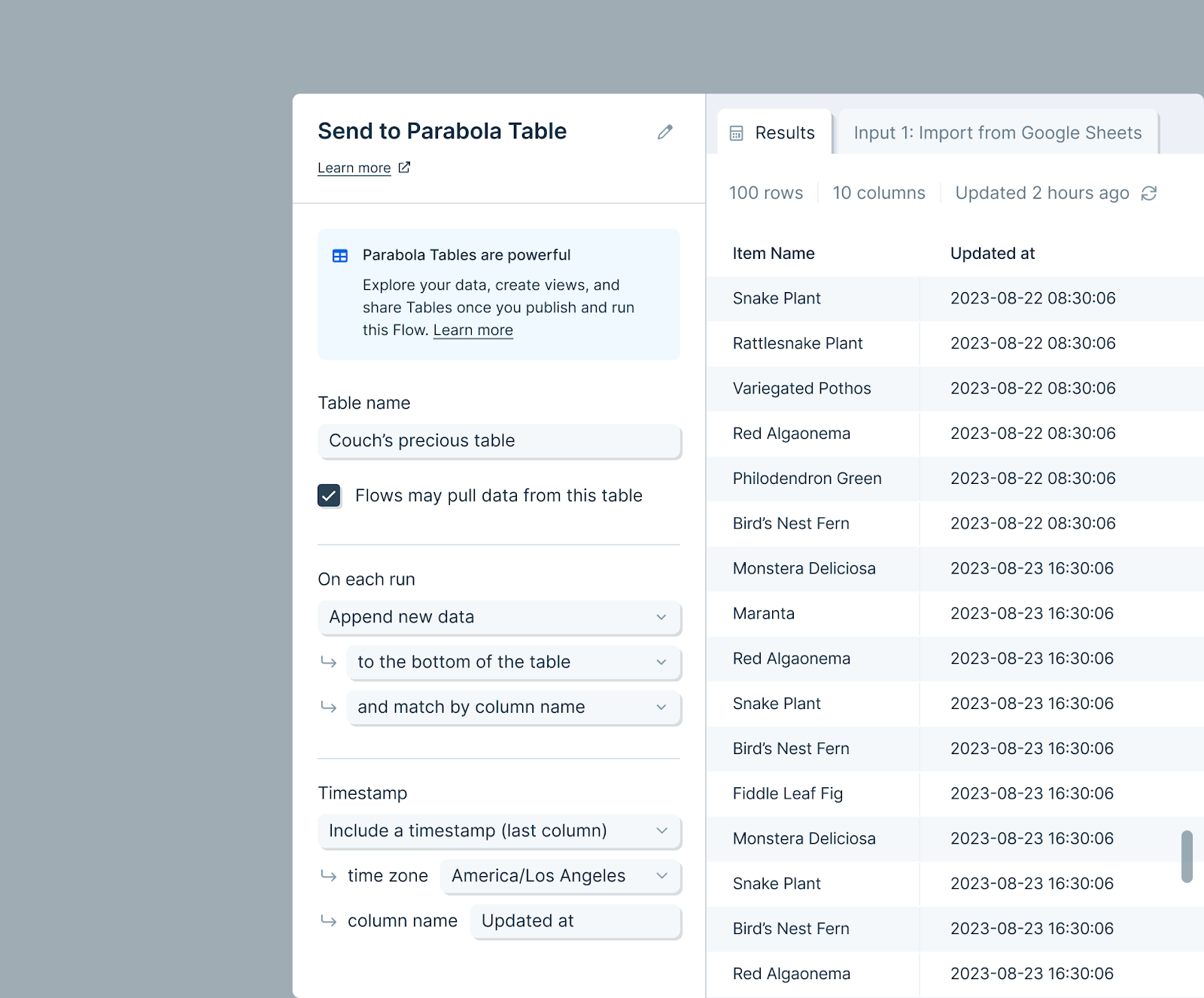 **Allow other flows to pull data from this table** is on by default. Anyone with access to this flow can use the table as a source in another flow. Disable to keep the table scoped to this flow only — it's still visible on the flow's Live page and pullable within the same flow.
Choose how data should be written. Three options below.
### Write modes
**Overwrite the table.** Each run replaces all data. This is also how you de-dupe — overwrite the table with cleaned data.
**Append new data.** Each run adds new rows above or below existing ones.
* Match input columns to table columns by **position** or by **name**.
* Optional: include a timestamp column showing when each row was added.
**Update existing rows.** Each run updates rows that match on a chosen key.
* Rows match based on the combined values in all selected columns. Duplicate matches cause the step to error. Matching column names must be present and identical in both the input and the table.
* Choose whether unmatched rows are appended to the bottom or discarded.
* Optional: include a timestamp showing when each row was last updated.
### Storing and chaining
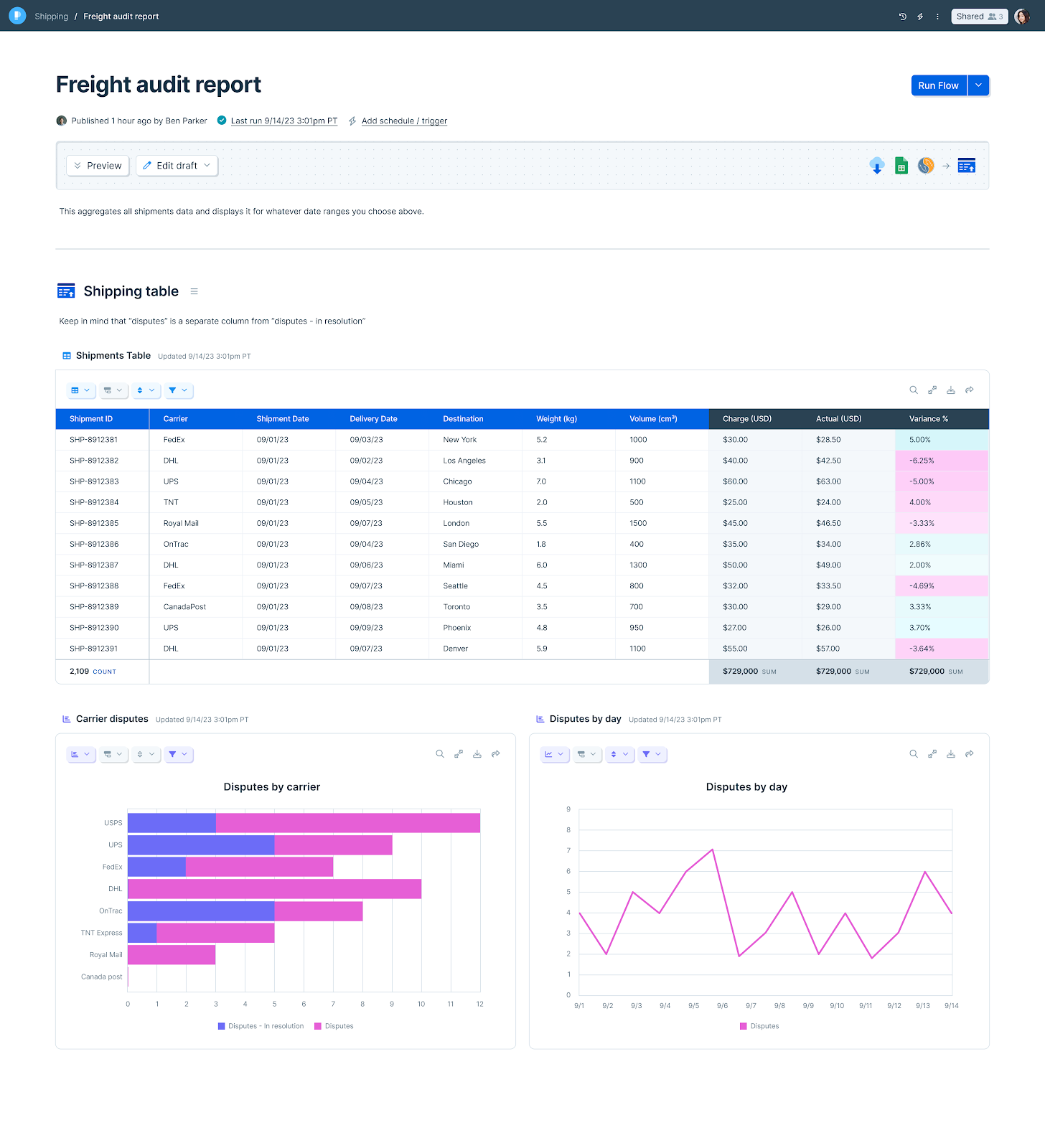
When the flow runs, the table populates and updates. Tables pair well with [**Visualize**](/product/integration/visualize) for historical reporting — see [interactive reports](/product/canvas/creating-interactive-reports#exploring-data-in-parabola-tables) for the pattern.
**Allow other flows to pull data from this table** is on by default. Anyone with access to this flow can use the table as a source in another flow. Disable to keep the table scoped to this flow only — it's still visible on the flow's Live page and pullable within the same flow.
Choose how data should be written. Three options below.
### Write modes
**Overwrite the table.** Each run replaces all data. This is also how you de-dupe — overwrite the table with cleaned data.
**Append new data.** Each run adds new rows above or below existing ones.
* Match input columns to table columns by **position** or by **name**.
* Optional: include a timestamp column showing when each row was added.
**Update existing rows.** Each run updates rows that match on a chosen key.
* Rows match based on the combined values in all selected columns. Duplicate matches cause the step to error. Matching column names must be present and identical in both the input and the table.
* Choose whether unmatched rows are appended to the bottom or discarded.
* Optional: include a timestamp showing when each row was last updated.
### Storing and chaining
When the flow runs, the table populates and updates. Tables pair well with [**Visualize**](/product/integration/visualize) for historical reporting — see [interactive reports](/product/canvas/creating-interactive-reports#exploring-data-in-parabola-tables) for the pattern.
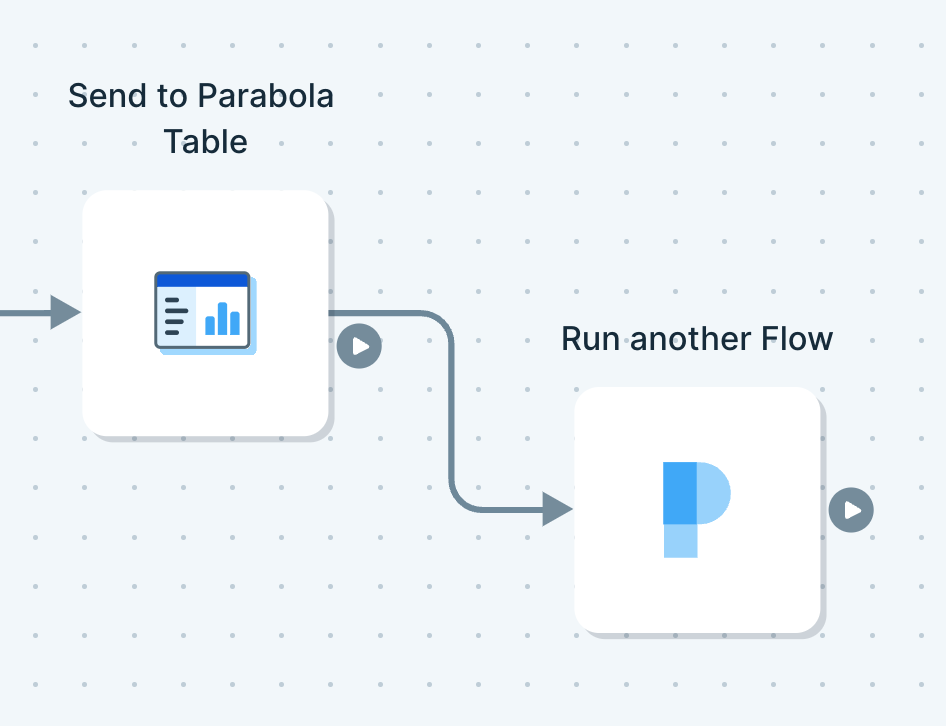
 You can also connect Send to Parabola Table to other steps in sequence. A common pattern: connect it to a [**Run another Parabola flow**](/product/integration/parabola-flows) step so the second flow runs against fresh data.
 ## Tips & limits
* **Storage.** Data is stored in an Amazon S3 bucket. Connections use SSL and are encrypted.
* **Tables don't auto-clear.** To delete the data, remove the step from both the draft and live versions of the flow (or delete the flow entirely).
* **Cell-count limits apply.** Parabola tables share the same [cell count limit](/product/canvas/limitations) as the rest of the canvas.
* **To clear a table without deleting the step,** add a [**Limit rows**](/product/transform/limit-rows) step before Send to Parabola Table, set it to 0 rows, set the destination to "Overwrite table," and run the flow.
## Related steps
* [Run another Parabola flow](/product/integration/parabola-flows) — chain flows together via a shared table
* [Visualize](/product/integration/visualize) — build dashboards on top of stored table data
* [Combine tables](/product/transform/combine-tables) — merge multiple tables before storing
* [Stack tables](/product/transform/stack-tables) — append tables together before storing
* [Limit rows](/product/transform/limit-rows) — trim or clear a table before writing
## Tips & limits
* **Storage.** Data is stored in an Amazon S3 bucket. Connections use SSL and are encrypted.
* **Tables don't auto-clear.** To delete the data, remove the step from both the draft and live versions of the flow (or delete the flow entirely).
* **Cell-count limits apply.** Parabola tables share the same [cell count limit](/product/canvas/limitations) as the rest of the canvas.
* **To clear a table without deleting the step,** add a [**Limit rows**](/product/transform/limit-rows) step before Send to Parabola Table, set it to 0 rows, set the destination to "Overwrite table," and run the flow.
## Related steps
* [Run another Parabola flow](/product/integration/parabola-flows) — chain flows together via a shared table
* [Visualize](/product/integration/visualize) — build dashboards on top of stored table data
* [Combine tables](/product/transform/combine-tables) — merge multiple tables before storing
* [Stack tables](/product/transform/stack-tables) — append tables together before storing
* [Limit rows](/product/transform/limit-rows) — trim or clear a table before writing