> ## Documentation Index
> Fetch the complete documentation index at: https://parabola.io/docs/llms.txt
> Use this file to discover all available pages before exploring further.
# Connect Walmart to Parabola
> Pull Walmart Marketplace orders into Parabola via the Walmart Marketplace API using Expiring Access Token auth, with dynamic date ranges for scheduled order syncs.
## What is Walmart Marketplace?
Walmart Marketplace is an online platform that allows third-party sellers to list and sell their products on Walmart.com. It provides businesses with access to Walmart's customer base, along with tools for managing inventory, pricing, and order fulfillment.
`This integration is currently in beta— additional functionality is available via API.`
## Pull orders from Walmart
The **Walmart API** is used to programmatically interact with Walmart's platform and provides access to various Walmart services including order managements, inventory and stock levels, product data, and customer insights.
Walmart is a beta integrations which requires a slightly more involved setup process than our native integrations. Following the guidance in this document should help even those without technical experience to pull data from Walmart. If you run into any questions, shoot our team an email at [support@parabola.io](mailto:support@parabola.io).
## Use Cases
| Use Case | Description |
| :------------------------- | :----------------------------------------------------------------------------------------------------------------------------------------------------------------------------------------------------------------------------------------- |
| Order Management | Supports order processing, allowing third-party sellers to manage orders, confirm shipments, retrieve shipping labels, and process returns. Sellers can integrate these functions into their own systems for automated order management. |
| Inventory and Stock Levels | Enables retailers and sellers on Walmart Marketplace to check inventory levels, update product quantities, and track stock status. This helps in efficient inventory management and avoiding stock-outs. |
| Product Data Access | Allows developers to access Walmart's product catalog, including item details, pricing, availability, and reviews. Businesses use this data to list Walmart products on their platforms, such as comparison websites or e-commerce stores. |
| Customer Data and Insights | Enables merchants or partners to gather customer behavior insights from API data, helping them analyze shopping patterns and improve their services or marketing efforts. |
## 🤝 Walmart | Integration configuration
### **Instructions**
Navigate to the [Walmart Developer Portal](http://developer.walmart.com/).
Click **My Account** to log into your Marketplace.
 Click **Add New Key For A Solution Provider** to set permissions for the provider to generate a **Client ID** and **Client Secret**.
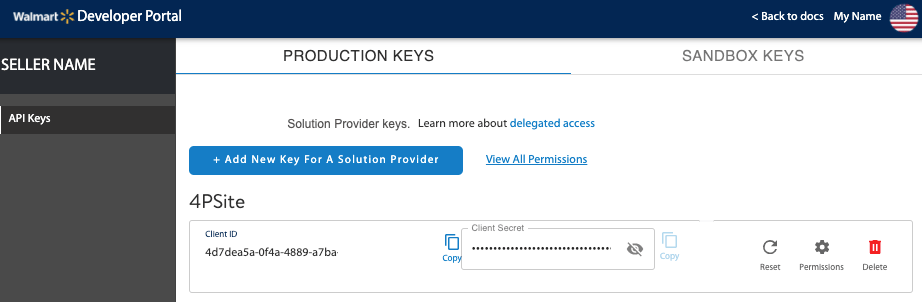 **Tip:**
Use **Production Keys** to connect to live production data in Parabola. Use **Sandbox Keys** to review the request and response formats using mock data.
Select the Solution Provider from the drop-down list.
**Tip:**
Use **Production Keys** to connect to live production data in Parabola. Use **Sandbox Keys** to review the request and response formats using mock data.
Select the Solution Provider from the drop-down list.
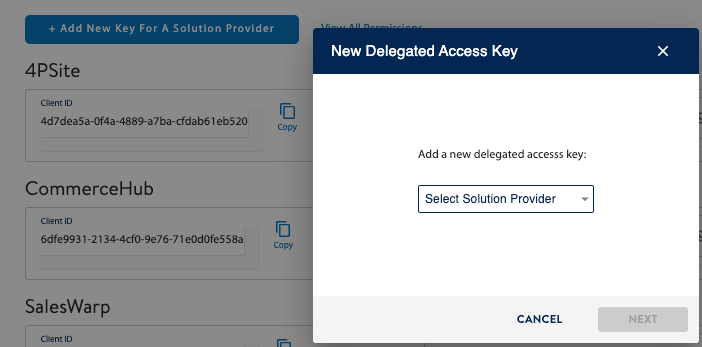 **Note:** If your Solution Provider is not listed, contact Walmart. You need to have a contract with Walmart before you can delegate access to a Solution Provider.
Specify specific permissions, or to take the defaults, click **Submit.**
**Note:** If your Solution Provider is not listed, contact Walmart. You need to have a contract with Walmart before you can delegate access to a Solution Provider.
Specify specific permissions, or to take the defaults, click **Submit.**
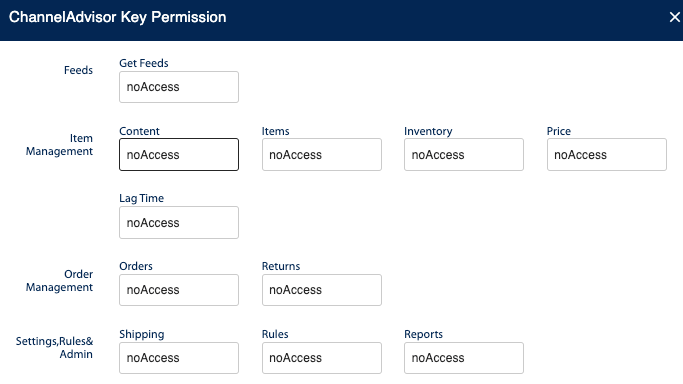 Configure an Expiring Access Token request to the [Token API](https://developer.walmart.com/api/us/supplier/auth) in Parabola.
## 🔐 Parabola | Authentication configuration
Add a **Pull orders from Walmart** step template to your canvas.
Click into any of the **Enrich with API** steps to configure your authentication.
Under the Authentication Type, select **Expiring Access Token** before selecting **Configure Auth**.
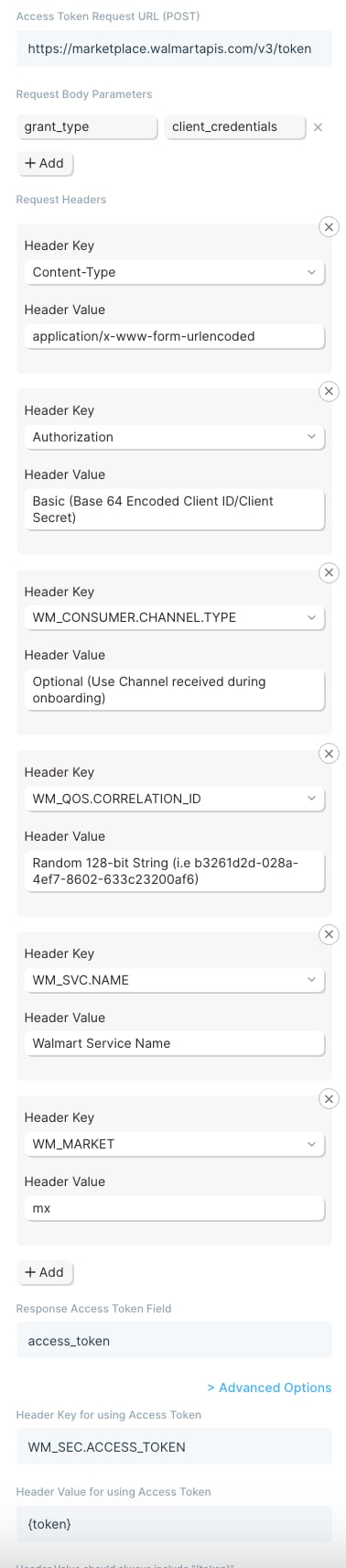
Enter your credentials to make a request to the [Token API](https://developer.walmart.com/api/us/supplier/auth) using the format below:
### **Access token request URL (`POST`)**
**Sandbox URL**
`https://sandbox.walmartapis.com/v3/token`
**Production URL**
`https://marketplace.walmartapis.com/v3/token`
### **Request Body Parameters**
| Key | Value |
| ------------ | -------------------- |
| `grant_type` | `client_credentials` |
### **Request Headers**
| Header Key | Header Value |
| ----------------------- | ----------------------------------- |
| `Content-Type` | `application/x-www-form-urlencoded` |
| `Authorization` | `Basic` `Client ID:Client Secret`> |
| `WM_QOS.CORRELATION_ID` | `<128-bit GUID>` |
| `WM_SVC.NAME` | `Walmart Service Name` |
| `WM_MARKET` | `us` or `mx` |
**Tip:**
You can configure an Authorization **Header Value** using a [base-64 encoder](https://www.base64encode.org/). Encode your **Client ID** and **Client Secret** separated by a colon: *Client ID:Client Secret*.
In Parabola, use the **Header Value** field to type `Basic` , followed by a space, and paste in your encoded credentials: `Basic {encoded credentials here}`.
**Tip:**
You can generate a `WM_QOS.CORRELATION_ID` **Header Value** using a [GUID generator](https://guidgenerator.com/). Click Generate some GUIDS and copy the result to your clipboard.
In Parabola, paste the results in the `WM_QOS.CORRELATION_ID` **Header Value**.
### **Response Access Token Field**
`access_token`
Click **Advanced Options**
### **Header Key for Using Access Token**
`WM_SEC.ACCESS_TOKEN`
### **Header Value for Using Access Token**
`{token}`
Click **Authorize**
### **Example Screenshot**
Configure an Expiring Access Token request to the [Token API](https://developer.walmart.com/api/us/supplier/auth) in Parabola.
## 🔐 Parabola | Authentication configuration
Add a **Pull orders from Walmart** step template to your canvas.
Click into any of the **Enrich with API** steps to configure your authentication.
Under the Authentication Type, select **Expiring Access Token** before selecting **Configure Auth**.
Enter your credentials to make a request to the [Token API](https://developer.walmart.com/api/us/supplier/auth) using the format below:
### **Access token request URL (`POST`)**
**Sandbox URL**
`https://sandbox.walmartapis.com/v3/token`
**Production URL**
`https://marketplace.walmartapis.com/v3/token`
### **Request Body Parameters**
| Key | Value |
| ------------ | -------------------- |
| `grant_type` | `client_credentials` |
### **Request Headers**
| Header Key | Header Value |
| ----------------------- | ----------------------------------- |
| `Content-Type` | `application/x-www-form-urlencoded` |
| `Authorization` | `Basic` `Client ID:Client Secret`> |
| `WM_QOS.CORRELATION_ID` | `<128-bit GUID>` |
| `WM_SVC.NAME` | `Walmart Service Name` |
| `WM_MARKET` | `us` or `mx` |
**Tip:**
You can configure an Authorization **Header Value** using a [base-64 encoder](https://www.base64encode.org/). Encode your **Client ID** and **Client Secret** separated by a colon: *Client ID:Client Secret*.
In Parabola, use the **Header Value** field to type `Basic` , followed by a space, and paste in your encoded credentials: `Basic {encoded credentials here}`.
**Tip:**
You can generate a `WM_QOS.CORRELATION_ID` **Header Value** using a [GUID generator](https://guidgenerator.com/). Click Generate some GUIDS and copy the result to your clipboard.
In Parabola, paste the results in the `WM_QOS.CORRELATION_ID` **Header Value**.
### **Response Access Token Field**
`access_token`
Click **Advanced Options**
### **Header Key for Using Access Token**
`WM_SEC.ACCESS_TOKEN`
### **Header Value for Using Access Token**
`{token}`
Click **Authorize**
### **Example Screenshot**
 Click into the other **Enrich with API** steps and select the **Expiring Access Token** as your **Authentcation Type** to apply the same credentials.
## 🌐 Walmart **| Sample API Requests**
### **List orders using a dynamic date range**
Get started with [this template](https://parabola.io/api/clipboard/da84931f-6d7d-454c-958e-c8ce26dbb2a6/copy_to_flow?name=Pull+Walmart+orders+with+dynamic+date+range)**.**
Add a **Start with date & time** step to the canvas to define the earliest order date.
Connect it to a [**Format dates**](/product/transform/format-dates) step to format the Current DateTime into `yyyy-MM-dd.`
Connect it to the **Enrich with API** step.
Under **Authentication Type**, ensure **Expiring Access Token** is selected to use your authentication credentials.
Click into the **Request Settings** to configure your request using the format below.
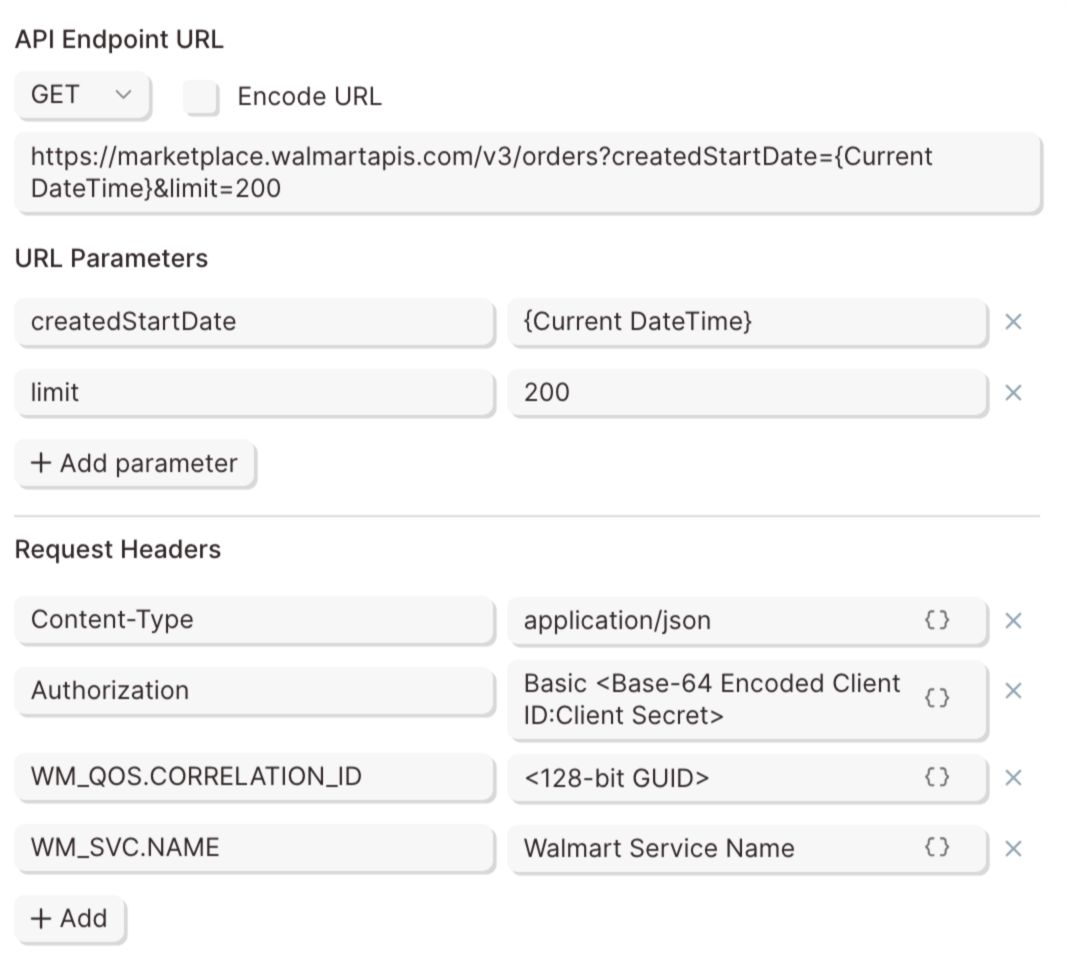
### **API Endpoint URL**
| Field | Value |
| ---------------- | --------------------------------------------------------------------------------------------- |
| Method | GET |
| API Endpoint URL | `https://marketplace.walmartapis.com/v3/orders?createdStartDate={Current DateTime}&limit=200` |
### **URL Parameters**
| Key | Value |
| ------------------------- | ---------------------------------------------------------- |
| createdStartDate | `{Current DateTime}` |
| limit\` | 200 |
| shipNodeType `(optional)` | SellerFulfilled `(Default)`, WFSFulfilled, or 3PLFulfilled |
### **Request Headers**
| Header Key | Header Value |
| ----------------------- | --------------------------------- |
| Content-Type | application/x-www-form-urlencoded |
| Authorization | Basic Client ID:Client Secret> |
| WM\_QOS.CORRELATION\_ID | `<128-bit GUID>` |
| WM\_SVC.NAME | Walmart Service Name |
Click **Refresh data** to display the results.
### **Example Screenshot**
Click into the other **Enrich with API** steps and select the **Expiring Access Token** as your **Authentcation Type** to apply the same credentials.
## 🌐 Walmart **| Sample API Requests**
### **List orders using a dynamic date range**
Get started with [this template](https://parabola.io/api/clipboard/da84931f-6d7d-454c-958e-c8ce26dbb2a6/copy_to_flow?name=Pull+Walmart+orders+with+dynamic+date+range)**.**
Add a **Start with date & time** step to the canvas to define the earliest order date.
Connect it to a [**Format dates**](/product/transform/format-dates) step to format the Current DateTime into `yyyy-MM-dd.`
Connect it to the **Enrich with API** step.
Under **Authentication Type**, ensure **Expiring Access Token** is selected to use your authentication credentials.
Click into the **Request Settings** to configure your request using the format below.
### **API Endpoint URL**
| Field | Value |
| ---------------- | --------------------------------------------------------------------------------------------- |
| Method | GET |
| API Endpoint URL | `https://marketplace.walmartapis.com/v3/orders?createdStartDate={Current DateTime}&limit=200` |
### **URL Parameters**
| Key | Value |
| ------------------------- | ---------------------------------------------------------- |
| createdStartDate | `{Current DateTime}` |
| limit\` | 200 |
| shipNodeType `(optional)` | SellerFulfilled `(Default)`, WFSFulfilled, or 3PLFulfilled |
### **Request Headers**
| Header Key | Header Value |
| ----------------------- | --------------------------------- |
| Content-Type | application/x-www-form-urlencoded |
| Authorization | Basic Client ID:Client Secret> |
| WM\_QOS.CORRELATION\_ID | `<128-bit GUID>` |
| WM\_SVC.NAME | Walmart Service Name |
Click **Refresh data** to display the results.
### **Example Screenshot**
 ## 📣 Callouts
**Note:** Parabola cannot support the API's cursor-style pagination at this time. We can import up to 200 records at a time. Configuring a smaller, dynamic date range with frequent flow runs is highly recommended.
## 📣 Callouts
**Note:** Parabola cannot support the API's cursor-style pagination at this time. We can import up to 200 records at a time. Configuring a smaller, dynamic date range with frequent flow runs is highly recommended.