> ## Documentation Index
> Fetch the complete documentation index at: https://parabola.io/docs/llms.txt
> Use this file to discover all available pages before exploring further.
# Pull from webhook
> Trigger a Parabola flow with a webhook from any external service. Use the webhook URL as a trigger for real-time event-based runs, with up to 1,000 queued runs per flow.
Webhooks are how external services tell Parabola "something just happened" — a customer placed an order, a shipment was delivered, a lead filled out a form. The **Pull from webhook** step receives that event and triggers your flow to run on the data the service sent.
## Pull from webhook
The **Pull from webhook** step receives data sent to Parabola via an external service's webhook feature. It's a source step that triggers a flow run when an event happens upstream — a Shopify order, a Stripe charge, a typeform submission, etc.
## Set up your flow to receive data from webhooks
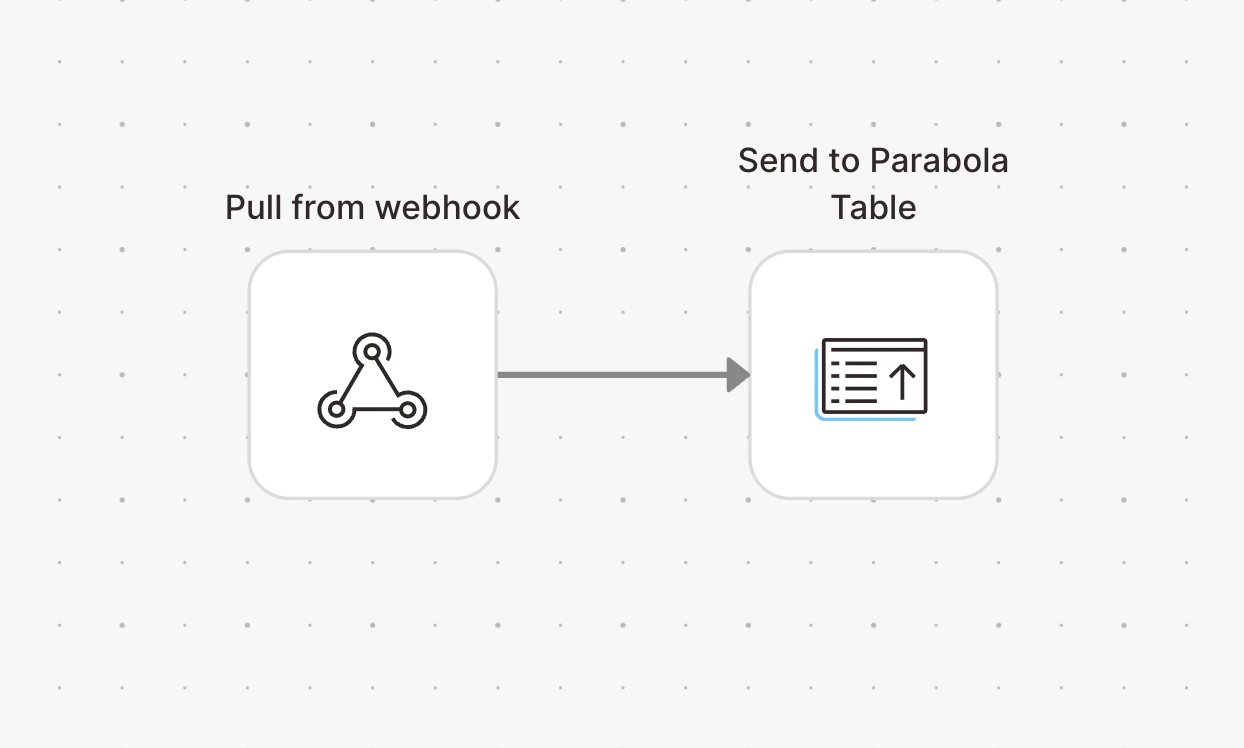
Build a small example flow with a **Pull from webhook** step at the start and a destination step you can inspect (like **Send to Parabola Table**). Connect them, then publish and run the flow using the button in the top right of the canvas.
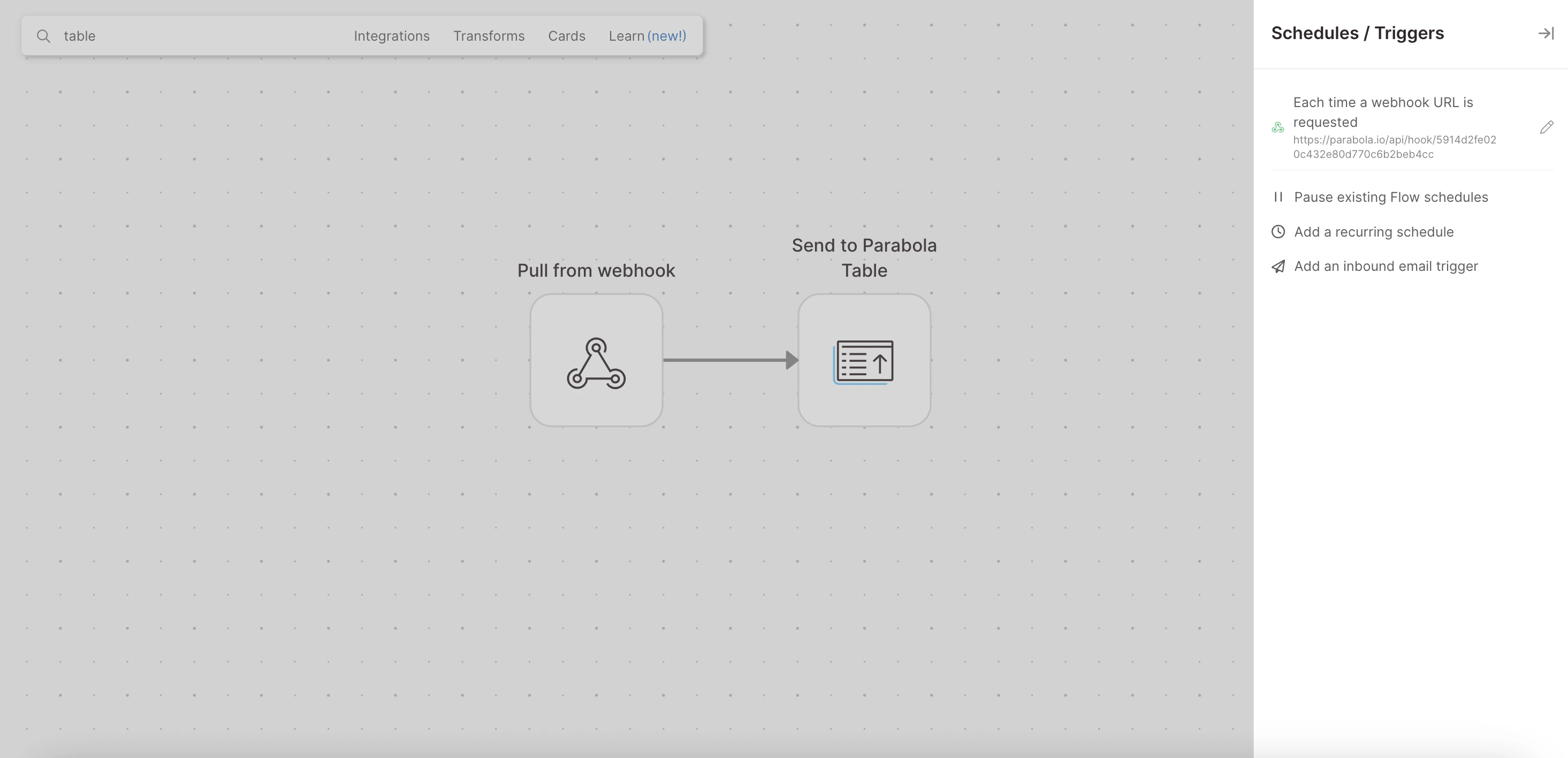
 After the flow has been run with the **Pull from webhook** step, open the **Schedules / Triggers pane** from the published flow screen — you'll see the webhook trigger.
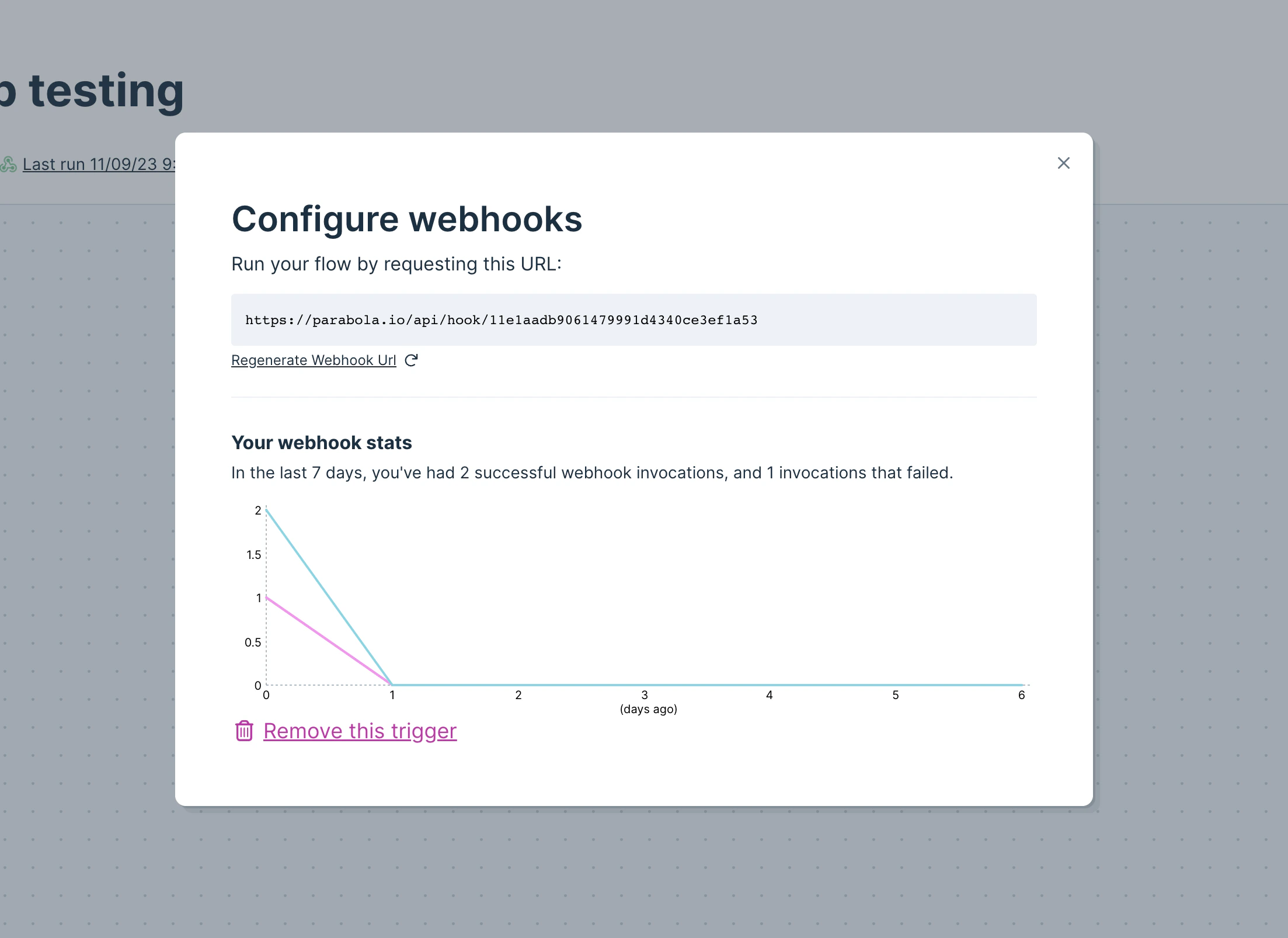
 Click the pencil icon to copy the webhook URL, configure the trigger, and see the run history.
 ## Have your external service send data via webhook
Copy the webhook URL and paste it into the external service's webhook settings.
After pasting the URL into your other tool, fire a test event (or wait for a real one — like an order being placed). Your flow will run automatically. Now switch back into a new Draft to open the flow builder.
The webhook payload from that test will be sitting in the **Pull from webhook** step. Double-click the step to inspect it. This is the most useful sanity check — what does this service actually send?
## Have your external service send data via webhook
Copy the webhook URL and paste it into the external service's webhook settings.
After pasting the URL into your other tool, fire a test event (or wait for a real one — like an order being placed). Your flow will run automatically. Now switch back into a new Draft to open the flow builder.
The webhook payload from that test will be sitting in the **Pull from webhook** step. Double-click the step to inspect it. This is the most useful sanity check — what does this service actually send?
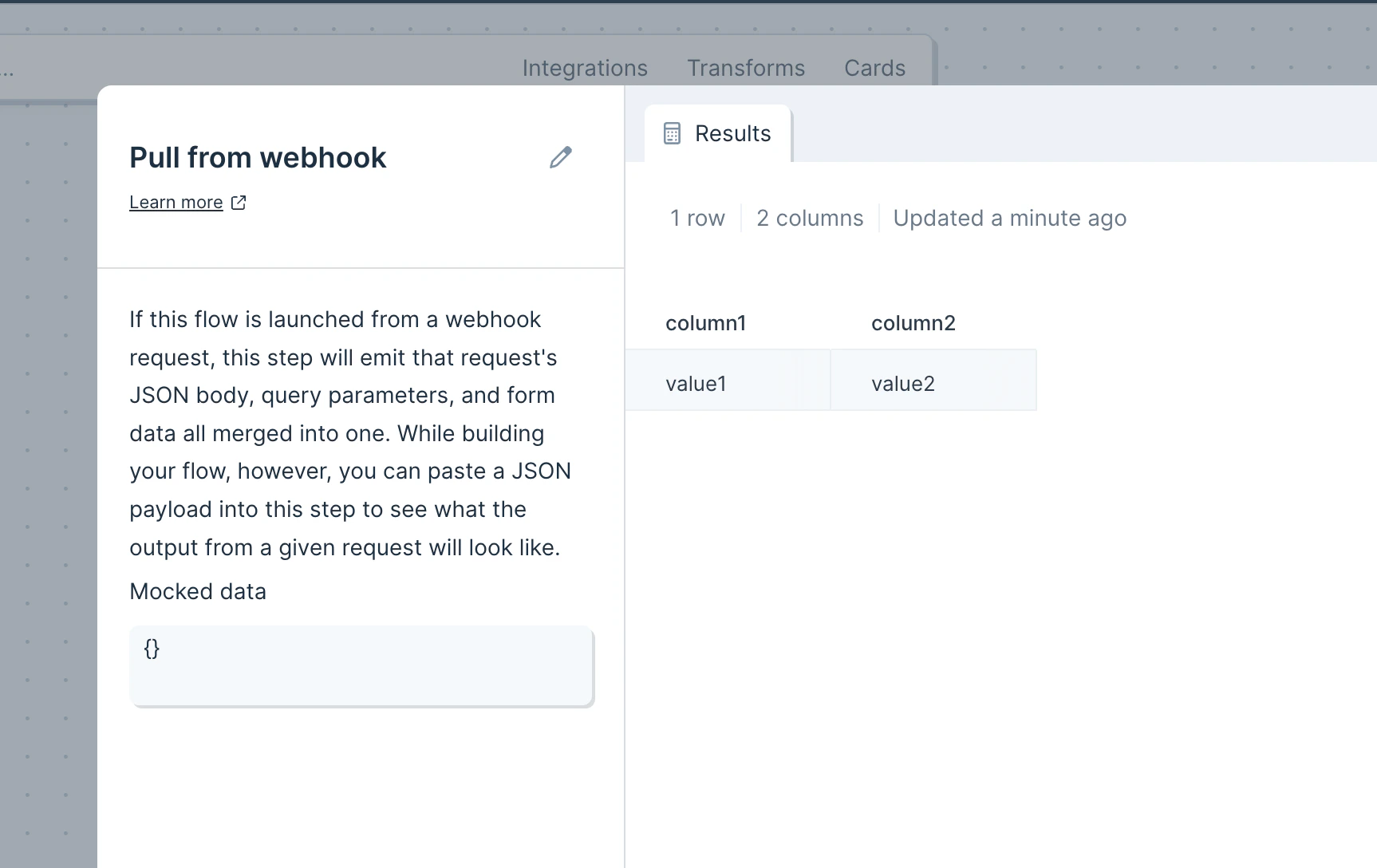 You have to wait for at least one webhook to come in before you can switch back to the editor and see data in the step. Without that first run, the step displays as blank.
## Helpful tips
* **Webhooks send JSON.** Data sent to this step must be in JSON format. If your source service offers multiple formats, pick JSON.
* **Webhooks queue.** If a flow is mid-run when more webhooks arrive, they queue and process in order. The queue holds up to 1,000 runs per flow.
* **No manual refresh.** This step doesn't have a refresh button — incoming data is always event-driven. To pick up the data in the editor, wait for a successful webhook run to appear in the run log before reopening the editor; opening the editor first creates a new draft that won't catch in-flight webhook runs.
* **Schedules don't apply.** Pull from webhook is event-triggered, not schedule-triggered. To run on a fixed schedule, use a different source step.
* **Send-to-webhook is a separate step.** This page documents the trigger side. To send data from Parabola to an external webhook, use a **Send to an API** step pointed at the destination URL.
## Related steps
* [Run another Parabola flow](/product/integration/parabola-flows) — to chain another flow off a webhook-triggered run
* [Pull from file queue](/product/integration/pull-from-file-queue) — for triggers that include a file URL alongside metadata
* [Extract from email](/product/integration/email-attachment) — when the upstream service sends emails instead of webhooks
* [Send Slack message](/product/integration/slack) — to fire alerts in real time when a webhook event arrives
* [Filter rows](/product/transform/filter-rows) — to drop webhook payloads that don't match the criteria you care about
You have to wait for at least one webhook to come in before you can switch back to the editor and see data in the step. Without that first run, the step displays as blank.
## Helpful tips
* **Webhooks send JSON.** Data sent to this step must be in JSON format. If your source service offers multiple formats, pick JSON.
* **Webhooks queue.** If a flow is mid-run when more webhooks arrive, they queue and process in order. The queue holds up to 1,000 runs per flow.
* **No manual refresh.** This step doesn't have a refresh button — incoming data is always event-driven. To pick up the data in the editor, wait for a successful webhook run to appear in the run log before reopening the editor; opening the editor first creates a new draft that won't catch in-flight webhook runs.
* **Schedules don't apply.** Pull from webhook is event-triggered, not schedule-triggered. To run on a fixed schedule, use a different source step.
* **Send-to-webhook is a separate step.** This page documents the trigger side. To send data from Parabola to an external webhook, use a **Send to an API** step pointed at the destination URL.
## Related steps
* [Run another Parabola flow](/product/integration/parabola-flows) — to chain another flow off a webhook-triggered run
* [Pull from file queue](/product/integration/pull-from-file-queue) — for triggers that include a file URL alongside metadata
* [Extract from email](/product/integration/email-attachment) — when the upstream service sends emails instead of webhooks
* [Send Slack message](/product/integration/slack) — to fire alerts in real time when a webhook event arrives
* [Filter rows](/product/transform/filter-rows) — to drop webhook payloads that don't match the criteria you care about