> ## Documentation Index
> Fetch the complete documentation index at: https://parabola.io/docs/llms.txt
> Use this file to discover all available pages before exploring further.
# Change text casing
> The **Change text** casing step converts the text in any column to a selected case type.
## Input/output
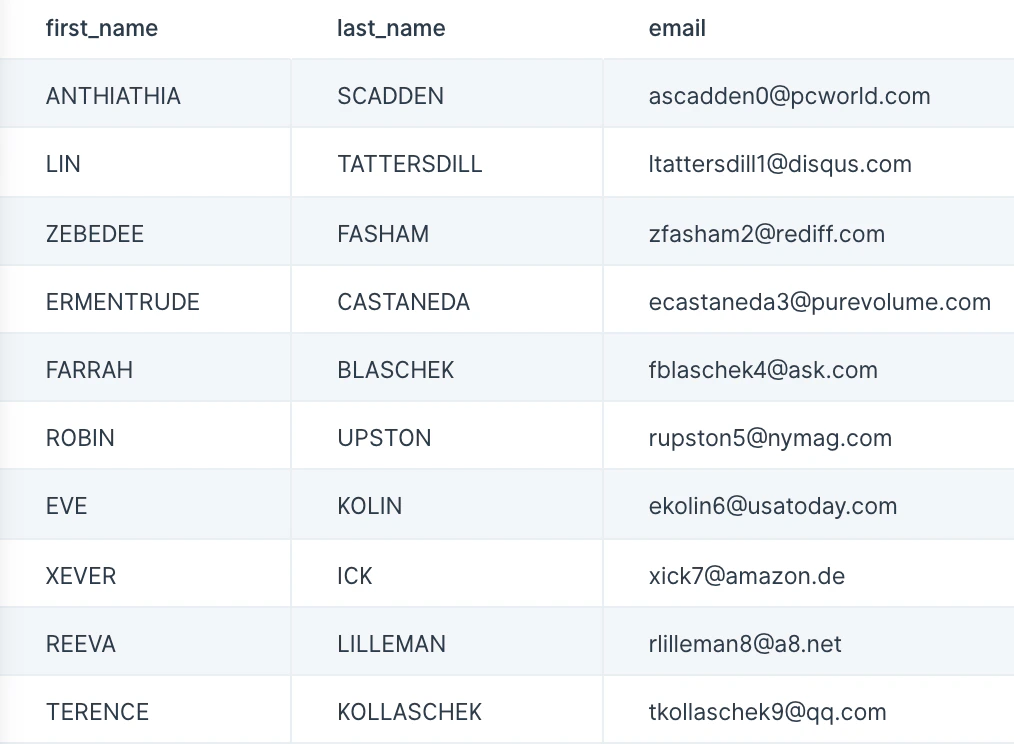
Our input data is customer information that displays first and last names in all uppercase. We can use the **Change text casing** step to turn our first and last names into title case.
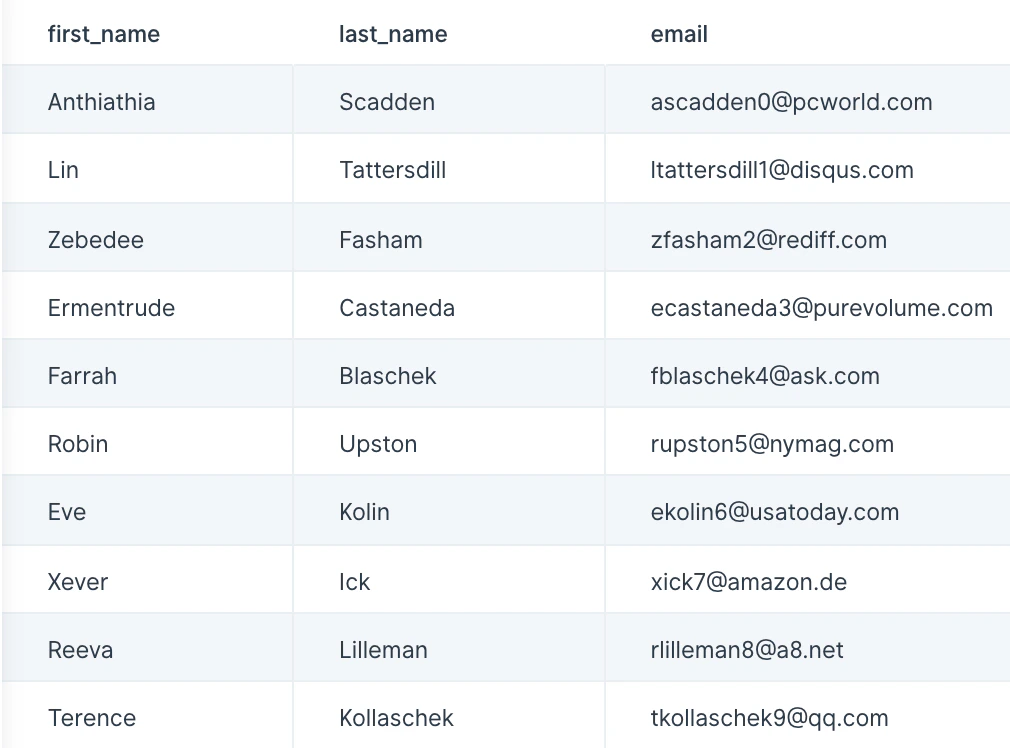
 As seen in our output data below, this step made our "first\_name" and "last\_name" columns change into title case.
 ## Custom settings
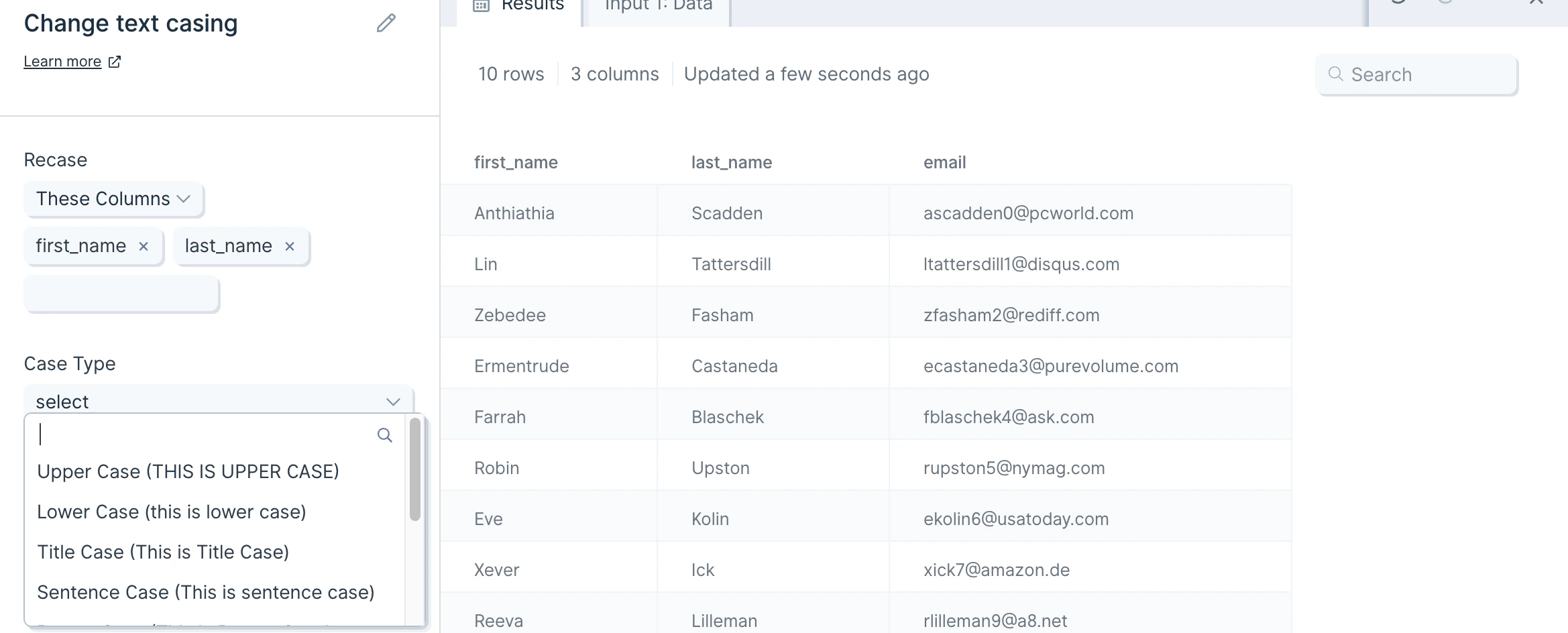
The first thing to do when you connect data to the **Change text casing** step is to select the column(s) you'd like to 'Recase'. You can select as many columns as you need.
Then, you will select the desired 'Case Type;. The available case types are:
* Upper Case (THIS IS UPPER CASE)
* Lower Case (this is lower case)
* Title Case (This is Title Case)
* Sentence Case (This is sentence case)
* Proper Case (This Is Proper Case)
* Snake Case (this\_is\_snake\_case)
* Camel Case (thisIsCamelCase)
* Train Case (This-Is-Train-Case)
* Kebab Case (this-is-kebab-case)
## Custom settings
The first thing to do when you connect data to the **Change text casing** step is to select the column(s) you'd like to 'Recase'. You can select as many columns as you need.
Then, you will select the desired 'Case Type;. The available case types are:
* Upper Case (THIS IS UPPER CASE)
* Lower Case (this is lower case)
* Title Case (This is Title Case)
* Sentence Case (This is sentence case)
* Proper Case (This Is Proper Case)
* Snake Case (this\_is\_snake\_case)
* Camel Case (thisIsCamelCase)
* Train Case (This-Is-Train-Case)
* Kebab Case (this-is-kebab-case)
 ## Helpful tips
* This step can only change one case type at a time. If you'd like to change different columns to different case types, you can do this by chaining multiple **Change text casing** steps together.
## Related steps
* [Find and replace](/product/transform/find-and-replace)
* [Clean data](/product/transform/clean-data)
* [Edit columns](/product/transform/edit-columns)
* [Standardize with AI](/product/transform/standardize-with-ai)
* [Extract text from column](/product/transform/extract-text-from-column)
## Helpful tips
* This step can only change one case type at a time. If you'd like to change different columns to different case types, you can do this by chaining multiple **Change text casing** steps together.
## Related steps
* [Find and replace](/product/transform/find-and-replace)
* [Clean data](/product/transform/clean-data)
* [Edit columns](/product/transform/edit-columns)
* [Standardize with AI](/product/transform/standardize-with-ai)
* [Extract text from column](/product/transform/extract-text-from-column)