> ## Documentation Index
> Fetch the complete documentation index at: https://parabola.io/docs/llms.txt
> Use this file to discover all available pages before exploring further.
# Clean data
> The **Clean data** step removes leading or trailing spaces and other unwanted characters (letters, numbers, or punctuation) from cells in specified column(s).
## Input/output
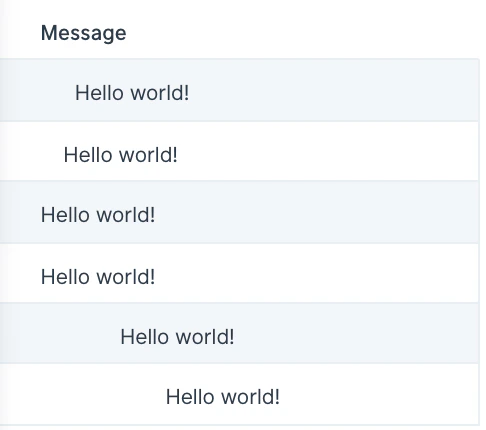
Our input data has a column of messages with numbers of various leading and trailing spaces.
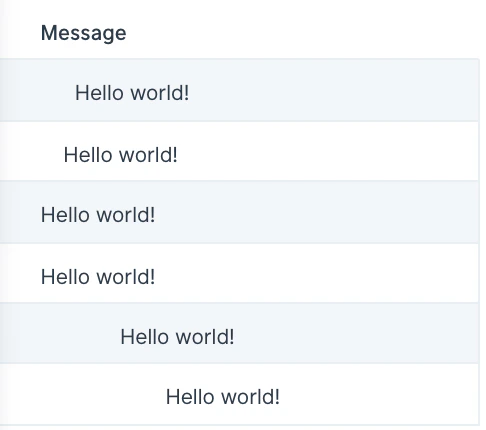
 By using the **Clean data** step, we can easily remove spaces to clean up the 'Message' column.
 ## Default settings
When you first connect data into this step, by default your table's first column will be auto-selected to clean and the option to **Remove all spaces** will be applied.
## Custom settings
To customize these settings, first choose the column(s) from the dropdown that the cleaning rules should apply to. You can either select to **Clean the data in these columns** or **Clean the data in all columns except**.
Next, choose the cleaning options that should be applied to the specified column(s). The available options are:
* Remove all spaces
* Remove leading spaces
* Remove trailing spaces
* Remove all punctuations
* Remove all characters
* Remove all numbers
* Remove all non-numbers
* Clean to use as JSON
You can combine the cleaning options if needed.
You can also add multiple clean data rules to this step by clicking on the 'Add Rule' button.
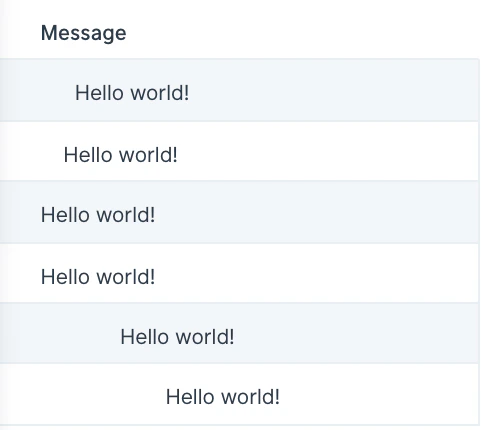
In our above screenshots, we selected the 'Message' column to apply our cleaning rules to and selected two cleaning options: 'Remove leading spaces' and 'Remove trailing spaces'. As seen below, this cleaned up varying leading and trailing spaces in the 'Message' column.
## Default settings
When you first connect data into this step, by default your table's first column will be auto-selected to clean and the option to **Remove all spaces** will be applied.
## Custom settings
To customize these settings, first choose the column(s) from the dropdown that the cleaning rules should apply to. You can either select to **Clean the data in these columns** or **Clean the data in all columns except**.
Next, choose the cleaning options that should be applied to the specified column(s). The available options are:
* Remove all spaces
* Remove leading spaces
* Remove trailing spaces
* Remove all punctuations
* Remove all characters
* Remove all numbers
* Remove all non-numbers
* Clean to use as JSON
You can combine the cleaning options if needed.
You can also add multiple clean data rules to this step by clicking on the 'Add Rule' button.
In our above screenshots, we selected the 'Message' column to apply our cleaning rules to and selected two cleaning options: 'Remove leading spaces' and 'Remove trailing spaces'. As seen below, this cleaned up varying leading and trailing spaces in the 'Message' column.
 ## Helpful tips
* This step is useful to use when you're preparing data to send to an API using the **Send to API** step. If you encounter a JSON error when sending data to an API, try using the **Clean data** step first to see if it can quickly remove the special character(s) causing the issue.
* Looking for hidden characters? The "Clean to use as JSON" option is useful for identifying those that might not be visible
## Related steps
* [Find and replace](/product/transform/find-and-replace)
* [Change text casing](/product/transform/change-text-casing)
* [Extract text from column](/product/transform/extract-text-from-column)
* [Edit columns](/product/transform/edit-columns)
* [Use regex](/product/transform/use-regex)
## Helpful tips
* This step is useful to use when you're preparing data to send to an API using the **Send to API** step. If you encounter a JSON error when sending data to an API, try using the **Clean data** step first to see if it can quickly remove the special character(s) causing the issue.
* Looking for hidden characters? The "Clean to use as JSON" option is useful for identifying those that might not be visible
## Related steps
* [Find and replace](/product/transform/find-and-replace)
* [Change text casing](/product/transform/change-text-casing)
* [Extract text from column](/product/transform/extract-text-from-column)
* [Edit columns](/product/transform/edit-columns)
* [Use regex](/product/transform/use-regex)