> ## Documentation Index
> Fetch the complete documentation index at: https://parabola.io/docs/llms.txt
> Use this file to discover all available pages before exploring further.
# Count by group
> The **Count by group** step counts the number of rows that exist for each unique value or combination of values in one or more columns. This step is similar to the COUNTIF function in Excel.
Watch this [Parabola University](https://parabola.io/resources/parabola-university) video for a quick walkthrough of the **Count by group** step.
## Input/output
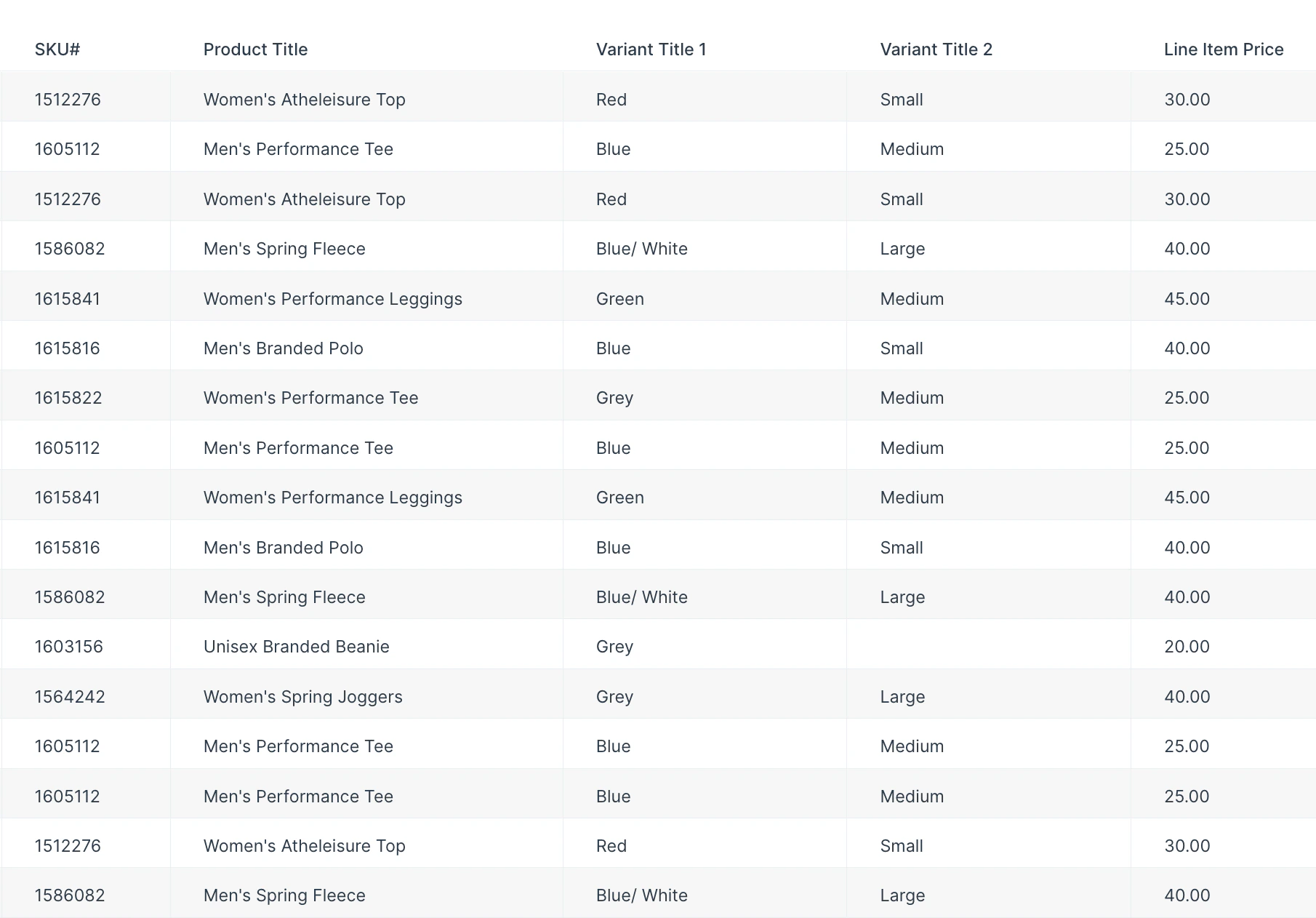
Our input data is a list of ecommerce orders, including detailed data about items ordered.
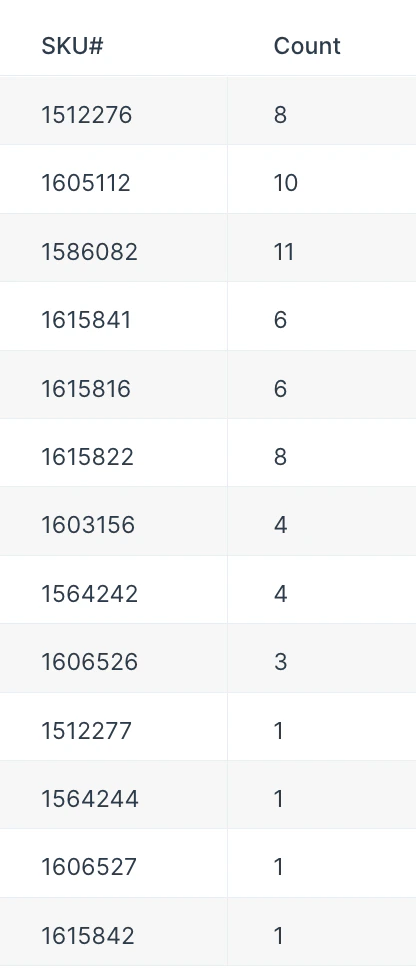
We want to know how many of each SKU was sold. With the step set up and data flowing through it, we can see that we our most popular item was SKU #1586082 with 11 items sold.
## Default settings
By default, this step will count every row as unique and display a 'Count' column with the same value as the number of rows in your input table.
## Custom settings
To customize these default settings, you'll first select a column or multiple columns you'd like to count unique values in. Then, you'll title your new counting column.
Above, we wanted to count groups in a single column, so we selected 'SKU' from the dropdown and named the new column 'Count'. You can also add multiple columns if you want to count unique values for the combinations of those column values.
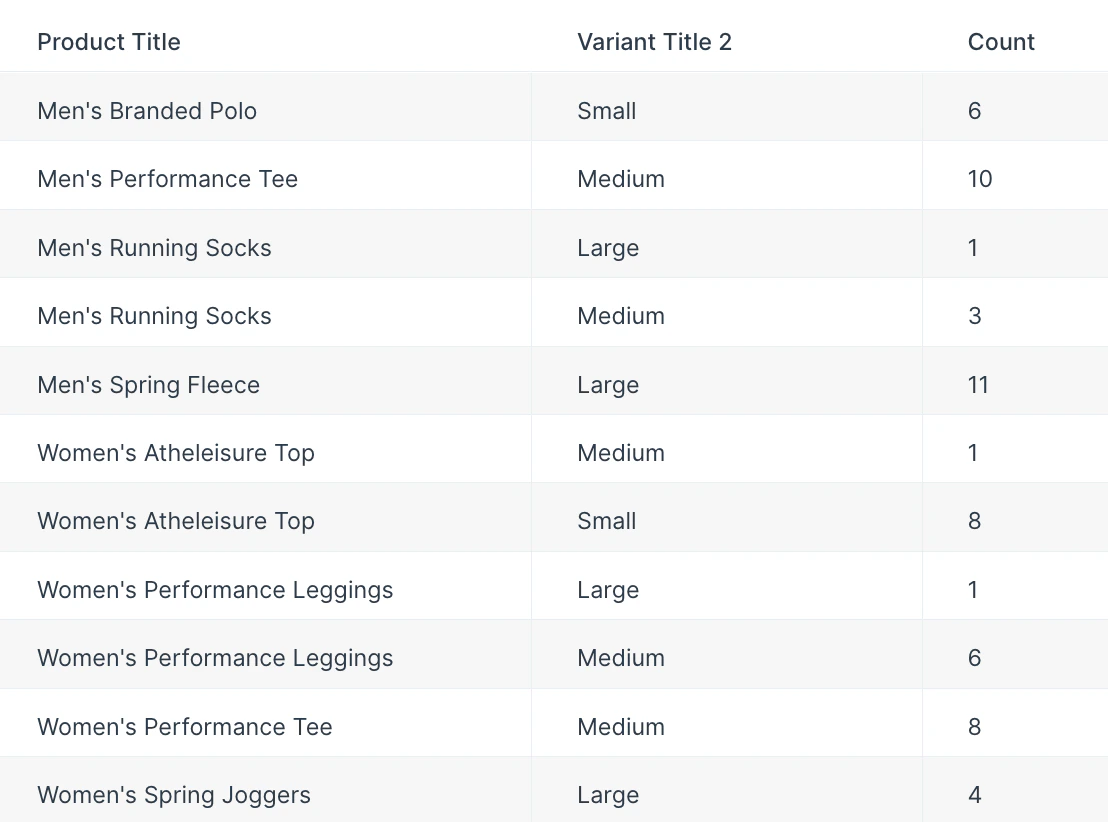
For example, if we want to count sizes sold of each item type, we can select 'Product Title' and 'Variant Title 2' (item sizes) from the dropdown to see these updated results. The results below show us that we sold significantly more small than medium women's athleisure tops.
## Related steps
* [Sum by group](/product/transform/sum-by-group)
* [Average by group](/product/transform/average-by-group)
* [Find maximum by group](/product/transform/find-maximum-by-group)
* [Merge duplicate rows](/product/transform/merge-duplicate-rows)
* [Remove duplicate rows](/product/transform/remove-duplicate-rows)
 We want to know how many of each SKU was sold. With the step set up and data flowing through it, we can see that we our most popular item was SKU #1586082 with 11 items sold.
 ## Default settings
By default, this step will count every row as unique and display a 'Count' column with the same value as the number of rows in your input table.
## Default settings
By default, this step will count every row as unique and display a 'Count' column with the same value as the number of rows in your input table.
 ## Custom settings
To customize these default settings, you'll first select a column or multiple columns you'd like to count unique values in. Then, you'll title your new counting column.
Above, we wanted to count groups in a single column, so we selected 'SKU' from the dropdown and named the new column 'Count'. You can also add multiple columns if you want to count unique values for the combinations of those column values.
For example, if we want to count sizes sold of each item type, we can select 'Product Title' and 'Variant Title 2' (item sizes) from the dropdown to see these updated results. The results below show us that we sold significantly more small than medium women's athleisure tops.
## Custom settings
To customize these default settings, you'll first select a column or multiple columns you'd like to count unique values in. Then, you'll title your new counting column.
Above, we wanted to count groups in a single column, so we selected 'SKU' from the dropdown and named the new column 'Count'. You can also add multiple columns if you want to count unique values for the combinations of those column values.
For example, if we want to count sizes sold of each item type, we can select 'Product Title' and 'Variant Title 2' (item sizes) from the dropdown to see these updated results. The results below show us that we sold significantly more small than medium women's athleisure tops.
 ## Related steps
* [Sum by group](/product/transform/sum-by-group)
* [Average by group](/product/transform/average-by-group)
* [Find maximum by group](/product/transform/find-maximum-by-group)
* [Merge duplicate rows](/product/transform/merge-duplicate-rows)
* [Remove duplicate rows](/product/transform/remove-duplicate-rows)
## Related steps
* [Sum by group](/product/transform/sum-by-group)
* [Average by group](/product/transform/average-by-group)
* [Find maximum by group](/product/transform/find-maximum-by-group)
* [Merge duplicate rows](/product/transform/merge-duplicate-rows)
* [Remove duplicate rows](/product/transform/remove-duplicate-rows)