> ## Documentation Index
> Fetch the complete documentation index at: https://parabola.io/docs/llms.txt
> Use this file to discover all available pages before exploring further.
# Experiment with AI
> This step is simply a text box that lets you ask the AI to revise, remove, or add to the input data however you like. It's the most flexible of the AI steps ... but that means it has the most variable results, too.
## Examples of experimenting with AI using this step
* Take a list of product categories, and ask the step to assign emojis to each one
* Change the values in a column to title case... but only if the word looks like a name or a proper noun
* Analyze the sentiment — positive, negative, neutral — of a column with text
* Remove values from a column that meet a certain condition
## How to use this step
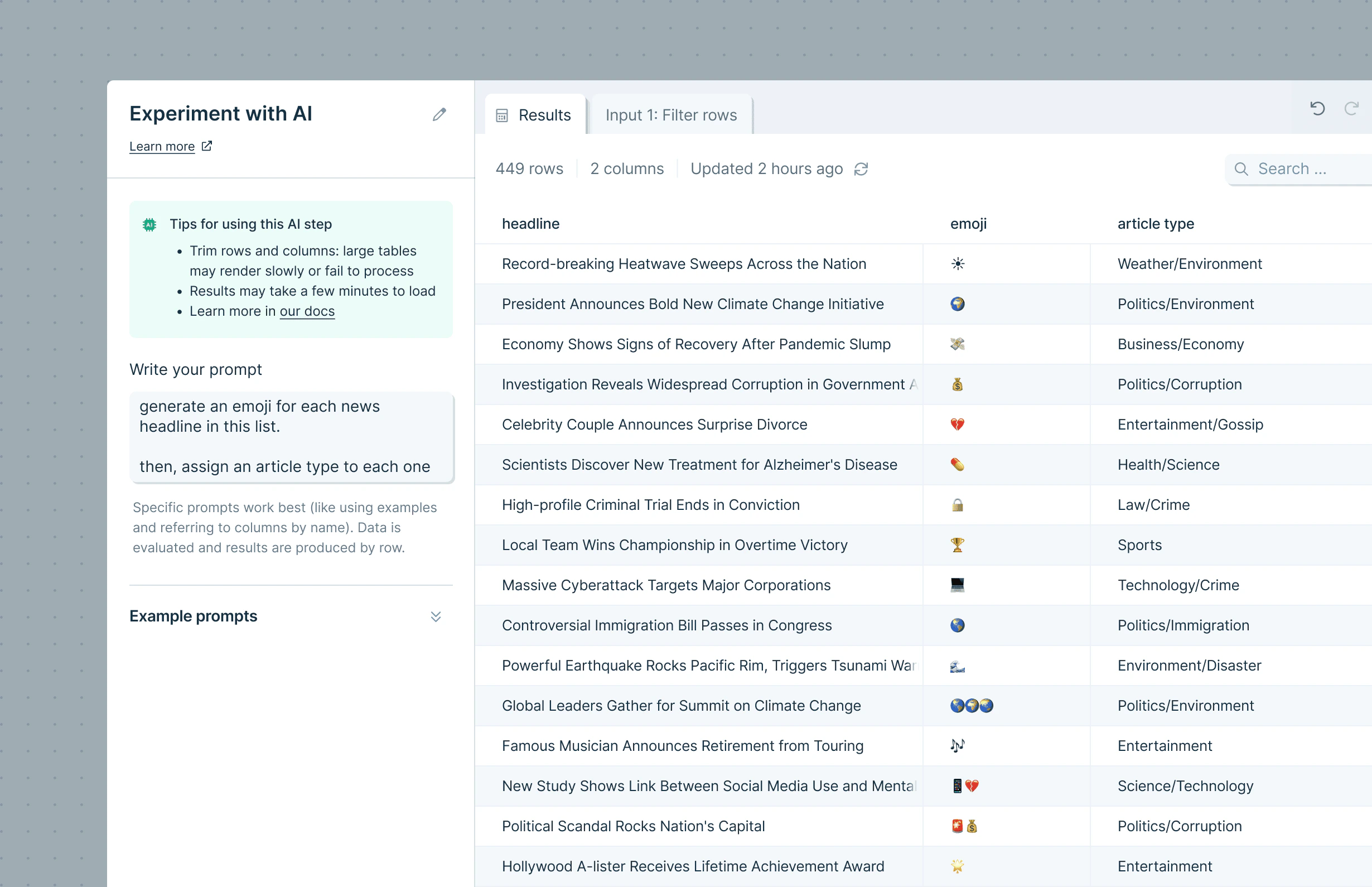 This step is simply a text box, where you can make a request of the AI (also known as a "prompt"). Your results will depend in part on the specificity of your prompt. Here are some tips for making the most of this step.
* You can refer to existing columns by name. If it helps, you can even try putting them into quotes to isolate them.
* Prompts can be several sentences long. If you start out simply and don't get the result you want, try explaining your ask in more detail!
* Sometimes using an example helps. If you're trying to get the AI to rate the cuteness of animals, you can say: "The cutest animals are fuzzy, like squirrels, rabbits, and pandas. Young animals are also cute, like puppies, kittens, and bunnies"
* Check out OpenAI's tips for [writing a good prompt](https://help.openai.com/en/articles/6654000-best-practices-for-prompt-engineering-with-openai-api) (aka "prompt engineering")
## Helpful tips
* **Row limits for AI steps:** AI steps can only reliably run a few thousand rows at once. **Experiment with AI** has an upper limit of 100k rows, though runs above \~70k rows often fail. If you need to process more than 100k rows, use [Filter rows](/product/transform/filter-rows) to split your dataset and run smaller batches in parallel.
* Sometimes you'll see a response or error back instead of a result. Those responses are often generated by the AI, and can help you modify the prompt to get what you need.
***
How Parabola's AI builder works — and how AI steps fit into full workflows.
Describe what you need and Prowork constructs the steps, including AI steps.
## Related steps
* [Custom transform](/product/transform/custom-transform)
* [Categorize with AI](/product/transform/categorize-with-ai)
* [Extract with AI](/product/transform/extract-with-ai)
* [Standardize with AI](/product/transform/standardize-with-ai)
* [Filter rows](/product/transform/filter-rows)
This step is simply a text box, where you can make a request of the AI (also known as a "prompt"). Your results will depend in part on the specificity of your prompt. Here are some tips for making the most of this step.
* You can refer to existing columns by name. If it helps, you can even try putting them into quotes to isolate them.
* Prompts can be several sentences long. If you start out simply and don't get the result you want, try explaining your ask in more detail!
* Sometimes using an example helps. If you're trying to get the AI to rate the cuteness of animals, you can say: "The cutest animals are fuzzy, like squirrels, rabbits, and pandas. Young animals are also cute, like puppies, kittens, and bunnies"
* Check out OpenAI's tips for [writing a good prompt](https://help.openai.com/en/articles/6654000-best-practices-for-prompt-engineering-with-openai-api) (aka "prompt engineering")
## Helpful tips
* **Row limits for AI steps:** AI steps can only reliably run a few thousand rows at once. **Experiment with AI** has an upper limit of 100k rows, though runs above \~70k rows often fail. If you need to process more than 100k rows, use [Filter rows](/product/transform/filter-rows) to split your dataset and run smaller batches in parallel.
* Sometimes you'll see a response or error back instead of a result. Those responses are often generated by the AI, and can help you modify the prompt to get what you need.
***
How Parabola's AI builder works — and how AI steps fit into full workflows.
Describe what you need and Prowork constructs the steps, including AI steps.
## Related steps
* [Custom transform](/product/transform/custom-transform)
* [Categorize with AI](/product/transform/categorize-with-ai)
* [Extract with AI](/product/transform/extract-with-ai)
* [Standardize with AI](/product/transform/standardize-with-ai)
* [Filter rows](/product/transform/filter-rows)