> ## Documentation Index
> Fetch the complete documentation index at: https://parabola.io/docs/llms.txt
> Use this file to discover all available pages before exploring further.
# Fill in blanks
> The **Fill in blanks** step fills empty cells based on the values of other cells or columns in the dataset, or a specified text string.
## Input/output
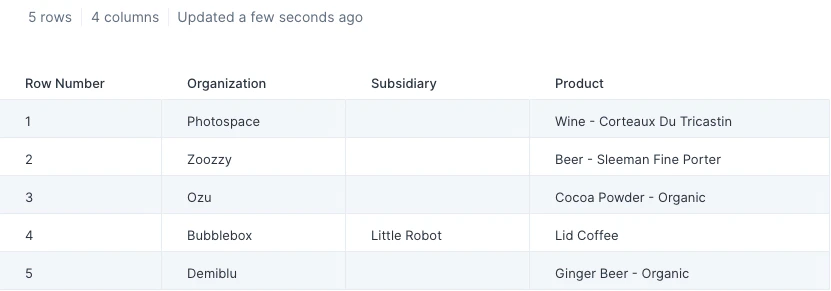
We'll use the below input table for this step to process. It contains four columns including one labeled 'Subsidiary' that contains several blank cells.
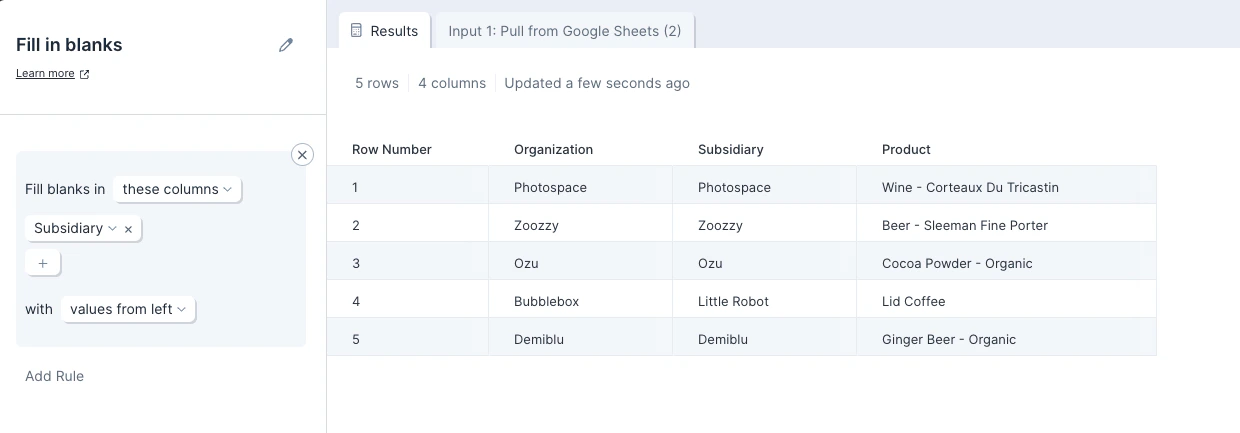
 After using the **Fill in blanks** step, our output table now has values in the previously-empty 'Subsidiary' column. The **Fill in Blanks** step has populated each blank cell in the column with the value to its left.
 ## Custom settings
Once you connect data to the **Fill in blanks** step, you will first need to select which column we should fill in blanks for.
By default, this step will fill in blanks with values from above. To change this, click on 'values from above' and select another option from the available dropdown:
* values from above
* values from below
* values from left
* values from right
* custom values
## Custom settings
Once you connect data to the **Fill in blanks** step, you will first need to select which column we should fill in blanks for.
By default, this step will fill in blanks with values from above. To change this, click on 'values from above' and select another option from the available dropdown:
* values from above
* values from below
* values from left
* values from right
* custom values
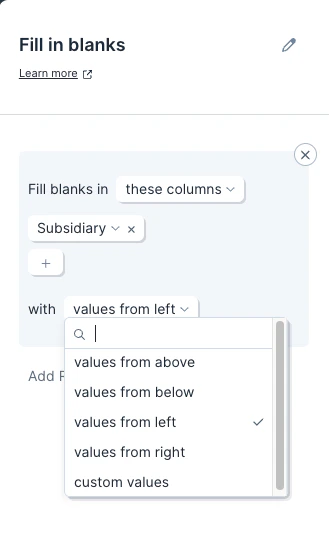 You can create multiple rules that will be applied from the top down. To do so, simply click on the gray 'Add Rule' link.
## Related steps
* [Find and replace](/product/transform/find-and-replace)
* [Edit columns](/product/transform/edit-columns)
* [Clean data](/product/transform/clean-data)
* [Filter rows](/product/transform/filter-rows)
* [Insert if else column](/product/transform/insert-if-else-column)
You can create multiple rules that will be applied from the top down. To do so, simply click on the gray 'Add Rule' link.
## Related steps
* [Find and replace](/product/transform/find-and-replace)
* [Edit columns](/product/transform/edit-columns)
* [Clean data](/product/transform/clean-data)
* [Filter rows](/product/transform/filter-rows)
* [Insert if else column](/product/transform/insert-if-else-column)