> ## Documentation Index
> Fetch the complete documentation index at: https://parabola.io/docs/llms.txt
> Use this file to discover all available pages before exploring further.
# Calculate score
> The Calculate score step scores each row based on specified criteria and puts the score into a new column.
## Input/output
In this example, the data we'll input into this step has a list of multiple leads across a few companies.
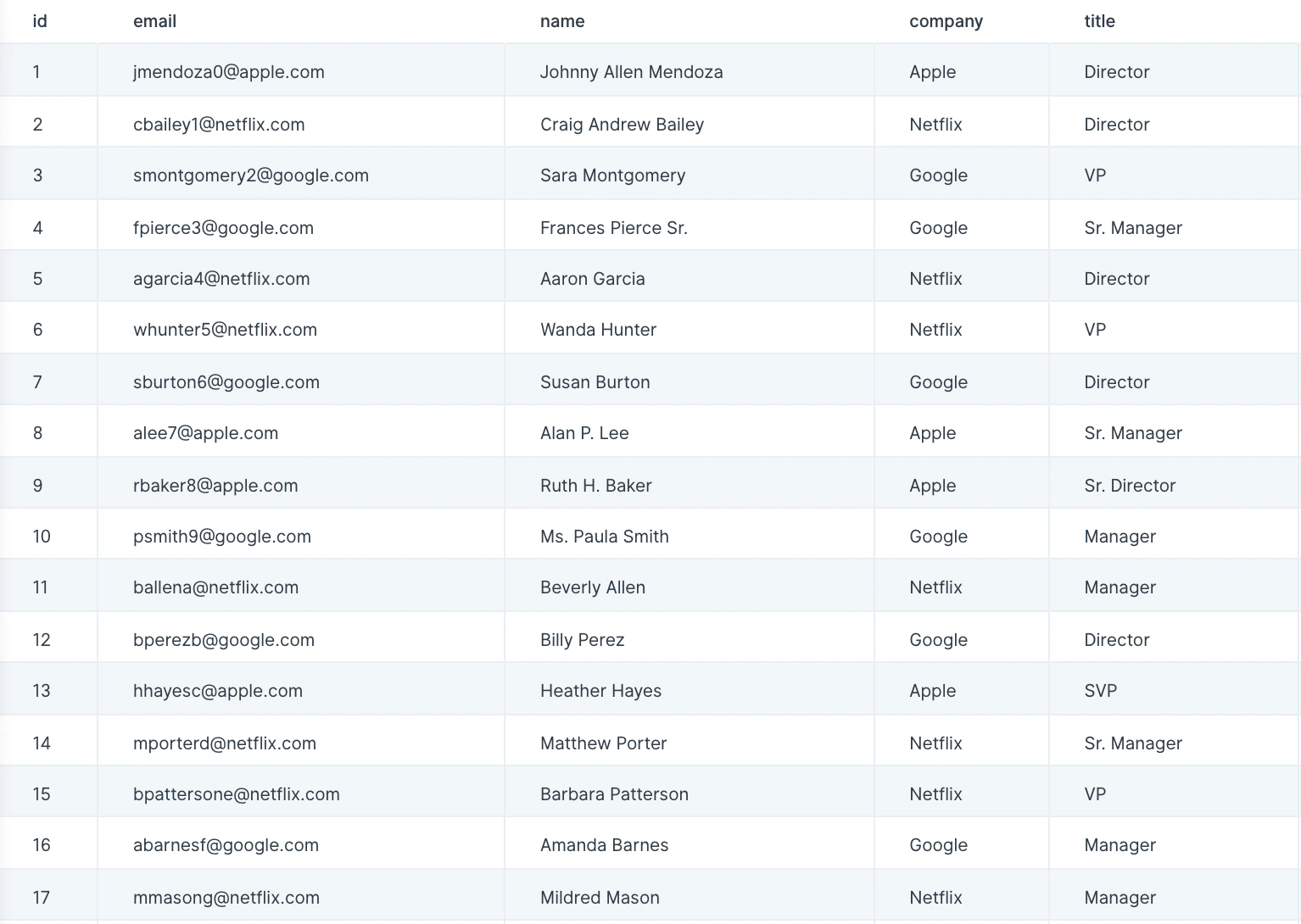 We want to ensure we're contacting the best possible lead at each company, so we'll use this **Calculate score** step to score these leads in order to prioritize the best ones to contact.
This step's output is a new "Score" column of calculated scores per lead row.
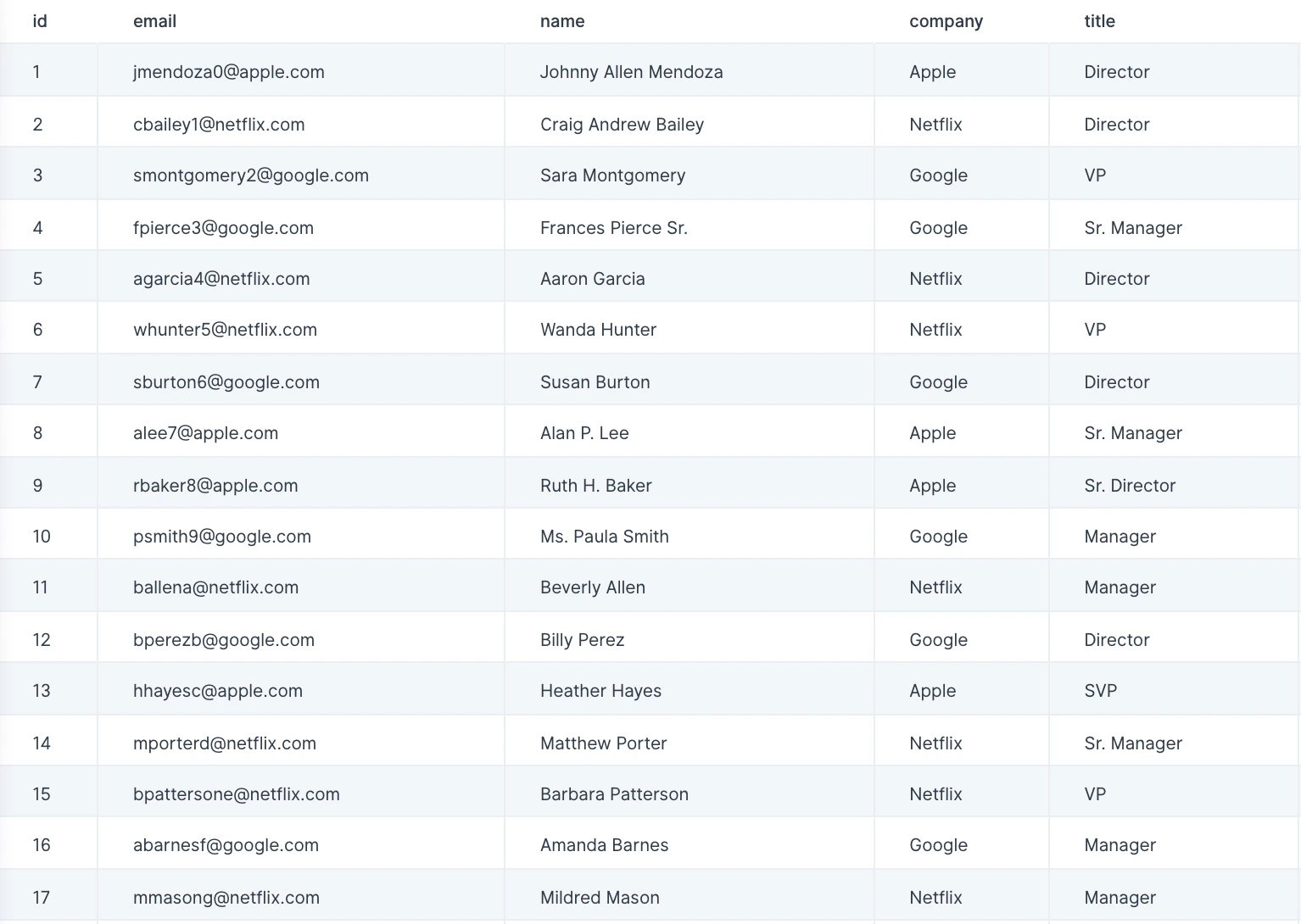
We want to ensure we're contacting the best possible lead at each company, so we'll use this **Calculate score** step to score these leads in order to prioritize the best ones to contact.
This step's output is a new "Score" column of calculated scores per lead row.
 ## Custom settings
With data connected, title your new scoring column in the 'Score Column Name' field.
## Custom settings
With data connected, title your new scoring column in the 'Score Column Name' field.
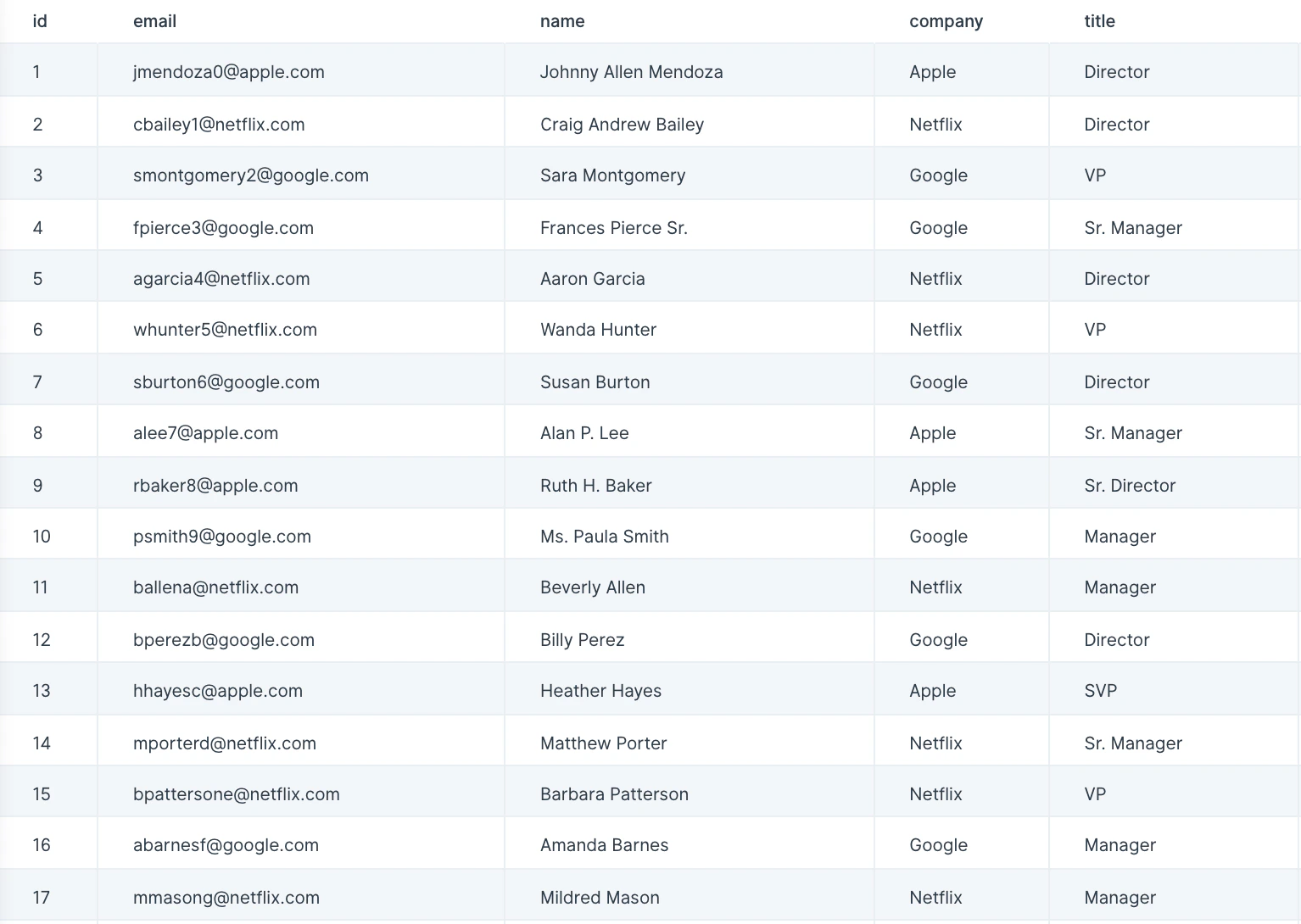 To set up the step's rule(s), select the column that should have the rule applied to it, select a rule from the options provided, and type in a value this step should search for.
The rule options are: Blank, Not Blank, Equals, Not Equals, Contains, Not Contains, >, > or =, \<, \< or =.
Lastly, finish this rule setting by placing a number in the 'Increment Score' field and selecting 'Show Updated Results' to save it. In the above screenshot example, VP-titled people have a score of 3, Director-titled people have a score of 2, and Manager-titled people have a score of 1.
## Helpful tips:
* Add as many rules as you'd like by clicking on the 'Add Scoring Rule' button.
Rule Setup Table
## Rule Setup Table
| Title | Column | Rule | Value | Increment Score |
| :------- | :----- | :----- | :------- | :-------------- |
| VP | Title | Equals | VP | 3 |
| Director | Title | Equals | Director | 2 |
| Manager | Title | Equals | Manager | 1 |
## Related steps
* [Add if/else column](/product/transform/insert-if-else-column) — set conditional values when scoring rules need branching logic.
* [Add math column](/product/transform/insert-math-column) — combine multiple scoring inputs with custom formulas.
* [Sort rows](/product/transform/sort-rows) — rank rows by their calculated score after this step.
* [Filter rows](/product/transform/filter-rows) — keep only the highest-scoring leads or records.
* [Sum by group](/product/transform/sum-by-group) — total scores by account, segment, or category.
To set up the step's rule(s), select the column that should have the rule applied to it, select a rule from the options provided, and type in a value this step should search for.
The rule options are: Blank, Not Blank, Equals, Not Equals, Contains, Not Contains, >, > or =, \<, \< or =.
Lastly, finish this rule setting by placing a number in the 'Increment Score' field and selecting 'Show Updated Results' to save it. In the above screenshot example, VP-titled people have a score of 3, Director-titled people have a score of 2, and Manager-titled people have a score of 1.
## Helpful tips:
* Add as many rules as you'd like by clicking on the 'Add Scoring Rule' button.
Rule Setup Table
## Rule Setup Table
| Title | Column | Rule | Value | Increment Score |
| :------- | :----- | :----- | :------- | :-------------- |
| VP | Title | Equals | VP | 3 |
| Director | Title | Equals | Director | 2 |
| Manager | Title | Equals | Manager | 1 |
## Related steps
* [Add if/else column](/product/transform/insert-if-else-column) — set conditional values when scoring rules need branching logic.
* [Add math column](/product/transform/insert-math-column) — combine multiple scoring inputs with custom formulas.
* [Sort rows](/product/transform/sort-rows) — rank rows by their calculated score after this step.
* [Filter rows](/product/transform/filter-rows) — keep only the highest-scoring leads or records.
* [Sum by group](/product/transform/sum-by-group) — total scores by account, segment, or category.