> ## Documentation Index
> Fetch the complete documentation index at: https://parabola.io/docs/llms.txt
> Use this file to discover all available pages before exploring further.
# Look up rows
> The **look up rows** step locates the index of the column that the value is in and appends it to a new column. This step is useful for creating connections between different data locations in a table. You can annotate where certain data is, and link it to a new column.
## Input/output
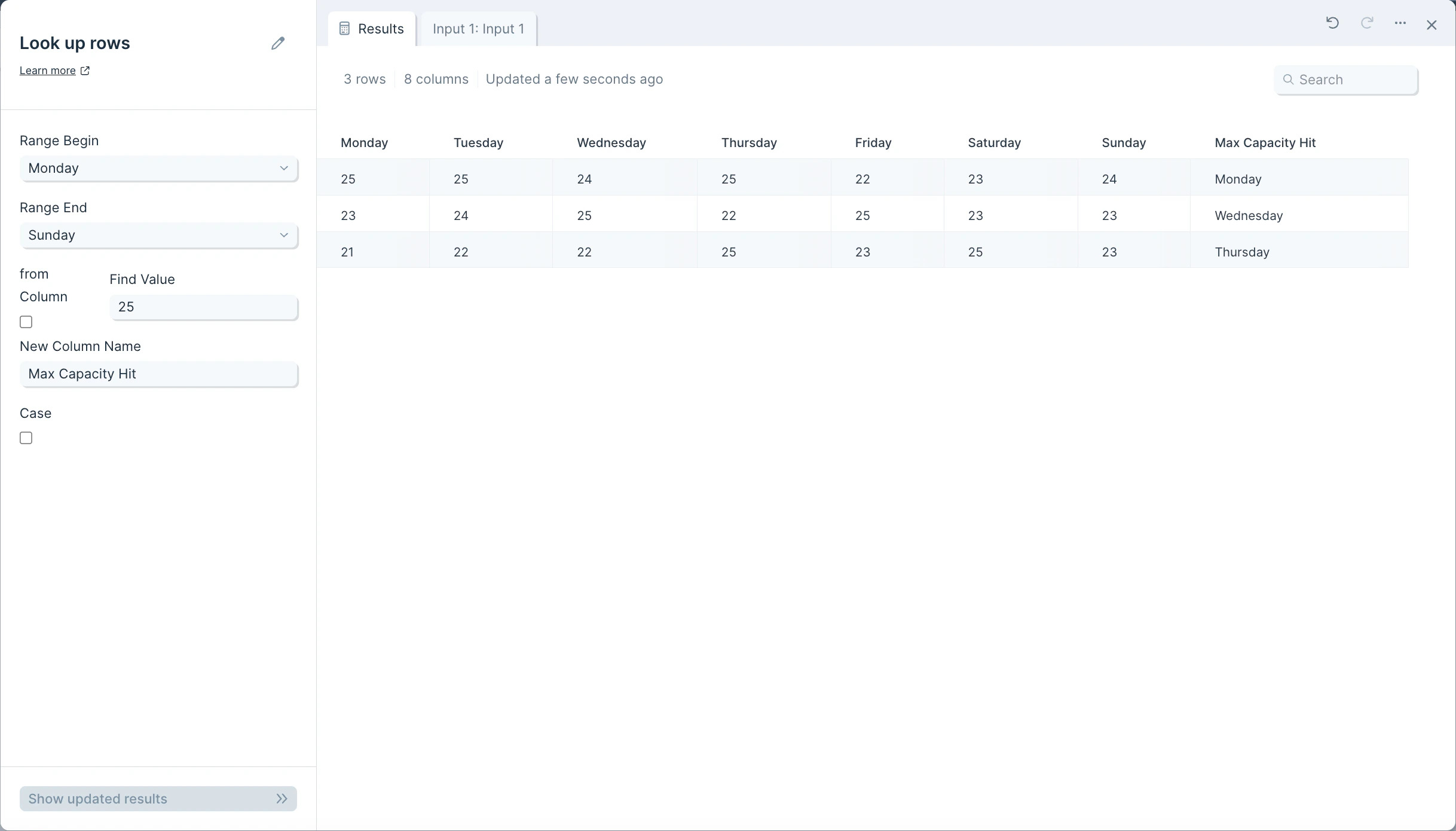
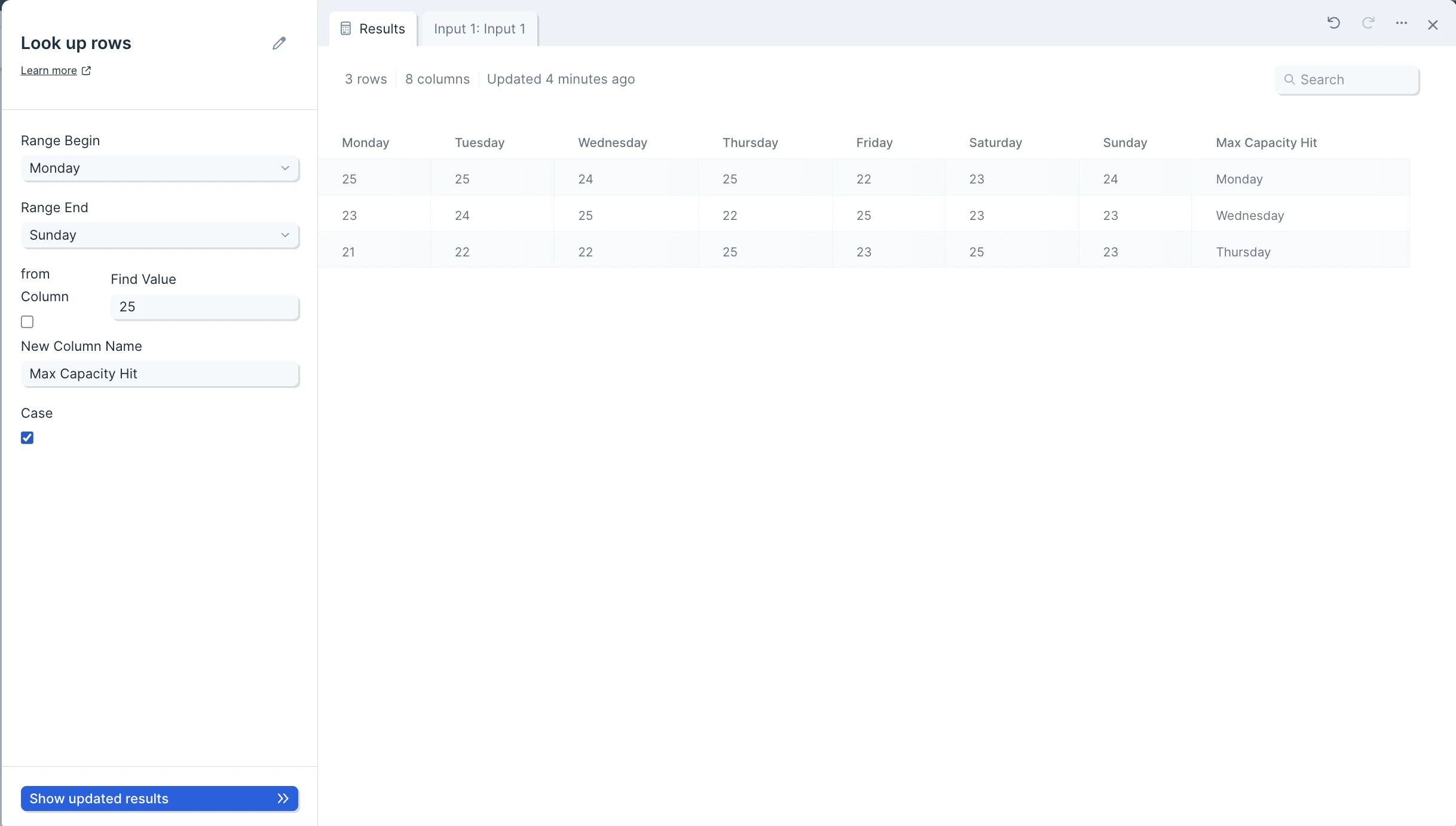
Our input data is a table of daily webinar attendance for a week.
 Let's try to find which day of the week is the first time we experience a maximum webinar capacity. In this case, our max webinar capacity is 25 attendees. By using the **look up rows** step, we can create a new column called "Max capacity hit" that shows which day of the week we first experience 25 attendees.
 ## Custom settings
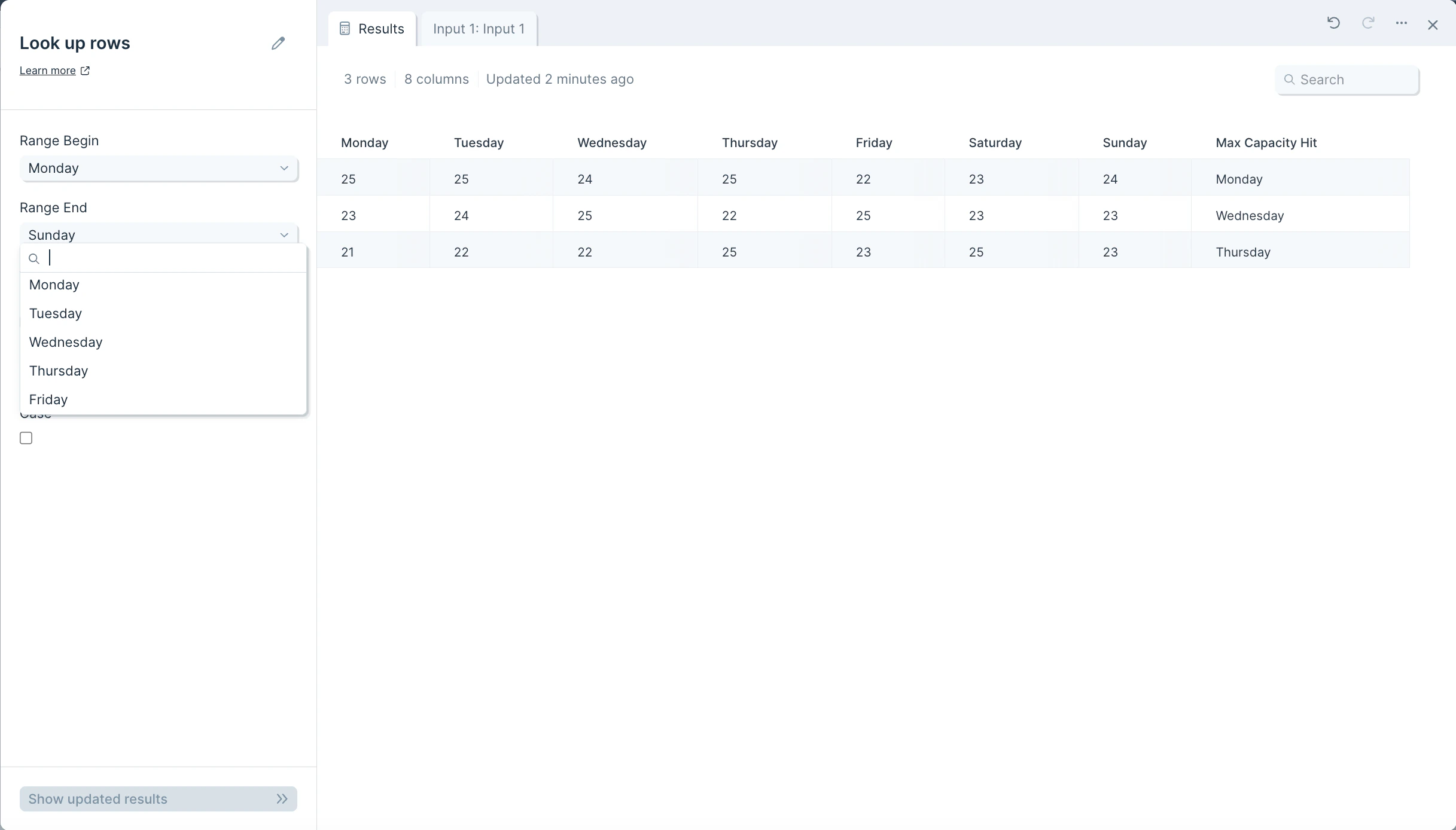
To set up this step, start by noting the range of columns it should look within. Select a column from the **Range Begin** dropdown and select another column from the **Range End** dropdown.
## Custom settings
To set up this step, start by noting the range of columns it should look within. Select a column from the **Range Begin** dropdown and select another column from the **Range End** dropdown.
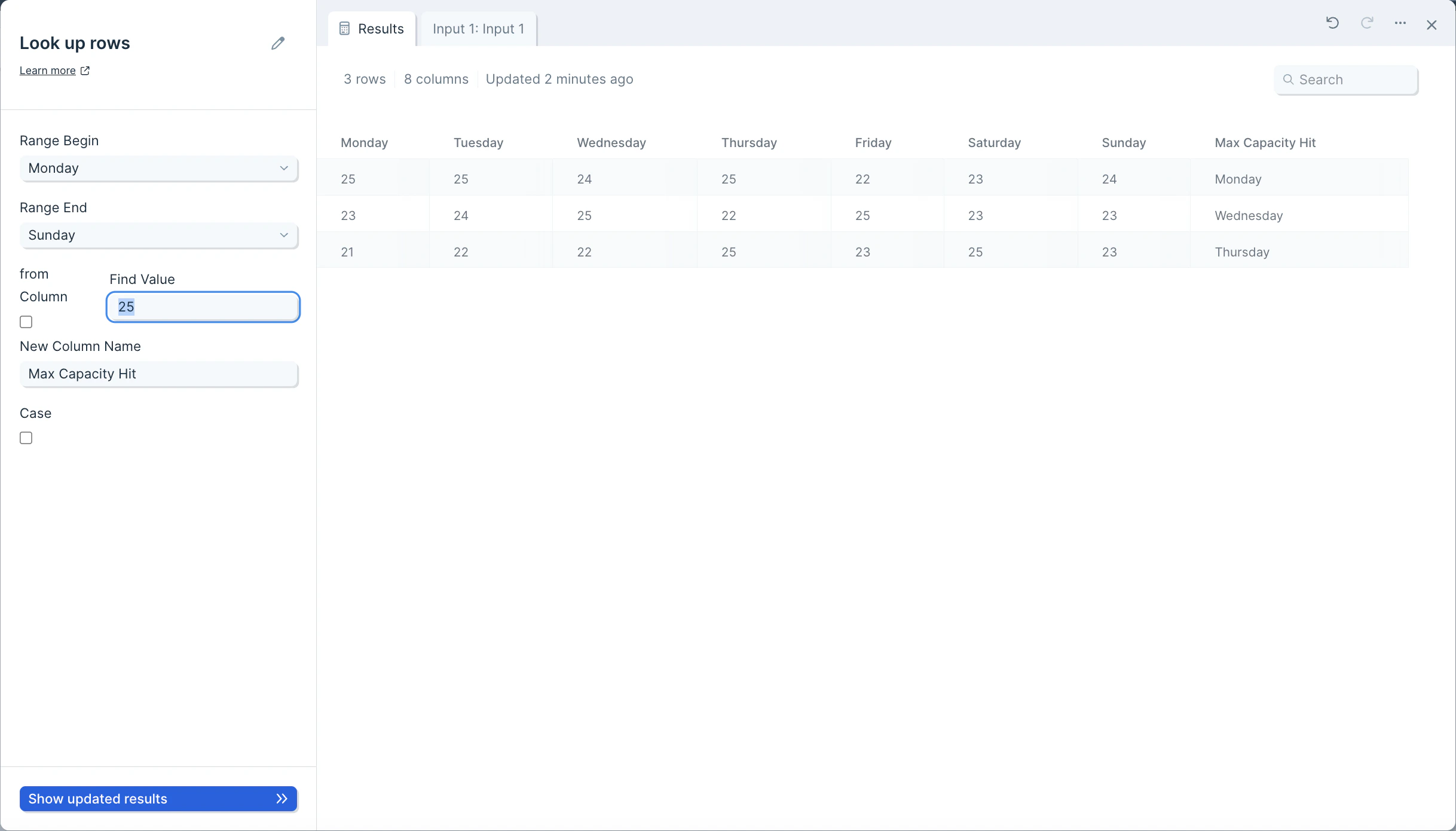
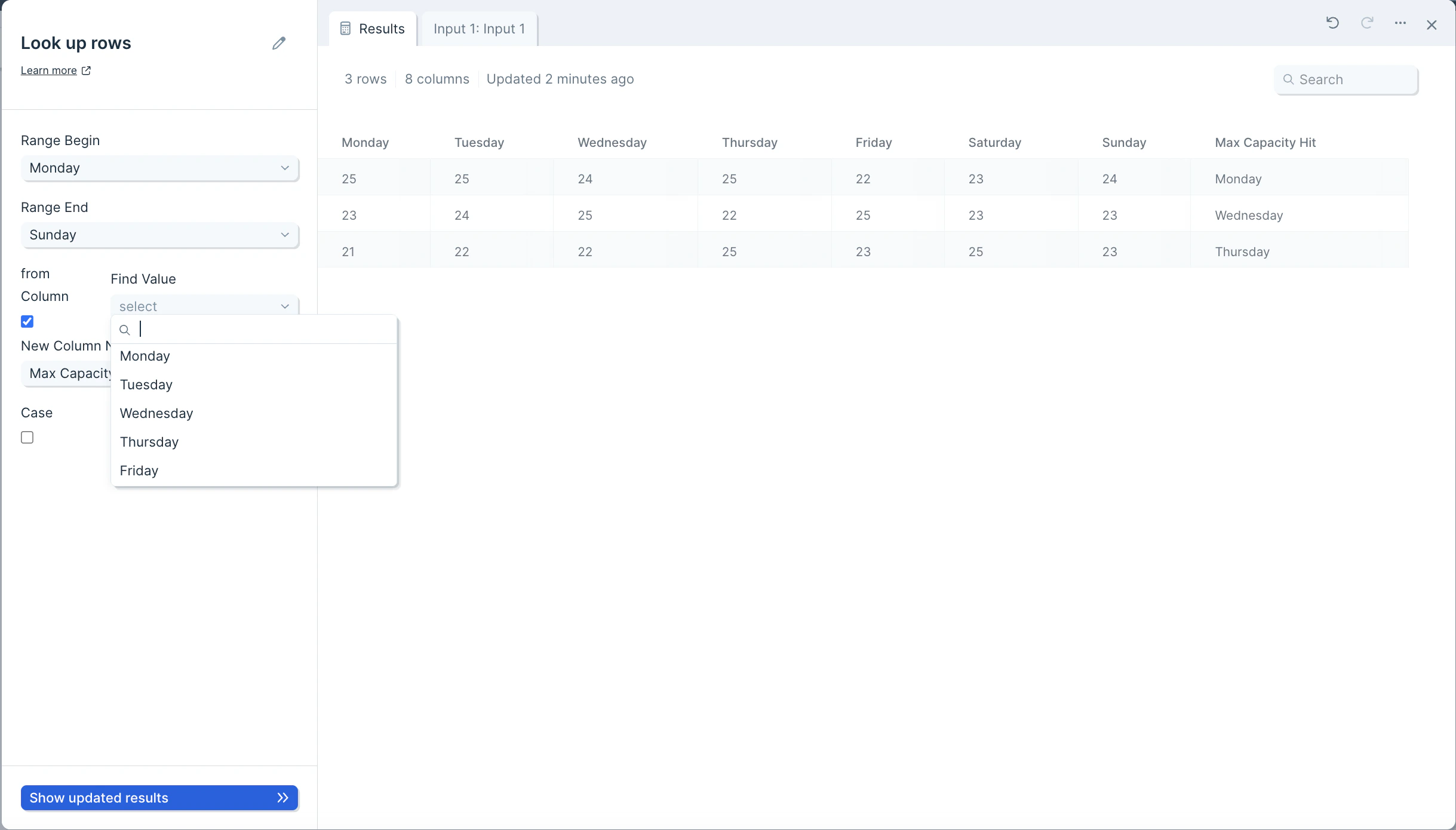
 Next, in the field **Find Value** type in the one it should search for within our selected range. You can also check the box "from Column" if you'd like the step to look for a value contained in a specific column within this noted range. Checking off the box "from Column" will convert the **Find Value** field into a dropdown of column options.
 In the **New Column Name** field, enter the name you'd like this new column to be called.
 Lastly, checking the box for "Case" will force the matching to be case-sensitive.
 ## Frequently asked questions
**What's the difference between Look up rows and Combine tables?**
[Combine tables](/product/transform/combine-tables) joins two separate tables on a shared key. **Look up rows** searches within a single table to find which column contains a specific value and returns that column's name in a new column.
**Why is my new column blank for some rows?**
If the value being searched for doesn't appear within the selected range for that row, the new column will be blank. Double-check that the **Range Begin** and **Range End** columns enclose every column the value could appear in.
**How do I make the lookup case-sensitive?**
Enable the **Case** checkbox in the step settings. By default, lookups ignore casing — for example, "True" and "true" are treated as equal.
## Related steps
* [Combine tables](/product/transform/combine-tables) — join two separate tables on a shared key column.
* [Find overlap](/product/transform/find-overlap) — compare two datasets and identify matching or non-matching rows.
* [Find and replace](/product/transform/find-and-replace) — substitute matched values throughout a column.
* [Add if/else column](/product/transform/insert-if-else-column) — set a new value based on what was found.
* [Replace with regex](/product/transform/use-regex) — match patterns instead of exact values across columns.
## Frequently asked questions
**What's the difference between Look up rows and Combine tables?**
[Combine tables](/product/transform/combine-tables) joins two separate tables on a shared key. **Look up rows** searches within a single table to find which column contains a specific value and returns that column's name in a new column.
**Why is my new column blank for some rows?**
If the value being searched for doesn't appear within the selected range for that row, the new column will be blank. Double-check that the **Range Begin** and **Range End** columns enclose every column the value could appear in.
**How do I make the lookup case-sensitive?**
Enable the **Case** checkbox in the step settings. By default, lookups ignore casing — for example, "True" and "true" are treated as equal.
## Related steps
* [Combine tables](/product/transform/combine-tables) — join two separate tables on a shared key column.
* [Find overlap](/product/transform/find-overlap) — compare two datasets and identify matching or non-matching rows.
* [Find and replace](/product/transform/find-and-replace) — substitute matched values throughout a column.
* [Add if/else column](/product/transform/insert-if-else-column) — set a new value based on what was found.
* [Replace with regex](/product/transform/use-regex) — match patterns instead of exact values across columns.