> ## Documentation Index
> Fetch the complete documentation index at: https://parabola.io/docs/llms.txt
> Use this file to discover all available pages before exploring further.
# Split column
> The **Split column** step splits a column into one or more based on a specified delimiter, such as a comma.
## Input/output
Our input data below is a single column called "Data".
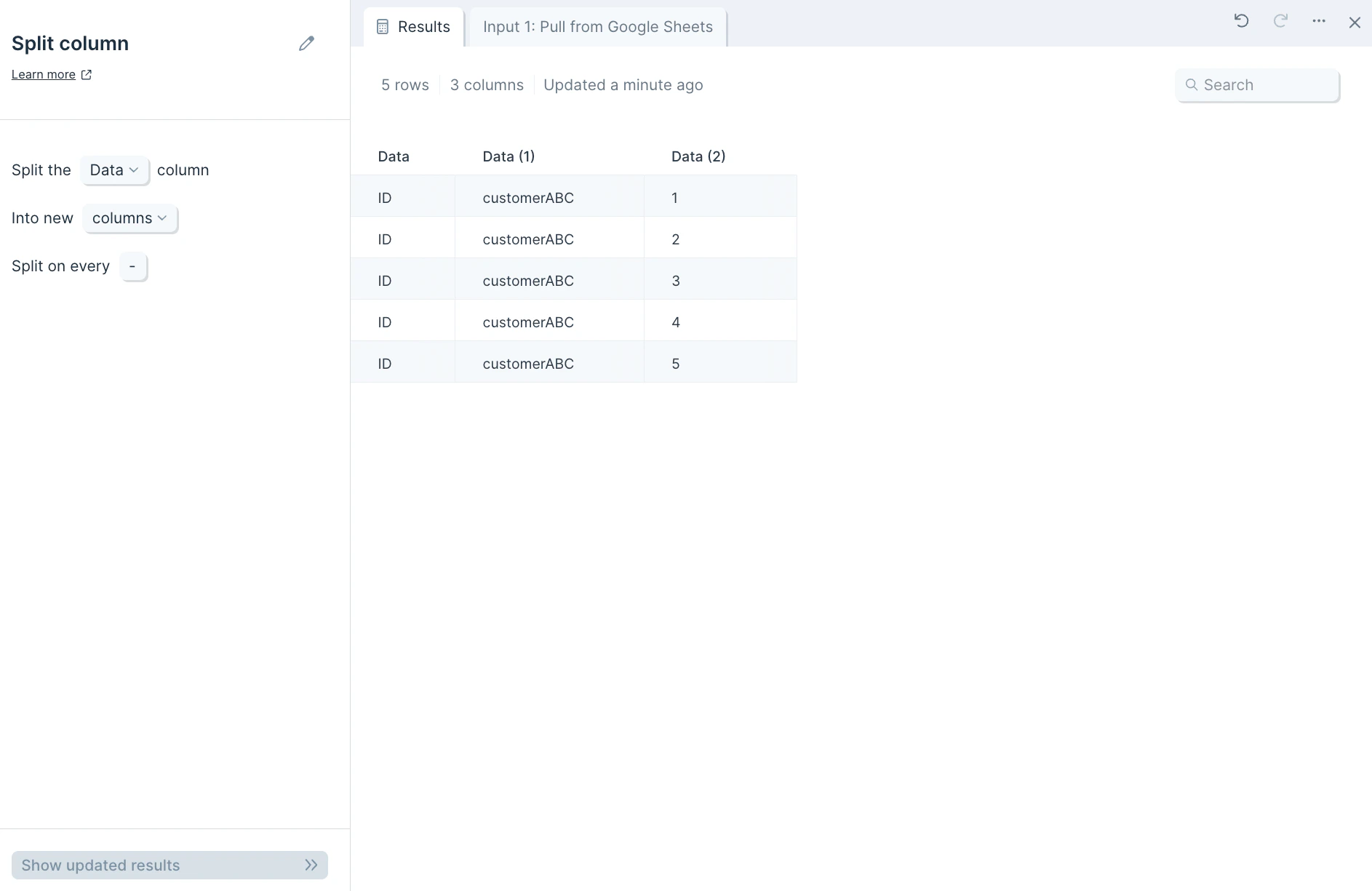
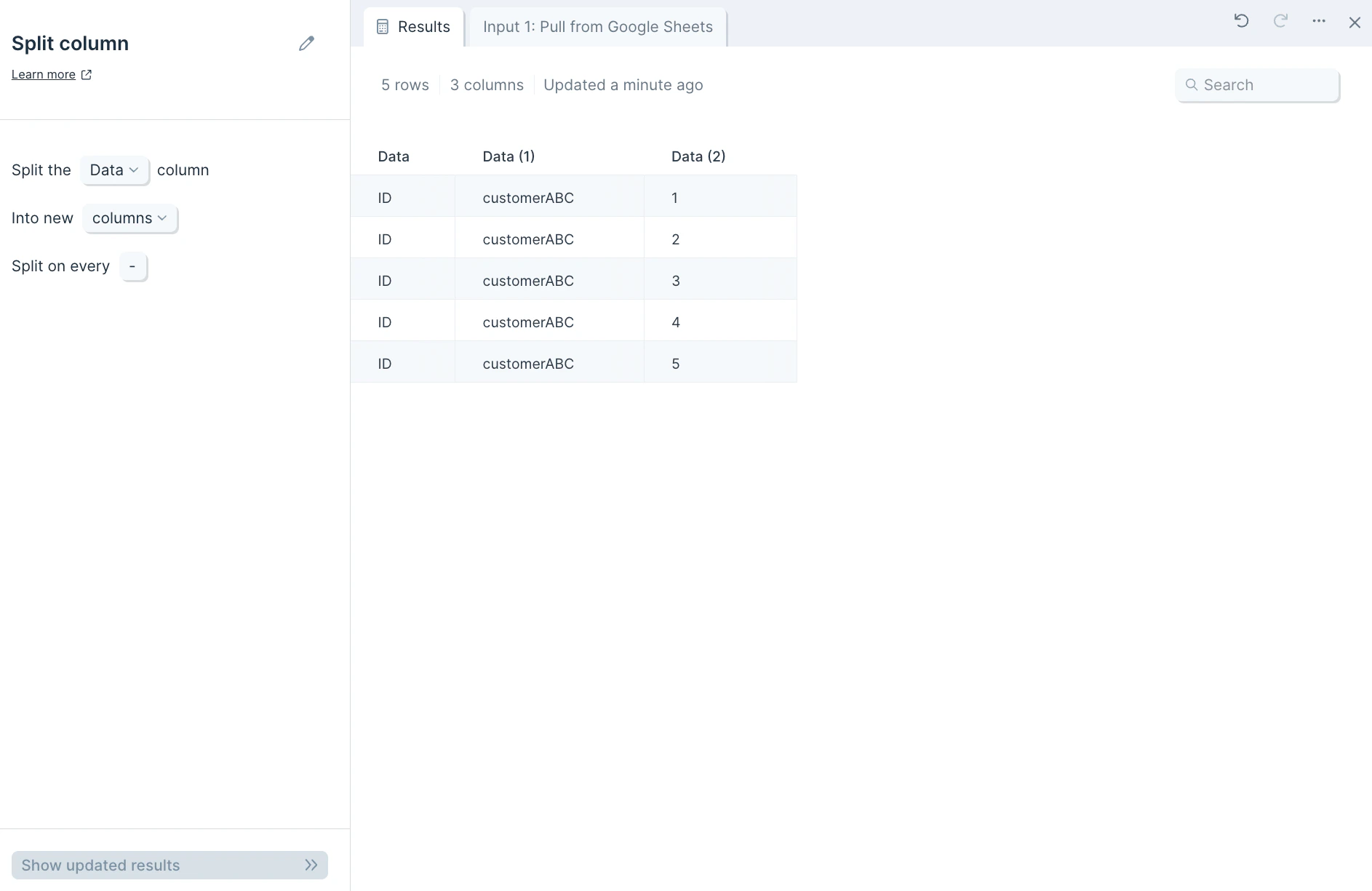
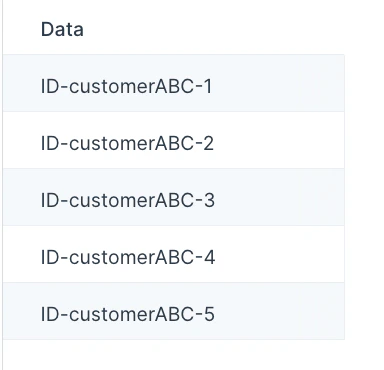 We'll use the **Split column** step to split this single column into three different columns using the delimiter of a dash mark "-". The output data will look like this:
 ## Custom settings
First, in the dropdown **select from menu**, choose which column to split into one or more.
## Custom settings
First, in the dropdown **select from menu**, choose which column to split into one or more.
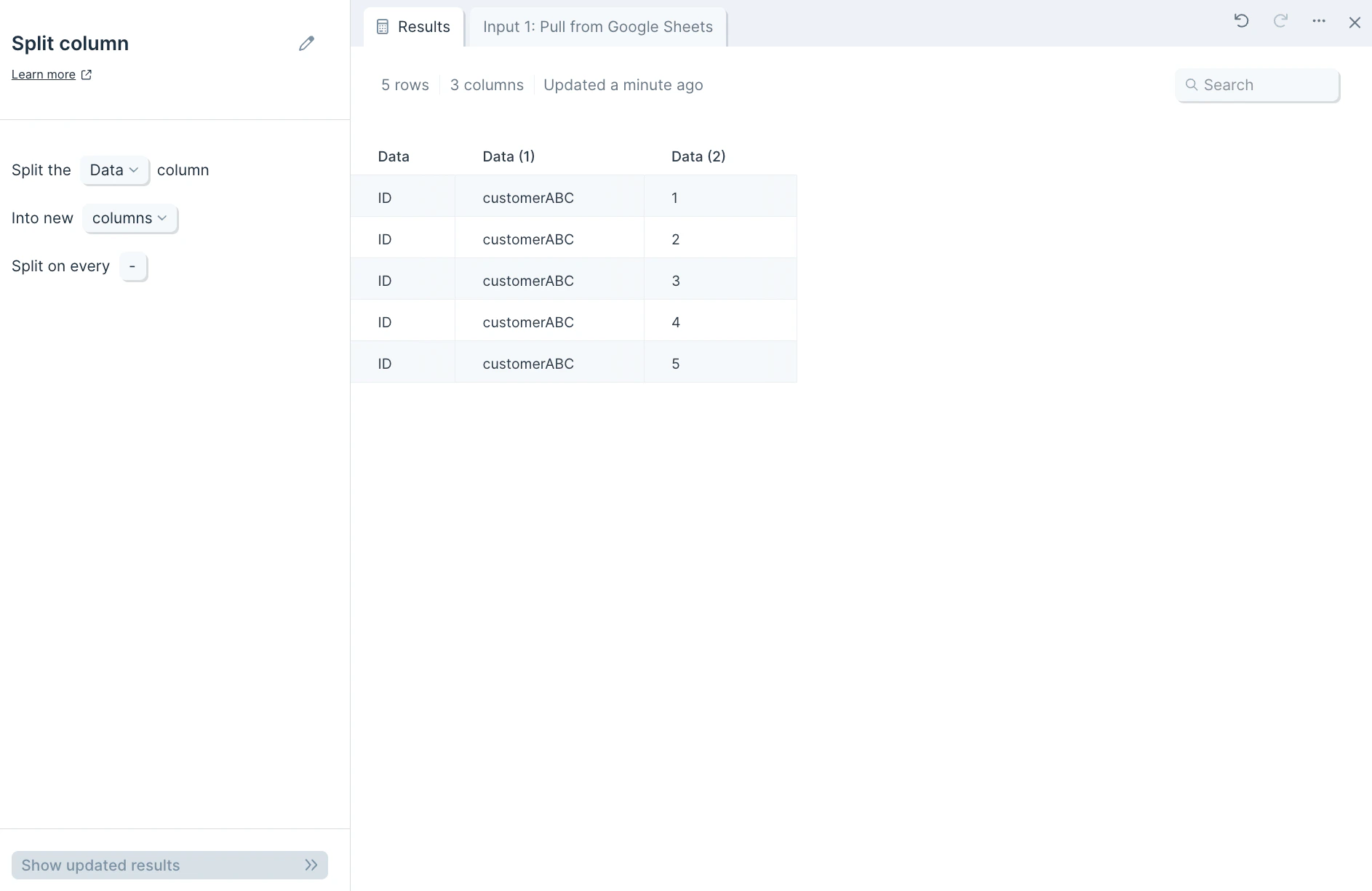 Next, decide if you'd like your data split into new columns or rows by clicking into the linked dropdown menu **columns**.
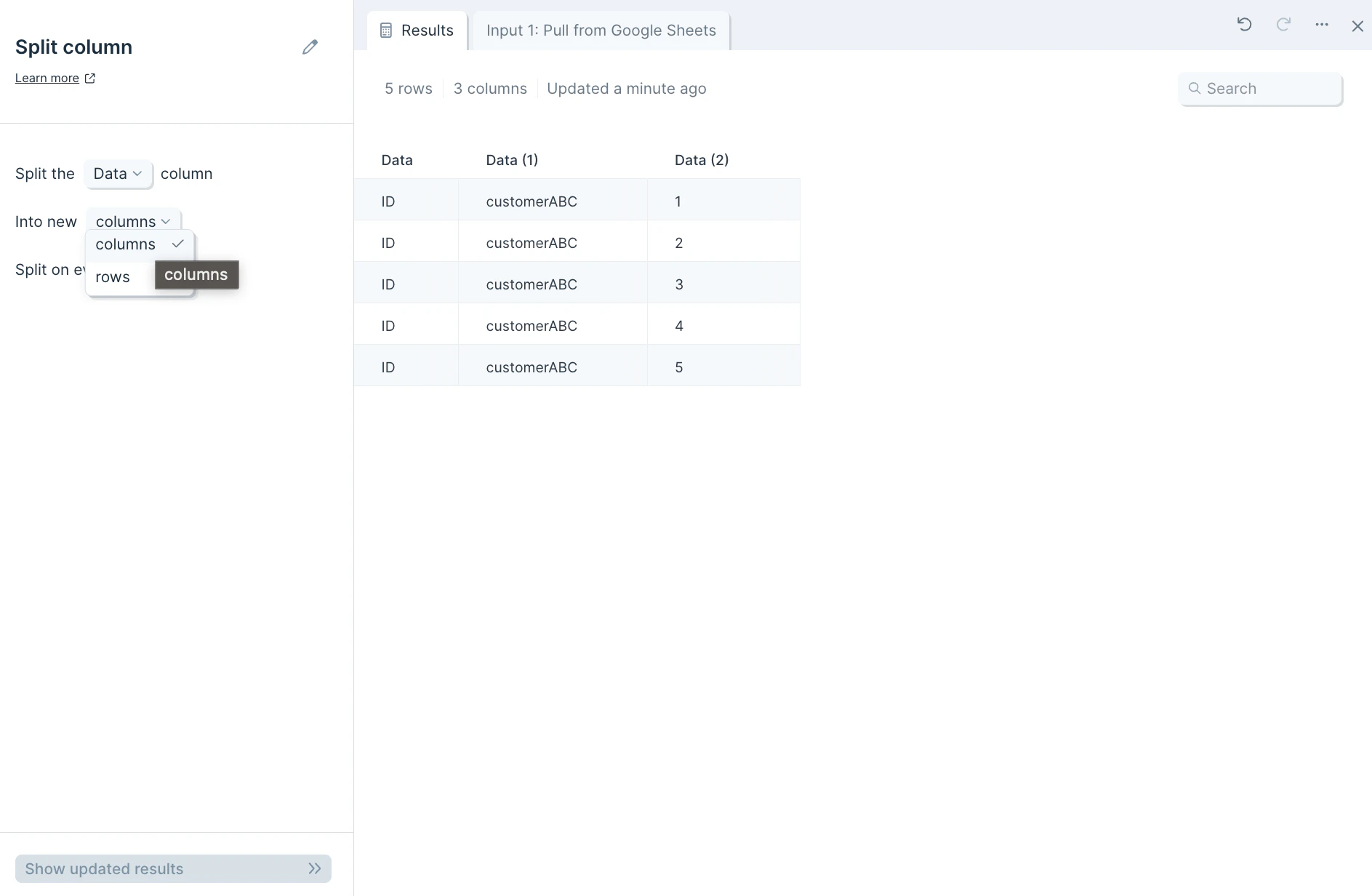 You can separate a column's value based on any delimiter by typing into the section **type value...** whether it be a comma, semi-colon, dash, space, number, letter, or special character. In our screenshot examples, the "Data" column is split into three columns based on a dash mark **-**.
 ## Helpful tips
* If you'd like to join a dataset using this step to another one based on the step's newly-generated column output and choose to separate values by a comma, be sure to include the space after the comma in order for values to start with the letter or number. For example, splitting apart a column of orders like "shirt, pants, hat" by the comma without a space — like (**,**) versus (**,** ) — will create the output of rows "shirt", " pants", and " hat".
## Related steps
* [Combine columns](/product/transform/combine-columns) — reverse a split by joining columns back together.
* [Split names](/product/transform/split-names) — break full names into first, middle, last, and other parts.
* [Replace with regex](/product/transform/use-regex) — split using pattern matching when delimiters vary.
* [Extract text from column](/product/transform/extract-text-from-column) — pull a substring out of a column without splitting.
* [Clean data](/product/transform/clean-data) — trim whitespace from split values before further use.
## Helpful tips
* If you'd like to join a dataset using this step to another one based on the step's newly-generated column output and choose to separate values by a comma, be sure to include the space after the comma in order for values to start with the letter or number. For example, splitting apart a column of orders like "shirt, pants, hat" by the comma without a space — like (**,**) versus (**,** ) — will create the output of rows "shirt", " pants", and " hat".
## Related steps
* [Combine columns](/product/transform/combine-columns) — reverse a split by joining columns back together.
* [Split names](/product/transform/split-names) — break full names into first, middle, last, and other parts.
* [Replace with regex](/product/transform/use-regex) — split using pattern matching when delimiters vary.
* [Extract text from column](/product/transform/extract-text-from-column) — pull a substring out of a column without splitting.
* [Clean data](/product/transform/clean-data) — trim whitespace from split values before further use.