> ## Documentation Index
> Fetch the complete documentation index at: https://parabola.io/docs/llms.txt
> Use this file to discover all available pages before exploring further.
# Replace with regex
> The **Replace with Regex** step matches patterns using Regular Expression to find or replace values. Regular Expressions, or RegEx for short, are useful for matching patterns in text or numbers (or anything, really). [RegExr.com](http://regexr.com/) is an excellent resource to use when composing your regular expression.
**Before you jump in...** We recommend exploring the "[Extract text from column](/product/transform/extract-text-from-column)," "[Find and replace](/product/transform/find-and-replace)," and "[Clean data](/product/transform/clean-data)" steps. These steps are often able to accomplish the same result without writing a Regular Expression.
## Input/output
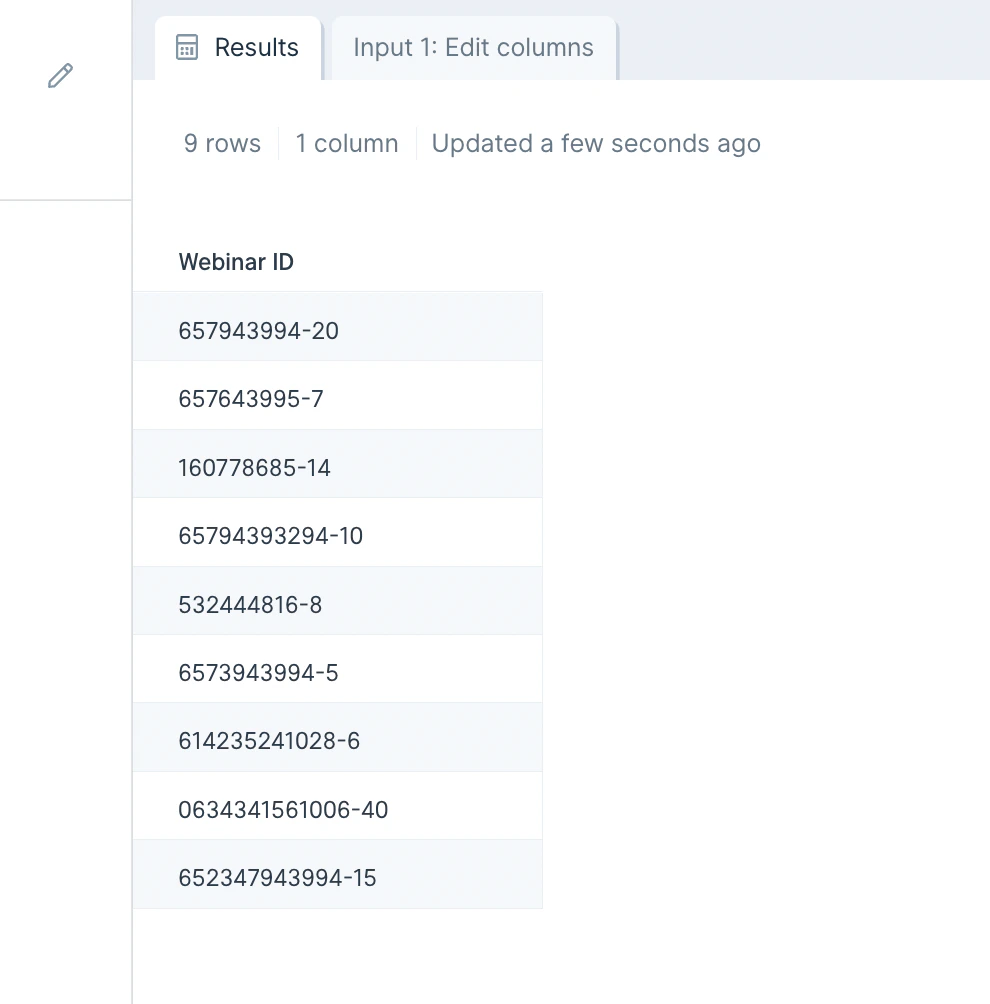
For our input data, we'll use a list of nine Webinar IDs. The number displayed after the hyphen "-" is the number of attendees that can sign up for the Webinar. We're looking to extract the Webinar ID and display it in a new column.
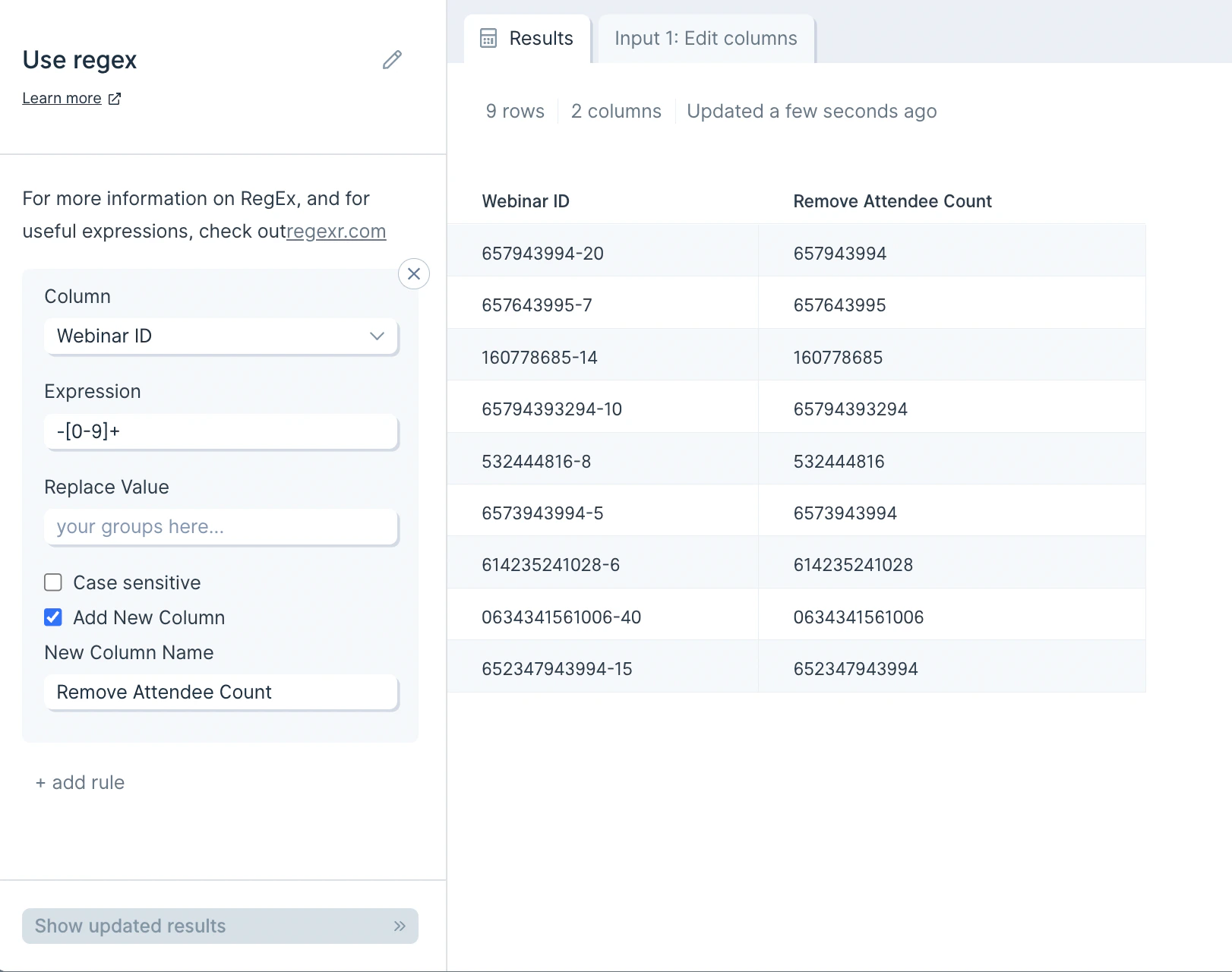
 Our output after using this **Replace with Regex** step is a new column "Remove Attendee Count" with the numbers that display before the hyphen in the original Webinar ID values.
 ## Custom settings
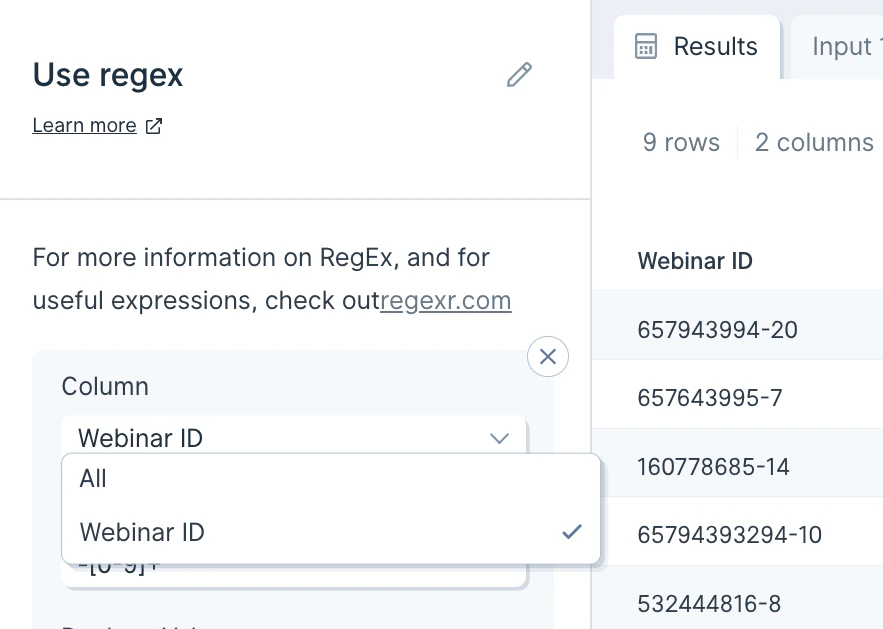
To start configuring your first rule, you'll select the column we should apply the RegEx too. You can also select to search through *All* from the *Column* dropdown.
## Custom settings
To start configuring your first rule, you'll select the column we should apply the RegEx too. You can also select to search through *All* from the *Column* dropdown.
 Then, input the expression we should look for in the **Expression** field.
If you'd like to replace the value with something specific, put that value in the **Replace Value** field. In my case, since I wanted to remove the found expression and only retain the remaining number, I left this field blank.
You can click the checkbox to "Add New Column" if you want to preserve the original data column but display the extracted value in a new column. In my example, I selected to "Add New Column" and placed my column name, "Attendee count" in the **New Column Name** field.
You can create as many RegEx rules as you'd like in a single **Replace with Regex** step. To do so, click the button to "+ add rule".
## Helpful tips
Again, we recommend [RegExr.com](http://regexr.com/) as a useful tool when working with RegEx. We particularly find their "Community Patterns" section useful where you can find RegEx patterns that others have used before.
You can also consider experimenting with [AutoRegex.xyz](http://autoregex.xyz/), which is a useful app that uses GPT-3 to convert plain English to RegEx.
### Characters
* *`.`* any character, except a newline
* *`\\w`* any word
* *`\\d`* any digit
* *`\\s`* any whitespace
* *`\\W`* anything except a word
* *`\\D`* anything except a digit
* *`\\S`* anything except whitespace
* *`\[abc\]`* any of a, b, and/or c - you can use dashes in here too such as *`\[a-z\]`* or *`\[0-9\]`*
* *`\[^abc\]`* not a, b, nor c - you can use dashes in here too such as *`\[a-z\]`* or *`\[0-9\]`*
* *`\[a-g\]`* any character between a and g
* *`\[0-5\]`* any digit between 0 and 5
### Quantifiers and Alternators
* *`a\*`* any amount of the letter a in a row. 0 or more
* *`a+`* 1 or more of the letter a in a row
* *`a?`* 0 or 1 of the letter a
* *`a{5}`* exactly 5 of the letter a in a row
* *`a{2,}`* 2 or more of the letter a in a row
* *`a{1,3}`* between 1 and 3 (inclusive) of the letter a in a row
* *`a+?`* 1 or more of the letter a in a row, but match as few as possible
* *`a{2,}?`* 2 or more of the letter a in a row, but match as few as possible
* *`ab|cd`* match either *ab* or *cd* in a cell
### Anchors
Anchors help you define how an expression is related to the beginning or end of a cell
* *`^abc`* the cell that starts with *abc*
* *`def$`* the cell that ends with *def*
* *`^$`* a blank cell
### Escaped characters
Using a backslash, you can indicate invisible characters, or escape any character that normally has a special purpose
* *`\\.`* escape a dot so that it is seen as an actual dot
* *`\\\*`* escape an asterisk so that it is seen as an actual asterisk
* *`\\\\`* escape a backslash so that it is seen as an actual backslash
* *`\\t`* find a tab in your text
* *`\\r`* find a newline in your text
* *`\\n`* find a different type of newline in your text
### Groups & Lookarounds
Groups are used to capture bits of text and then interact with them in the replacement function.
* *`(abc)`* capture the group that contains *abc* within a cell
* *`$1`* reference the first capture group (in the "replace" field). Use *`$2`* for the second capture group, etc.
* *`$&`* reference all capture groups (in the "replace" field)
* `(?:abc)` non-capturing group that contains *abc* within a cell `(?:abc)` non-capturing group that contains *abc* within a cell\*\*
* *`(?=abc)`* positive lookahead\*\*
* *`(?!abc)`* negative lookahead
## Frequently asked questions
**When should I use Replace with regex versus Find and replace?**
Use [Find and replace](/product/transform/find-and-replace) for literal substitutions. Reach for **Replace with regex** when the text you're matching follows a pattern — like phone numbers, IDs, or anything with variable parts.
**Why isn't my regex matching anything?**
Test your expression on [RegExr.com](http://regexr.com/) first. Common gotchas: special characters need to be escaped with a backslash (e.g. `\\.` to match a literal period), and Parabola requires double-escaping (`\\\\` for a backslash) inside the **Expression** field.
**How do I keep the matched text and remove the rest?**
Wrap the part you want to keep in a capture group `(...)`, then put `$1` in the **Replace Value** field. The output will contain only the captured portion.
## Related steps
* [Extract text from column](/product/transform/extract-text-from-column) — pull substrings without writing regex.
* [Find and replace](/product/transform/find-and-replace) — handle exact-match replacements.
* [Clean data](/product/transform/clean-data) — apply common cleanup rules without patterns.
* [Split column](/product/transform/split-column) — divide a column when delimiters are consistent.
* [Filter rows](/product/transform/filter-rows) — keep rows whose values match a regex pattern.
Then, input the expression we should look for in the **Expression** field.
If you'd like to replace the value with something specific, put that value in the **Replace Value** field. In my case, since I wanted to remove the found expression and only retain the remaining number, I left this field blank.
You can click the checkbox to "Add New Column" if you want to preserve the original data column but display the extracted value in a new column. In my example, I selected to "Add New Column" and placed my column name, "Attendee count" in the **New Column Name** field.
You can create as many RegEx rules as you'd like in a single **Replace with Regex** step. To do so, click the button to "+ add rule".
## Helpful tips
Again, we recommend [RegExr.com](http://regexr.com/) as a useful tool when working with RegEx. We particularly find their "Community Patterns" section useful where you can find RegEx patterns that others have used before.
You can also consider experimenting with [AutoRegex.xyz](http://autoregex.xyz/), which is a useful app that uses GPT-3 to convert plain English to RegEx.
### Characters
* *`.`* any character, except a newline
* *`\\w`* any word
* *`\\d`* any digit
* *`\\s`* any whitespace
* *`\\W`* anything except a word
* *`\\D`* anything except a digit
* *`\\S`* anything except whitespace
* *`\[abc\]`* any of a, b, and/or c - you can use dashes in here too such as *`\[a-z\]`* or *`\[0-9\]`*
* *`\[^abc\]`* not a, b, nor c - you can use dashes in here too such as *`\[a-z\]`* or *`\[0-9\]`*
* *`\[a-g\]`* any character between a and g
* *`\[0-5\]`* any digit between 0 and 5
### Quantifiers and Alternators
* *`a\*`* any amount of the letter a in a row. 0 or more
* *`a+`* 1 or more of the letter a in a row
* *`a?`* 0 or 1 of the letter a
* *`a{5}`* exactly 5 of the letter a in a row
* *`a{2,}`* 2 or more of the letter a in a row
* *`a{1,3}`* between 1 and 3 (inclusive) of the letter a in a row
* *`a+?`* 1 or more of the letter a in a row, but match as few as possible
* *`a{2,}?`* 2 or more of the letter a in a row, but match as few as possible
* *`ab|cd`* match either *ab* or *cd* in a cell
### Anchors
Anchors help you define how an expression is related to the beginning or end of a cell
* *`^abc`* the cell that starts with *abc*
* *`def$`* the cell that ends with *def*
* *`^$`* a blank cell
### Escaped characters
Using a backslash, you can indicate invisible characters, or escape any character that normally has a special purpose
* *`\\.`* escape a dot so that it is seen as an actual dot
* *`\\\*`* escape an asterisk so that it is seen as an actual asterisk
* *`\\\\`* escape a backslash so that it is seen as an actual backslash
* *`\\t`* find a tab in your text
* *`\\r`* find a newline in your text
* *`\\n`* find a different type of newline in your text
### Groups & Lookarounds
Groups are used to capture bits of text and then interact with them in the replacement function.
* *`(abc)`* capture the group that contains *abc* within a cell
* *`$1`* reference the first capture group (in the "replace" field). Use *`$2`* for the second capture group, etc.
* *`$&`* reference all capture groups (in the "replace" field)
* `(?:abc)` non-capturing group that contains *abc* within a cell `(?:abc)` non-capturing group that contains *abc* within a cell\*\*
* *`(?=abc)`* positive lookahead\*\*
* *`(?!abc)`* negative lookahead
## Frequently asked questions
**When should I use Replace with regex versus Find and replace?**
Use [Find and replace](/product/transform/find-and-replace) for literal substitutions. Reach for **Replace with regex** when the text you're matching follows a pattern — like phone numbers, IDs, or anything with variable parts.
**Why isn't my regex matching anything?**
Test your expression on [RegExr.com](http://regexr.com/) first. Common gotchas: special characters need to be escaped with a backslash (e.g. `\\.` to match a literal period), and Parabola requires double-escaping (`\\\\` for a backslash) inside the **Expression** field.
**How do I keep the matched text and remove the rest?**
Wrap the part you want to keep in a capture group `(...)`, then put `$1` in the **Replace Value** field. The output will contain only the captured portion.
## Related steps
* [Extract text from column](/product/transform/extract-text-from-column) — pull substrings without writing regex.
* [Find and replace](/product/transform/find-and-replace) — handle exact-match replacements.
* [Clean data](/product/transform/clean-data) — apply common cleanup rules without patterns.
* [Split column](/product/transform/split-column) — divide a column when delimiters are consistent.
* [Filter rows](/product/transform/filter-rows) — keep rows whose values match a regex pattern.