Building challenge
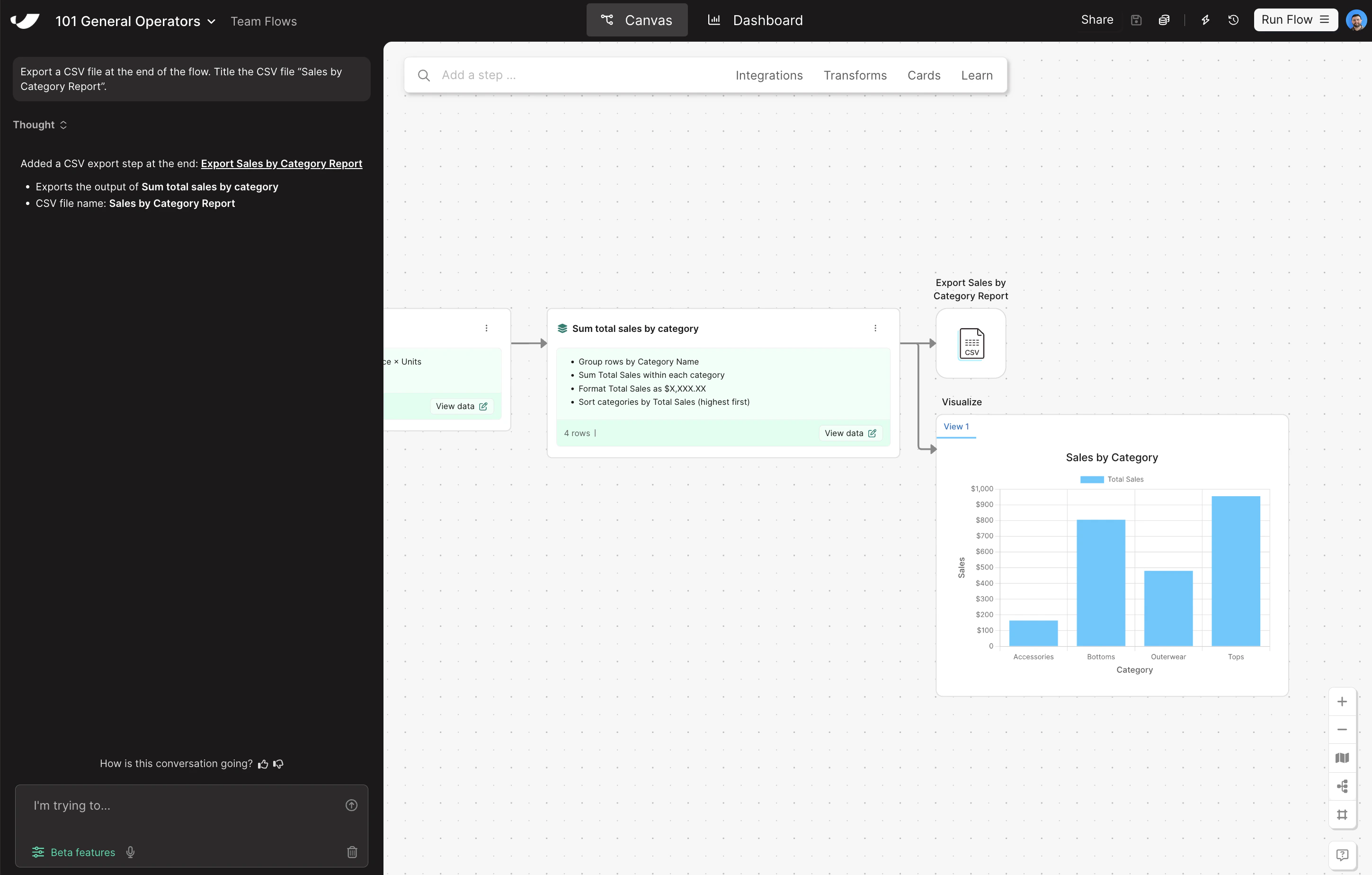
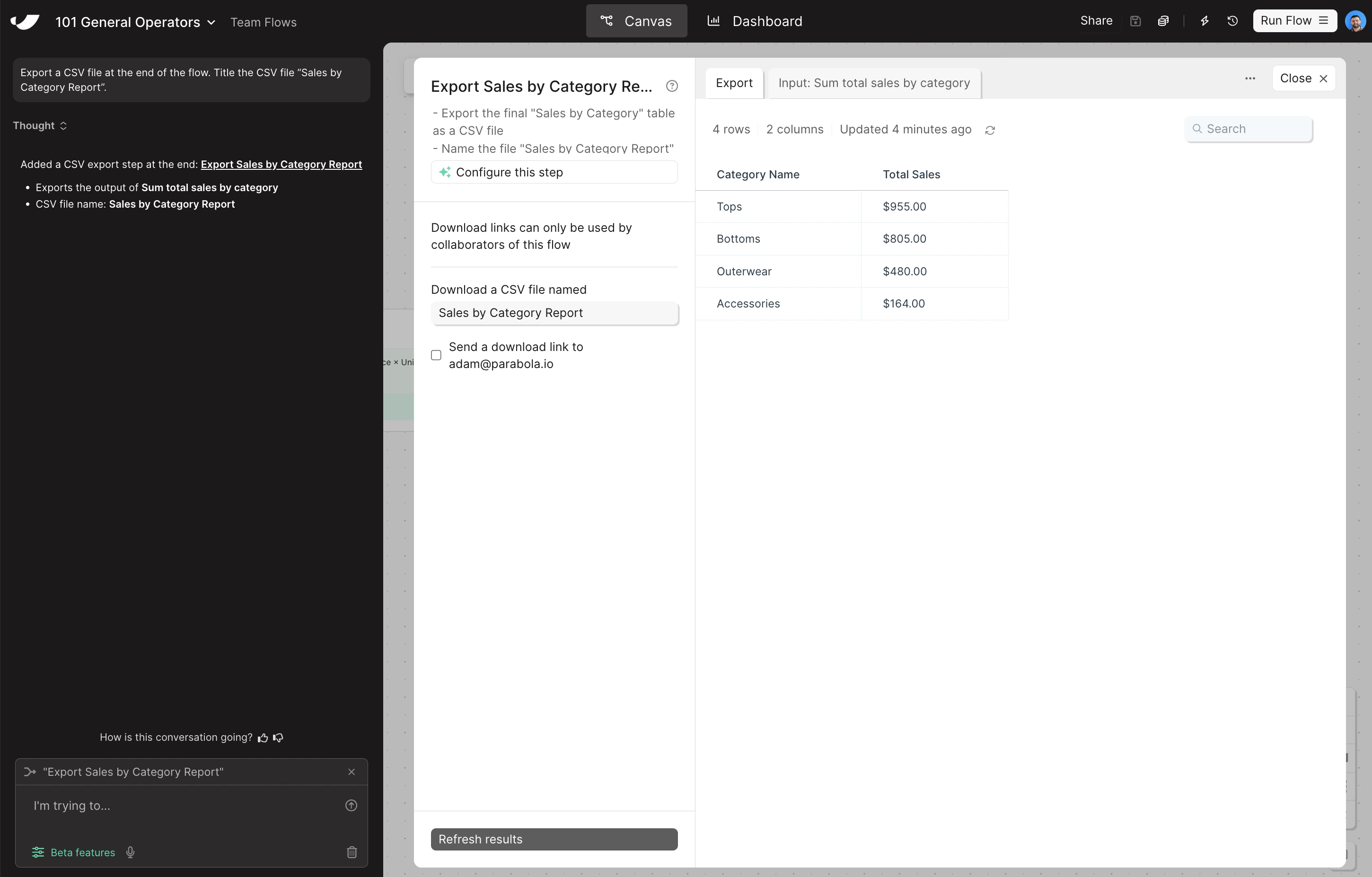
Your data is ready — now export it as a CSV and build a quick visualization so your Sales by Category Report is easy to read at a glance.
1
Copy and paste this prompt into Parabola to export your report as a CSV
2
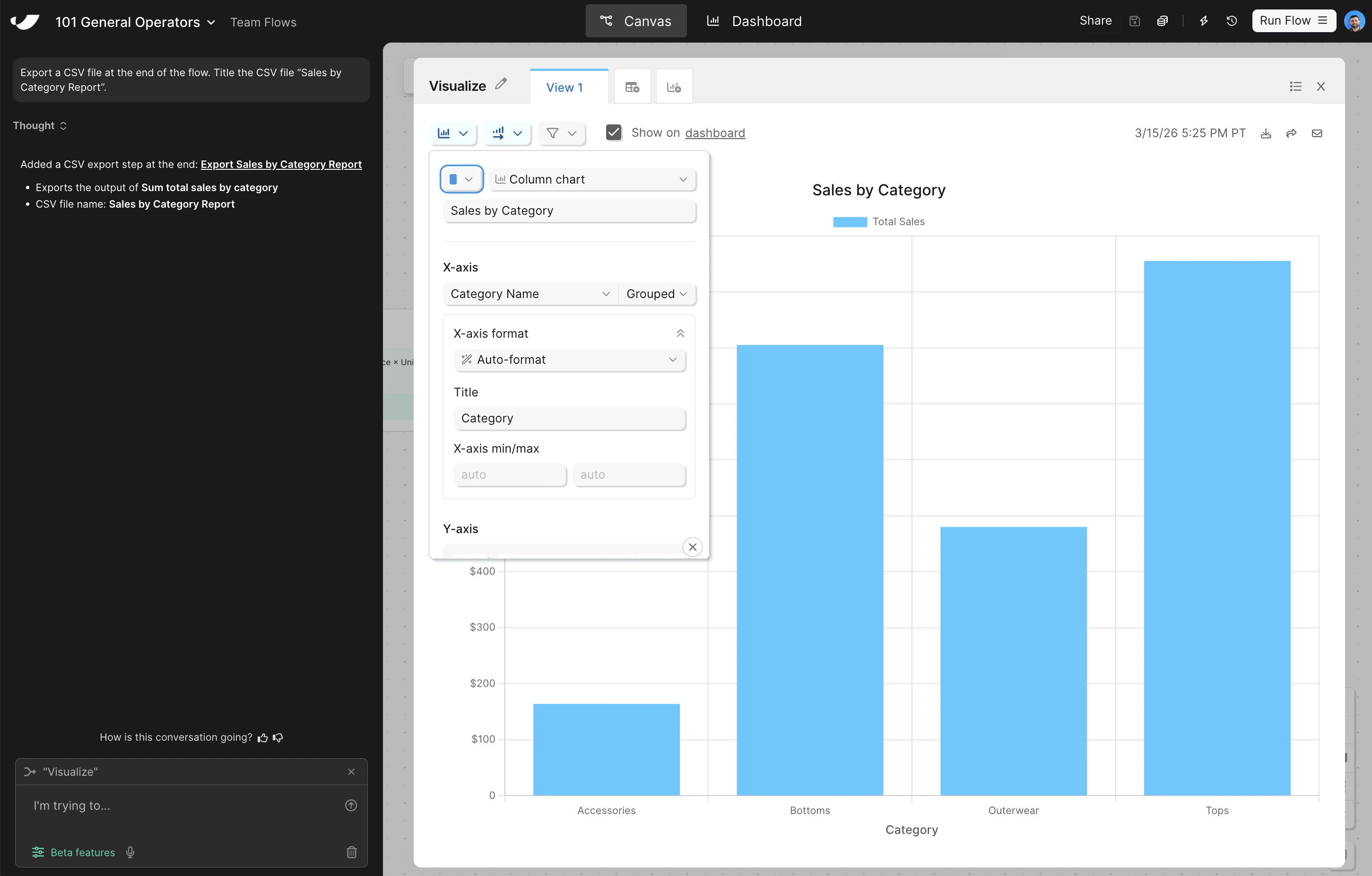
Add a Visualization step and configure it as a column chart
- Search for the Visualize step and drag it onto the canvas below your Generate CSV file step
- Grab an arrow from your previous data transformation step and connect it to your Visualize step so data is flowing in
- Open the step and change the chart type to Column chart. Title the chart “Sales by Category” and set the X-axis to Category Name
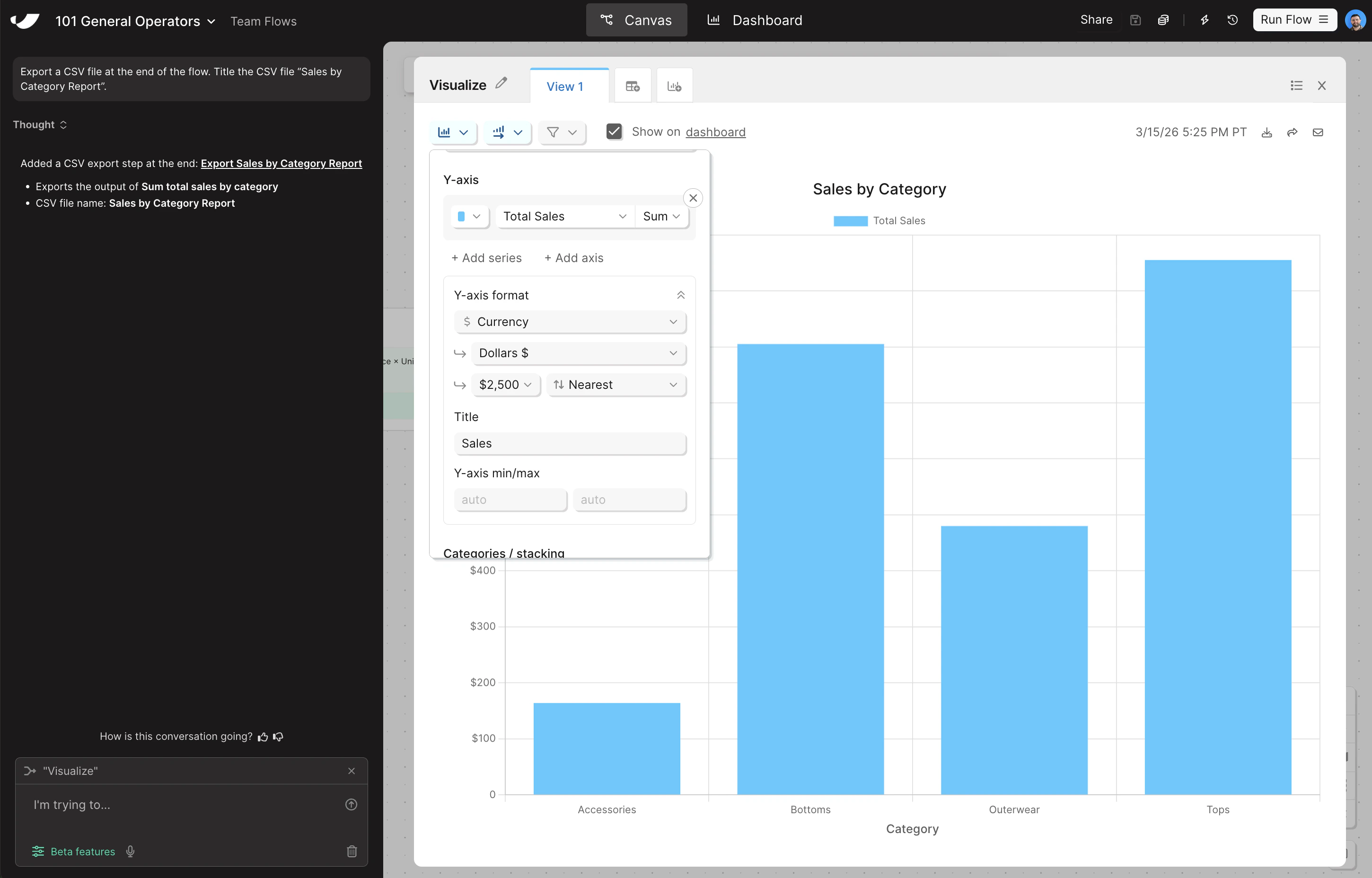
- To configure the Y-axis, click Add Series, set Total Sales as the Y-axis, and format your Y-axis as currency
- Change the aggregation method on Total Sales from Count to Sum, and give both your X and Y axes a title
3
Click "Run flow" in the top right to officially run your flow
Check your work
Check your work
The steps added to your canvas and their exact documentation may differ from what you see below — every AI response is unique. The important thing is that your resulting data set matches what you see here.