The Integration Management page is available on the Advanced and Enterprise plans. If you’d like to enable this feature and do not currently have access, please reach out to your Account Manager or contact help@parabola.io.
Who can access the Integration Management page?
Only Org Admins can view and modify integration settings. The page is accessible from the left-hand sidebar on the Flows page, labeled “Integrations”.Understanding integration statuses
Each integration on the management page can be set to one of three statuses:Enabled
This is the default status for all integrations. When an integration is enabled, any user in your organization can add the step to a flow, configure it, and run it as expected.Restricted
When an integration is set to “Restricted,” the step can still be added to flows and will continue to run on schedule - but only the user who owns the credentials associated with the step can edit its step configuration. If a teammate opens a shared flow with a restricted step, they see a read-only view of it. If they have edit access to the flow, they can still switch the step to their own account (an existing one or a new one), or remove the account. Once the step uses their account, they can edit it. Prowork follows the same rule. If you ask Prowork to change a restricted step that’s connected to someone else’s account, it tells you it can’t make that change. This is useful when you want flows to keep running but need to lock down who can modify sensitive integration configurations.Disabled
When an integration is disabled, it is fully restricted across the organization:- The step remains visible in the step bar but cannot be dragged onto the canvas. Users will see disabled styling and a message directing them to contact their Org Admin.
- Any existing flows that contain a disabled step will fail at that step during runs. The run history will indicate that the step failed because it has been disabled by an admin.
- The AI assistant will not suggest or insert disabled steps when helping users build flows.
How to change an integration’s status
- Navigate to the Integration Management page from the left-hand sidebar.
- Find the integration you want to update. You can scroll through the list or use the search functionality.
- Click the status dropdown next to the integration name.
- Select your desired status: Enabled, Restricted, or Disabled.
Setting a default status for new integrations
By default, any new integrations that Prowork releases will be set to Enabled for your organization. If your organization prefers a stricter posture, you can change this default so that new integrations launch as Disabled instead. To change this setting, look for the default behavior option at the top of the Integration Management page. Once set to “Disabled,” any newly released integrations will require an Org Admin to manually enable them before users can access them.API domain allowlists
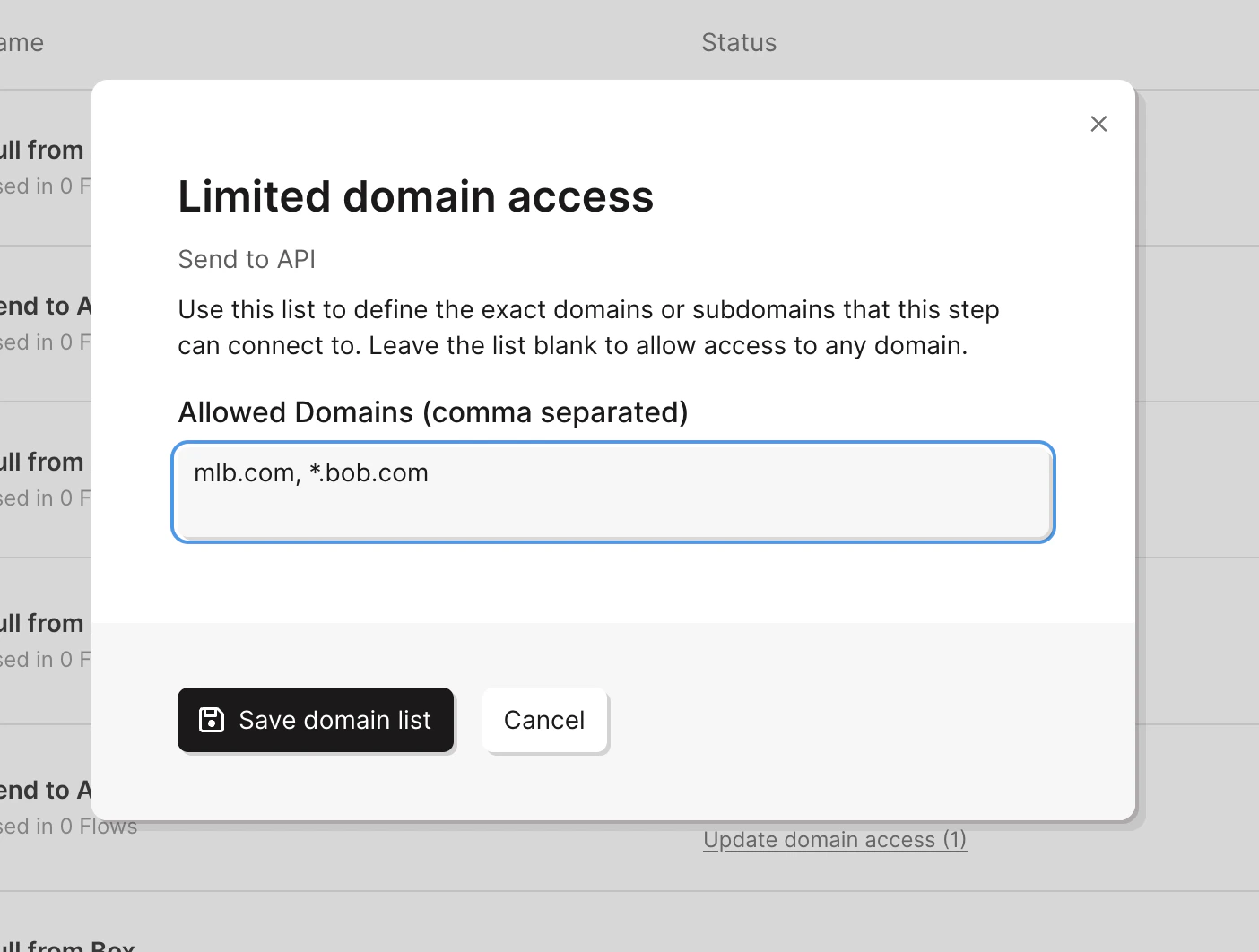
Admins can control access to external APIs by adding specific domains to the allowlist on the Pull from API, Send to API, and Enrich with API steps.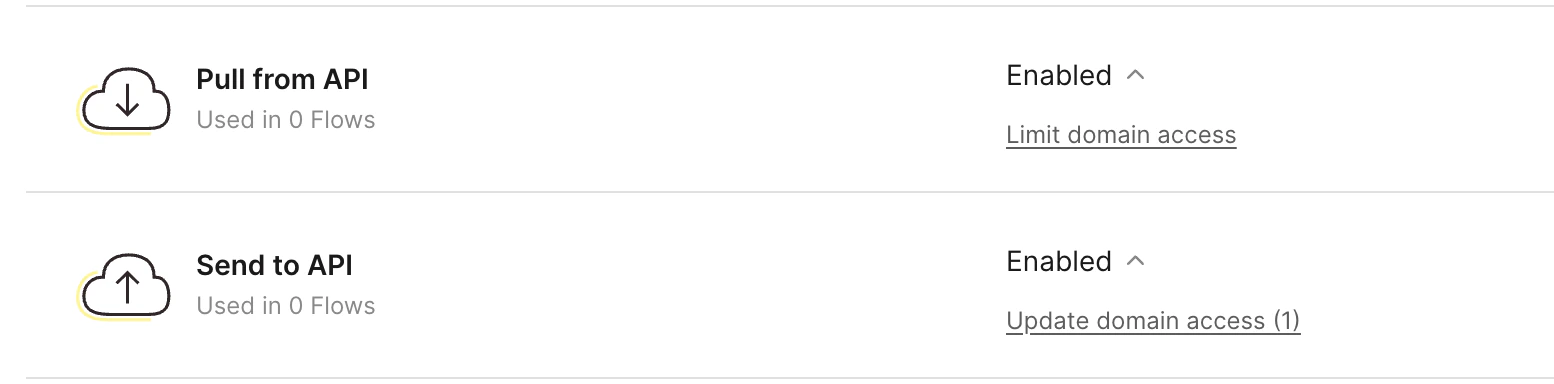
- If an allowlist is empty, the API step behaves as it normally would without domain restrictions.
- If an allowlist is populated, the API step can only make requests to the domains inside of the allowlist.
- Allowlists support subdomains and wildcards: for example,
*.google.comwould allowdrive.google.comand any other subdomain ofgoogle.com.