

Adding users
Adding a user is self-serve, right from the Workspace page. No need to loop in Prowork support, though you will need Admin access to do it yourself.1
Go to the Workspace page and click + Add teammate.
2
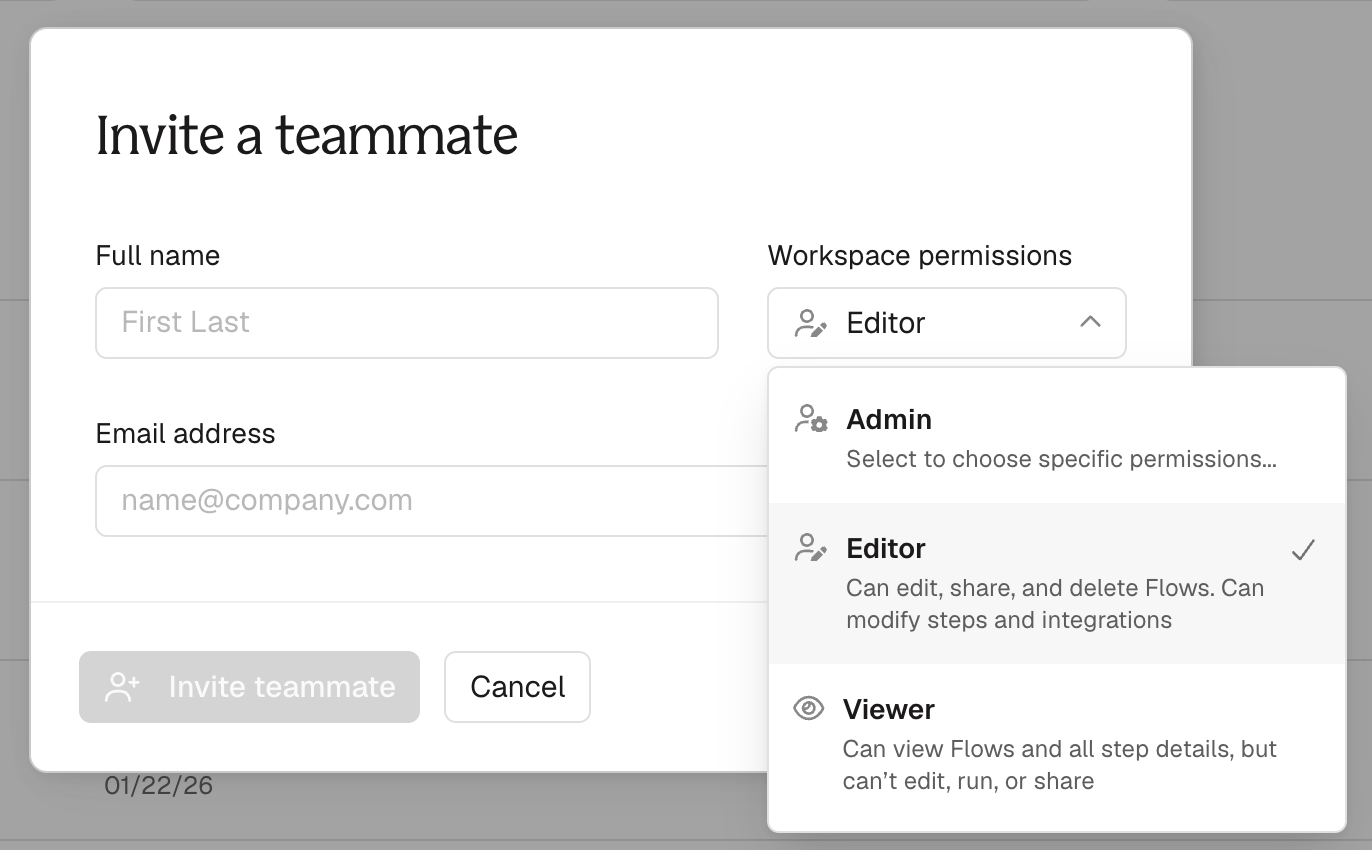
Enter their name and email address.
3
Assign a role under Workspace permissions: Admin, Editor, or Viewer.
4
Click Invite teammate. They’ll get an email invite to set up their account.
Choosing roles
A good default is to start people with the minimum role they need. You can always upgrade their access later as their work grows.- An Admin can make changes to your subscription and billing, and add or delete team members.
- An Editor cannot make subscription or billing changes, and cannot add or delete users. They can create and edit flows.
- A Viewer has read-only access to flows.
Admin permission scopes
Admins on Advanced or Enterprise plans can have up to five distinct sets of permissions:
On other plans, every admin is an Org Admin with user, billing, reporting, and admin-management permissions, but not content permissions.
Use Reporting permissions for teammates who need to track usage but shouldn’t manage billing, like a finance lead or an ops manager. On the Billing & Usage page, they see the Credit usage, Usage overview, and Usage reports sections, and nothing else. To assign it, open the teammate’s admin settings from the Workspace page and select Reporting.
Want to hand off your own Org Admin status to someone else? Reach out to Prowork support and the team will help you make the switch.
Removing users
Removing someone requires Admin access.1
Go to the Workspace page.
2
Find the person you want to remove.
3
Click the gear icon next to their name.
4
In the window that appears, click the trash icon to begin the deletion process.
5
You’ll be prompted to select a new owner for the deleted user’s existing flows from a dropdown menu.