

Pricing Overview
What is a flow?
A flow is an automated workflow built using Prowork. Typically, a flow ingests data (from a database or unstructured data source like a PDF or an email), extracts relevant datapoints, transforms this data into the format you need, and then sends that data to your desired destination. Outputs from flows can be sent into 3rd party apps (such as Google Sheets, Snowflake, or Shopify), be used to power Slack and Email alerts, or be stored in Prowork’s internal databases called Parabola Tables. Flow outputs can also include visualizations and charts that can be easily shared.What is a credit?
Credits are used every time you run a Prowork flow or build in Prowork. Your team shares a single pool of credits, used whenever you run a flow (manually, on a schedule or via a trigger) or build in Prowork (chatting with the Prowork agent and building with AI-powered steps). On some plans, each user also gets their own monthly allotment of credits for building. The amount of credits used depends on the number of unique steps and the complexity of the process being automated. If a step isn’t successfully executed, or has zero input and output rows, it does not count.How many credits will I use?
The number of credits you need depends on the number of flows you have active and how frequently those flows are running. The more flows, the more complex the tasks being automated, and the more frequently flows run, the more credits you’ll use. Building also uses credits, depending on how much your team chats with the Prowork agent and builds with AI-powered steps. Each plan is designed to give you enough credits to deploy Prowork based on average usage from existing customers. If you have higher usage flows that are automating lots of manual work, we’ll notify you before you reach your plan’s credit limit.Do I use credits when building a flow?
Yes. Chatting with the Prowork agent uses credits, whether it builds steps for you, answers your questions or both, and so does building with AI-powered steps. Building uses each user’s credit allotment first, then your team credit pool. Running a flow, whether manually, on a schedule or via a trigger, uses credits from your team credit pool.What is a per-user credit allotment?
On some plans, all users get their own allotment of credits each month for building in Prowork: chatting with the Prowork agent, whether that results in steps built, answers given or both, and building with AI-powered steps. It resets every month. Once a user has used all of their personal allotment, their building draws from your team credit pool. New users get their per-user credit allotment automatically when they’re added.What is an AI-powered step?
These steps use advanced AI logic to perform complex tasks in Prowork. This includes:- Pull from Browser
- Extract from PDF, when using AI parsing
- Extract from Email, when using AI parsing
- Categorize with AI
- Experiment with AI
- Extract with AI
- Standardize with AI
- Artifact generation and editing
How are credits calculated?
Individual steps within a Prowork flow consume credits at a flat rate, while AI-powered steps use credits in proportion to the work done. Chatting with the Prowork agent uses credits based on the complexity of the task. Information about credit usage and guidance for best practices are visible in tooltips while building a flow.How do the team credit pool and per-user allotments work together?
Here’s an illustrative example of one month for a team of five users with a team credit pool of 120,000 credits. In this example, each user has a per-user credit allotment of 6,000 credits for building.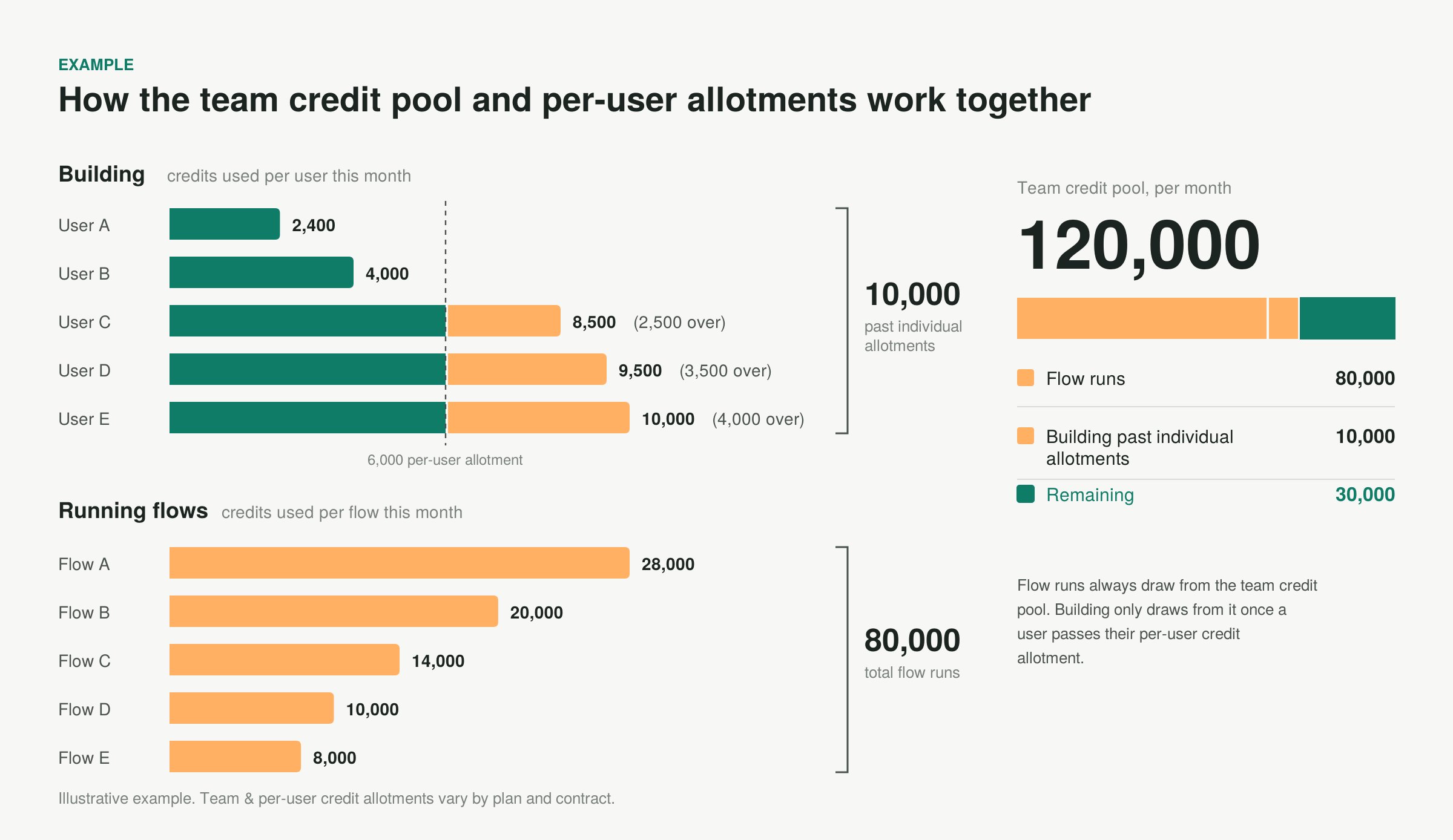
- Building: Users A and B stayed within their individual allotments, so none of their building drew from the team credit pool. Users C, D and E went past theirs by 2,500, 3,500 and 4,000 credits, so 10,000 credits for building came from the team credit pool
- Running flows: the team’s flows used 80,000 credits, all from the team credit pool
- Team credit pool: 80,000 for flow runs plus 10,000 for building past individual allotments leaves 30,000 remaining for the month
What happens if I run out of credits?
We will send proactive email and in-product alerts to ensure you are aware as you approach your plan’s credit limit. Once you hit your credit limit on the Basic plan, your use of Prowork will stop until your billing period resets. On all other plans, you will switch to pay-per-credit billing.How do I buy more credits right now?
If you’re on a plan with pay-per-credit billing enabled, you don’t need to do anything. Once you hit your team’s credit limit, additional usage is billed automatically at your plan’s per-credit rate for the rest of the billing period. You can see whether pay-per-credit is enabled for your account, along with your current usage, on the Billing page. If you’re on the Basic (free) plan, there’s no self-serve way to buy additional credits. Basic is capped at 1,000 credits per month. To get more credits immediately, upgrade to a paid plan directly from the Billing page, which both gives you a larger team credit pool and turns on pay-per-credit for any overage. If you’re on a Team or Business/Enterprise plan and want to increase your team credit pool or per-user credit allotments (rather than rely on pay-per-credit overage) or discuss custom pricing, reach out to your Account Manager or email help@parabola.io. These changes go through your account team rather than the self-serve Billing page.Are AI credits different from flow credits?
No. Credits used by AI-powered steps (like AI extraction, categorization, or Custom Transform) draw from the same team credit pool. There’s no separate “AI credit” allotment to track or reset independently. If you’re trying to reset or adjust credits specifically because AI-step usage is running high, the fix is the same as any other credit issue: review usage on the Billing page, or contact your Account Manager to discuss a larger team credit pool.Does viewing an Artifact use credits?
No. Viewing an Artifact doesn’t use credits, and Artifact viewers don’t use credits. Credits are only used when your flows run, or when someone builds in Prowork by chatting with the Prowork agent or building with AI-powered steps.Can I get a credit refund if a platform incident consumed credits unnecessarily?
If your flows ran and consumed credits during a verified Prowork platform incident (for example, a period where a feature like email delivery wasn’t working correctly), contact support at help@parabola.io with your flow run IDs and the date/time range affected. We review refund eligibility on a case-by-case basis once the incident has been confirmed internally.Do you limit the number of flows I can run?
No, all plans are able to have an unlimited number of flows active at the same time.Can I use Prowork for free?
Yes! When you sign up, you’ll be automatically enrolled on the Prowork Basic plan. This plan gives you access to all Prowork integrations and steps, and allows you to use up to 1,000 Prowork credits per month. If you need additional credits, or features like scheduled flows, you can upgrade to a new plan directly from the Billing portal.How do I upgrade my plan or increase my monthly credit limit?
Both are handled from the same place: the Billing page. Click on your avatar icon in the top right corner, select “Billing,” and choose a higher plan tier. This gives you a larger team credit pool and your pricing takes effect immediately. If you’re already on a Team or Business/Enterprise plan and want a larger team credit pool, contact your Account Manager or help@parabola.io.How do I change my plan or cancel my account?
You can update your subscription and payment method at any time, directly from the Billing page. To navigate to the Billing page, click on the avatar icon in the top right corner and click “Billing” from the dropdown.How do I access my invoices and receipts?
All invoices and receipts are available directly on the Billing page. You can view and download past invoices for any billing period without needing to contact support.If your account has a past due invoice, admins will see a banner directing them to the Billing page to pay any outstanding invoices.