

- How you like your Artifacts styled. Colors, fonts, chart types
- Which tables to use for a report. And which ones to avoid
- How your team calculates a metric. Net revenue, on-time delivery rate
- A checklist to follow before exporting. To a system like NetSuite or Shopify
- A list of product release dates. For use when reporting metrics
Create a skill
Create a skill in the Skills window or just by asking Prowork. New skills are always Personal, which means only you can see them.From a Prowork conversation
Ask Prowork to remember something:- “Remember that our fiscal year starts in February.”
- “Always round currency to two decimals.”
- “Make this a skill.”
- “Should we create a skill from this conversation?”
From the Skills window
1
Open Skills
Click Skills in the left sidebar of your Flows home, or click the + button in the Prowork chat box and choose Manage skills.
2
Click Add skill
A new, empty skill opens in the editor.
3
Name it
Names use lowercase words joined by hyphens, like
weekly-rollup-format. Prowork converts spaces and capital letters for you as you type.4
Write the skill
The editor starts you off with two sections:
- When to use: the situations where Prowork should use this skill.
- What to do: the steps, in the order you’d explain them to a colleague.
5
Click Save
Prowork takes a few seconds to write the skill’s summary. You’ll see Writing a description… until it’s ready. The skill starts working in your conversations once the summary appears.
How Prowork uses your skills
Prowork picks the right skills on its own, so you don’t have to turn anything on. Each time you send a message, it checks your request against the summaries of every skill you can use. If a skill fits, Prowork loads it.- While a skill is loading, the chat shows Reading the {skill name} skill…
- After Prowork replies, the Skills used section lists every skill it loaded for that reply.
Types of skills
If a Personal skill and a Workspace skill share a name, Prowork can load both. But two Personal skills or two Workspace skills cannot share a name.
Manage and share skills
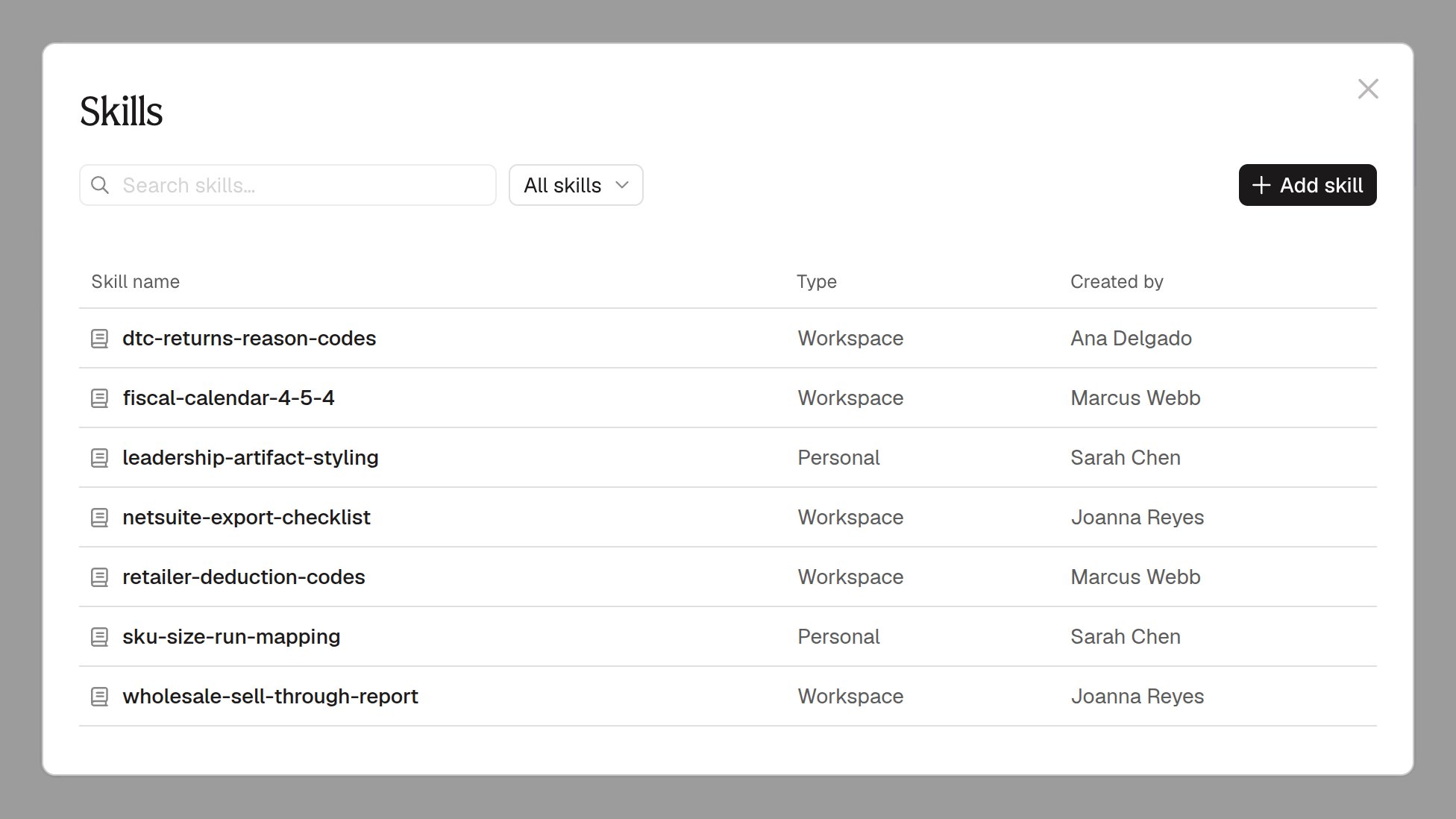
The Skills window lists every Personal and Workspace skill you can use. Search the list, or pick Personal skills or Workspace skills from the filter to narrow it. Click a skill to open it.Edit or delete
Open a skill, then click Edit to change it or the trash icon to delete it. Prowork stops using a deleted skill right away. Deletions cannot be undone.Share with your workspace
Open a Personal skill, click Share, then confirm with Share with workspace. The skill becomes a Workspace skill, and Prowork starts using it in conversations for everyone in your workspace. The skill still lists you under Created by.Who can do what
Workspace Admins decide who manages Workspace skills under Workspace settings → Workspace Skills editing.
No one can see anyone else’s Personal skills, including Admins.
Write good skills
The best way to create a skill is directly from a conversation you’ve had in a Flow. That way, Prowork has context about your conversation, the Flow, and a use case.- Give each skill one job. Prowork chooses skills by their one-sentence summary. A skill that covers five topics gets a vague summary, and Prowork may never pick it. If Prowork warns you a skill is getting long, split it in two.
- Say when it applies. A clear When to use section, like “when building a weekly sales report,” helps Prowork write a precise summary.
- Be specific. Give the actual table names, column names, and formulas. “Use the right data” won’t help.
- Write it like you’re briefing a colleague. Short steps, in the order you’d follow them.
weekly-rollup-format
FAQ
Why isn't Prowork using my skill?
Why isn't Prowork using my skill?
Check that the skill has a summary under its name. Prowork can’t use a skill until its summary exists. If the summary is there, rewrite the When to use section so it clearly matches how you phrase your requests.
Can I make Prowork use a specific skill?
Can I make Prowork use a specific skill?
There’s no command for it, but you can ask directly: “Use my weekly-rollup-format skill.”
Can other people see my Personal skills?
Can other people see my Personal skills?
No. Only you can see them until you share them.
What are Built in skills?
What are Built in skills?
Parabola writes and maintains these skills to improve how Prowork works for everyone. They don’t appear in your Skills list, and you can’t edit them.