

You don’t have to watch a flow to know how it’s doing. Summary emails tell you when a run finishes, failure settings stop a broken flow from failing silently over and over, and run history gives you a record to check when something looks off.

Summary emails

By default, you’re emailed when a run fails or partially fails, but not when it succeeds. Flow settings offers three choices: an email every time the flow runs, only when it fails or pauses (the default), or never.
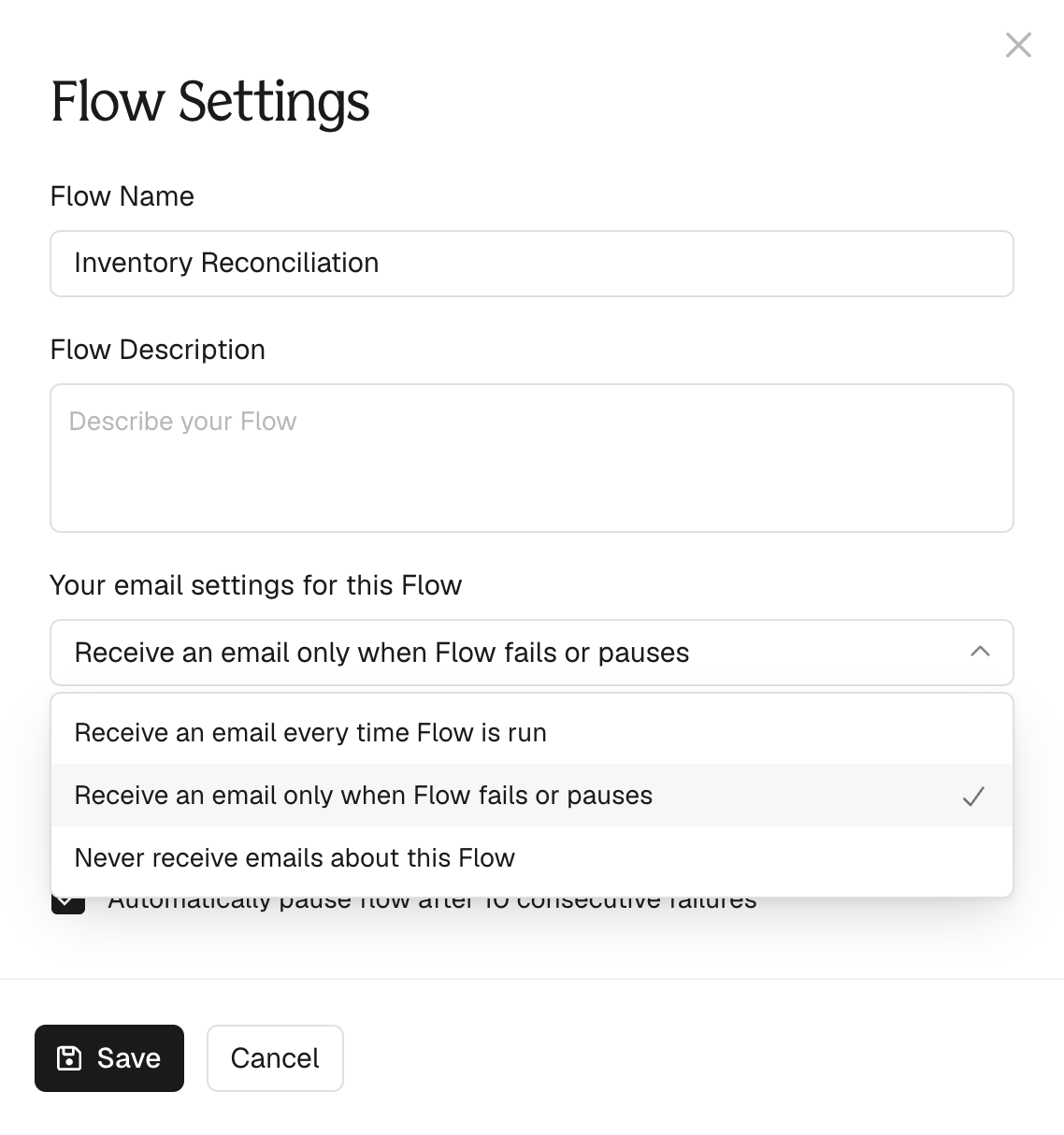
The Flow Settings dialog with the email dropdown open on "Receive an email every time Flow is run", "Receive an email only when Flow fails or pauses", and "Never receive emails about this Flow"
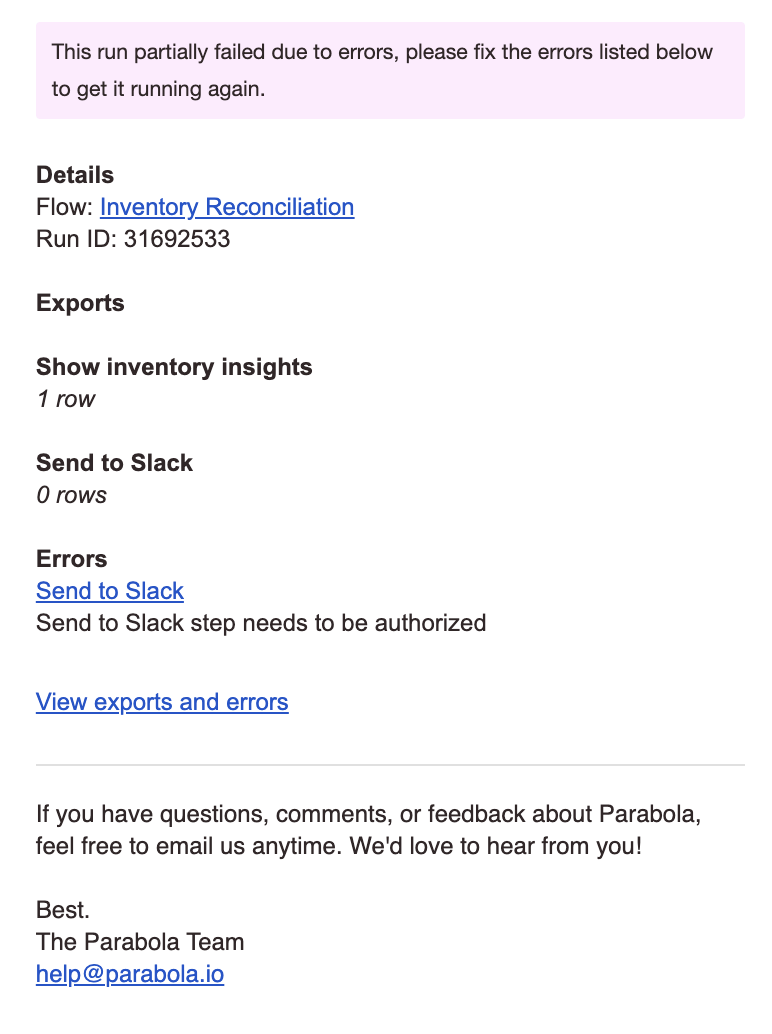
The summary email is sent right after your flow runs, from support@parabola.io with a subject like “Prowork run succeeded.” It includes the flow name, a link to it, the run ID, export destinations, step methods, and the number of rows sent. Anyone with edit access receives it.
A summary email for a partially failed run, listing the flow, run ID, each export with its row count, and the errors to fix

Failure settings

By default, scheduled flows automatically pause after 10 consecutive failures, which prevents repeated failures from running unnoticed. To keep a flow running regardless:
1
Open Flow settings from the navigation bar menu or the overflow menu on your flows page.
2
Find the checkbox Pause scheduled flow after 10 consecutive failures.
3
Uncheck it to opt out of auto-pause, then click Save.

Run history

Click Last run beneath the flow’s name, or the Run Flow panel in the top-right corner and the History tab, to open the Run History panel. It shows successful and failed runs along with core information about each.
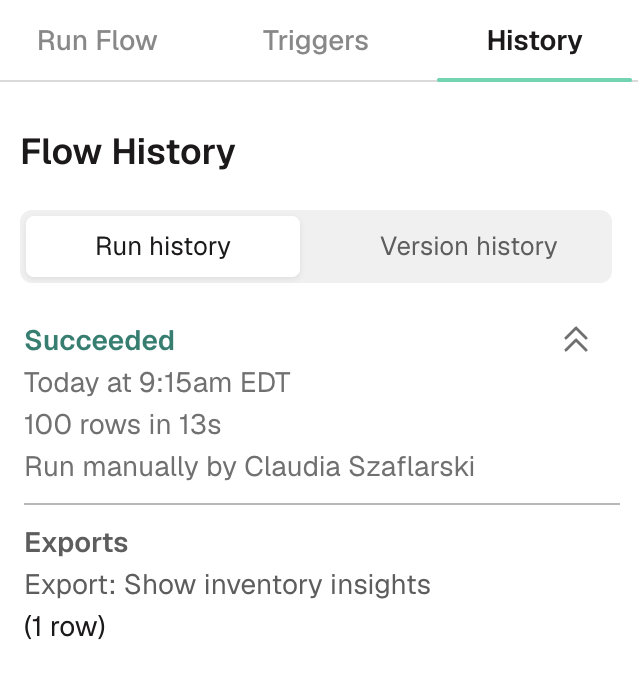
The Flow History panel on its Run history tab, showing a succeeded run with its time, row count, duration, who ran it, and its exports
Last modified on August 28, 2026