

Describe your process
Describe the process the way you’d explain it to a new hire. Be specific about three things:- The data involved. “Shopify orders, 3PL shipment confirmations, and our returns spreadsheet”
- What needs to happen to it. “Match orders to shipments, flag anything unshipped after 3 days”
- Where the result goes. “Update a Google Sheet my team reviews every morning”
Answer follow-up questions
Prowork asks clarifying questions before it builds that are specific to your data:- “Match on order ID or tracking number?”
- “Should the 3-day window start from the order date or payment date?”
- “What happens when a shipment matches multiple orders?”
Watch it build
You can see the work as it happens, at two levels: the task list shows Prowork’s plan in progress, and each step lands on the canvas as it’s built with its logic and a live preview of your data. To see what Prowork is doing between steps, open Reasoning above its reply. It shows a line each time Prowork searches the web or the Parabola docs, reads a file you attached, reads or saves a skill, or tests code. Open a web search line to see what it searched for.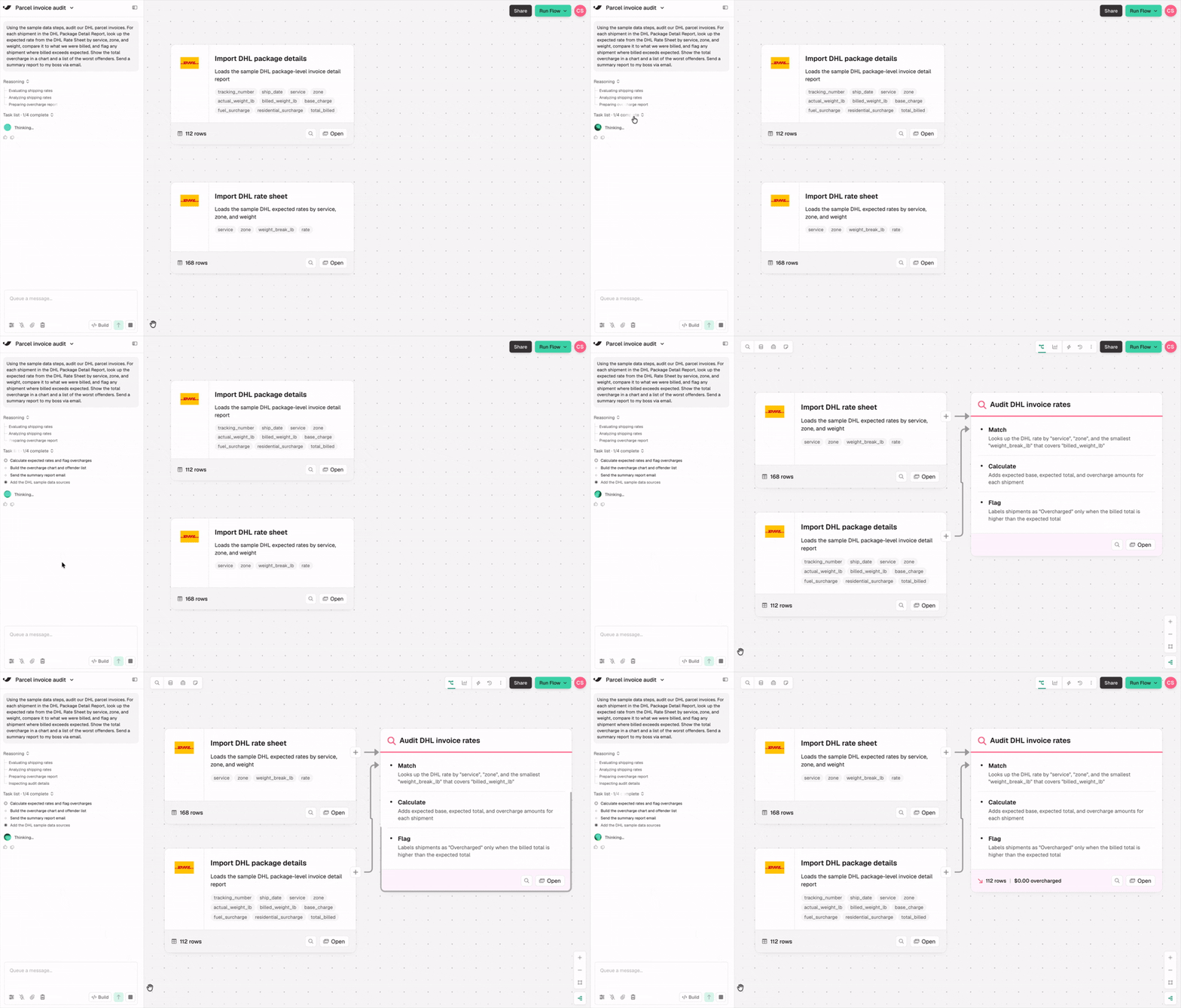
Queue messages while Prowork is working
You don’t have to wait for Prowork to finish. Keep typing and your messages queue up, as many as you want. Edit or remove a queued message any time before it’s sent. Prowork picks up queued messages between actions and adjusts course without dropping the work already in progress.Start a new chat or pick up an old one
A flow can have more than one chat. Start a new chat when you switch to a different task, like building a new section or debugging a step, so Prowork stays focused on what you’re working on now. Click New chat in the chat panel to start fresh. Your earlier chats stay with the flow. Open Chat history to return to any previous conversation and continue where you left off. If a chat has been inactive for 12 hours, your next message starts a new chat automatically. The previous chat is saved in your history.Prowork keeps working while you’re away
Close your tab mid-edit and Prowork keeps going. While it’s working, anyone else on that flow sees Prowork is editing this Flow and can view but not edit, so their changes can’t land on top of what Prowork is writing. Editing returns on its own when the turn ends. Your own Prowork session never locks you out of your own flow. Only one chat can build in a flow at a time. If Prowork is already building from another chat, wait for that turn to finish before sending a build request from a different one.Validate and adjust
Click any step to see its configuration: the data going in, the data coming out, and the logic in between in plain language. Edit it directly, tell Prowork to change it in chat, or delete it and let Prowork rebuild that section. Changing one step won’t break the rest.Attach files for context
Drag a file onto the canvas or click the paperclip in the chat composer. Prowork reads files in either place.
Larger CSV, XLSX, XLSM, PDF, and JSON files are routed to the canvas automatically. Attaching a sample file early is one of the fastest ways to get a flow right the first time: Prowork sees your actual column names and formats instead of asking about them.
Use your voice to prompt
Click the microphone in the chat input and speak instead of typing. Prowork transcribes what you say into the message field, and you send it like any other message. Useful for describing a process end to end, where talking through it is faster than typing it out. Voice input currently works in Chrome-based browsers.Stop a response
If Prowork is generating something you no longer need, click Stop in the chat composer. The response cancels immediately and nothing further is added to your flow.Undo the last thing Prowork did
Hover the most recent Prowork message and click the undo button next to the feedback thumbs. This returns your flow to its state right before you sent that prompt, including any edits of your own that landed in between. Undo is scoped to your current session and goes away when you refresh the flow or close the tab. For anything older, use Draft and version history.Not ready to build yet? Use Ask mode to think through the process first.