
Read from a table
Pull from Parabola Table reads any table you have access to. Anyone who’s a Viewer, Editor, or Owner on the source flow can pull from its tables. Pick one from the dropdown.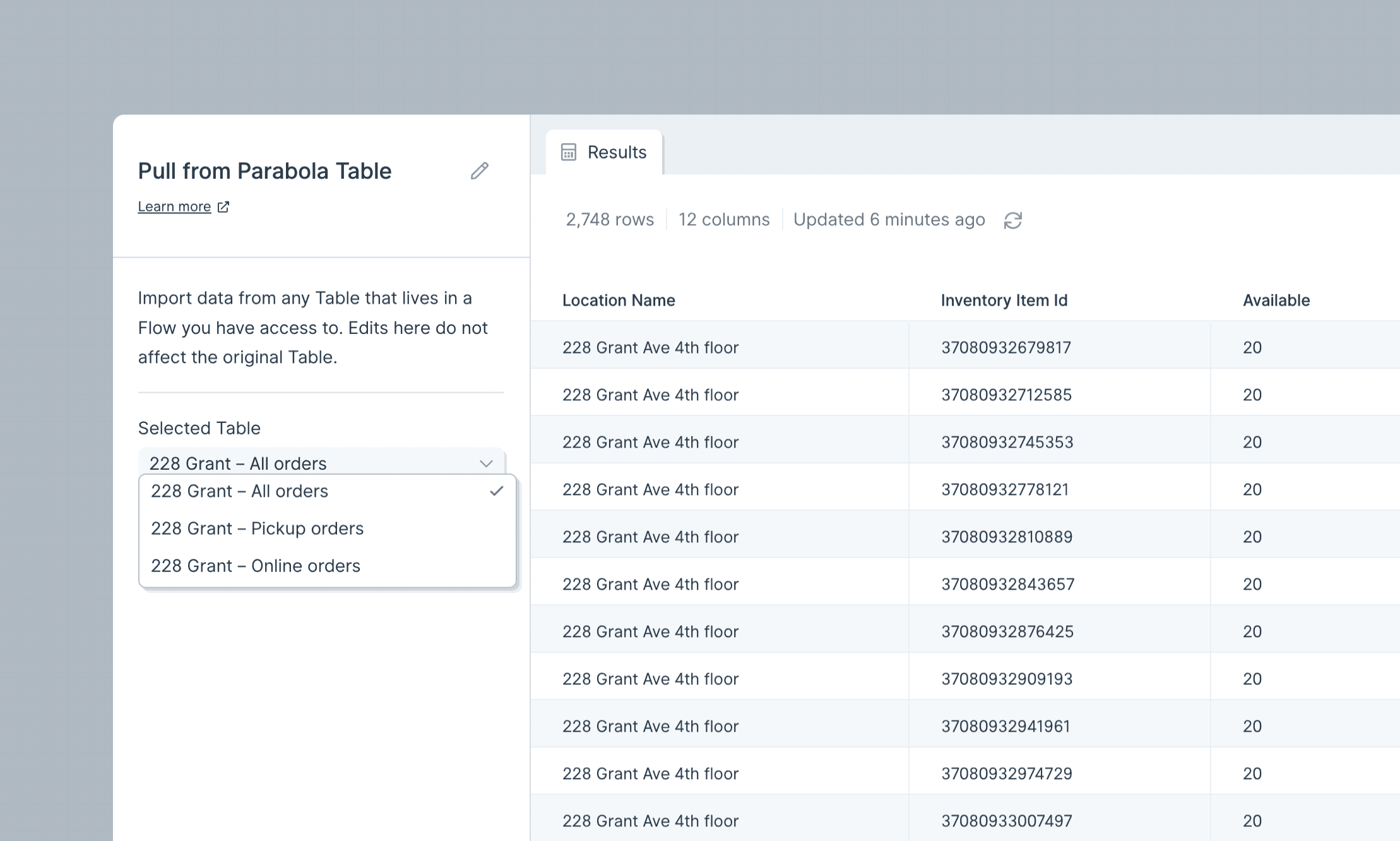
The config view of the Pull from Parabola Table step
- It pulls the table’s base data only. Filters, sorts, aggregations, or formatting applied on top don’t carry through.
- If a table’s missing from the dropdown, check that Allow other flows to pull data from this table is enabled on the source’s Send to Parabola Table step.
- Reading from a different flow requires the source table to have been published and run successfully at least once. Within the same flow, you can pull from a draft table too.
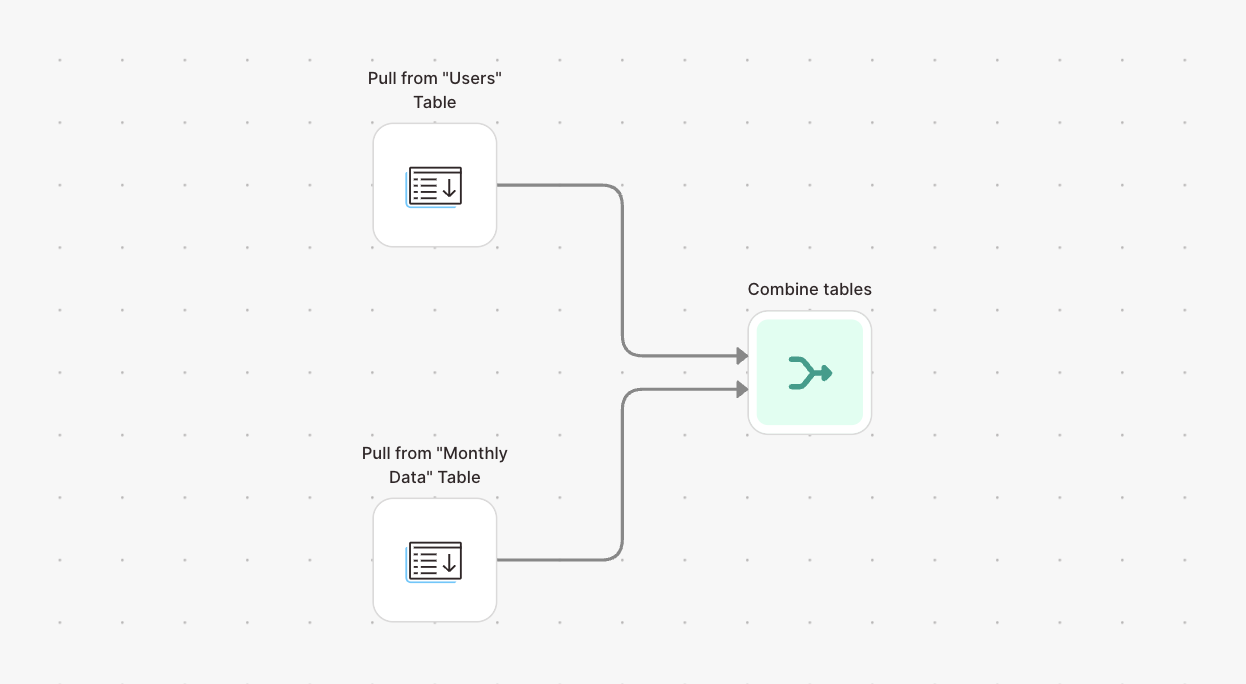
- To bring in several tables, use multiple Pull from Parabola Table steps and merge them with Stack tables or Combine tables.
Write to a table
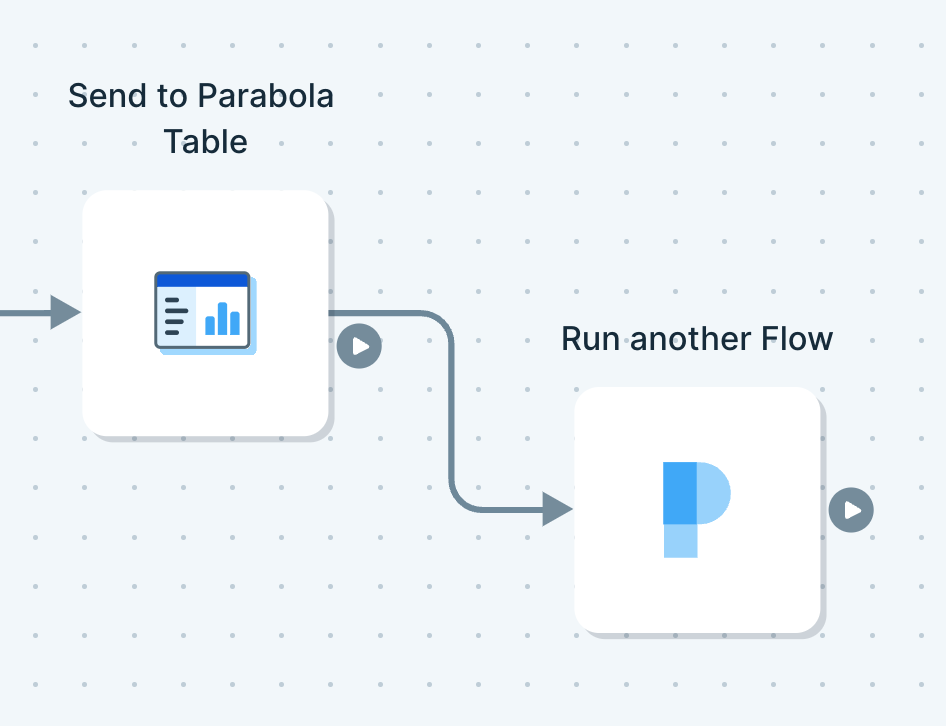
Send to Parabola Table writes data into a table. Anyone with flow access can see what’s stored. A configured step has two tabs:- Input. What’s currently flowing in, and what would be written if you ran the flow now.
- Existing Table. What’s already stored from prior runs. Downstream steps connected to this step receive the Existing Table data, not the Input.
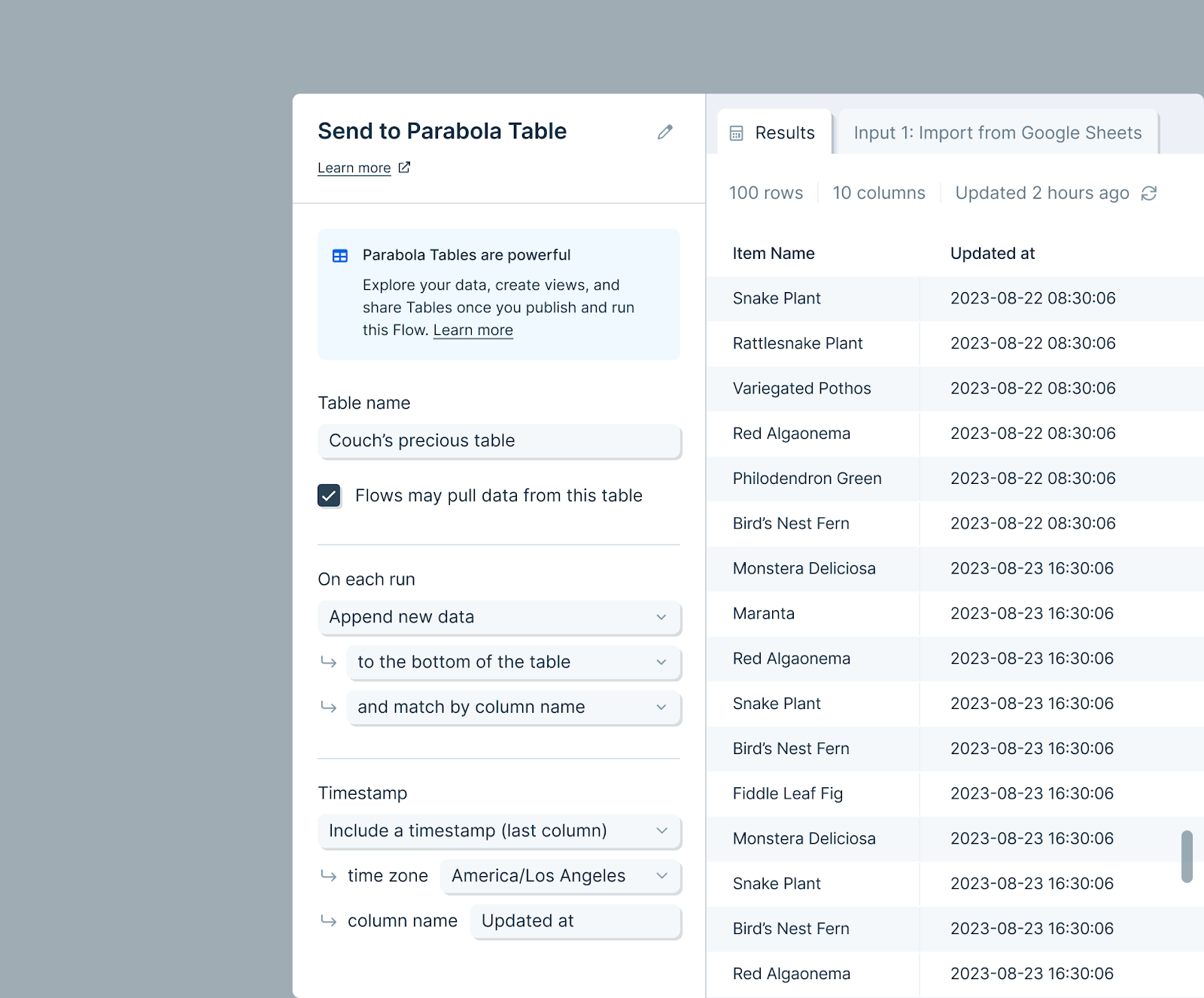
- Overwrite. Replaces all data. Also how you de-dupe: overwrite with cleaned data.
- Append. Adds new rows above or below what’s there, matched by position or by name. Optionally timestamp each addition.
- Update existing rows. Updates rows that match on a key you choose. Duplicate matches error out, and matching columns must exist and match by name on both sides. Unmatched rows can append or get discarded, and updates can be timestamped too.
Link flows together
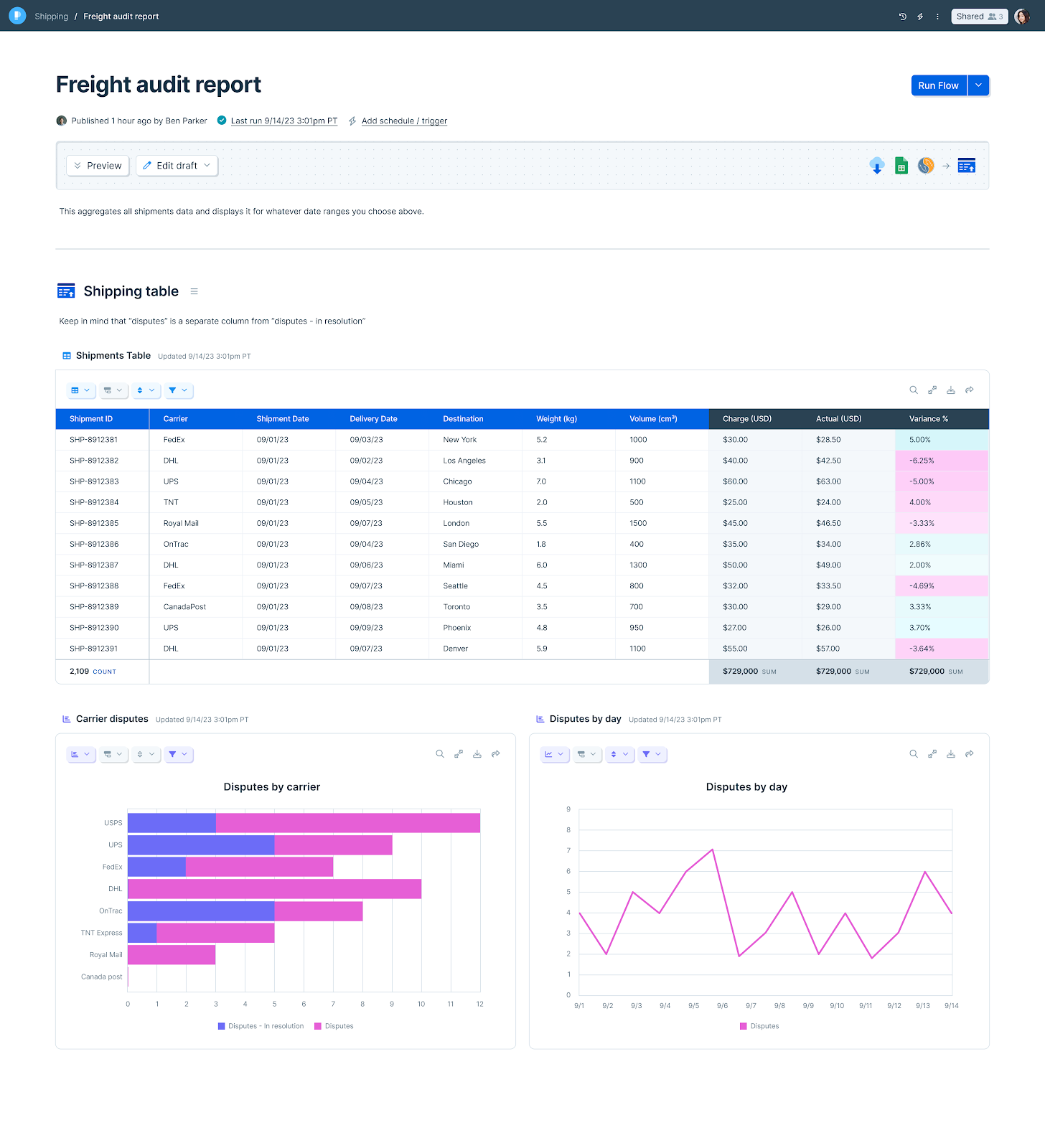
Tables pair naturally with Artifacts for historical reporting and dashboards. The table accumulates, the Artifact visualizes it.