

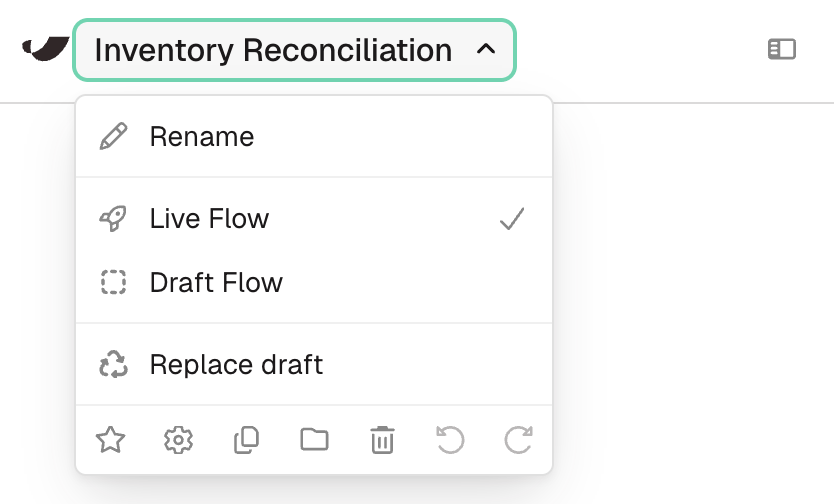
- Live Flow checked means you’re looking at the live version.
- Select Create a new draft or Draft Flow to open the draft.
Live version
Every flow defaults to the live version, the one that runs via the Run flow button or via schedules and triggers. You can build and edit in the live version unless the flow is actively running, has active schedules or triggers, or you have read-only permissions. The live version doesn’t need to be published; it exports data by running on a schedule or whenever you click Run flow.Draft version
Create one draft at a time to test changes. Nothing in the draft affects the live version; scheduled and triggered runs always use live flows. Publish your draft first for it to run, and once published it overwrites the current live version.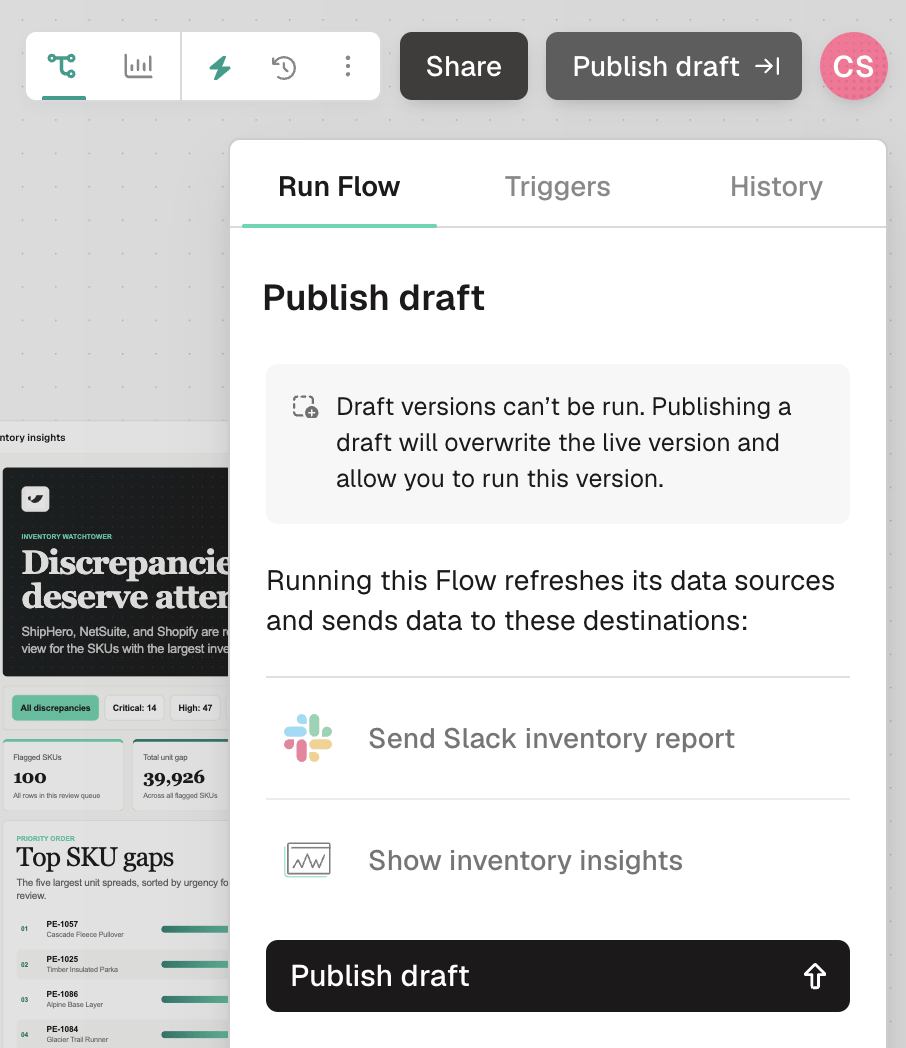
Start a draft
Small edits can go straight to live (renaming a Parabola Table, dropping an extra column). For anything bigger, a draft lets you take your time without a triggered run catching your flow mid-change.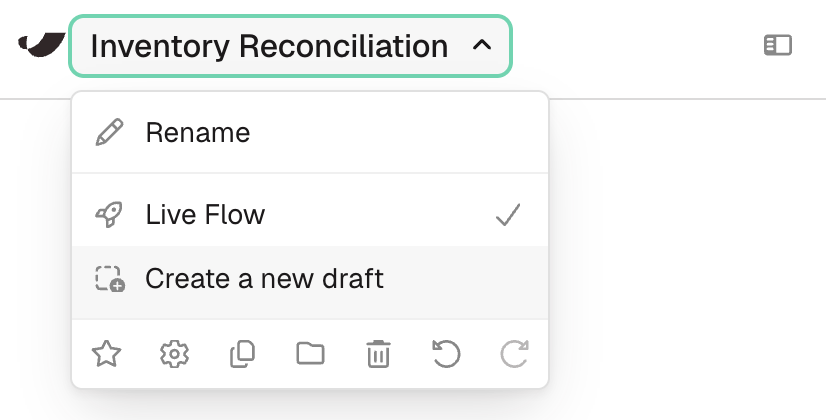
Publish, or start over
You can only have one draft at a time, but you can always discard it and start fresh. Publish the draft from the top-right corner when it’s ready. That version becomes live immediately, and the draft is gone until you start a new one. For more control over how draft and live interact, open the gear icon under the flow name for Live flow locking settings.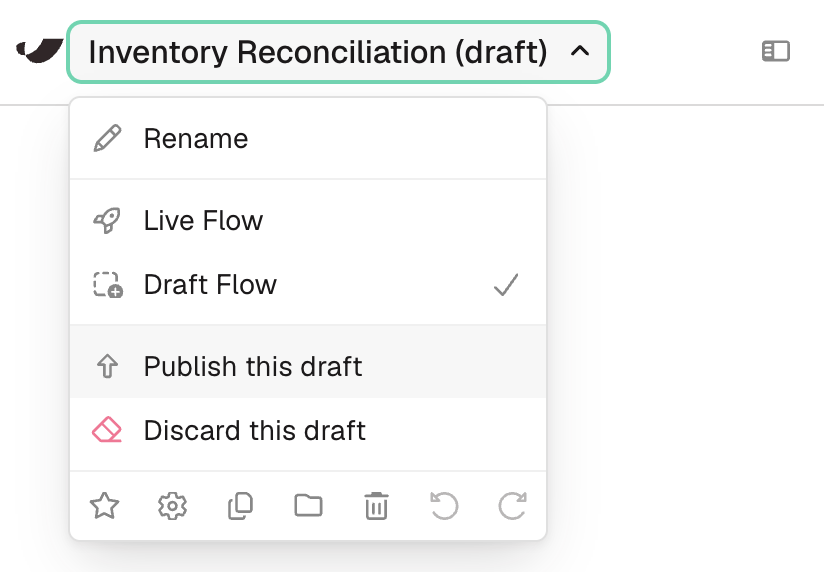
Version history
As you build and iterate, Prowork automatically captures snapshots of your work. This is useful when collaborating, undoing a change from days ago, or keeping a record of who edited a flow and when.Viewing version history
Open the Flow history panel from the upper-right corner of the canvas and select the Version history tab. You’ll see versions grouped by day, most recent first. Each entry includes the user who made changes, the timestamp, whether the change was on the live or draft version, and a note if it was restored from an earlier version.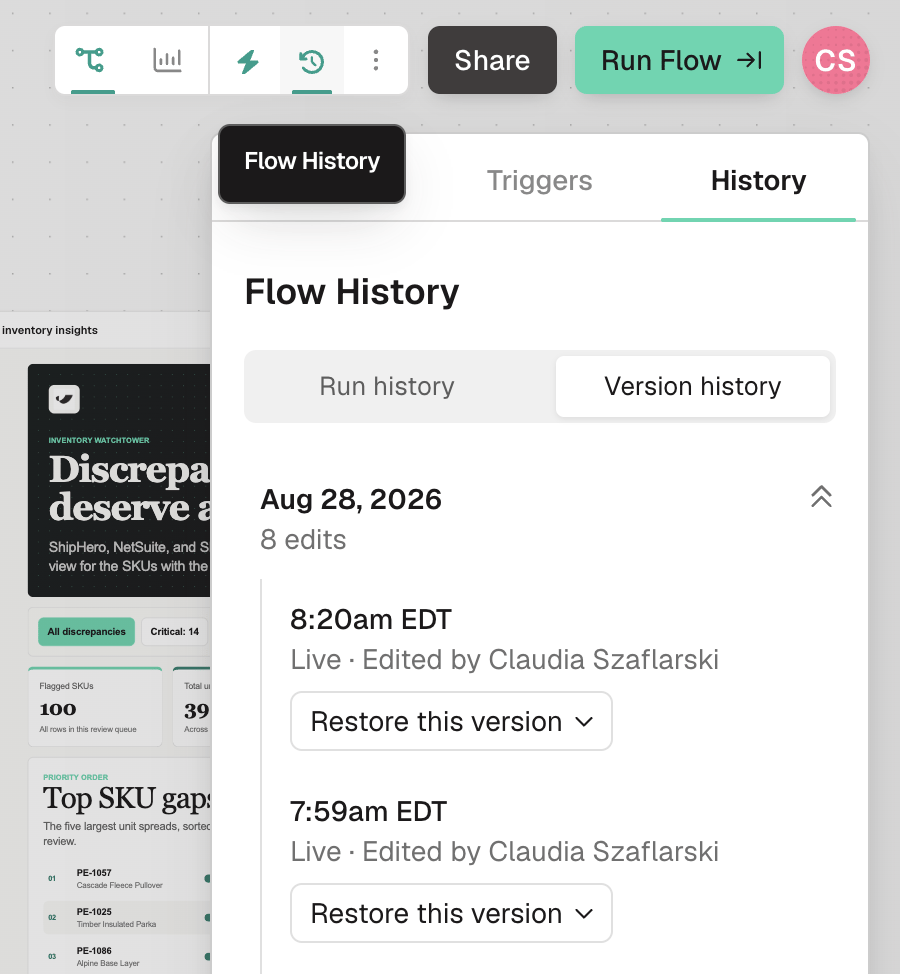
Restoring a previous version
Click Restore this version below a version to open its menu. The available actions depend on whether you’re in the live or draft version.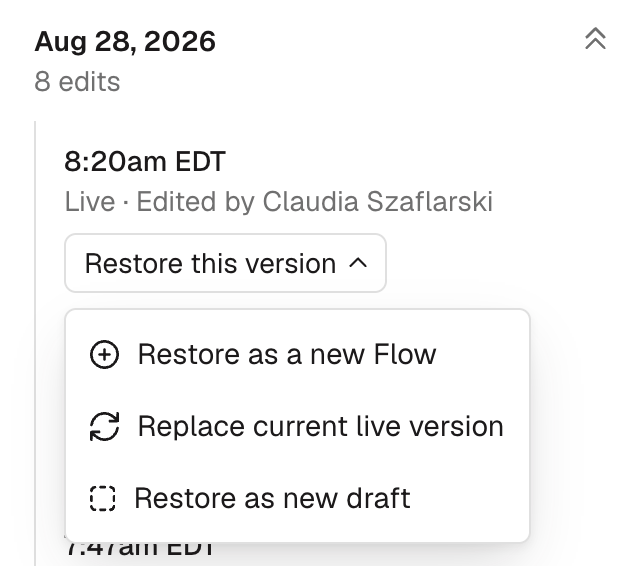
- Replace current live version. Overwrites the live version with the selected version’s content.
- Restore as new draft. Writes the selected version to a new draft, or replaces your existing draft.
- Restore as a new Flow. Creates a brand-new flow from the selected version, with you as owner. You’re redirected to it once it’s created.
⌘/Ctrl + Z to undo, before refreshing the page.
Permissions
Editors, content admins, and org admins can view version history and restore any version. Viewers can see version history, but restore actions are disabled.Retention
Version history is available on every plan. The current version of a live or draft flow is retained for the life of the flow. Once a version is superseded by a newer one, how long the prior version is kept depends on your plan:
If you’re on a custom or legacy plan, your retention window is set by your contract. Reach out to your account manager or help@parabola.io if you’re not sure which applies to you.
Once a version passes your retention window it’s deleted and can’t be recovered.
FAQs
What happens to version history if a teammate is deactivated or removed?
What happens to version history if a teammate is deactivated or removed?
Their name stays on any version entries they created. Version history is part of your organization’s audit trail, so we preserve attribution even after a user is removed.
What triggers a new version?
What triggers a new version?
Most canvas changes create a snapshot: adding steps, moving steps, modifying a card. Activity within a 5-minute window is coalesced into a single entry.
Does undo (⌘/Ctrl + Z) work after restoring?
Does undo (⌘/Ctrl + Z) work after restoring?
Yes. If you restore and immediately want to revert, undo takes you back. Undo history clears on page refresh, so don’t refresh between restoring and undoing.
Are versions captured for both live and draft flows?
Are versions captured for both live and draft flows?
Yes, for both, so you can restore from a draft state as well as a published one.
What happens to my version history when we change plans?
What happens to my version history when we change plans?
Retention updates the day your plan changes, and it applies going forward. Versions created from that day on follow your new plan’s window; versions created before it keep the window they were created under.On an upgrade, that means versions already deleted under your old plan can’t be recovered. On a downgrade, it means you may see older versions in your history alongside gaps where newer ones have already expired. Moving from a 90-day plan to a 30-day plan leaves roughly a 60-day stretch where older versions are still visible.
Can I access version history for a flow I've deleted?
Can I access version history for a flow I've deleted?
Not directly from the UI yet. Reach out to help@parabola.io to recover content from a deleted flow.
What happens when Prowork makes changes to my flow?
What happens when Prowork makes changes to my flow?
We capture those snapshots the same way as human edits. The user interacting with the AI chat is attributed to the snapshot.