

Open the Tables page
Click Tables in the left sidebar.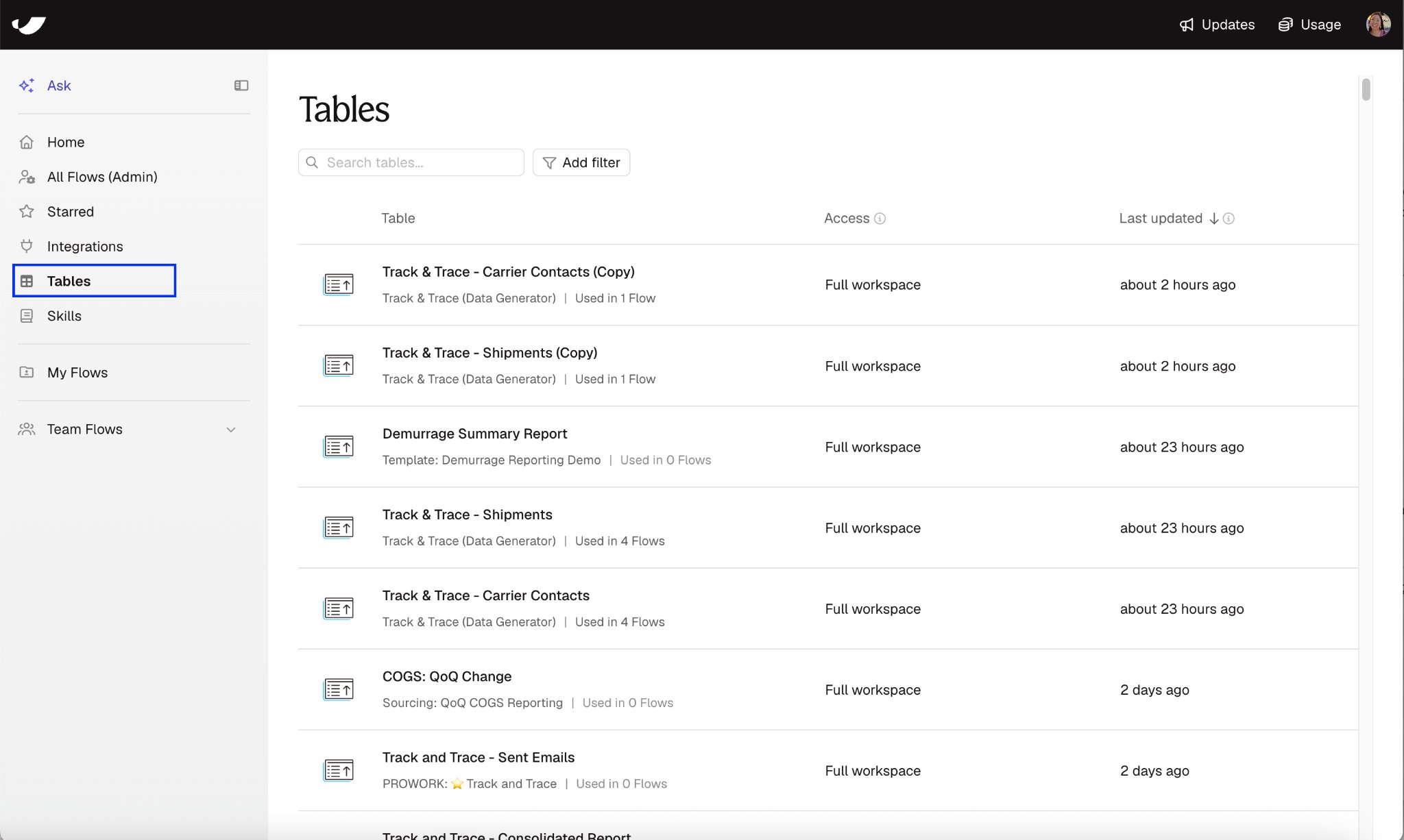
Which tables you’ll see
A table doesn’t have permissions of its own. It follows the permissions of the origin Flow, the Flow whose Send to Parabola Table step writes it.- On Advanced plans, Org Admins and Content Admins see every table in the workspace.
- Everyone else sees the tables whose origin Flow they can access, whether the Flow was shared with them directly or with the whole workspace. Any access level counts, including view-only.
If a teammate can’t find a table, check that they have access to its origin Flow, and that the Flow has been published and run.
What’s on the page
Each row is one table.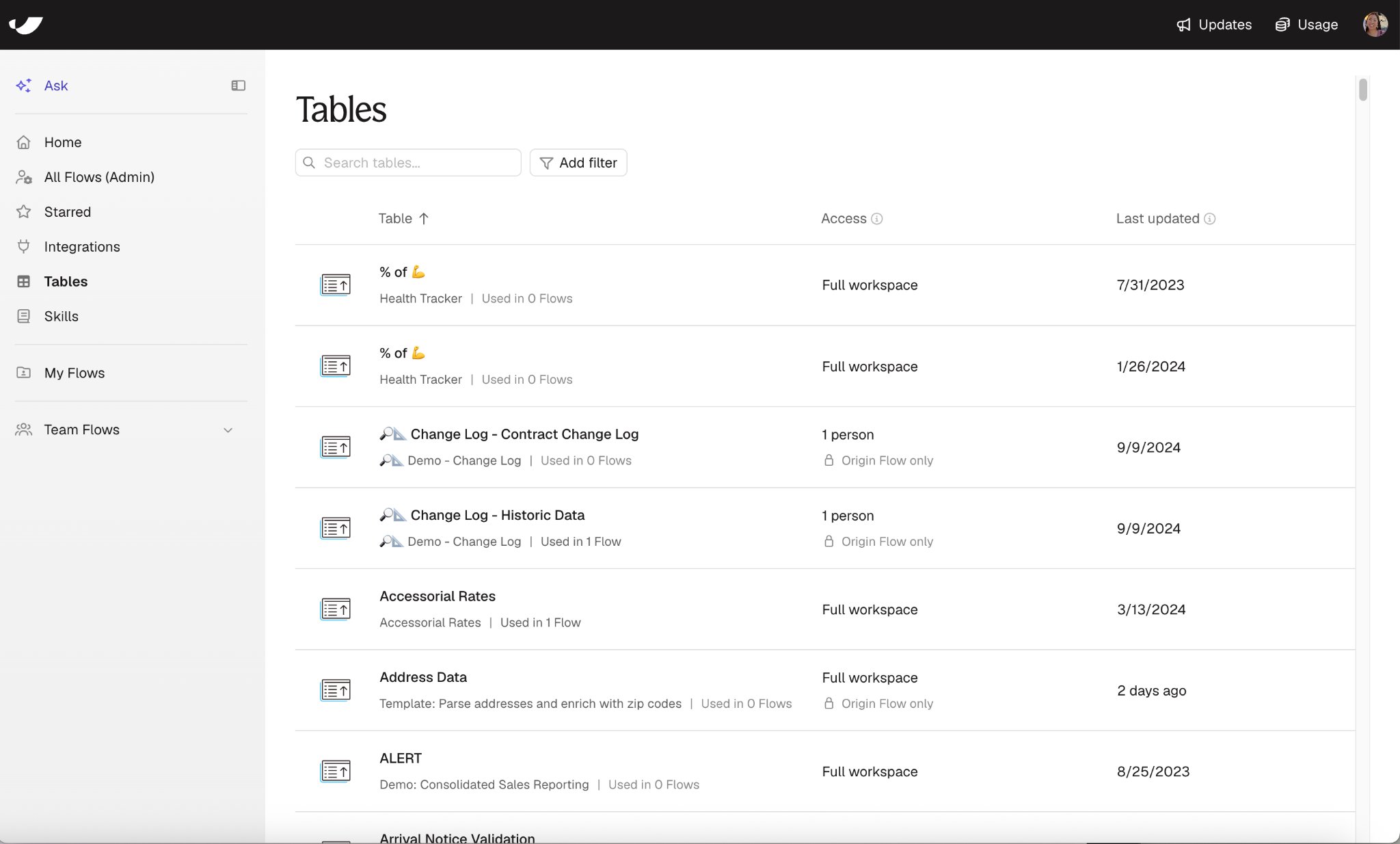
Click any column header to sort by it, and click again to reverse the order. Sorting by Access puts the tables shared with the fewest people first.
Look inside a table
Click a table’s name to open a read-only preview of its data. The header links to the origin Flow, shows how many Flows use the table, and shows how many rows you’re seeing.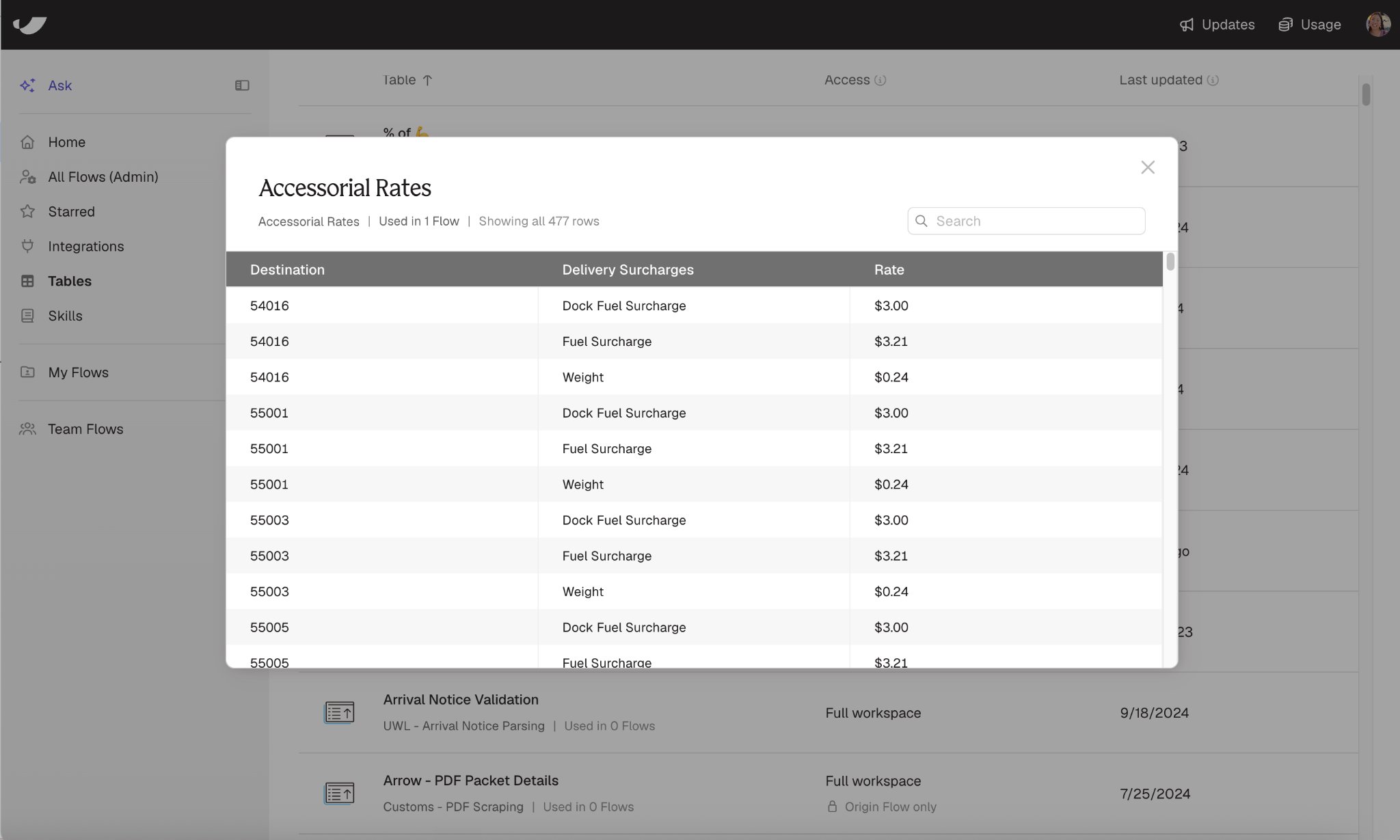
- Search the preview to find specific values. While searching, you can choose to show all columns or all rows instead of only the matches.
- Large tables show the first 1,000 rows, or fewer if the rows are very wide. The header shows how many of the total rows you’re seeing.
- The preview shows the table’s stored data, the same as the Existing Table tab on a Send to Parabola Table step.
See which Flows use a table
Click Used in N Flows, on the row or in the preview, to list the Flows that pull from the table. For each Flow you’ll see its owner, when it was last updated, when it last ran, and whether the table is used in the Flow’s live version or only in its draft. The count includes every Flow in your workspace that uses the table. The list only shows the Flows you have access to, so it can be shorter than the count. If it is, ask an Org Admin or Content Admin in your workspace for the full list of Flows that use the table. Click Download list (CSV) to export the list. This is handy when you’re working through a long list of Flows.See who has access
Anyone with access to the origin Flow can see the table’s data, so a table’s access always matches its origin Flow’s sharing settings. On Advanced plans, Org Admins and Content Admins can also see every table, even if the Flow isn’t shared with them. Click the value in the Access column to see who has access to the origin Flow and whether each person can view or edit it. The count and this list come from the Flow’s sharing settings, so admins who see the table only because of their role aren’t included. Origin Flow only is a separate setting. It controls whether other Flows can pull from the table, not who can see its data. It’s on when Allow other Flows to pull data from this table is turned off on the table’s Send to Parabola Table step.- To change who can see a table, change who has access to its origin Flow.
- To change whether other Flows can use a table, edit its Send to Parabola Table step.
Filter the list
Use the search bar to find tables by name or by origin Flow name. Use the filters to narrow the list:
Pick more than one option in a filter to see tables that match any of them. When you set more than one filter, tables must match all of them.
Common uses
- Avoid duplicating work. Browse existing tables to see if someone has already created a table similar to the one you plan to create.
- Check impact before a change. Before changing a table’s columns or how it’s written, open Used in N Flows to see which Flows will be affected.
- Clean up. Combine Usage: Unused with Last updated: Not updated in 90+ days to find tables that nothing reads and nothing writes anymore.
- Review who sees what. Filter by Workspace access: Full workspace to see which tables everyone in your workspace can read.
- Trace a table to its source. Click the origin Flow link to jump straight to the Flow that writes it.
Things to know
- The Tables page is read-only. You can’t rename, delete, or edit tables here. Make those changes on the Send to Parabola Table step in the origin Flow.
- Used in N Flows counts each Flow that pulls from the table with a Pull from Parabola Table step once, whether the table is used in the Flow’s live version, its draft, or both.