

Documentation Index
Fetch the complete documentation index at: https://parabola.io/docs/llms.txt
Use this file to discover all available pages before exploring further.
Locate the template you’d like to archive. You can do so by typing the name of the template into the search bar, or by navigating to the “Cards” tab in the top-left menu on the canvas.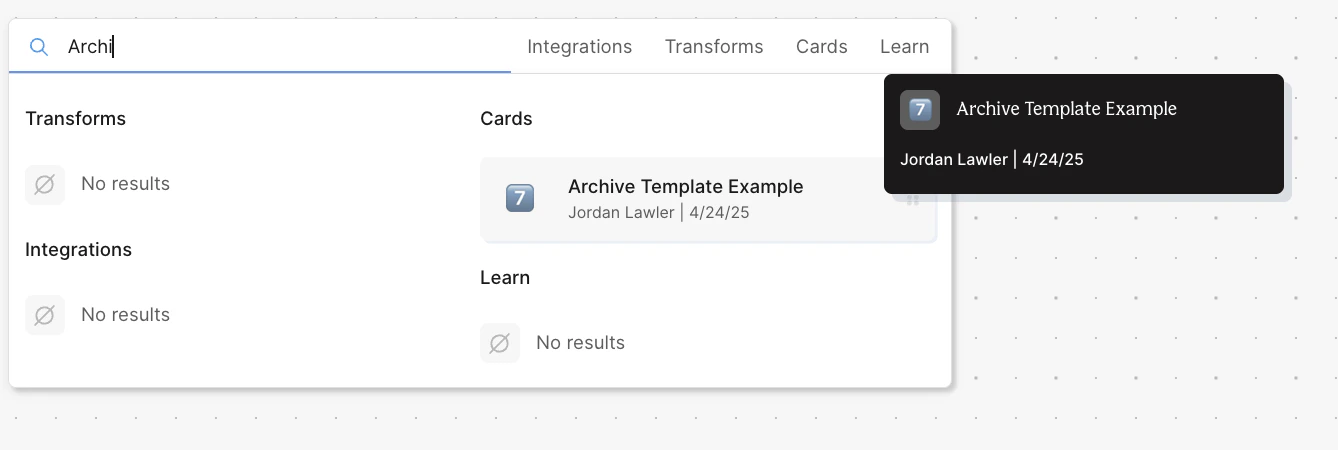
Hover over the template icon (the ‘7’ emoji pictured above), and you’ll see the icon switch to a pink box icon