Documentation Index
Fetch the complete documentation index at: https://parabola.io/docs/llms.txt
Use this file to discover all available pages before exploring further.
Context
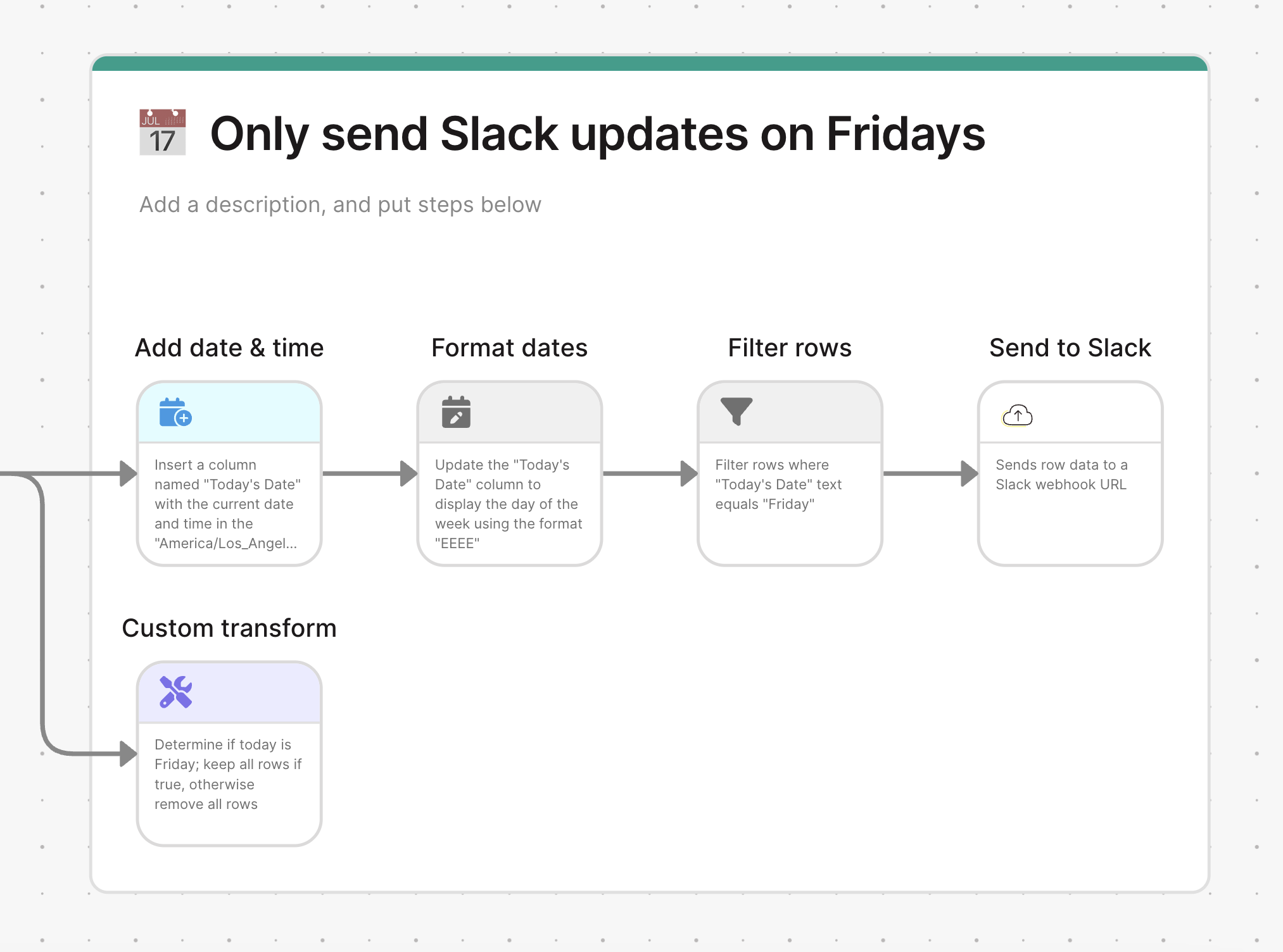
When running automated flows, you may want certain steps (like sending emails or notifications) to execute only on specific days of the week, while allowing other steps (like data processing or sheet updates) to run normally every time the flow is triggered.How it works
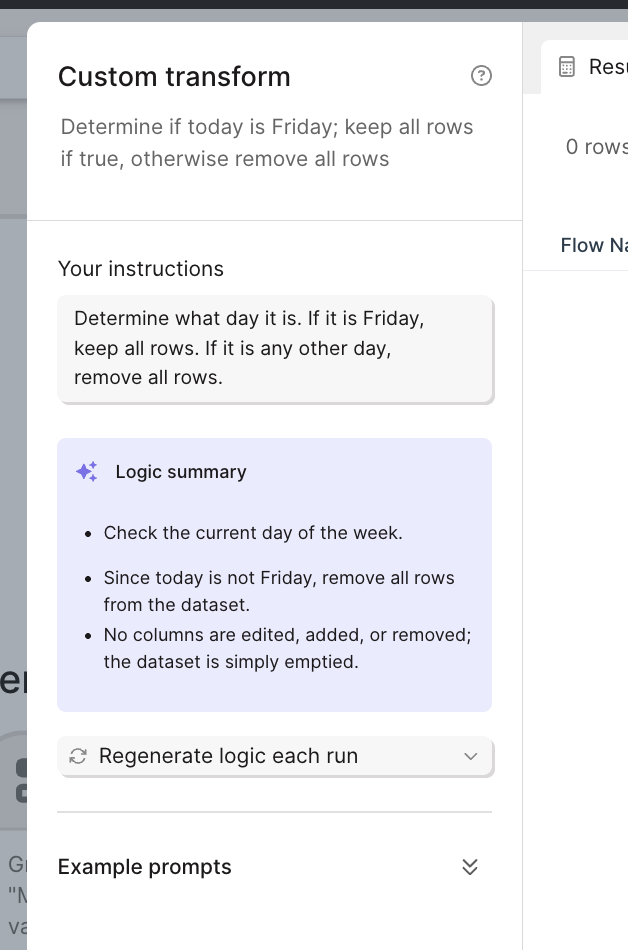
You can control when specific steps in your flow execute by using either of these methods:Method 1: Using Custom Transform (Recommended)
1. Add a Custom Transform step before the actions you want to schedule2. Enter a prompt that specifies your scheduling logic, such as: “Determine what day it is. If it is Friday, keep all rows. If it is any other day, remove all rows.”
Method 2: Using Standard Steps
Alternatively, you can achieve this using a combination of standard steps: