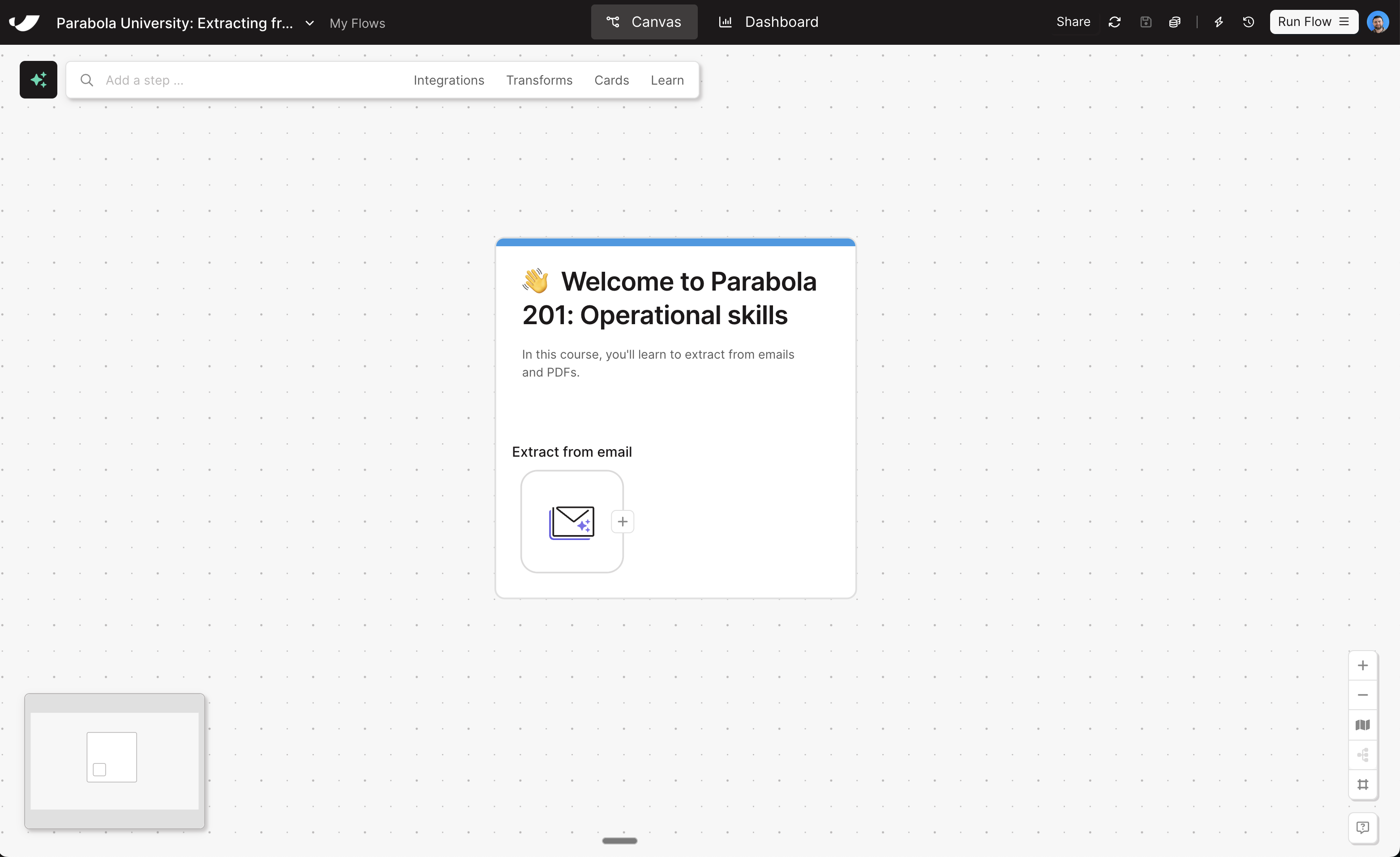
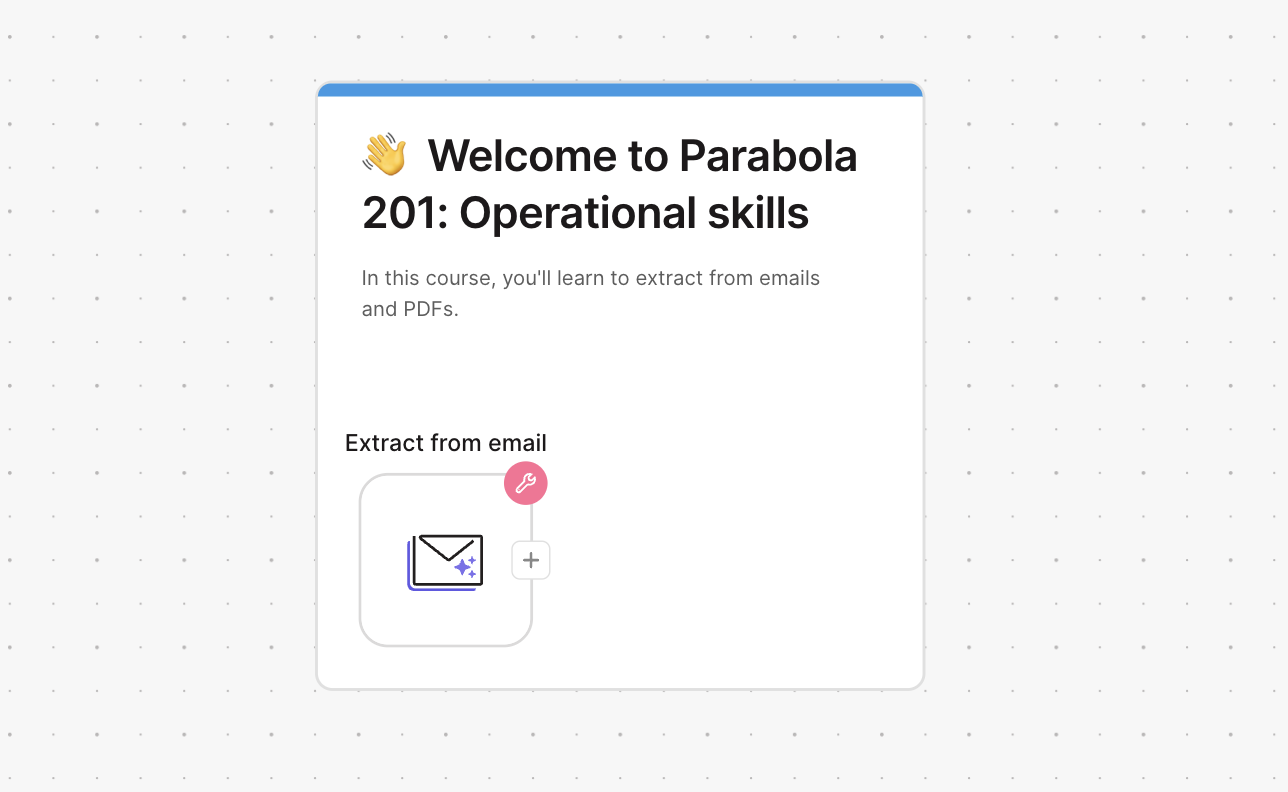
Step setup
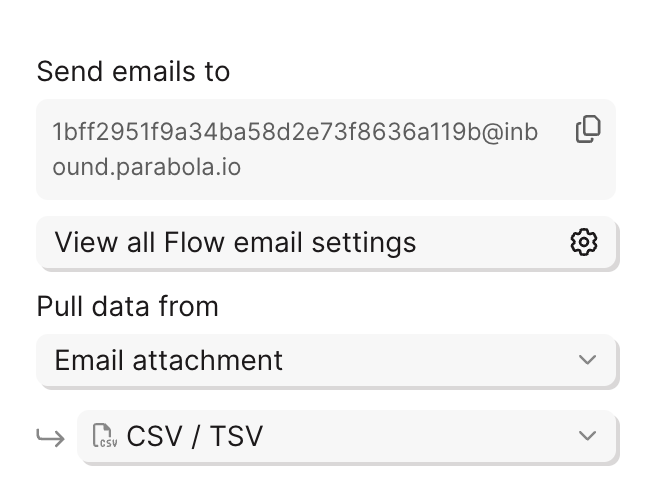
Whenever you’re setting up an Extract from email step, you’ll always start by specifying the file type (unless you’re working with just “Email content”).Make sure the file attachment type dropdown in your step matches the file you’re expecting:
- CSV/TSV for comma- or tab-separated files
- Excel for
.xlsxor.xlsfiles
Selecting a sheet (Excel only)
If you send in an Excel file, you’ll be prompted to select which sheet to pull data from. You can identify the sheet by:- Name — e.g., “Sheet1” or “Data Export”
- Position — e.g., the 1st sheet, the 2nd sheet
Parsing settings
The step offers three parsing modes. The right choice depends on how structured and consistent your file is.- Basic
- Find the table with AI
- Extract data with AI
Imports the file exactly as it looks — headers, rows, and all. This works for most standardized Excel and CSV files.Under Basic, you can also:
- Skip rows — if headers aren’t in the first row, or there’s extra content at the top
- Skip columns — if there’s padding or extra data at the left edge of the sheet
- Import as formatted values (default) or unformatted values
FAQs
What happens if multiple emails arrive while the flow is already running?
What happens if multiple emails arrive while the flow is already running?
Emails queue up in the order they’re received — up to 1,000 can be queued at a time. Each is processed sequentially once the current run finishes.
What if I need to download a file from a link inside the email?
What if I need to download a file from a link inside the email?
The Extract from email step reads data, but can’t download a file from a URL. To handle this pattern:
- Use Extract from email to pull the download URL out of the email body
- Pass that URL into a Run another flow step
- In the destination flow, start with Pull from file queue and end with Generate CSV file
Are there file size limitations?
Are there file size limitations?
Can I process different files in different steps from the same email?
Can I process different files in different steps from the same email?
If your flow has multiple Extract from email steps, all of them read from the same email/file. You can’t send different files to different steps within the same flow.
What’s next
Next, we’ll move on to PDFs — a fundamentally different challenge that unlocks a lot of powerful use cases.Building challenge
Pull the CSV file you downloaded in lesson 1 into your flow:
1
Copy the email address from your step settings
2
Open any email client and send an email to that address, with the CSV file attached
Don’t worry about the subject and body
3
Watch your Parabola flow automatically pull in the data
You’ll see the flow run a few seconds after sending an email
Check your work
Check your work