The problem
Some vendors send multiple PDF types in the same email, or maybe you receive similar (but slightly different) PDFs from multiple vendors of the same type. A common example: two 3PLs send you invoices that you want to process in the same flow, but they require slightly different parsing settings. If the PDFs are similar enough, the standard PDFs (with AI) method often does the trick. But if different methods are required, you can switch to PDFs (multiple formats, with AI).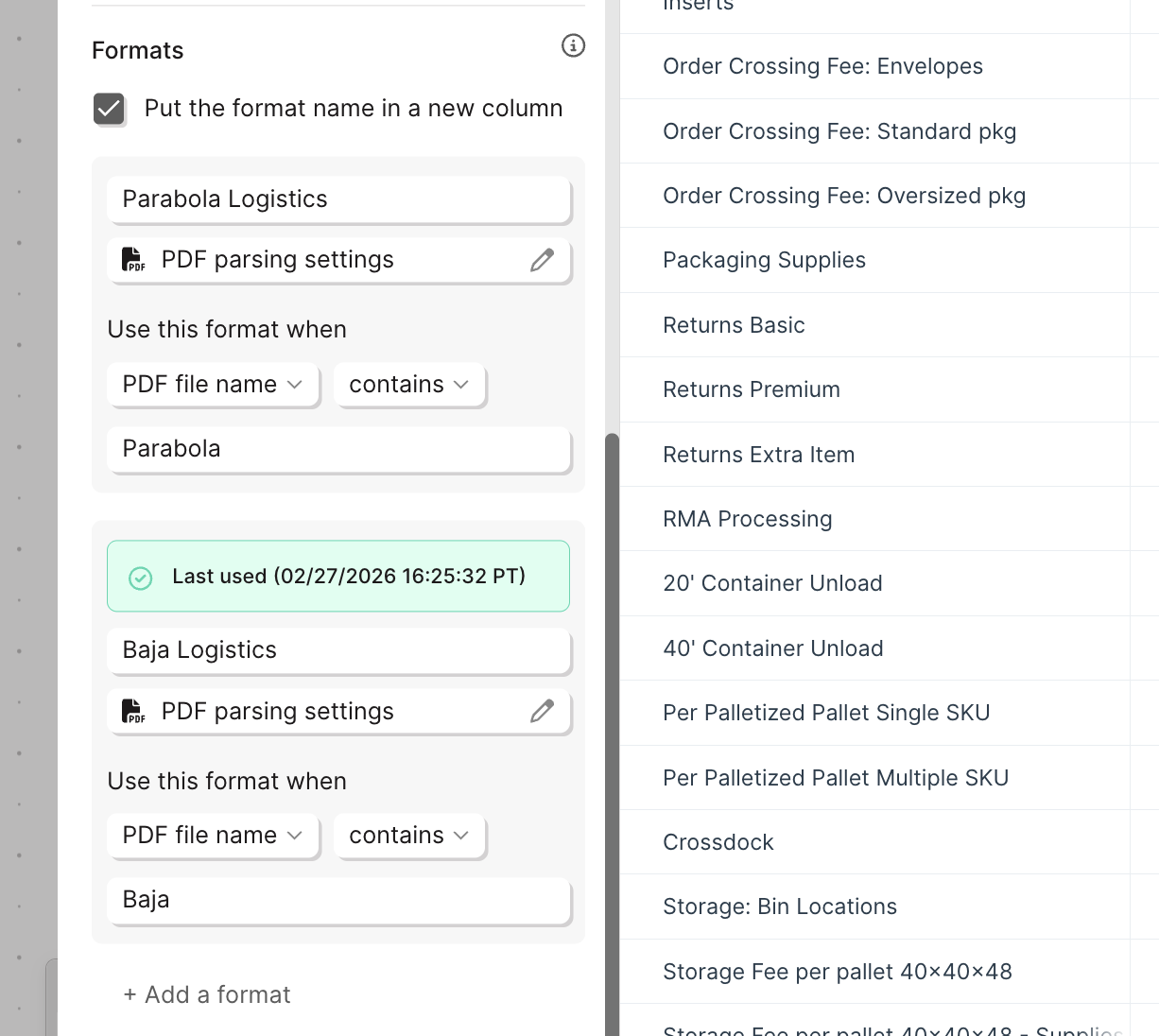
Enabling multi-format mode
In the file attachment type dropdown, select PDFs (multiple formats, with AI). The configuration panel will reorganize to show options grouped by Format, with each format representing a different PDF type. Once you add multiple Format types, you can define rules for when Parabola should use each specific parsing rule.Configuring the step
1
After selecting "PDFs (multiple formats, with AI), send in a test PDF Name your format
Use a realistic file name and subject line so that you can start building real business rules
2
Name your formats
By default, each format is labeled “Format 1”, “Format 2”, etc. Rename them to something meaningful — like “CMA invoices” or “RIM logistics invoices”. This name can appear as a column value in your output data so you can reference it in downstream steps.
3
Configure columns and keys for your first format
Click into a format to open its settings. Define the columns and individual values you want to extract from that PDF type — exactly the same as configuring a standard PDF step. Continue iterating until you nail the results for your first PDF type.
4
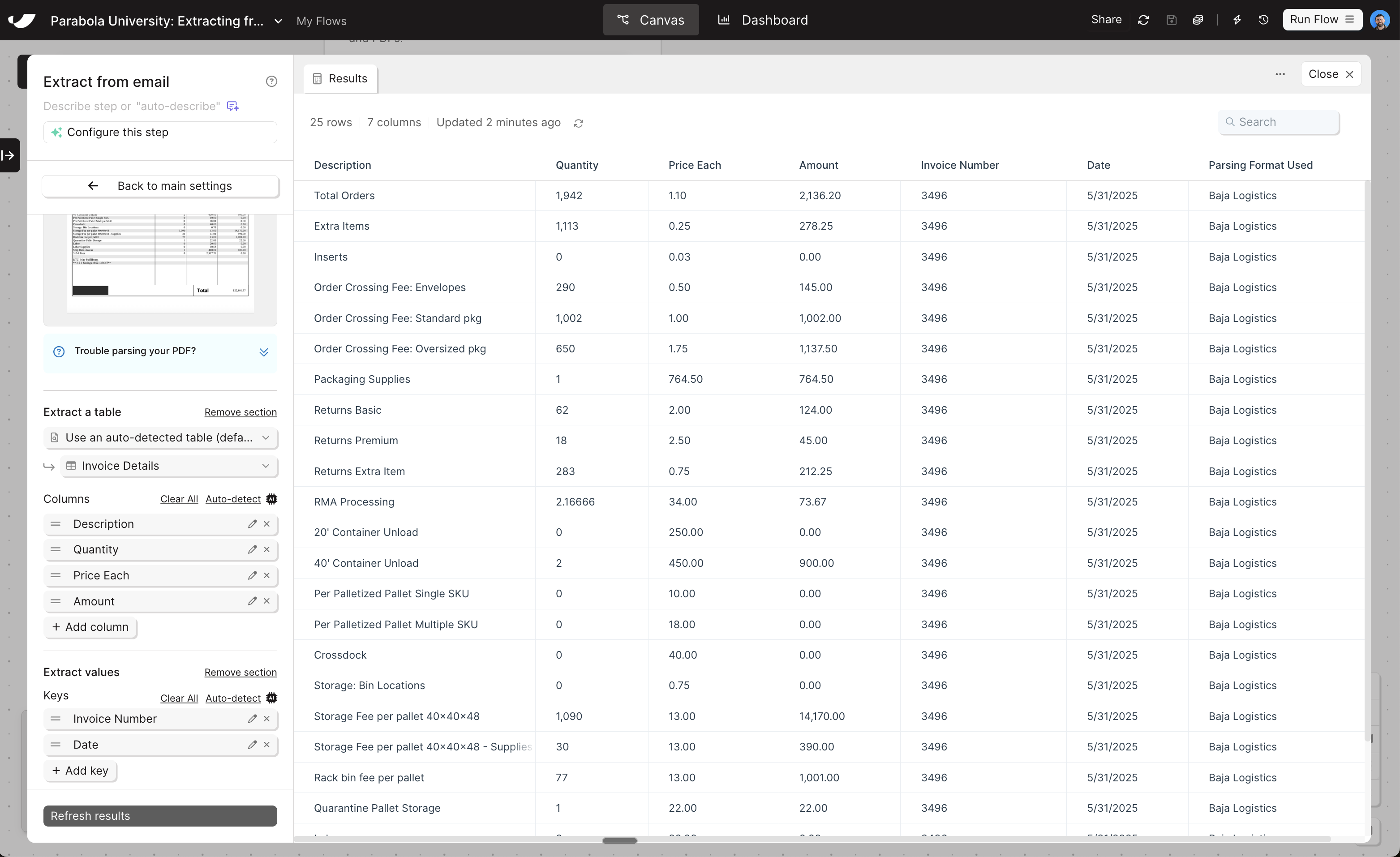
Return to main settings
When you’re done with one format, click “Back to main settings” at the top of the panel to return to the format list.
5
Add more formats and repeat steps 1 and 3
Click “Add format” and repeat the process for each additional PDF type you expect to receive. Send in a new test file, configure the settings, and then move onto the next format.
6
Set up your business rules
Define the rules for when each format should be used based on keywords in the file name and subject line.
A critical note on data persistence
For each format, make sure there’s a destination step (a Parabola Table, Google Sheet, email export, etc.) that captures the data before the next run. This doesn’t matter while you’re testing, but is important when you set a flow live. Storing all parsed data in a Parabola table is effective, especially if you want other flows to be able to use and access that data.Routing different PDF types downstream
Once your formats are defined, you can use branches in your flow to route each PDF type to a different destination. Example: You receive invoices and purchase orders in the same email.- After the Extract from email step, add a Filter rows step on one branch — keep only rows where
Format = Invoice - Add a second branch — keep only rows where
Format = Purchase Order - Route each branch to its own destination (e.g., invoices to a Parabola Table, POs to a Google Sheet)
What’s next
Next, we’ll talk about how to extract a third data type from flows: email content data.Building challenge
In this challenge, we’ll set up multi-PDF parsing in the same flow that we just used to parse our Parabola Logistics PDF.
1
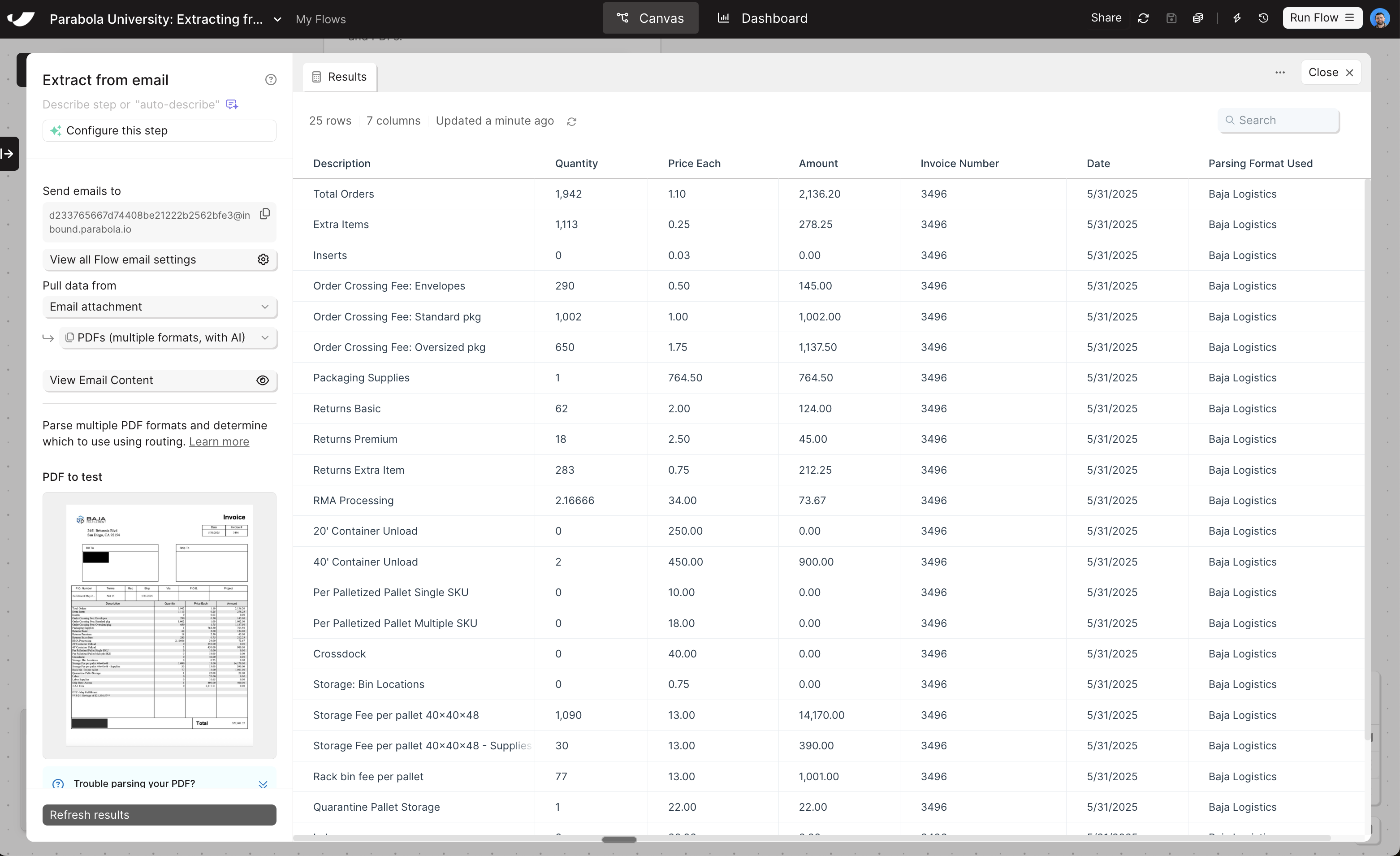
In the same flow, add a new Extract from email step, and change the type to "PDFs (multiple formats, with AI)"
By using the same flow that we used for PDF extraction, you won’t have to send in a test PDF — it will already be in there
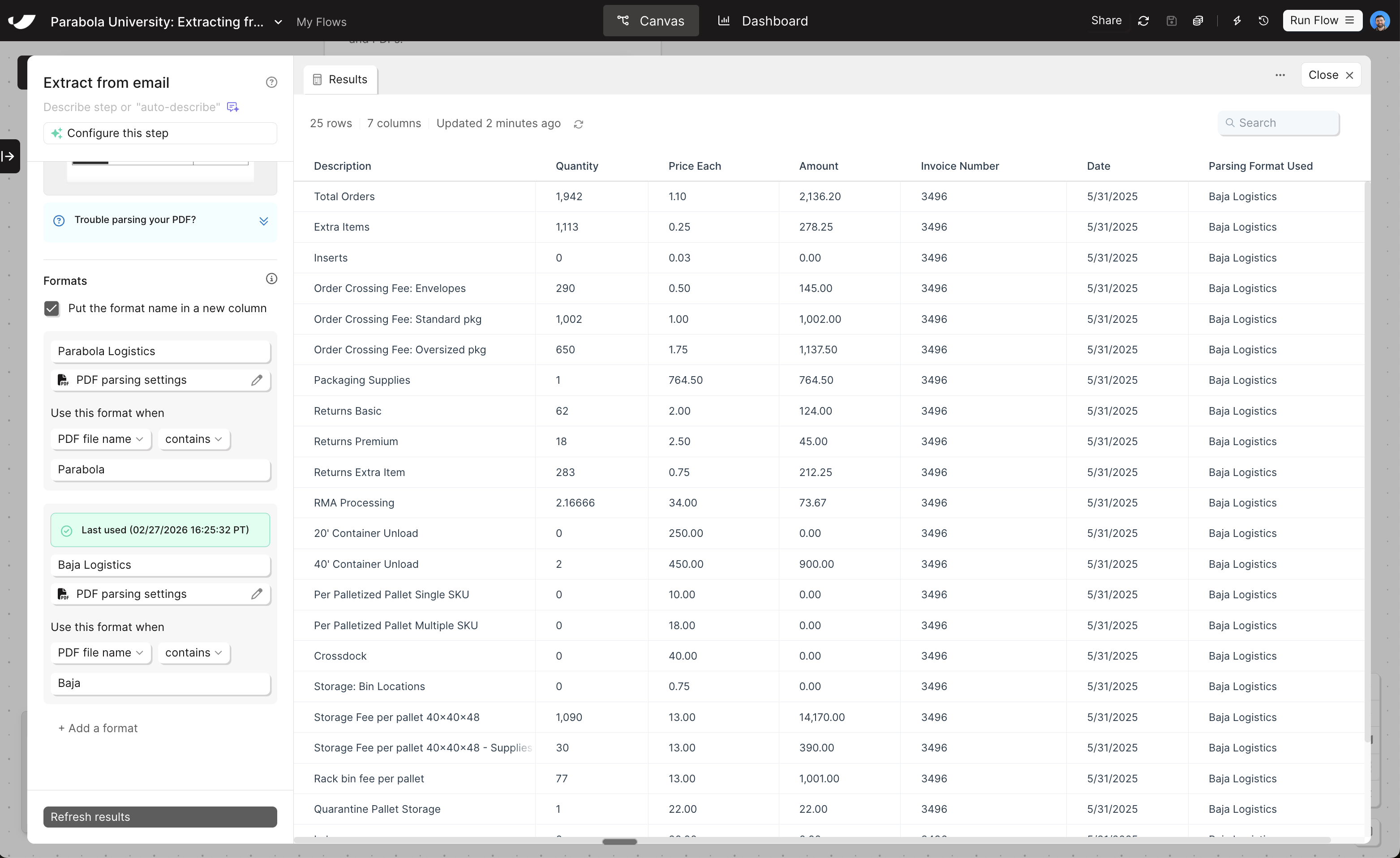
- Check the box that says, “Put the format name in a new column”
2
Rename format 1 to "Parabola Logistics" then click into the PDF parsing settings
In the settings, you’ll replicate what you did to initially parse the PDF: choose “Use an auto-detected table” and add in the keys:
- Invoice Number
- PO Number
- Date
- Signer
3
Once "Parabola Logistics" is parsed, go back to main settings and click "Add a format"
- Replace “Format 2” with “Baja Logistics”
- You’ll now see a section that says, “Use this format when”
- For format #1, set the rule to be: When
PDF file namecontains“Parabola” - For format #2, set the rule to be: When
PDF file namecontains“Baja”
- For format #1, set the rule to be: When
- Click into the PDF parsing settings for Baja and configure the parsing rules the same way we did for “Parabola Logistics”. Use the auto-detected table, and include the following keys:
- Invoice Number
- Date
- Click “Update results” to save the settings
- Download this file and email into your flow
- Important: Use the subject “Baja” and make the body, “Hey team — find invoice #3456 attached.”
- We’ll use this in the next lesson
- Important: Use the subject “Baja” and make the body, “Hey team — find invoice #3456 attached.”
In practice, you may want to use the exact same column names across formats so that downstream steps can rely on consistent column names. If this is what you’re trying to achieve, rely on examples & additional instructions to hone in parsing.
4
Confirm results
Apply any additional fine-tuning if values are being missed. You should see the table from the Baja invoice extracted into a table, plus the columns for “Invoice Number” and “Date”
Check your work
Check your work