

When you need more control
The default PDF parsing settings work well for most documents. But when you’re working with complex PDFs — nested layouts, handwriting, large multi-page files, or production flows where consistency matters — the advanced settings give you more precise control.Text parsing approach
Controls how Parabola reads the text out of your PDF before the AI processes it.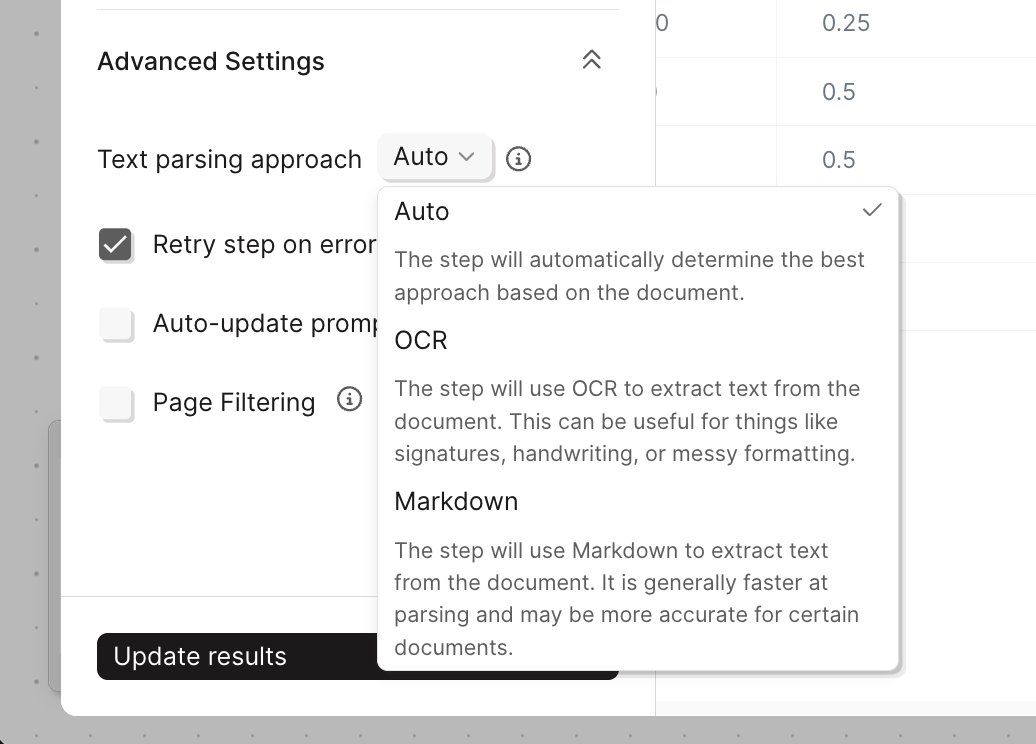
- Auto (default)
- OCR
- Markdown
Parabola selects the best parsing method based on the document. This is the right choice for most situations — start here and only change it if you’re seeing issues with the output.
Page filtering
Default: disabled If you only need data from specific pages, page filtering can meaningfully speed up your runs. The fewer pages the AI needs to read, the faster it processes.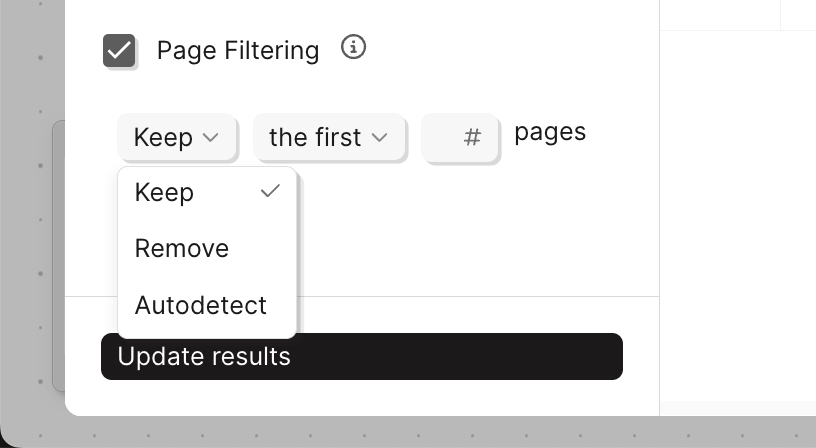
Which pages:
Tips & best practices
Parse only the pages you need
Parse only the pages you need
The more pages the AI reads, the longer the run. If your data appears on consistent pages across documents, use Page Filtering above to limit scope. Fewer pages means faster results — especially at scale.
One table per step
One table per step
Each Extract from email step extracts one table at a time. If you need data from multiple distinct tables in the same PDF, you’ll need a separate step for each.
Always audit your output before going live
Always audit your output before going live
AI extraction is powerful but not infallible — especially with complex or inconsistently formatted documents. Test with a few representative sample files and review the output in Parabola before connecting to a production destination.
Consolidate results across multiple runs
Consolidate results across multiple runs
One file is processed per run. If you’re parsing many PDFs over time, connect your flow to a Parabola Table or external sheet so results accumulate rather than being overwritten each run.
Use the file URL for audit trails
Use the file URL for audit trails
When you enable Email content + attachment and pull in the
file_url, you get a shareable link to the original PDF. Include it in your destination data so you can always trace any row back to its source document.Use field-level instructions for better results
Use field-level instructions for better results
If a specific column or key isn’t returning the right data, the fix usually lives at the field level — not in the general Fine-tuning section. Add descriptions, example values, and targeted instructions directly on the underperforming column or key.
Quick reference
What’s next
Next, we’ll look at how to handle emails that contain more than one type of PDF attachment — like an invoice and a purchase order arriving together.Building challenge
No challenge for this lesson! Proceed to the next lesson.