

Pull from ParseHub
The Pull from ParseHub step retrieves the most recent run data from a ParseHub project so you can clean, blend, and route it inside Parabola.How to authenticate
1
Add a Pull from ParseHub step to your flow and click Authorize.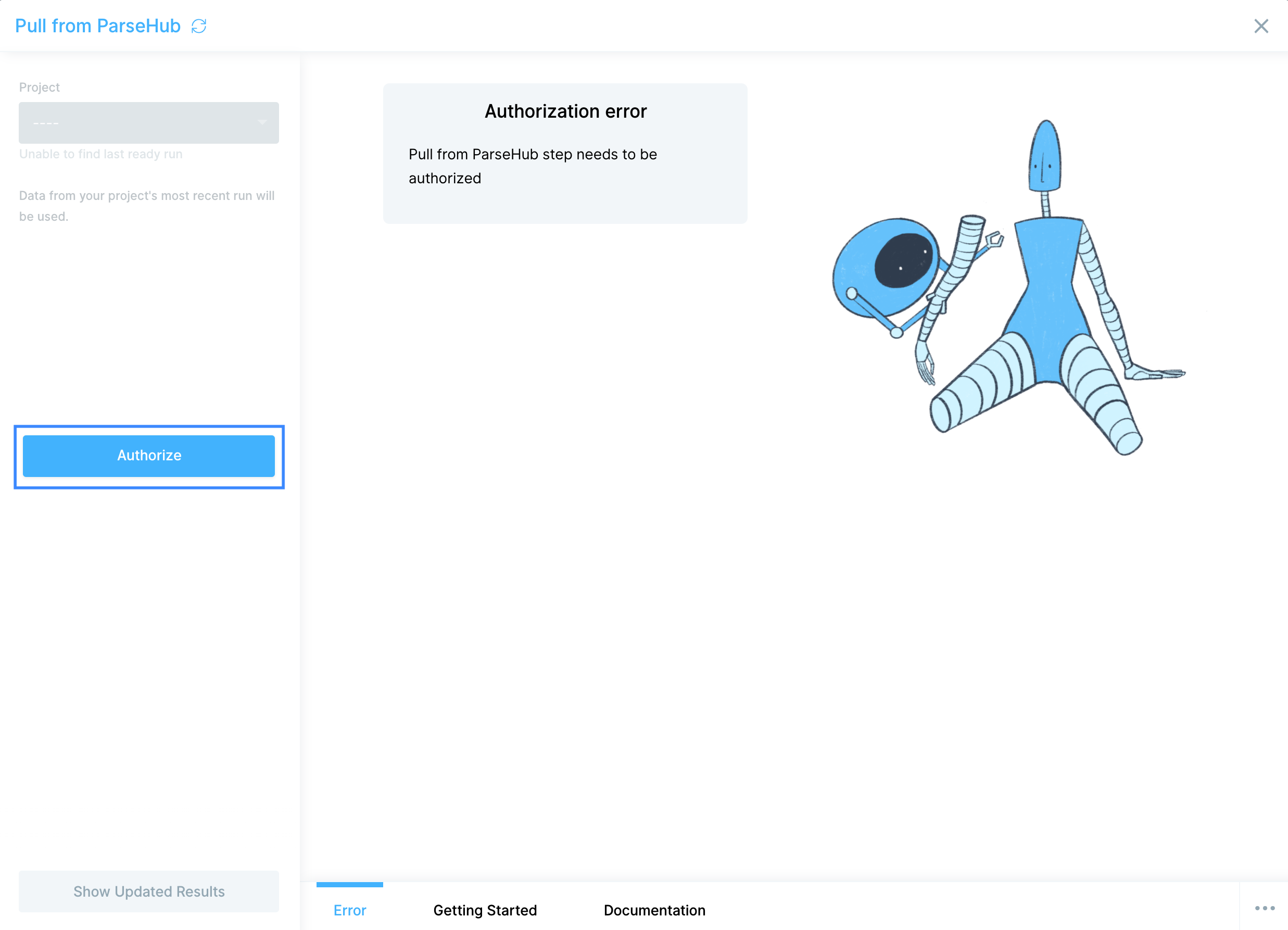
2
You’ll be prompted to enter your ParseHub API Key, which lives on your account settings page.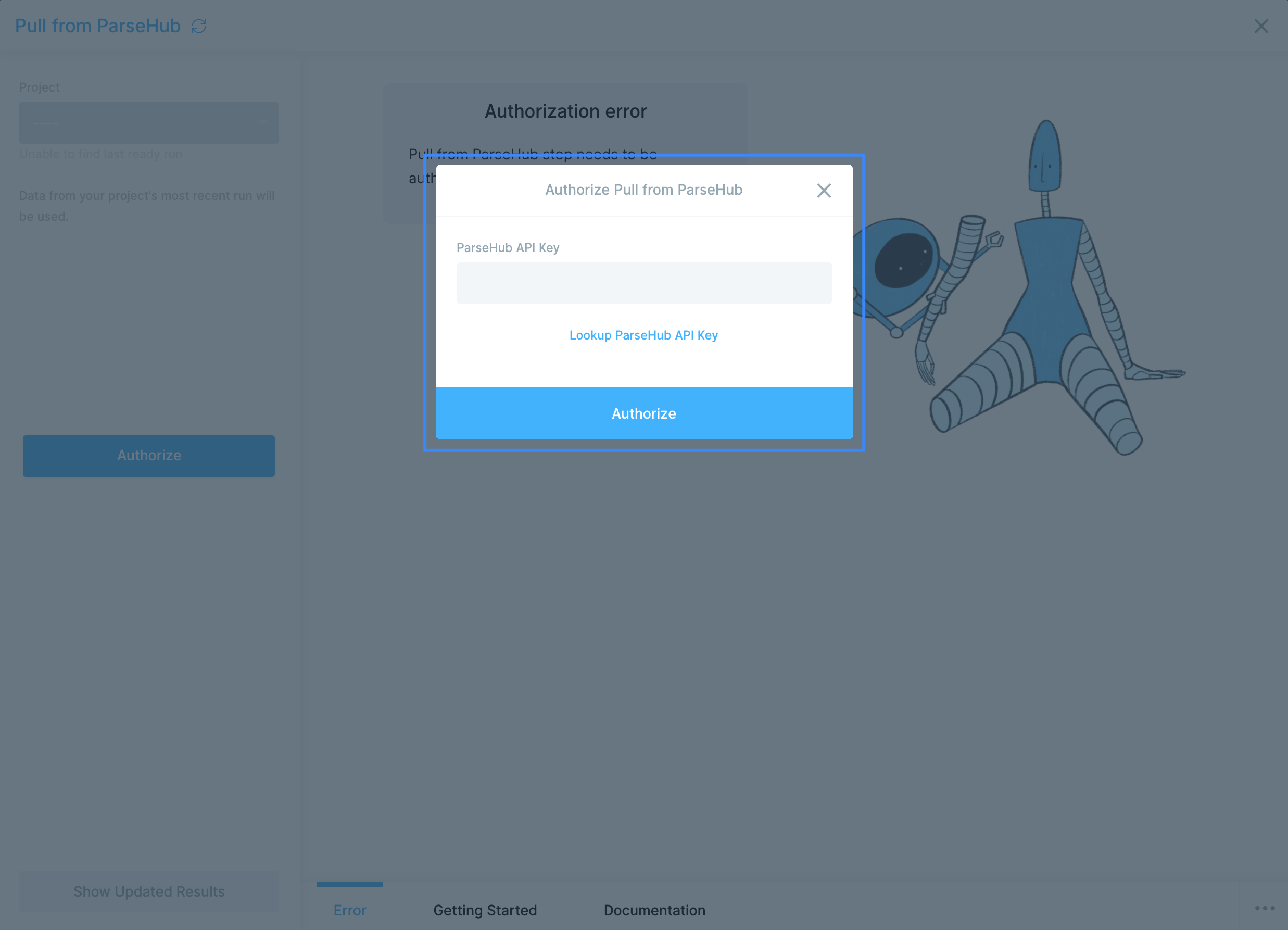
3
Paste the key and click Authorize.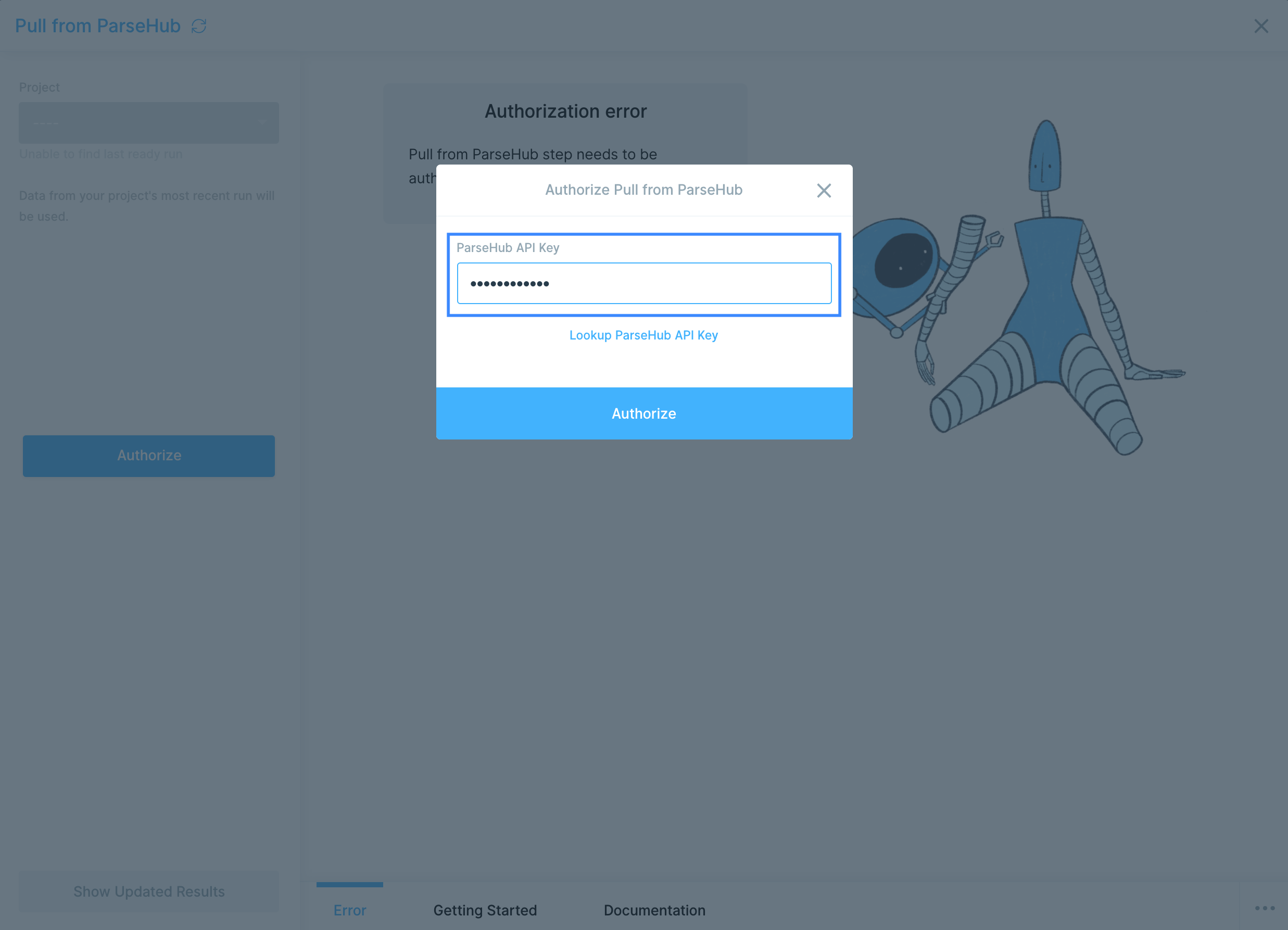
Configure your settings
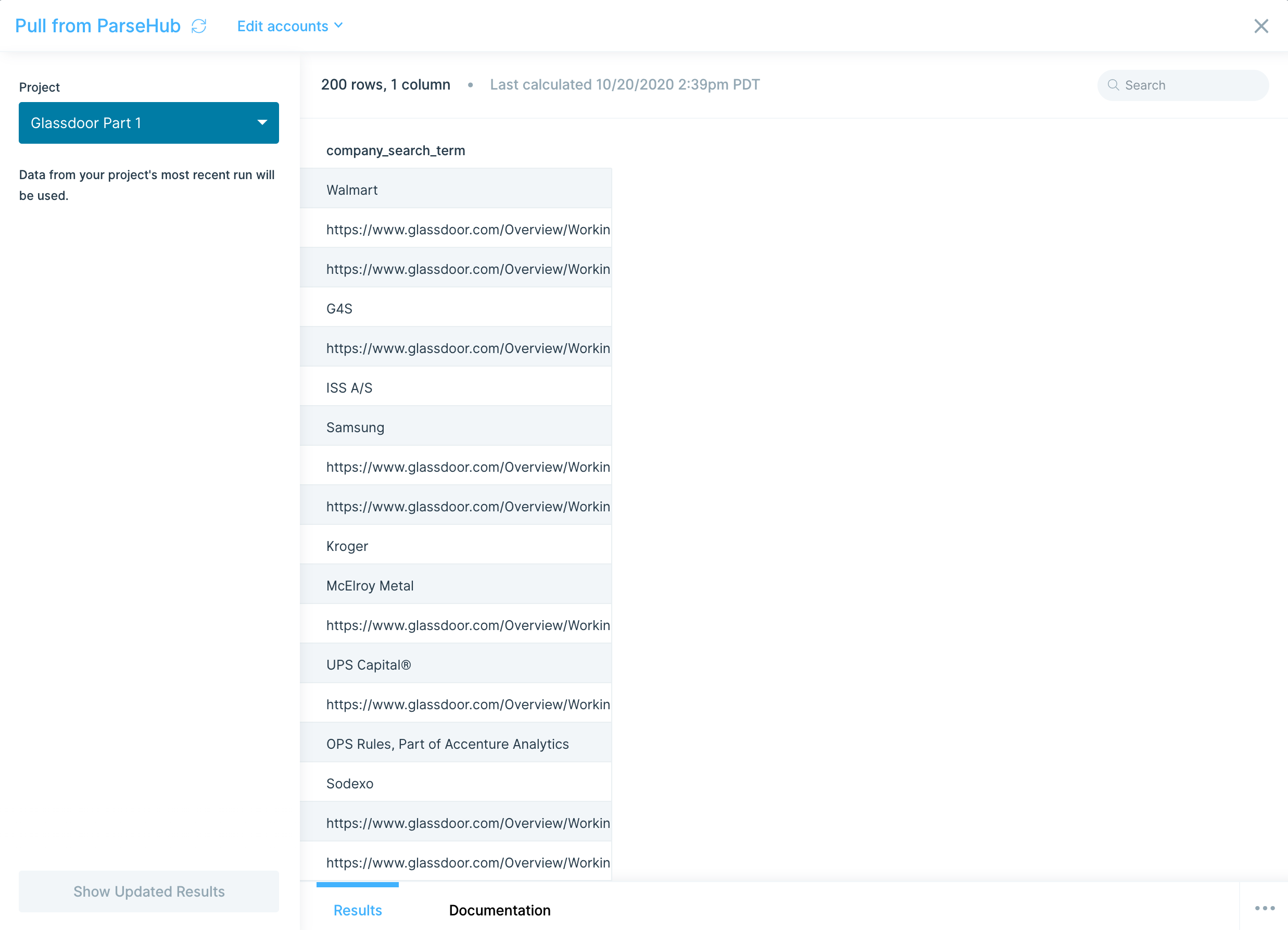
Select your Project from the dropdown in the settings bar. Data from the most recent run on that project is loaded into the flow.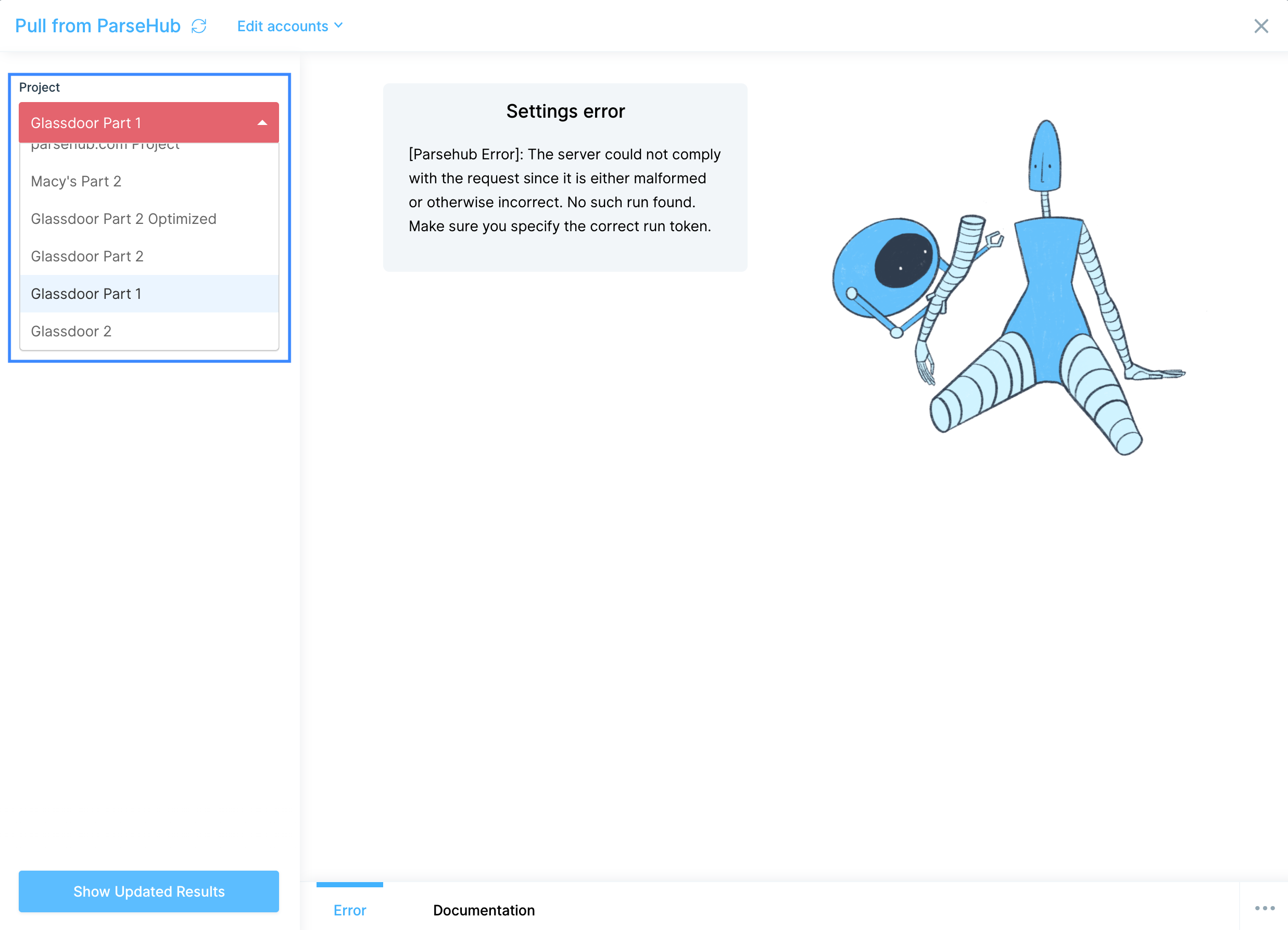
Send to ParseHub
The Send to ParseHub step sends dynamic data from your flow into a ParseHub project to kick off a new web scraping run with custom start values (for example, a list of URLs or search terms).How to authenticate
1
Add a Send to ParseHub step to your flow and click Authorize.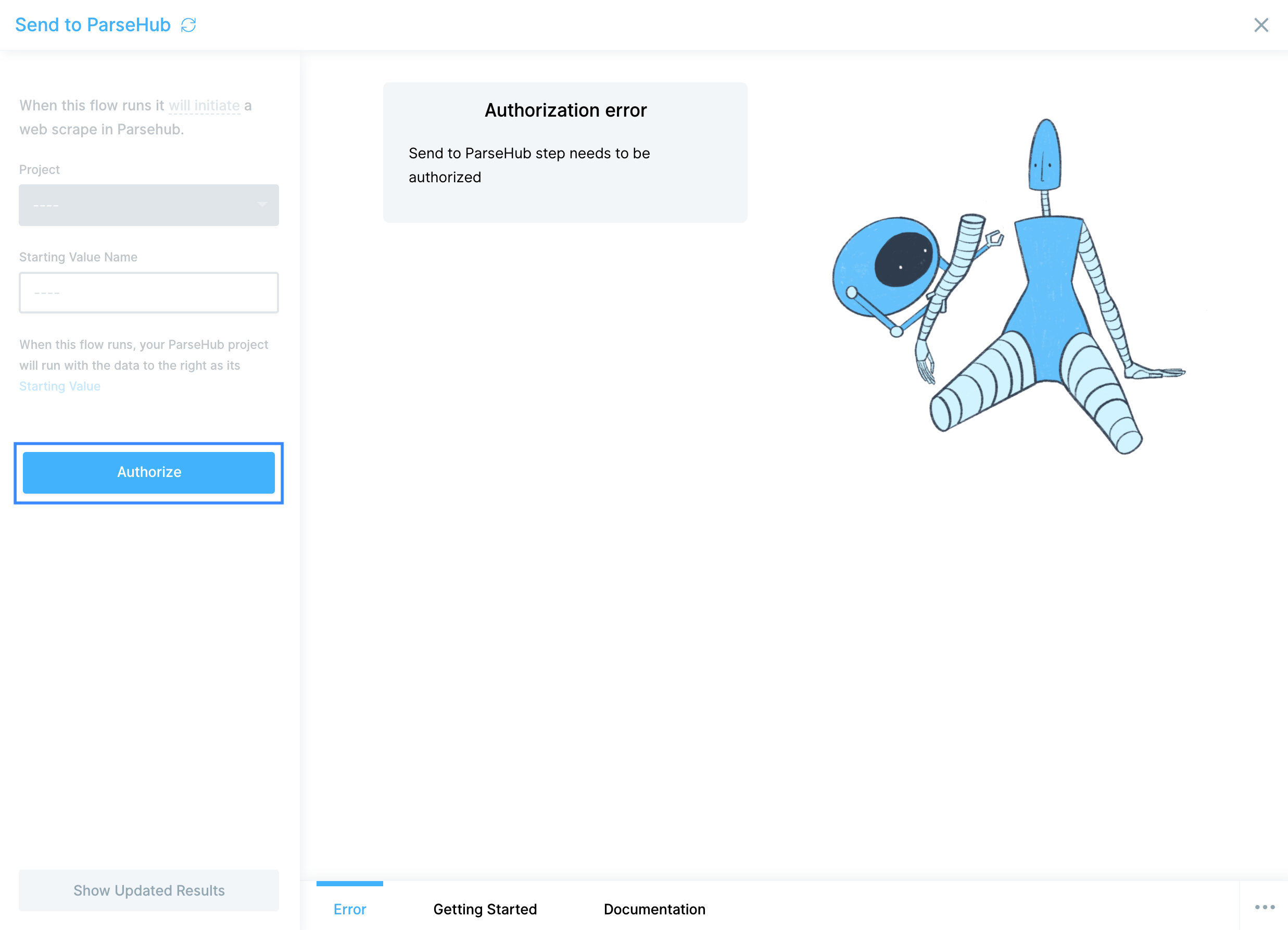
2
Enter your ParseHub API Key, which lives on your account settings page.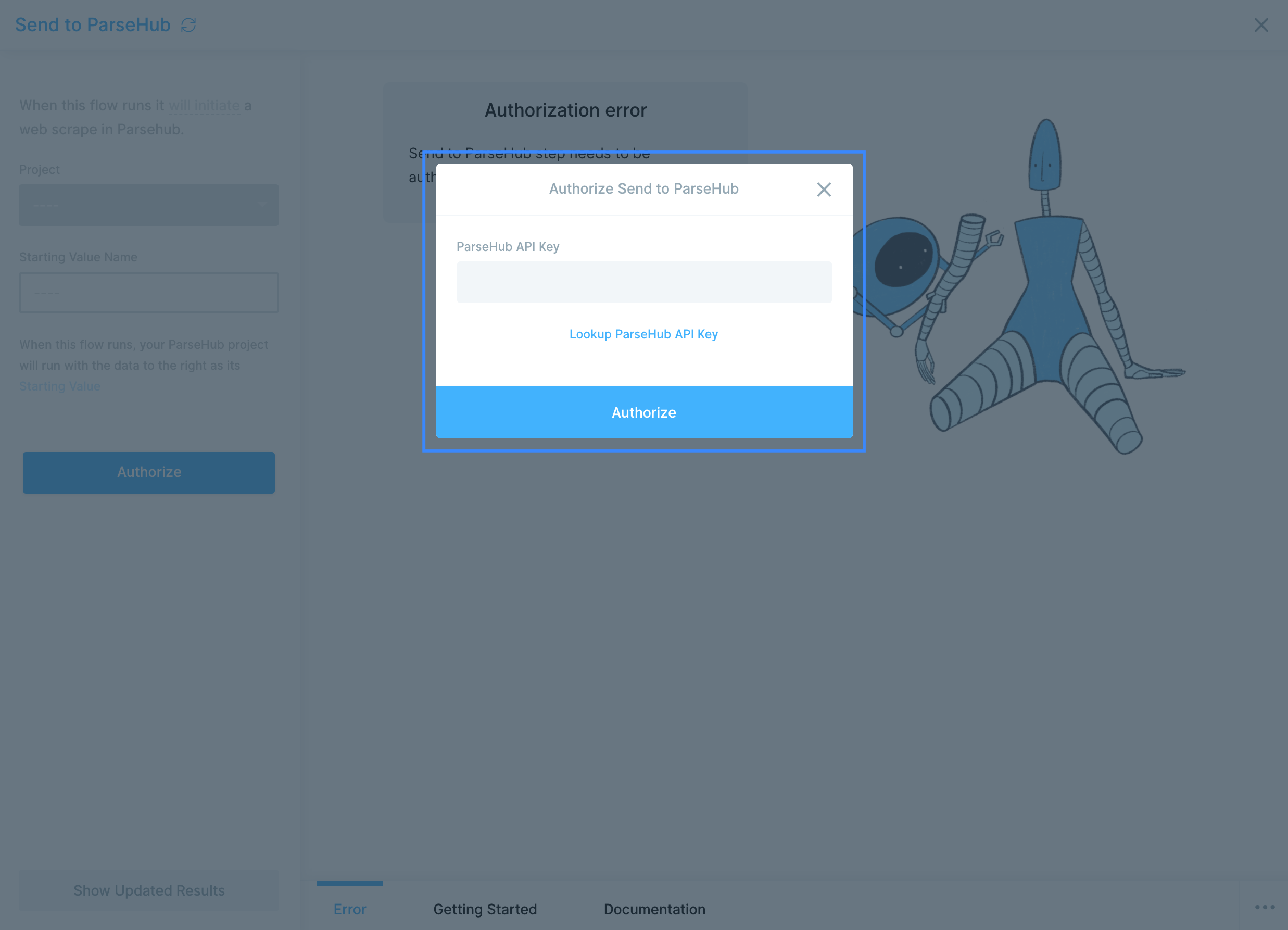
3
Paste the key and click Authorize.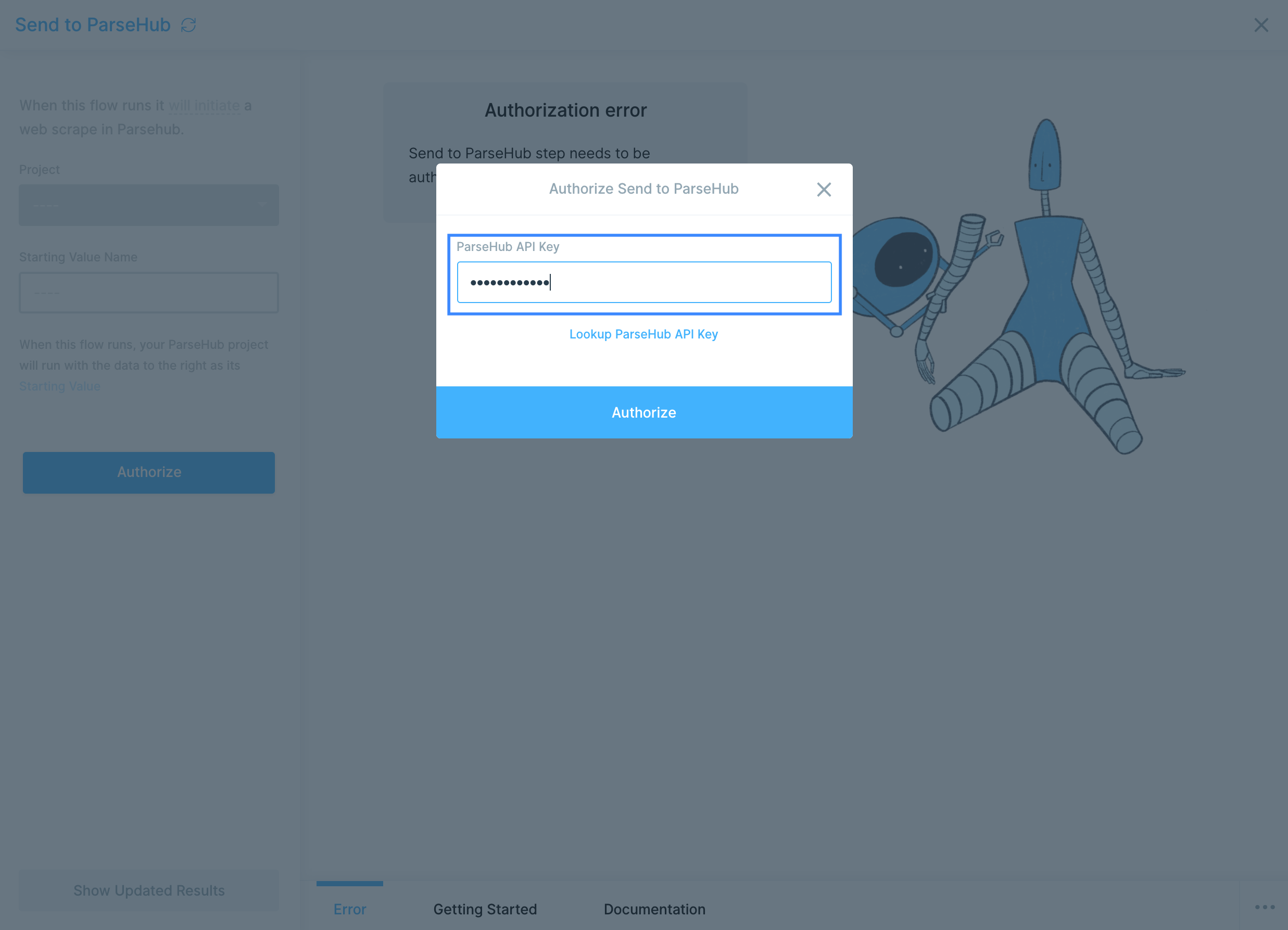
Configure your settings
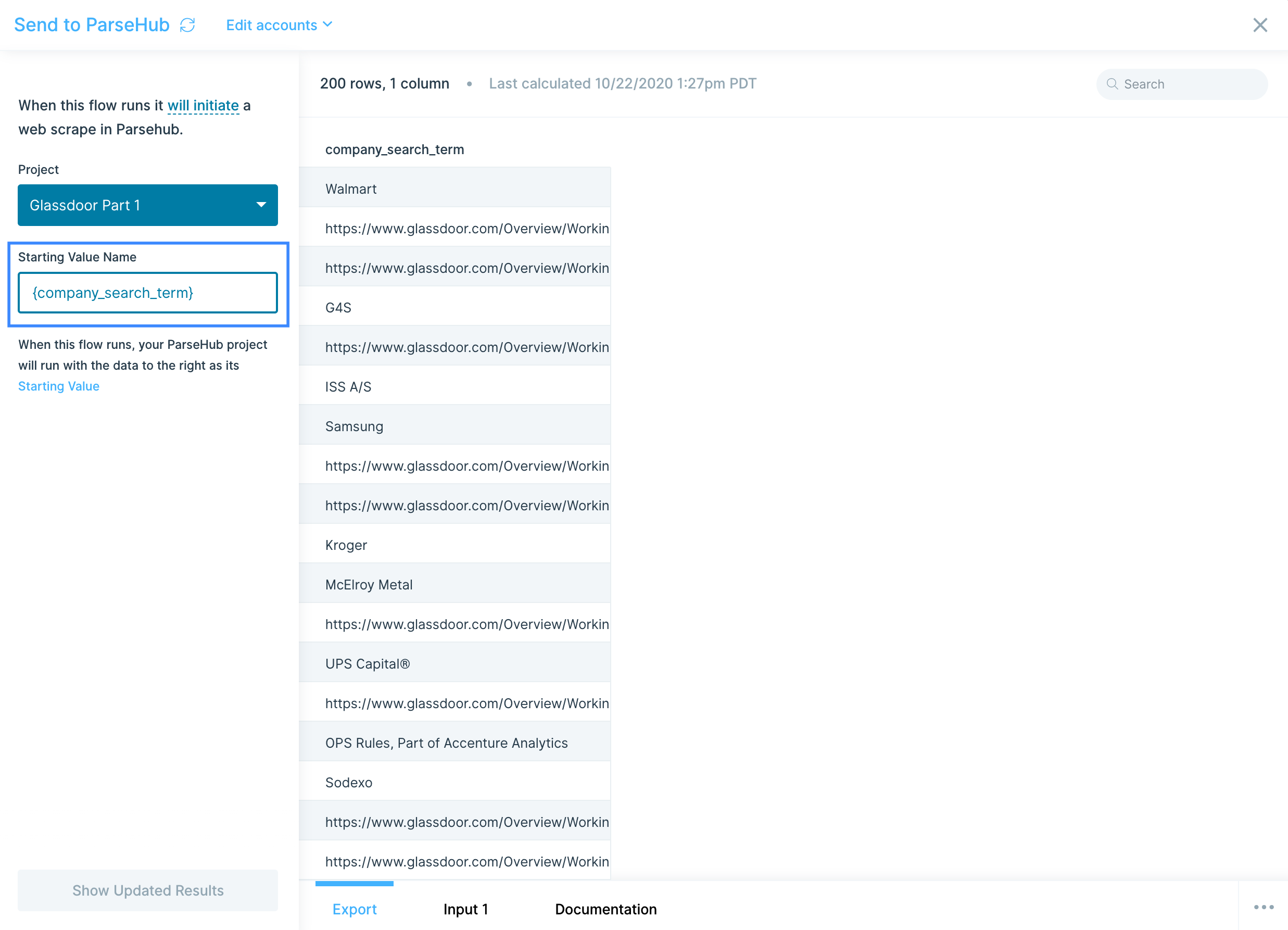
Choose the Project you want to run from the dropdown in the settings bar.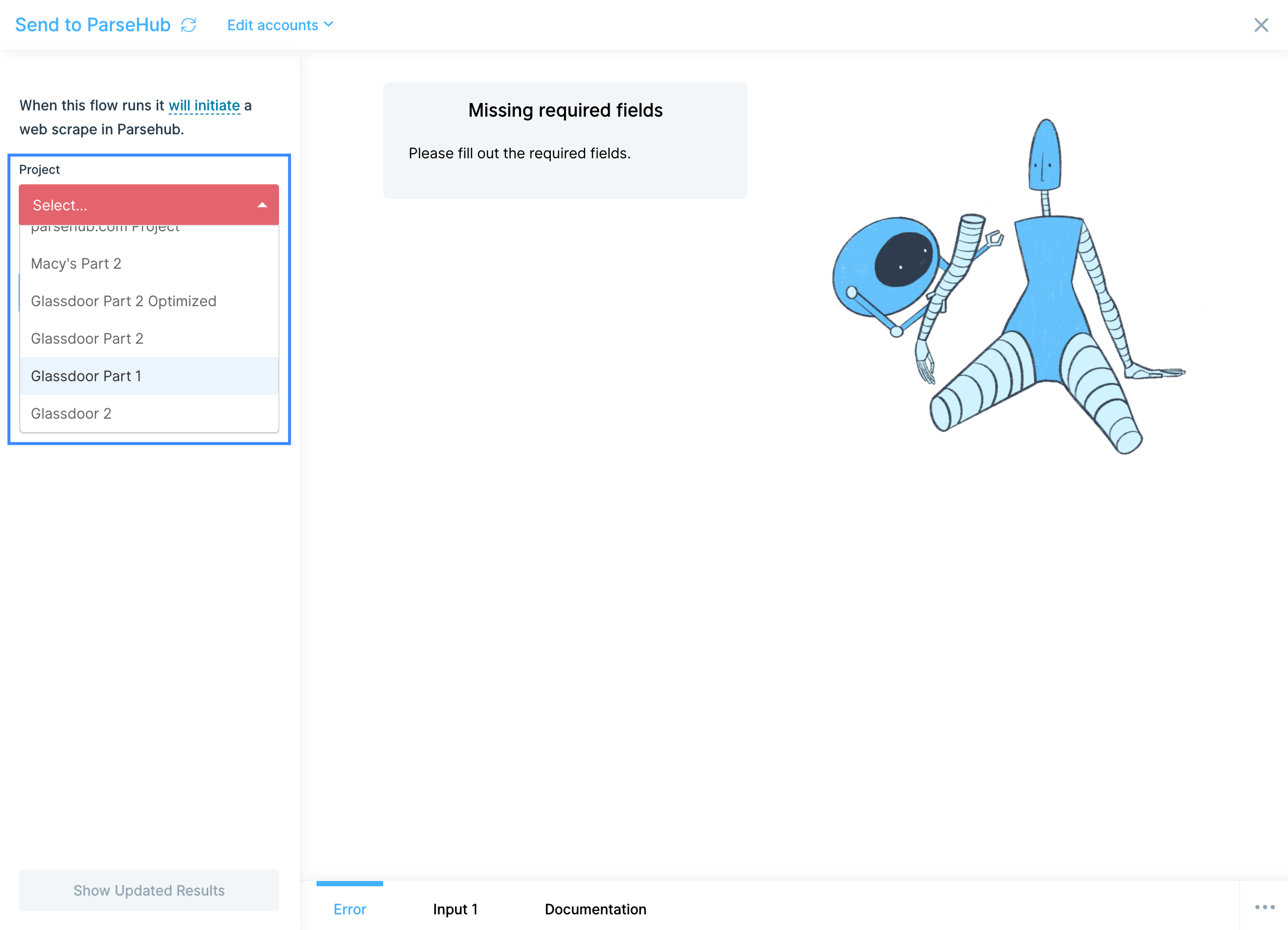
Available data
The Pull from ParseHub step returns whatever fields your ParseHub project is configured to extract. Common shapes include:- Product listings — title, price, SKU, availability, image URL, and product page URL.
- Reviews and ratings — rating, review text, reviewer name, date, and source.
- Search results — result title, snippet, URL, position, and timestamp.
- Directory and listing pages — name, address, phone, website, and category.
- Custom schemas — any structure you’ve defined in your ParseHub template.
Common use cases
- Competitive price monitoring: Scrape competitor pricing with ParseHub, join with your own pricing from Shopify, Amazon Seller Central, or Walmart, and send a daily delta report to Slack or Google Drive.
- Market research at scale: Send a list of URLs or search terms from a Google Drive sheet into ParseHub, run the scrape, then pull results back into Parabola for cleaning and reporting.
- Catalog enrichment: Use ParseHub to grab images, descriptions, or specs from supplier sites, then push the cleaned data into Shopify, Magento, or your PIM.
- Lead research: Scrape directories, association sites, or trade publications, dedupe against HubSpot or Salesforce, and load the new leads into your CRM.
- Track changes over time: Schedule a daily ParseHub pull into Snowflake, BigQuery, or Redshift to build a historical record of competitor pricing, search rankings, or content changes.
- Trigger scrapes from upstream events: When a new SKU lands in Shopify or a new vendor appears in Coupa, use Send to ParseHub to automatically kick off a research scrape on that input.
Tips for using Parabola with ParseHub
- Pull from the most recent run. The Pull from ParseHub step always returns the latest run for the selected project. Schedule the Parabola flow to run shortly after your ParseHub run completes so you don’t pull stale data.
- Use Send to ParseHub to drive runs from a list. If your ParseHub project is built to accept start values (URLs, IDs, search terms), Parabola becomes the loop driver, sending the right inputs in on each schedule.
- Filter and clean before reporting. ParseHub output often includes whitespace, currency symbols, or inconsistent casing. Use Find and replace, Edit columns, and Filter rows steps to normalize before joining or pushing downstream.
- Match cadence to use case. Hourly for fast-moving competitor data, daily for catalog enrichment, weekly for trend tracking.
- Watch for rate-limiting on the source site. ParseHub respects robots.txt and rate limits, but aggressive schedules can still get your IP throttled by target sites. Run scrapes only as often as the data actually changes.
- Document your column mapping. When you change a ParseHub template, downstream Parabola steps that reference renamed columns will break silently. Use step notes to flag which columns each step depends on.
FAQ
Where do I find my ParseHub API key?
It’s on your ParseHub account settings page. Copy the API Key value and paste it into Parabola’s authorization dialog.Can I trigger a ParseHub run and then pull its results in the same flow?
Use two flows: one with a Send to ParseHub step that kicks off the run, and a second on a delayed schedule with a Pull from ParseHub step that grabs the results. ParseHub runs are asynchronous, so the data isn’t available the instant the run starts.What if my ParseHub project doesn’t accept start values?
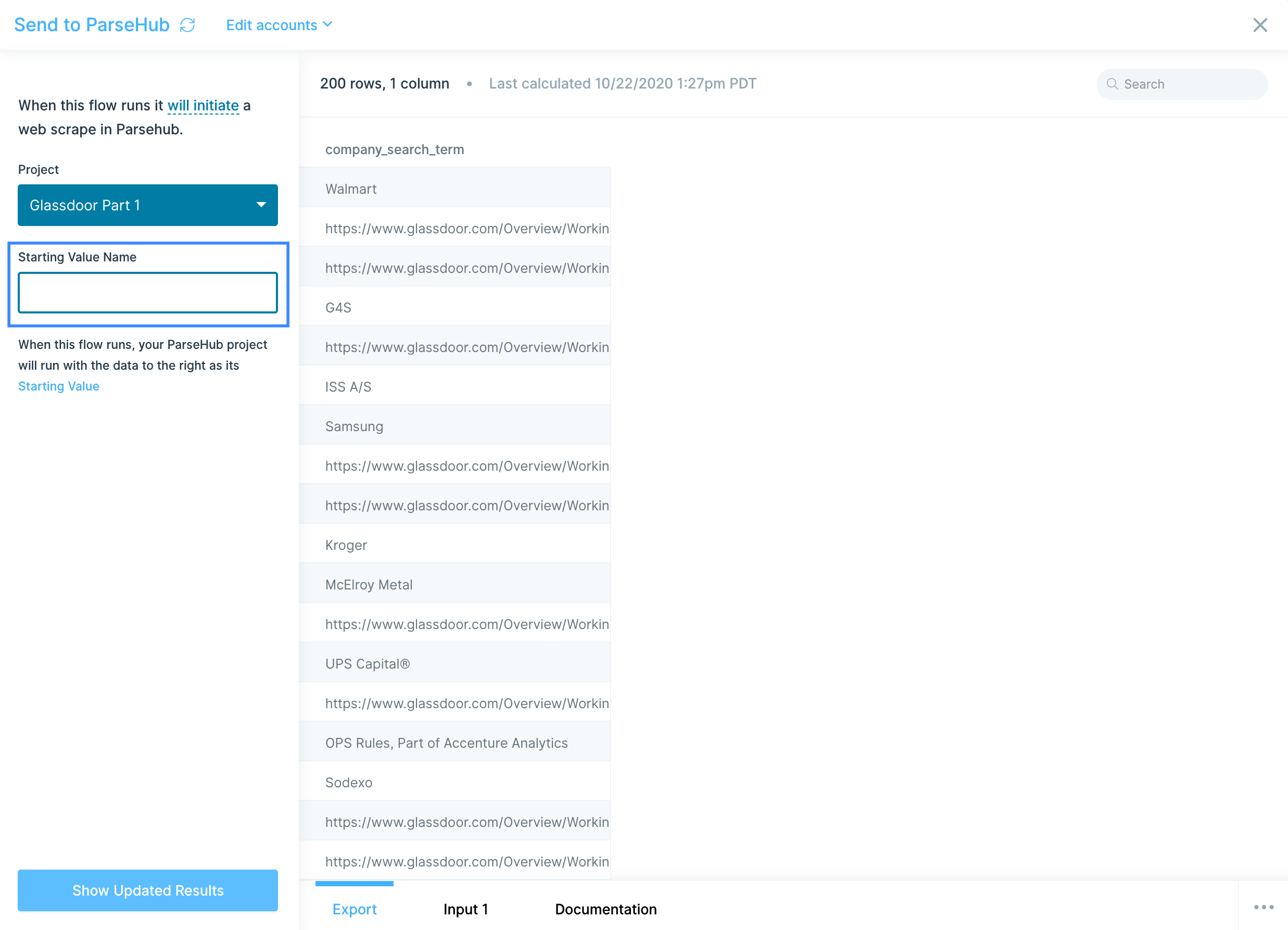
Target a blank column in the Send to ParseHub step. The run will use whatever URLs are defined inside the ParseHub template.How do I pull data from a specific past run, not the latest?
The native Pull from ParseHub step always pulls the most recent run. To target a specific run by ID, use a Pull from an API step pointed at the ParseHub API with your API key.With ParseHub and Parabola connected, the price-monitoring spreadsheets, competitor research workbooks, and market-research deliverables that used to require manual scraping and CSV stitching run on a schedule, with clean data flowing into the systems where your team actually works.