

API error handling
How to work with errors when you expect them in your API calls.Enabling error handling
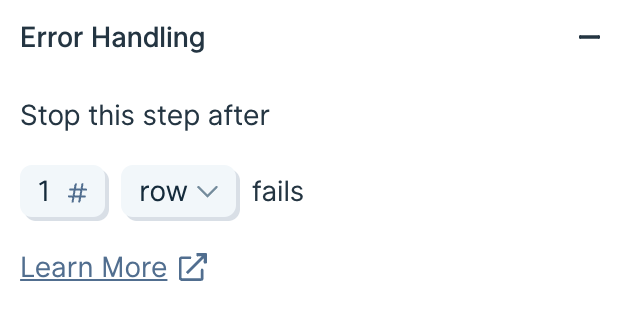
In the Enrich with an API step and the Send to an API step, enableError Handling to allow your API steps to pass through data even if one or more API requests fail. Modifying this setting will add new error handling columns to your dataset reporting on the status of those API calls.
By default, this section will show that the step will stop running when 1 row fails. This has always been the standard behavior of our API steps. Remember, each row of data is a separate API call. With this default setting enabled, you will never see any error handling columns.
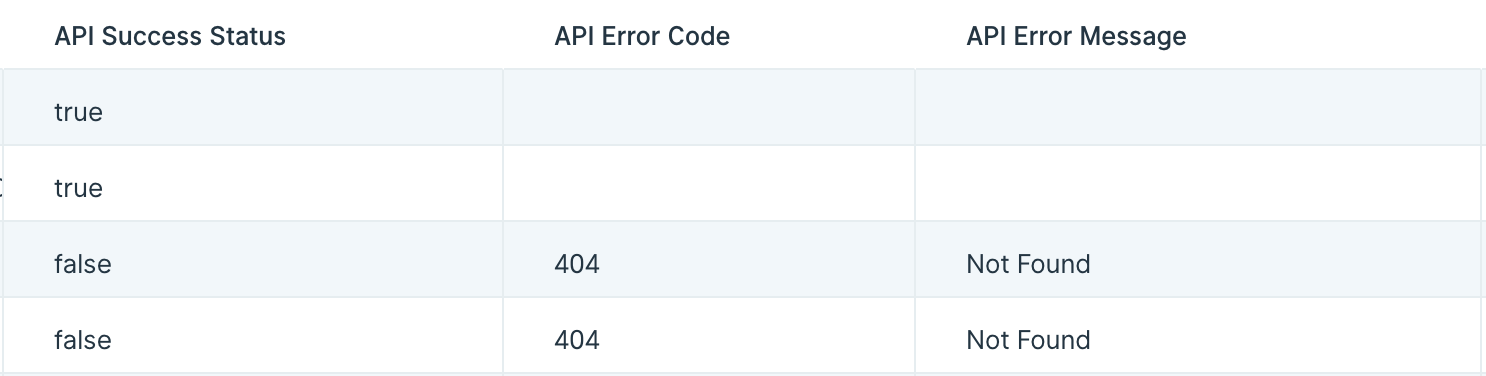
- API Success Status
- API Error Code
- API Error Message
true or false value to show if that row’s API call succeeded or failed.
API Error Code will have an error code for that row if the API call failed, and will be blank if the API call succeeded.
API Error Message will display the error message associated with any API call that failed, if the API did in fact send us back a message.
With the exception of the default settings, these columns will still be included even if every row succeeded. In that case, you will see the API Success Status column with all true values, and the other two columns as all blank values.
Using the error handling settings
It is smart to set a threshold where the step will still fail if enough rows have failed. Usually, if enough rows fail to make successful API calls, there may be a problem with your step settings, the data you are merging into those calls, or the API itself. In these cases, it is a good idea to ensure that the step can fully stop without needing to run through every row. Choose to stop running this step if either a static number of rows fail, or if a percentage of rows fail. You must choose a number greater than 0. When using a percentage, Parabola will always round up to the next row if the percentage of the current set of rows results in a partial row.Prevent the step from ever stopping
In rare cases, you may want to ensure that your step never stops running, even if every row results in a failed API call. In that case, set your error handling threshold to any number greater than 100%, such as 101% or 200%.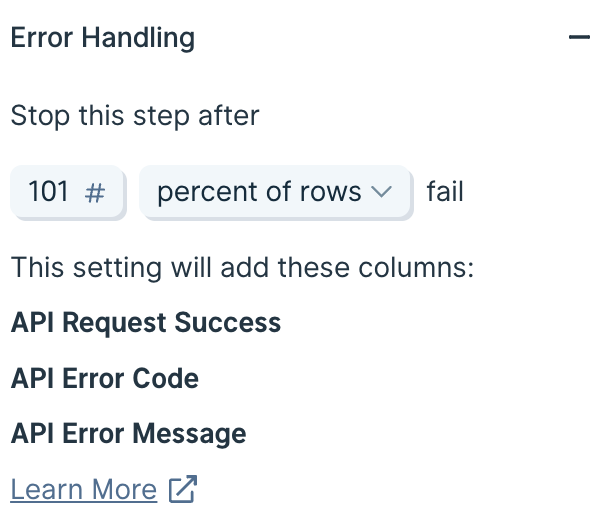
What to do with these new error handling columns
Once you have enabled this setting, use these new columns to create a branch to deal with errors. The most common use case will be to use a Filter Rows step to filter down to just the rows that have failed, and then send those to a Google Sheet for someone to check on and make adjustments accordingly.Error handling in the live flow run logs
If you have a flow that is utilizing these error handling columns, the run logs on the live view of the flow will not indicate if any rows were recorded as failed. The run logs will only show a failure if the step was forced to stop by exceeding the threshold of acceptable errors. It is highly advisable that you set up your flow to create a CSV or a Google Sheet of these errors so that you have a record of them from each run.Common API errors
Sometimes, an API cannot parse the data because of how you structured the request. When something goes wrong, the API will return a brief description outlining the error details.Errors and explanations without error codes
The Pull from an API and Send to an API steps can return errors that do not have a response code. These are usually errors that happened within Parabola, instead of errors that were returned by the API.Common Parabola explanations and errors
{curly braces} to indicate a column to merge into the requests, so anything within {curly braces} should be a column name.
If your API uses {curly braces} in its request syntax, please reach out to us and we can show you how to work around that.
Common 500 series errors
Any error that comes back with a code beginning with a “5” are errors that happened after Parabola made the request to the service, but before Parabola received the response. For example, if you send a letter through the mail, and if physical mail had error codes, you would see a 502 error if the mail delivery truck ran out of gas. You could see a 503 error if the mailbox was broken, and if you saw a 504 error, it would mean that the delivery took too long so the mail carrier gave up.Resolving 500 series errors
In general, these errors should be temporary, or one-off. Within Parabola, click the refresh icon next to the name of the API step that you are using to send the request again, and the error will likely resolve itself. If you are continuously getting 500 series errors, it usually indicates that something is down, such as the hosting service for the API, or another piece of network technology.500 series errors are produced between Parabola and the API. Your best course of action to resolve them is to refresh the step and try the request again. The API did not process your request as expected.
Common 400 series errors
The 400 series of error codes indicates that the request from Parabola made it to your API, but the API did not like the request for some reason. The error code can show you how to adjust your settings in Parabola or in your API to resolve the error.Resolving 400 series errors
Each 400 series error requires a different approach to fix it. Fixing these errors may take a few tries and can be nuanced. Your best ally in hunting down the issue is the documentation provided by the API.Error 400: Bad Request
This error indicates that the API received your request, and it was able to read it, but something in the request is syntactically incorrect, such as a spelling error, or missing headers. Make sure that your endpoint URL in the Parabola API step settings is spelled correctly and does not have any spaces or hidden characters (such as line breaks) in it. If you are sending query parameters, make sure they are exactly like the doc specifies. A good practice is to copy and paste any text needed in your settings directly from their documentation to avoid mistyping them.Error 401: Unauthorized
This error shows up when you have either not passed any authentication to the API, or have passed authentication that has not succeeded. Usually, if your syntax is incorrect, you will get a 400. Knowing that, a 401 means that your request is probably going to work, you just need to prove to the API who you are. API docs are useful in solving a 401, because they outline the exact way to pass in authentication. Check the docs and make sure that the credentials you are sending via the API step in Parabola are correct. A 401 could mean that you do not have permission to access this resource. You may need to adjust your account permissions in the service that has the API.Error 402: Payment Required
You need to go to the website of the API that you are trying to access and update your billing or resolve any outstanding invoices there.Error 403: Forbidden
Check your API docs as to why they would send a 403. Many API docs have section about what error codes mean for their API specifically. You may not have access to the requested resource.Error 404: Not Found
The resource you requested does not exist, so check your API URL for any incorrect spellings, and make sure that the API endpoint you are trying to hit is defined in their documentation.Error 405: Method Not Allowed
If you are using a Pull from an API or an Enrich with an API step, you are using theGET method. Your resource may require something like a POST, which can only be done with an API Export. Similarly, if you are using a POST, but it should be a PUT, you may get this error.
Check your APIs documentation to ensure that the resource you are requesting is compatible with the verb that you are using to make the request.
Error 422: Unprocessable Entity
You need to check your request for errors in what you are asking the API for. Check your API docs to ensure that the request is asking for its resource in exactly the correct way. This error code usually indicates that your request does not make sense to the API.Error 429: Too Many Requests
This is a rate limiting error, sent back when Parabola has requested a resource too many times or has made sequenced calls too quickly. In the API steps, there is a setting for the Max Requests to be sent each minute. You can adjust this number to reflect the limit that the API defines in its docs. Each API is different, so look for a section called Rate Limits or something similar.400 series errors indicate issues with your request. Most likely, you will need to check your API docs and adjust anything in your settings in Parabola for this API step to ensure you are following the rules of the API defined in the docs.
Appendix of HTTP errors
400 Bad Request The server cannot or will not process the request due to an apparent client error (e.g., malformed request syntax, size too large, invalid request message framing, or deceptive request routing). 401 Unauthorized Similar to 403 Forbidden, but specifically for use when authentication is required and has failed or has not yet been provided. 401 semantically means “unauthenticated”, i.e. the user does not have the necessary credentials. Note: Some sites incorrectly issue HTTP 401 when an IP address is banned from the website (usually the website domain) and that specific address is refused permission to access a website. 402 Payment Required Google Developers API uses this status if a particular developer has exceeded the daily limit on requests. Sipgate uses this code if an account does not have sufficient funds to start a call. Shopify uses this code when the store has not paid their fees and is temporarily disabled. 403 Forbidden The request was valid, but the server is refusing action. The user might not have the necessary permissions for a resource, or may need an account of some sort. 404 Not Found The requested resource could not be found but may be available in the future. Subsequent requests by the client are permissible. 405 Method Not Allowed A request method is not supported for the requested resource; for example, aGET request on a form that requires data to be presented via POST, or a PUT request on a read-only resource.
406 Not Acceptable
The requested resource is capable of generating only content not acceptable according to the Accept headers sent in the request.
407 Proxy Authentication Required
The client must first authenticate itself with the proxy.
408 Request Timeout
The server timed out waiting for the request. According to HTTP specifications: “The client did not produce a request within the time that the server was prepared to wait. The client MAY repeat the request without modifications at any later time.”
409 Conflict
Indicates that the request could not be processed because of conflict in the current state of the resource, such as an edit conflict between multiple simultaneous updates.
410 Gone
Indicates that the resource requested is no longer available and will not be available again. This should be used when a resource has been intentionally removed and the resource should be purged. Upon receiving a 410 status code, the client should not request the resource in the future. Clients such as search engines should remove the resource from their indices. Most use cases do not require clients and search engines to purge the resource, and a “404 Not Found” may be used instead.
411 Length Required
The request did not specify the length of its content, which is required by the requested resource.
412 Precondition Failed
The server does not meet one of the preconditions that the requester put on the request.
413 Payload Too Large
The request is larger than the server is willing or able to process. Previously called “Request Entity Too Large”.
414 URI Too Long
The URI provided was too long for the server to process. Often the result of too much data being encoded as a query-string of a GET request, in which case it should be converted to a POST request.
415 Unsupported Media Type
The request entity has a media type which the server or resource does not support. For example, the client uploads an image as image/svg+xml, but the server requires that images use a different format.
416 Range Not Satisfiable
The client has asked for a portion of the file (byte serving), but the server cannot supply that portion. For example, if the client asked for a part of the file that lies beyond the end of the file.
417 Expectation Failed
The server cannot meet the requirements of the Expect request-header field.
418 I’m a teapot
This code was defined in 1998 as one of the traditional IETF April Fools’ jokes, in RFC 2324, Hyper Text Coffee Pot Control Protocol, and is not expected to be implemented by actual HTTP servers. The RFC specifies this code should be returned by teapots requested to brew coffee.
421 Misdirected Request
The request was directed at a server that is not able to produce a response (for example because of connection reuse).
422 Unprocessable Entity
The request was well-formed but was unable to be followed due to semantic errors.
423 Locked
The resource that is being accessed is locked.
424 Failed Dependency
The request failed because it depended on another request and that request failed (e.g., a PROPPATCH).
426 Upgrade Required
The client should switch to a different protocol such as TLS/1.0, given in the Upgrade header field.
428 Precondition Required
The origin server requires the request to be conditional. Intended to prevent the ‘lost update’ problem, where a client GETs a resource’s state, modifies it, and PUTs it back to the server, when meanwhile a third party has modified the state on the server, leading to a conflict.
429 Too Many Requests
The user has sent too many requests in a given amount of time. Intended for use with rate-limiting schemes.
431 Request Header Fields Too Large
The server is unwilling to process the request because either an individual header field, or all the header fields collectively, are too large.
451 Unavailable For Legal Reasons
A server operator has received a legal demand to deny access to a resource or to a set of resources that includes the requested resource. The code 451 was chosen as a reference to the novel Fahrenheit 451.
500 Internal Server Error
A generic error message, given when an unexpected condition was encountered and no more specific message is suitable.
501 Not Implemented
The server either does not recognize the request method, or it lacks the ability to fulfill the request. Usually this implies future availability (e.g., a new feature of a web-service API).
502 Bad Gateway
The server was acting as a gateway or proxy and received an invalid response from the upstream server.
503 Service Unavailable
The server is currently unavailable (because it is overloaded or down for maintenance). Generally, this is a temporary state.
504 Gateway Timeout
The server was acting as a gateway or proxy and did not receive a timely response from the upstream server.
505 HTTP Version Not Supported
The server does not support the HTTP protocol version used in the request.
506 Variant Also Negotiates
Transparent content negotiation for the request results in a circular reference.
507 Insufficient Storage
The server is unable to store the representation needed to complete the request.
508 Loop Detected
The server detected an infinite loop while processing the request (sent instead of 208 Already Reported).
510 Not Extended
Further extensions to the request are required for the server to fulfill it.
511 Network Authentication Required
The client needs to authenticate to gain network access. Intended for use by intercepting proxies used to control access to the network (e.g., “captive portals” used to require agreement to Terms of Service before granting full Internet access via a Wi-Fi hotspot).