

Prerequisites
- A Parabola flow with an Extract from email step configured (you’ll need the generated email address)
- A Google Drive folder you want to monitor
- Access to Google Apps Script
Step-by-step setup
1
Set up your Parabola flow
Create a flow with an Extract from email step and copy the generated inbound email address. This is the address the script will send files to.
2
Open Google Apps Script
Go to script.google.com and create a new project.
3
Paste the script
Replace the default code with the following script. Update
FOLDER_ID with your Google Drive folder ID and EMAIL with your flow’s generated email address:Expand code block
Expand code block
4
Run the script once manually
Click the Run button on
checkForNewFiles to initialize the timestamp. This prevents the script from emailing all existing files on the first trigger run. You’ll be asked to authorize permissions — click through to approve.5
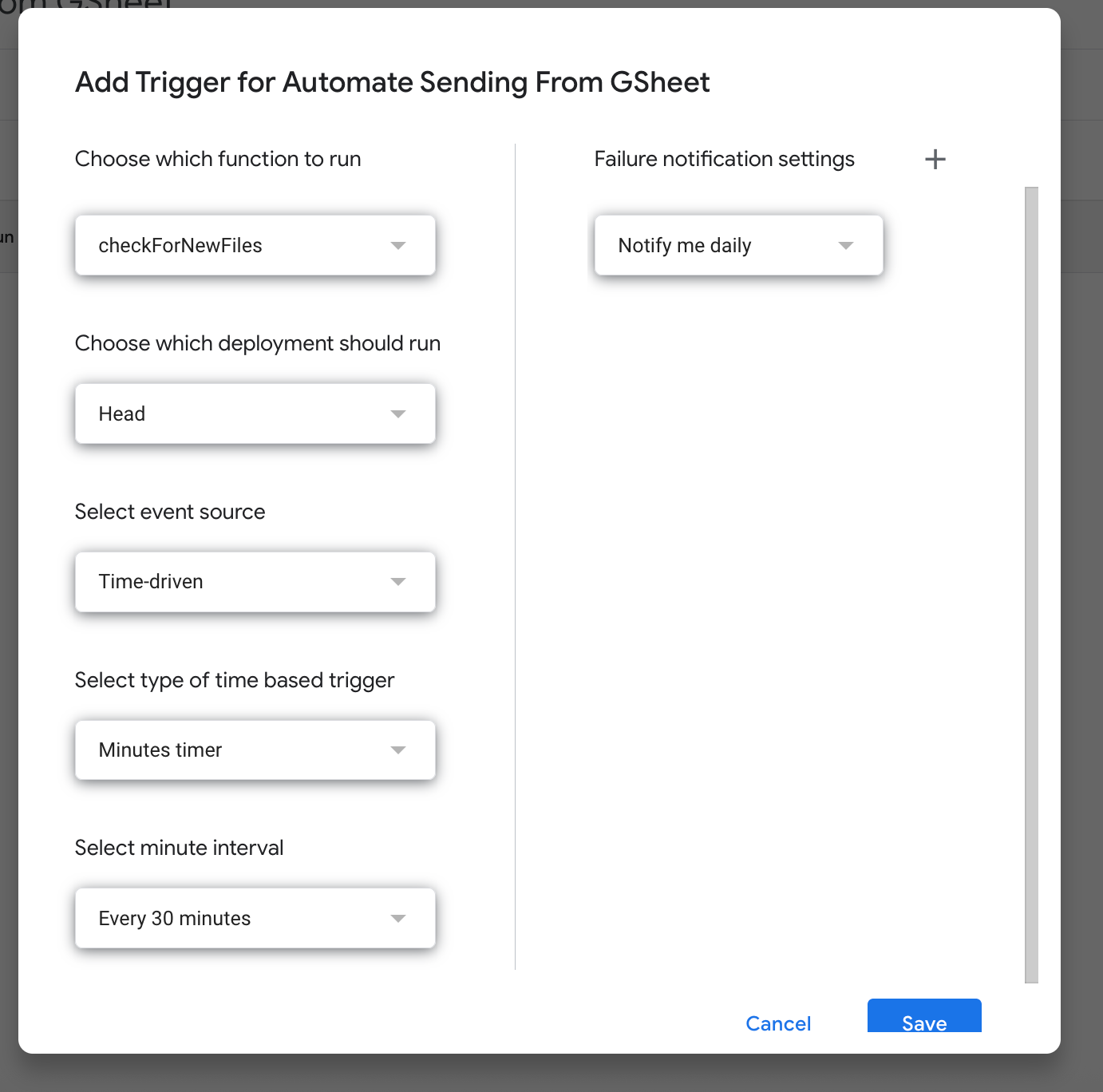
Set up a time-based trigger
- In the Apps Script editor, click the clock icon (Triggers) in the left sidebar
- Click + Add Trigger
- Set it to run
checkForNewFileson a time-driven trigger (e.g., every 5 or 15 minutes)
Things to know
- Large files — Gmail has a 25 MB attachment limit. If you expect larger files, you can modify the script to send a Drive link instead of an attachment.
- Google-native file types — Google Docs, Sheets, and Slides need to be exported to a format like PDF before attaching. The script above handles standard file types (CSV, PDF, XLSX, etc.), but additional export logic is needed for native Google formats.
- Polling delay — Google Drive doesn’t support true real-time triggers for file changes. The script polls on whatever interval you set in the trigger (e.g., every 5 minutes).
- CC yourself on notifications — To receive a copy of each email, add
cc: 'your-email@example.com'to the options object insendEmailWithAttachment. - Authentication — You’ll be asked to authorize permissions when you first run the script manually and again when the trigger fires for the first time.