

Why this flow is useful
- Instant file delivery — when a new file is uploaded, the flow emails it immediately
- Code-free setup — the entire solution is configured in Power Automate without programming
- Flexible recipients — send to a colleague, team inbox, or a Parabola email address to auto-trigger a flow
Prerequisites
- Access to Microsoft Power Automate
- A SharePoint site with a document library you want to monitor
- A recipient email address (use your Parabola flow’s Extract from email address to trigger a flow automatically)
Step-by-step setup
1
Create an automated flow with a SharePoint trigger
- Open Power Automate and select Create > Automated cloud flow
- Give the flow a clear name, such as “Auto Email New SharePoint File”
- Choose the SharePoint trigger When a file is created (properties only)
- Configure the trigger:
- Site Address — choose the SharePoint site that contains the document library
- Library Name — select the library that contains the target folder
- Folder — browse to the specific folder you want the flow to watch
2
Add a "Get file content using path" action
The trigger provides file metadata but not the actual file bytes needed for an attachment. This step retrieves the content.
- Select + New step and add the SharePoint action Get file content using path
- Set Site Address to the same SharePoint site used in the trigger
- In File Path, use the dynamic content value for the new file’s path (often labeled “File path” or “FullPath”)
- Leave Infer Content Type set to Yes unless you have a specific reason to change it
3
Add a "Send an email (V2)" action
- Add the Microsoft 365 Outlook action Send an email (V2)
- Fill in the core email fields:
- To — enter the recipient email address. You can use a Parabola email address here to trigger a flow
- Subject — use a short subject line and optionally insert the filename as dynamic content
- Body — write a brief message explaining that a new file was uploaded and attached
- Open Show advanced options to reveal the attachment fields
- Add the attachment details:
- Attachments Name — use the filename dynamic content, including the extension
- Attachments Content — use File Content from the “Get file content using path” step
4
Save and test the flow
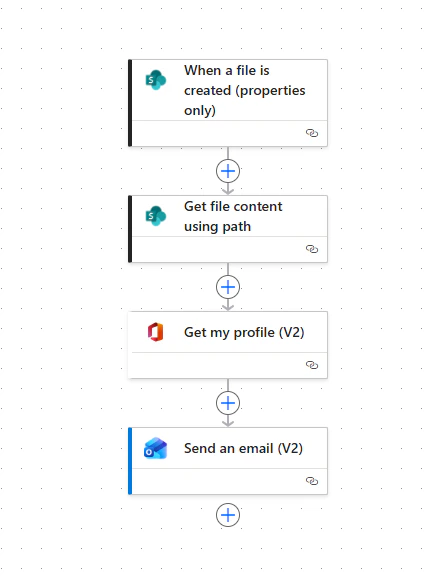
- Save the flow and confirm the three-part structure is in place: trigger, file-content action, and email action
- Upload a test file into the watched SharePoint folder
- Verify that the flow runs successfully and the email arrives with the file attached
- If needed, check the run history in Power Automate to confirm the flow completed successfully
Quick reference
What the final flow looks like
Using this with Parabola
Once this flow is in place, new files uploaded to the chosen SharePoint folder are emailed automatically. To trigger a Parabola flow:- Add an Extract from email step to your Parabola flow and copy the generated inbound email address
- Set the To field in the Power Automate email action to that address
- Your Parabola flow will receive the file as an email attachment and can process it on each run
For a similar setup using Google Drive instead of SharePoint, see How do I watch for new files in Google Drive and send them to Parabola?