

Input/output
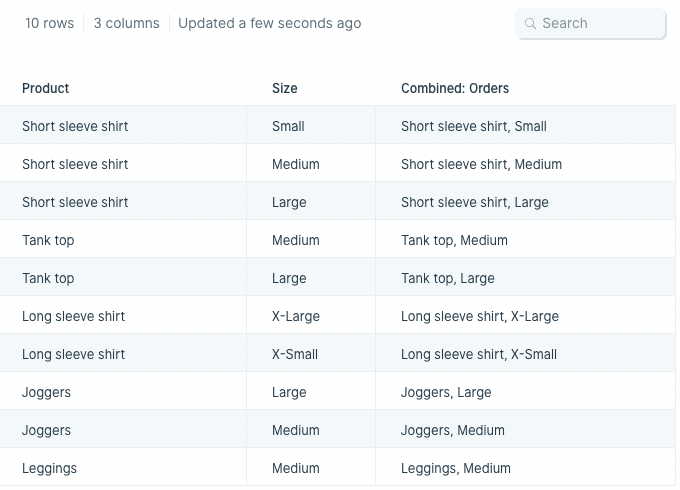
Let’s say we need to combine the data from our columns “Product” and “Size” to create a new column called “Product Label” for easy label creation. The Merge columns step is how we’ll achieve this. Our input data has two separate columns “Product” and “Size”.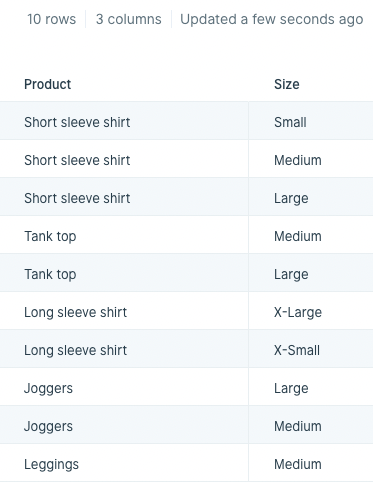
Custom settings
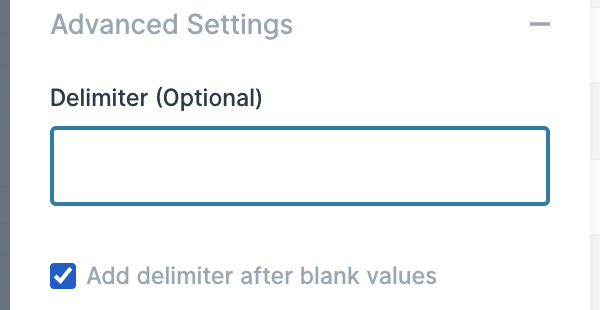
Once you’ve connected your flow’s most recent step to this one, open up the Merge columns step window and under New Column Name, type the name you’d like your new column to be. Then, under Merge, select two or more columns from your original data that you’d like to merge. After that, expand Advanced Settings if you want to set a custom delimiter. Our example sets the delimiter to a comma and space ”, ” which will be placed in between the data from the “Product” column and the data from the “Size” column. If no delimiter is inputted, the step will default to merging the data in the columns with no comma or space in between.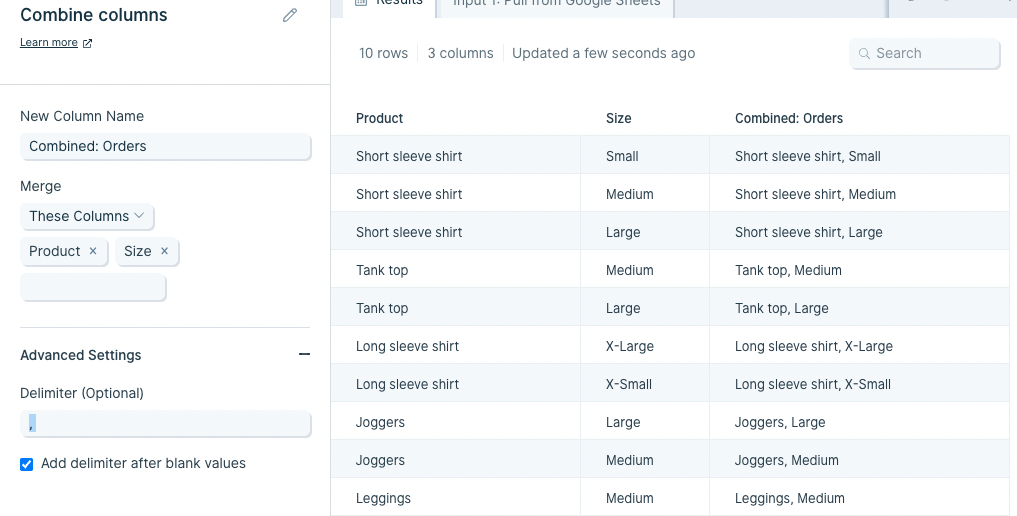
Common questions and how to troubleshoot
Here are a few common questions that come up around the Merge columns step and ways to troubleshoot them:I'm seeing my rows multiplied in the results section of the Merge columns step.
I'm seeing my rows multiplied in the results section of the Merge columns step.
It’s possible that you are matching on data that is duplicated in one or both of your sources. Check your inputs to make sure the selected matching columns have unique data in both inputs. If you don’t have a column with unique data, you may need to choose multiple columns to match with to make sure you’re not duplicating your rows.
I'm seeing a 'Missing columns' error in my Merge columns step.
I'm seeing a 'Missing columns' error in my Merge columns step.
This can happen when you make changes to one of your inputs after you’ve already selected the setting in your Merge columns step. You’ll need to either reselect your matching columns in that step or pull in a new Combine tables step.