

Input/output
Our input data below has orders information telling us how many units were sold today per product variant type.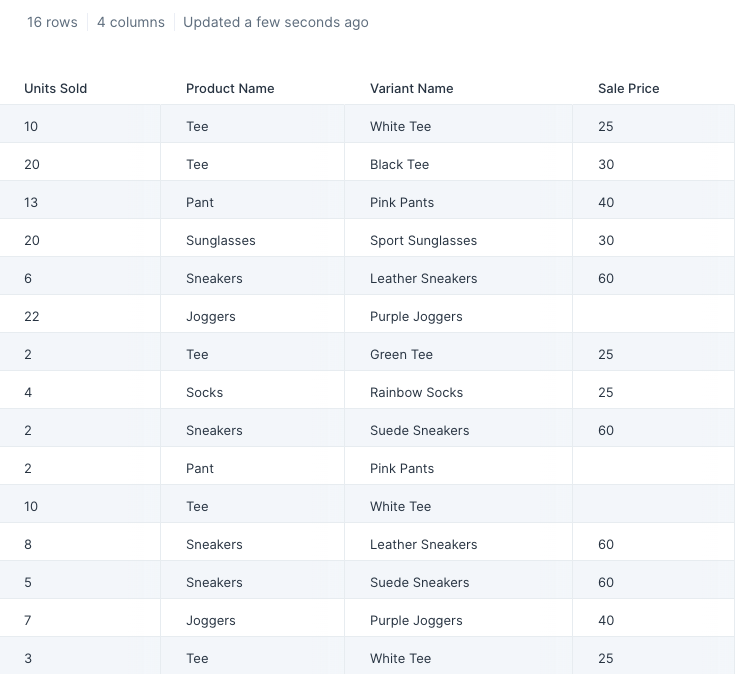
Custom settings
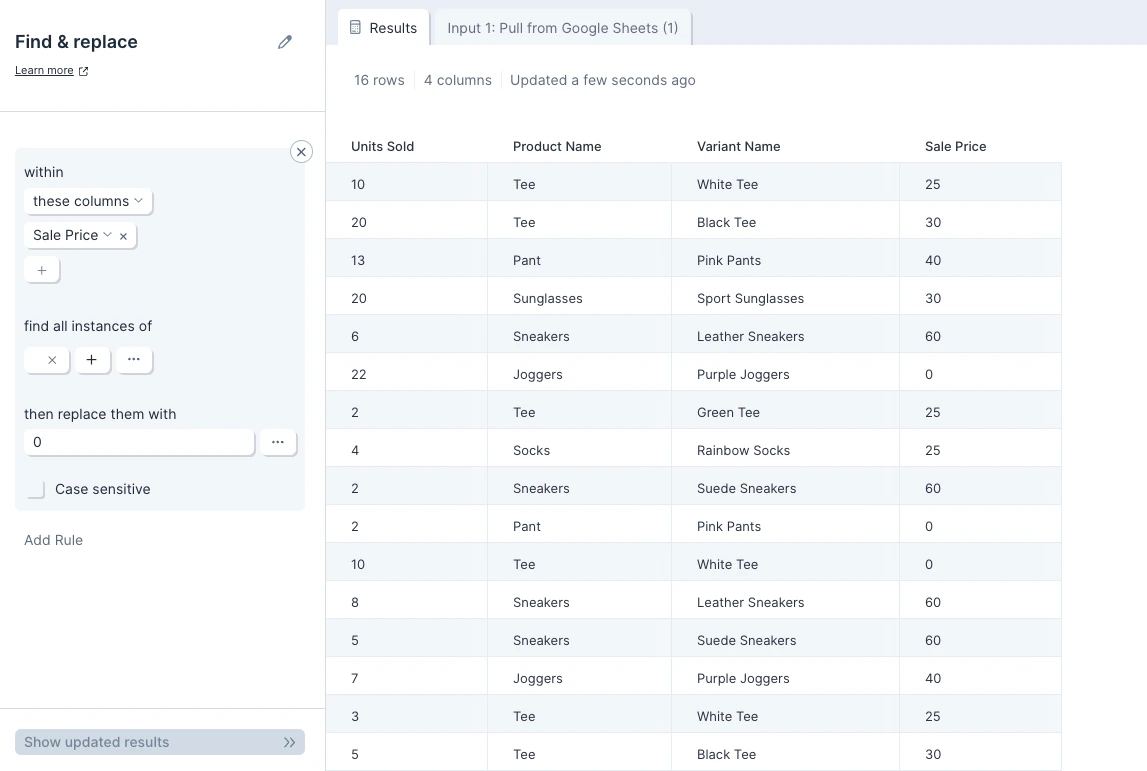
To set up your Find and Replace rule, you’ll need to:- Type in a value to look for. This input can be left blank if you’d like this step to look for blank or empty row cells.
- Select the column(s) where we should look. By default, this step will search for the value in “all columns”.
- Type in a value to replace the value with if it’s located. This input can be left blank if you’d like this step to replace the located values with blanks (i.e. replacing it with empty row cells).
Helpful tips
- The Find and replace step ignores text casing. It will find matching values even if the text casing, such as capitalized letters, aren’t an identical match.