

Input/output
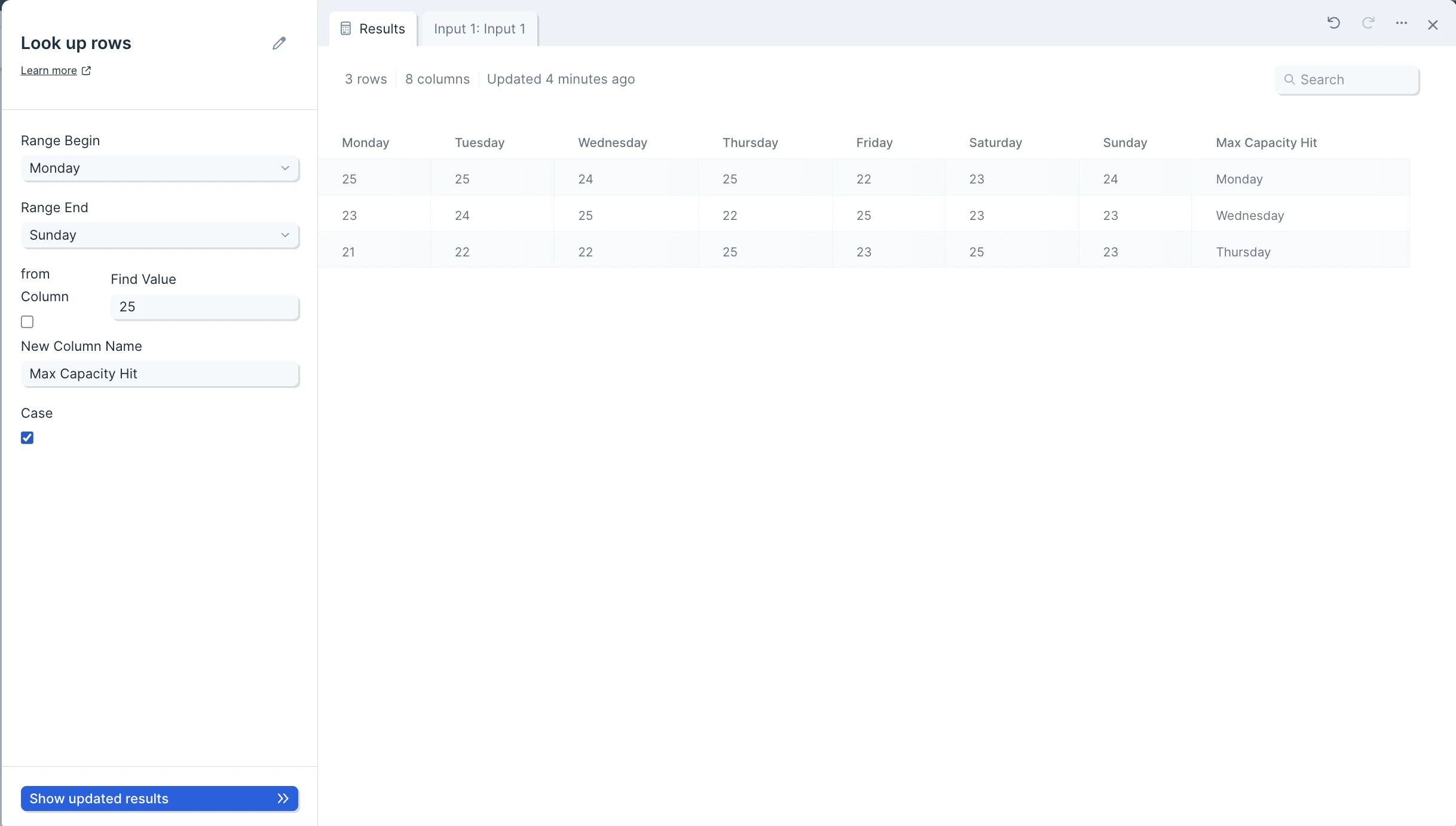
Our input data is a table of daily webinar attendance for a week.
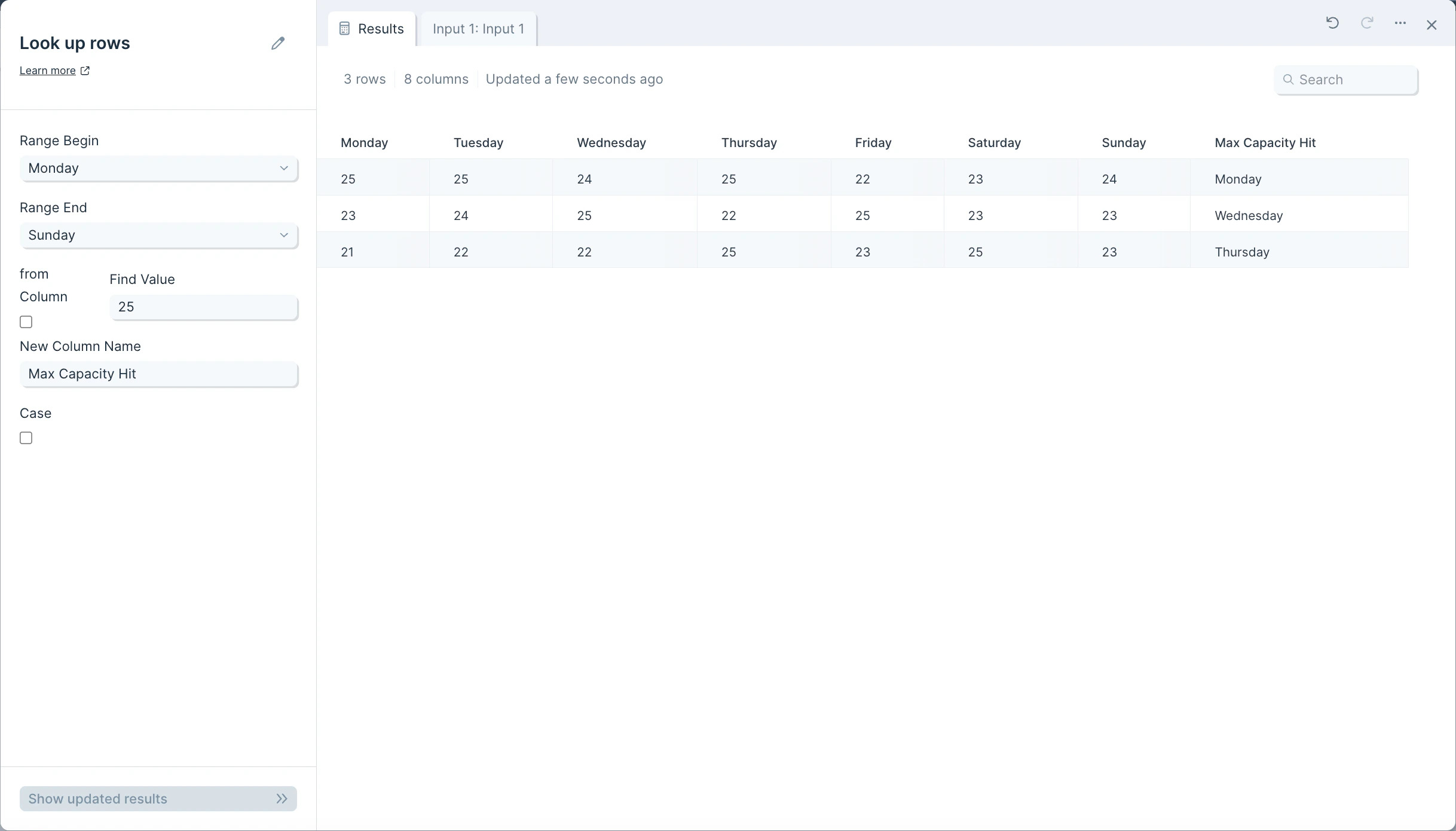
Custom settings
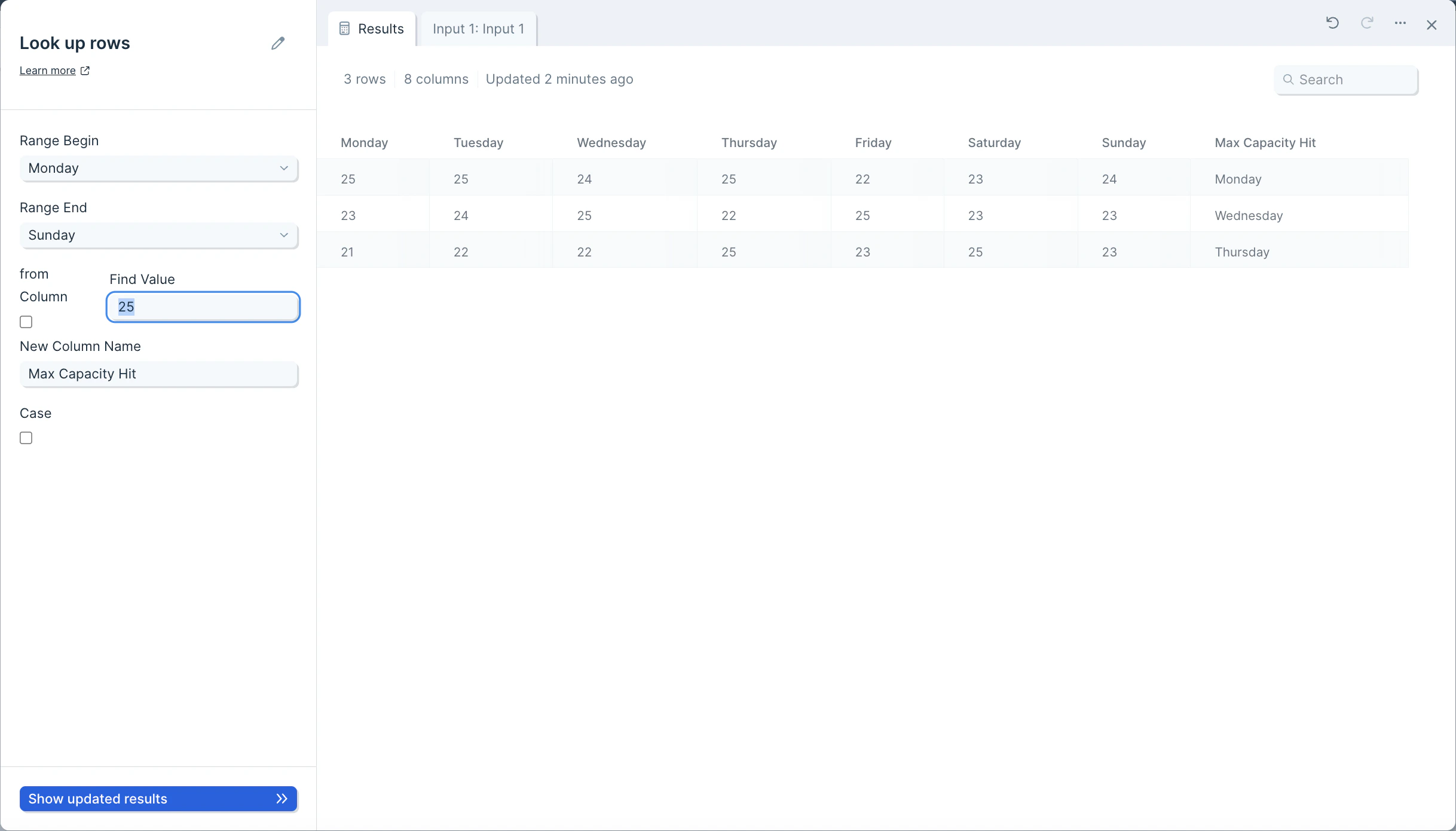
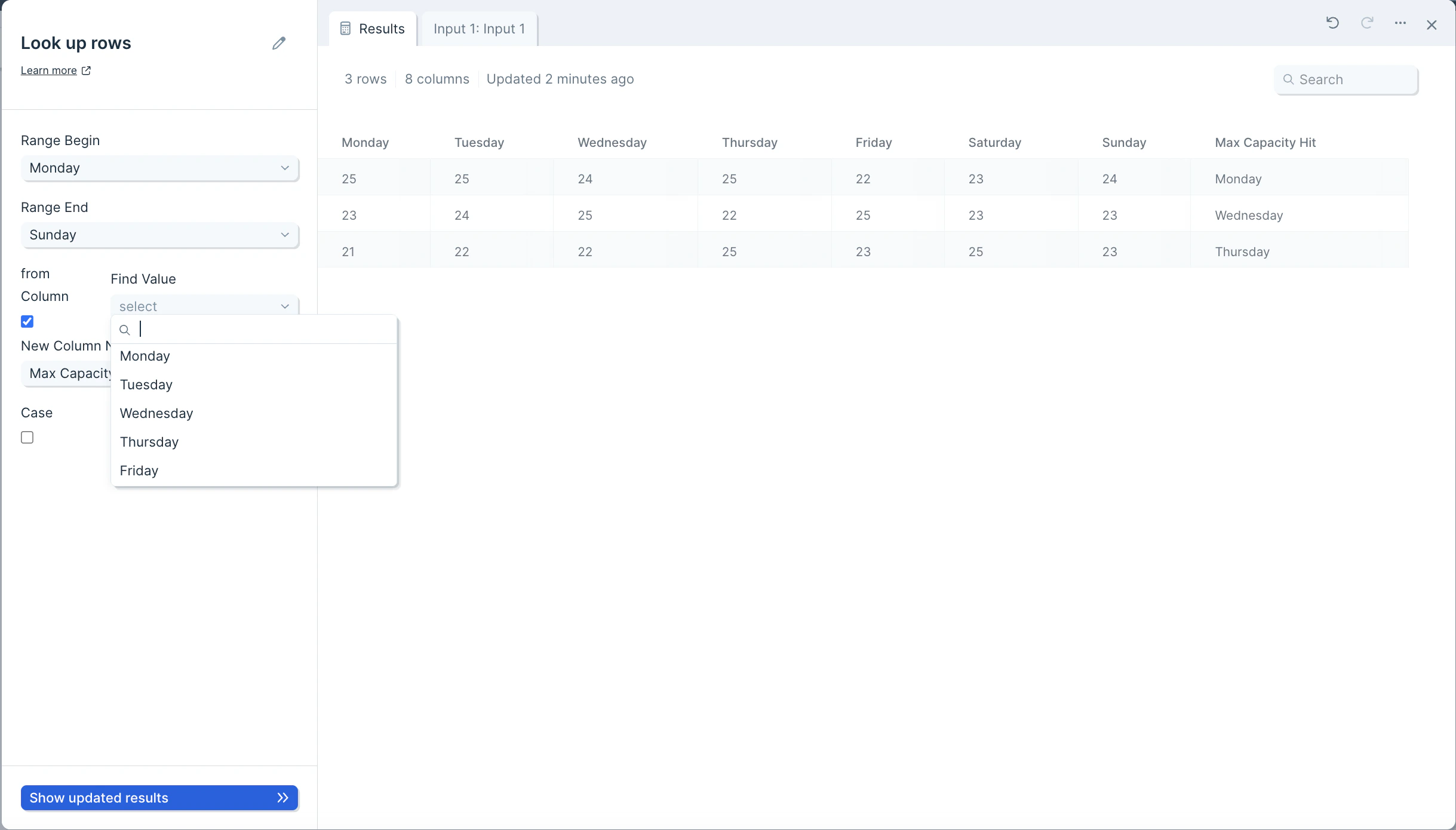
To set up this step, start by noting the range of columns it should look within. Select a column from the Range Begin dropdown and select another column from the Range End dropdown.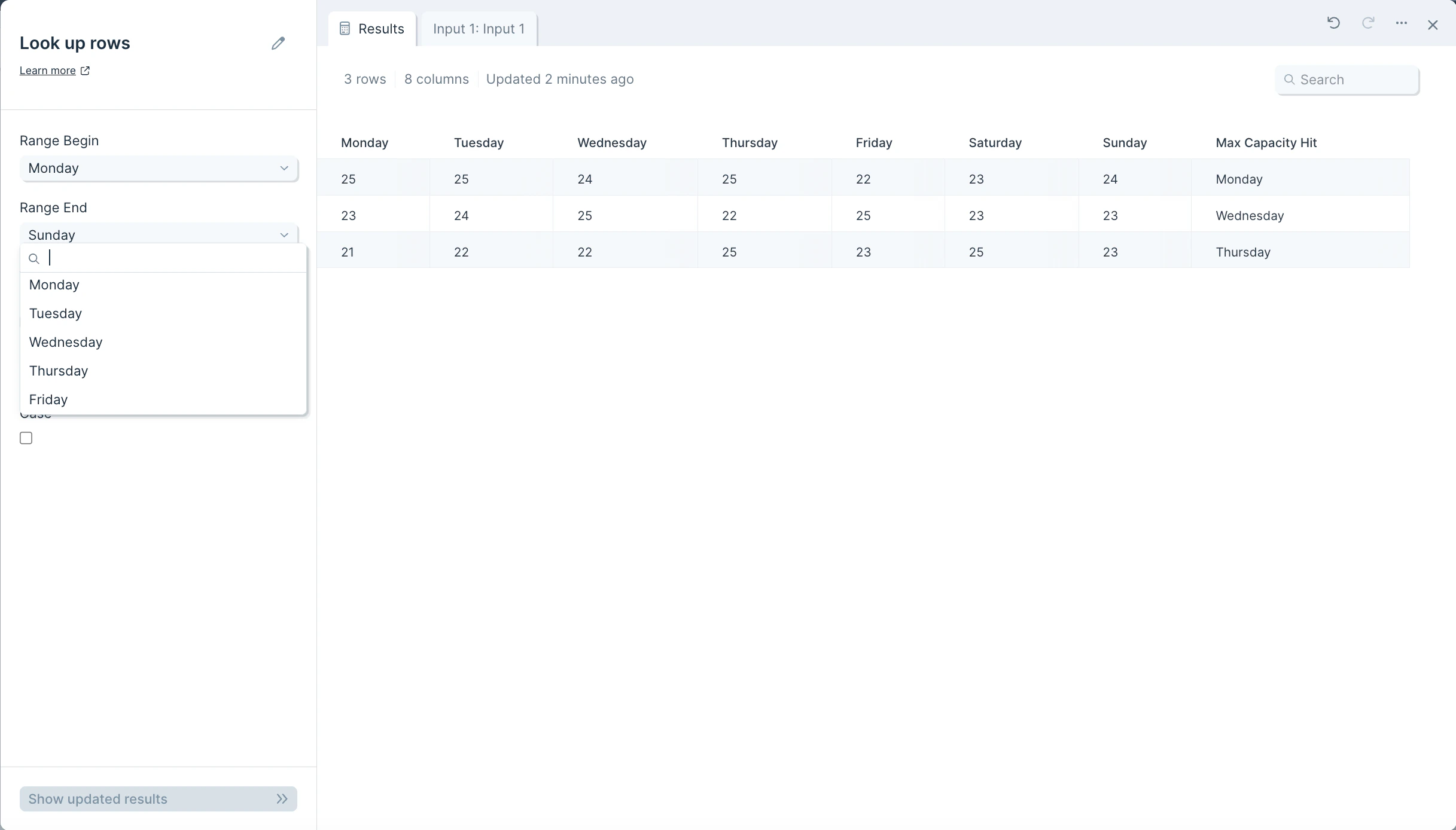
Frequently asked questions
What’s the difference between Look up rows and Combine tables? Combine tables joins two separate tables on a shared key. Look up rows searches within a single table to find which column contains a specific value and returns that column’s name in a new column. Why is my new column blank for some rows? If the value being searched for doesn’t appear within the selected range for that row, the new column will be blank. Double-check that the Range Begin and Range End columns enclose every column the value could appear in. How do I make the lookup case-sensitive? Enable the Case checkbox in the step settings. By default, lookups ignore casing — for example, “True” and “true” are treated as equal.Related steps
- Combine tables — join two separate tables on a shared key column.
- Find overlap — compare two datasets and identify matching or non-matching rows.
- Find and replace — substitute matched values throughout a column.
- Add if/else column — set a new value based on what was found.
- Replace with regex — match patterns instead of exact values across columns.