

Documentation Index
Fetch the complete documentation index at: https://parabola.io/docs/llms.txt
Use this file to discover all available pages before exploring further.
Guide
- If you are looking to troubleshoot issues with the Netsuite integration, skip to Common Issues + Fixes
- If you are setting up the Netsuite integration in Parabola for the first time, skip to How to Configure the Netsuite Integration in Parabola
- If you have already setup the integration, but need need to update permissions (incl. read/write permissions), skip to #1: Creating a Role
Section #1: How to Configure the Netsuite Integrations in Parabola
Before we can connect to Netsuite with Parabola, we need someone with Admin permissions to do a few things in Netsuite:Create a role
- This role is how Netsuite gates permissions
- The permissions we grant will dictate whether we can authenticate, and what objects/fields we can read and write to once we do
Create an integration
- This is the Netsuite application that our step will connect to
- This will give us our Consumer ID and Consumer Secret
#1: Creating a Role
Go to Setup -> Users/Roles -> Manage Users -> New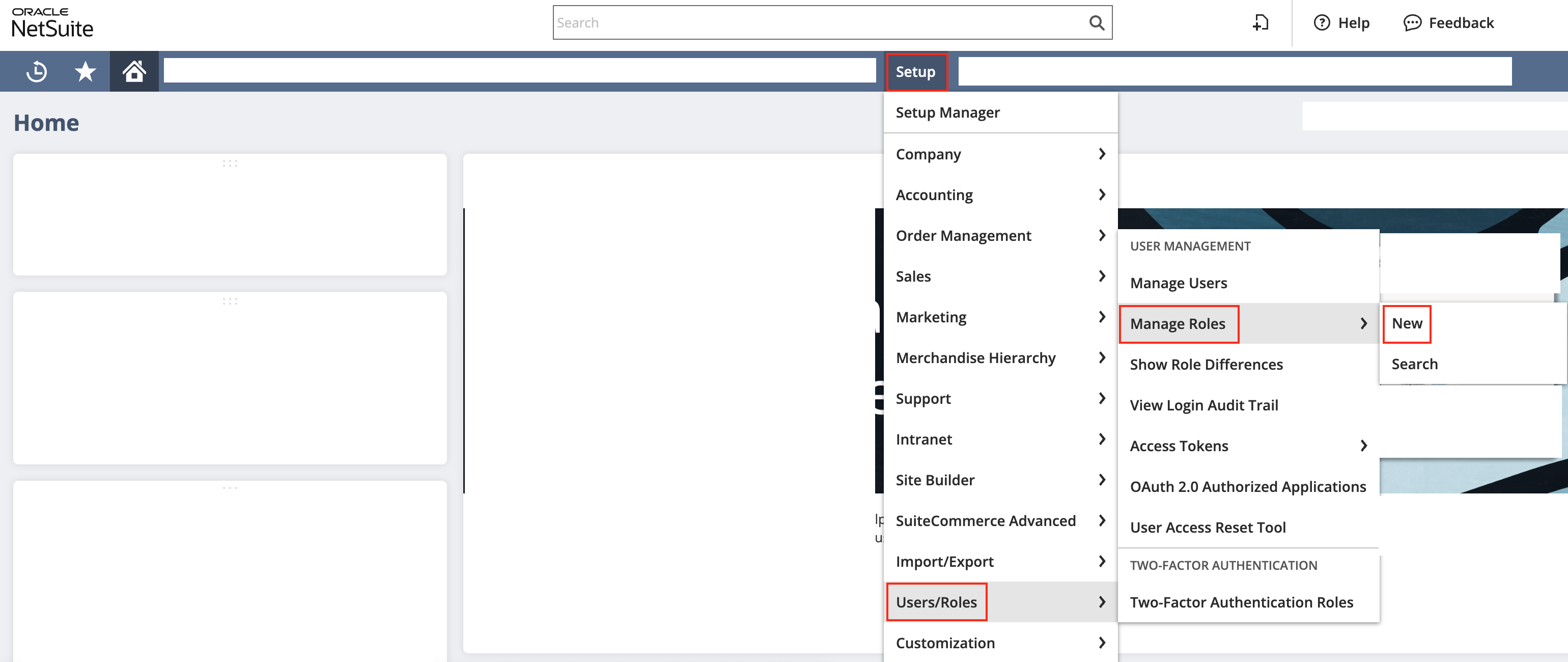
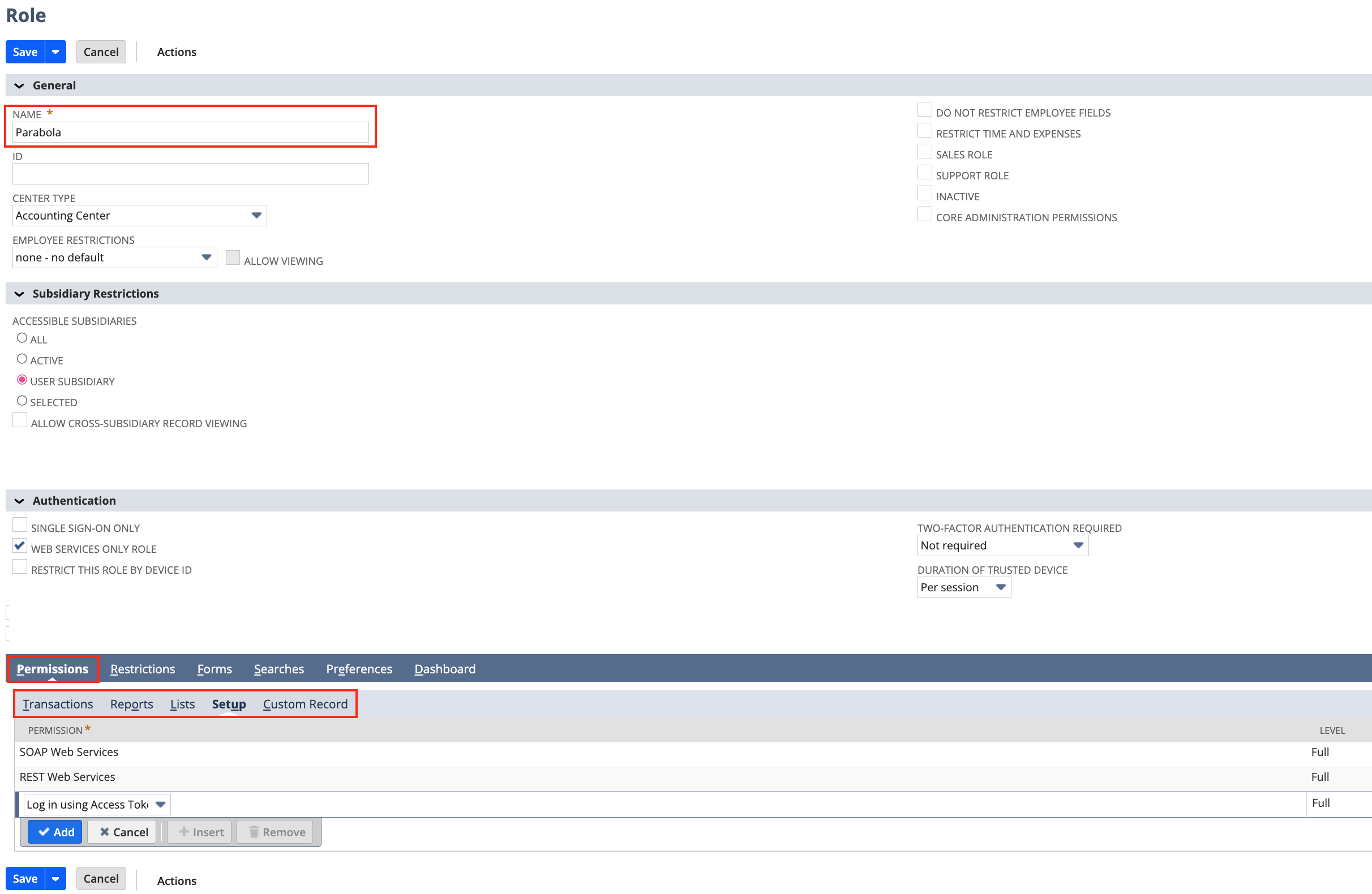
- Name: Parabola (or something else that is identifiable)
- Under “Authentication”, check “Web Services Only”
- This makes it so the role can only be used for integrations
- Under “Permissions”, enable the following:
Transactions
- Any specific transaction types required: sales orders, purchase orders, transfer orders, etc.
- Find transaction
Reports
- Any specific report types required
Lists
- Any specific lists required: items, locations, companies, customers, etc.
- Perform search, persist search, and publish search
Setup
- Log in using Access Tokens
- SOAP Web Services
- REST Web Services
- Any specific custom record objects required
- Setup permissions give us the ability to set up the initial connection to Netsuite. a. Log in using Access Tokens gives Parabola permission to authenticate using the tokens generated in the following steps b. SOAP Web Services gives our Pull from Netsuite step permission to read data using the method we use on our backend c. REST Web Services gives our Send to Netsuite step permission to write data using the method we use on our backend
-
These permissions give us the ability to search Netsuite data:
a. Transactions
- Find transactions
- Perform search
- persist search
- publish search
- The remaining permissions under Transactions, Reports, Lists, and Custom Records dictate which objects we can read (using Pull from Netsuite) and write to (using Send to Netsuite). a. If you only want Parabola to read data, set these permissions to “View” b. If you want Parabola to read and write data, set these permissions to “Full”
#2: Creating an Integration
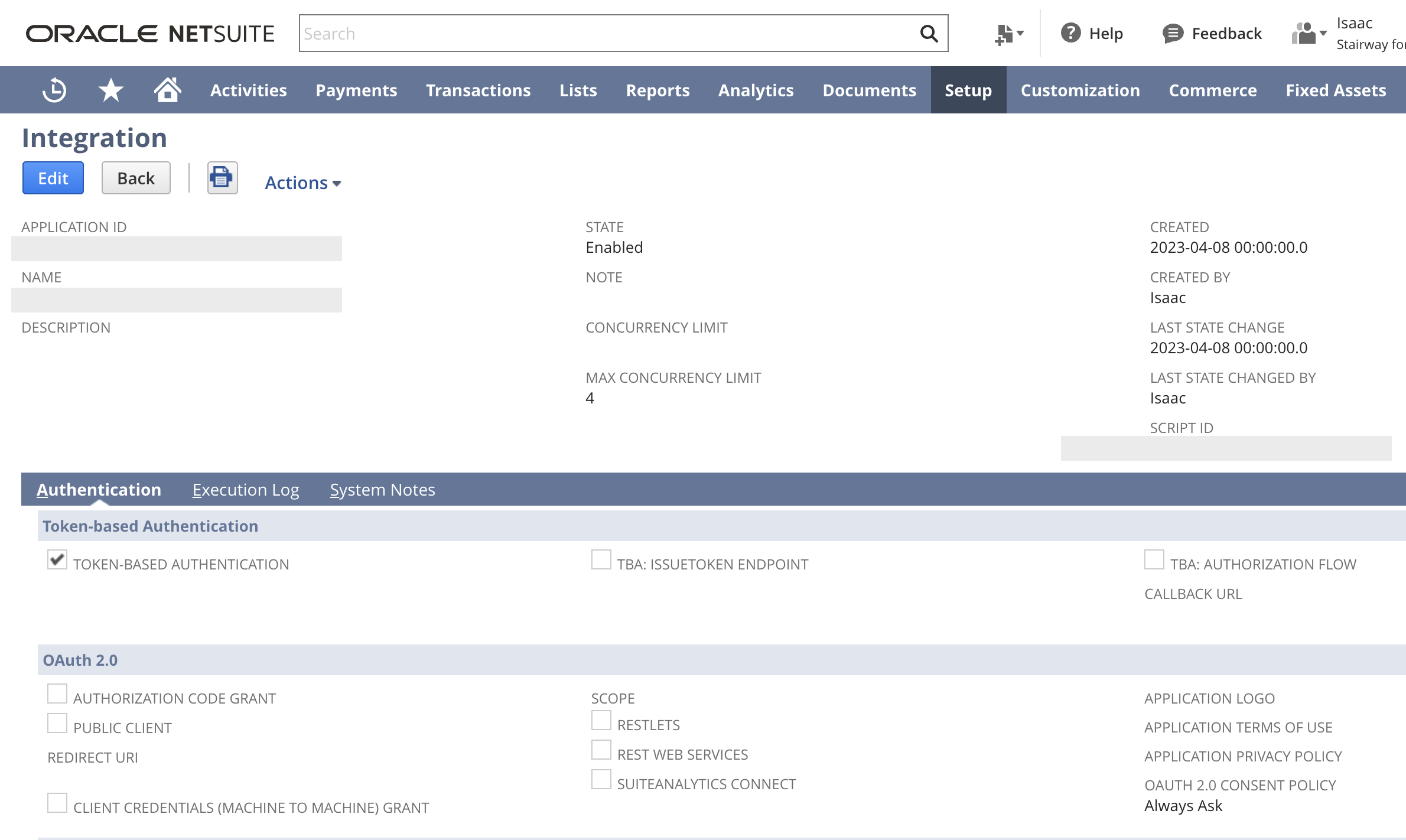
Video walk-though of the setup process:Specify an integration name, ensure the status is set to active, and select the token-based authentication option.
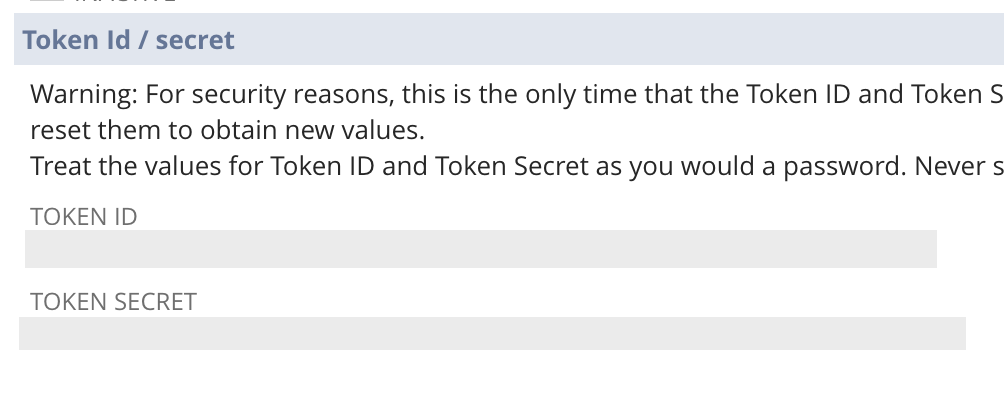
#3: Creating a Token
Once the role, user, and integration have been created, you’ll need to generate the tokens which are required for authentication in Parabola. Follow the path below in the NetSuite UI to create a new token record.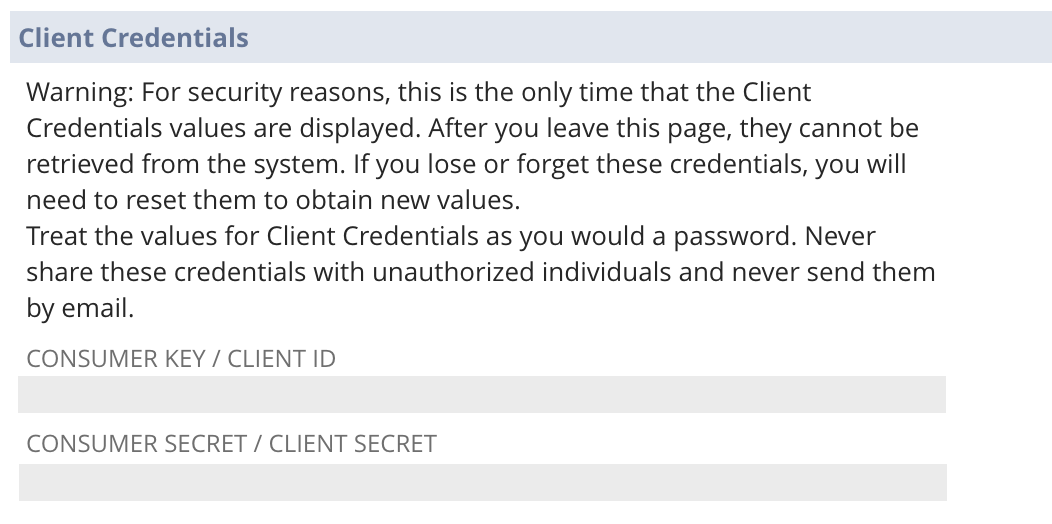
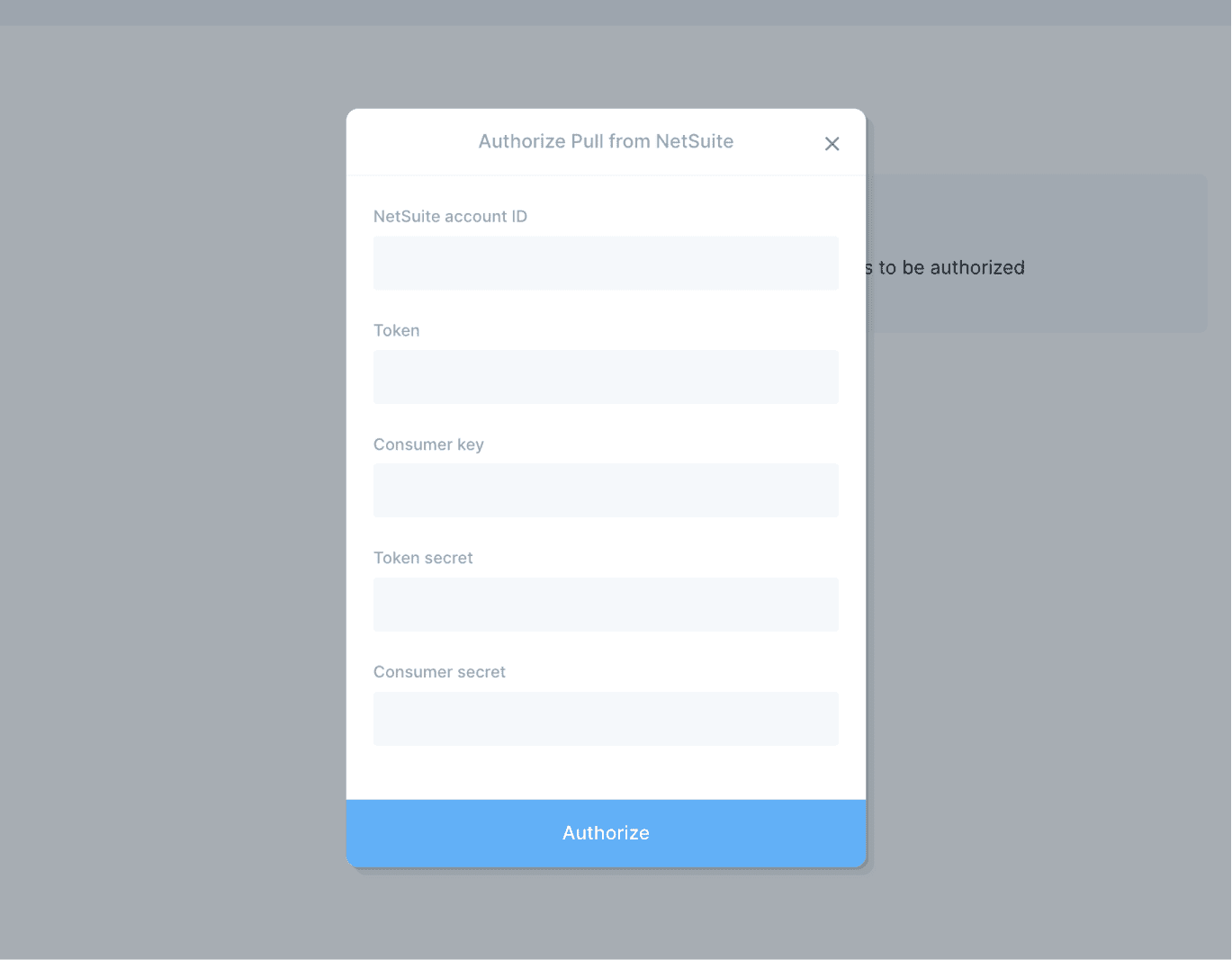
#4: Configure your settings in Parabola
Gather the credentials created from each step earlier in the process and navigate to the Pull from NetSuite step in Parabola.
Final Notes
- Authorization: Once this integration has been created, it should never expire, and you can leverage it for both the Pull from Netsuite and Send to Netsuite steps.
- Sharing: You can share this integration across your organization across your organization, so multiple people can use the same authorization to connect to Netsuite
- Instructions
- In any instance of a Pull From Netsuite or Send To Netsuite step, once you double-click into the step, you can click the authorization dropdown in the top left > “edit accounts” > click the 3 dots to the right of the account you want to share > “Sharing Settings”
- You can share with the whole organization, or with individual users
- Notes on permissioning
- If you share this authorization, users can use it to both read and write data (in line with the permissions granted to the Netsuite role), so make sure the permissions on the role are gated appropriately
- If you want to more granularly gate read/write permissions, you can create two separate authorizations (by creating separate integrations/tokens) and share them separately.
- Instructions
Section 2: Common Issues + Fixes
Authentication issues
- Permissions: Check that the role you are using has Log in using Access Tokens, SOAP Web Services, and REST Web Services set to “Full”
- Account ID: If you are connecting to Sandbox, check that you are using the Sandbox account ID, and that the account ID exactly matches what you see in the website URL when you log into Netsuite (e.g. 12345-sb1)
“Could not find saved search” issues
- [XXXXXXXXXX]
Missing data (missing columns / fewer rows than expected)
- This is typically because the role being used for the integration doesn’t have the permissions to see certain columns/objects
- Go to the role and check the Transactions, Lists, and Custom Records permissions to confirm that you have access to everything you want to pull
- If rows are missing, double check Transactions permissions
- If columns are missing, double check Lists and Custom Records
Field values are pulling is as numbers
- Joined Fields
- If you are pulling in a joined object, it will pull in the internal ID of the joined object instead of the location name
- To solve this, instead of adding the object directly, add the “name” subfield
- For example: if you want to pull in the Location field on a Sales Order, instead of adding “Location” as a field to return, scroll down to “Location Subfields” in the field list and add the “Name” subfield.
- Custom fields
- If you are pulling in a custom field with a set list of options, it will pull in the internal ID of the option, instead of the option name.
- For example, if you have a custom “Color” field with options “Red”, “Green”, and “Blue”), it will return “1”, “2”, or “3” instead of the color
- There is no way to solve this in the saved search, but as a workaround, you can manually export a list of the options and their internal IDs, and use “combine tables” to join this to the saved search in Parabola
- If you can set the value of the custom field with a text entry box in Netsuite, the custom field should pull in to Parabola with no issue.