

Pull from ShipStation
The Pull from ShipStation step allows you to pull in orders, shipments, and fulfillments from your ShipsStation account.Connect your ShipStation account
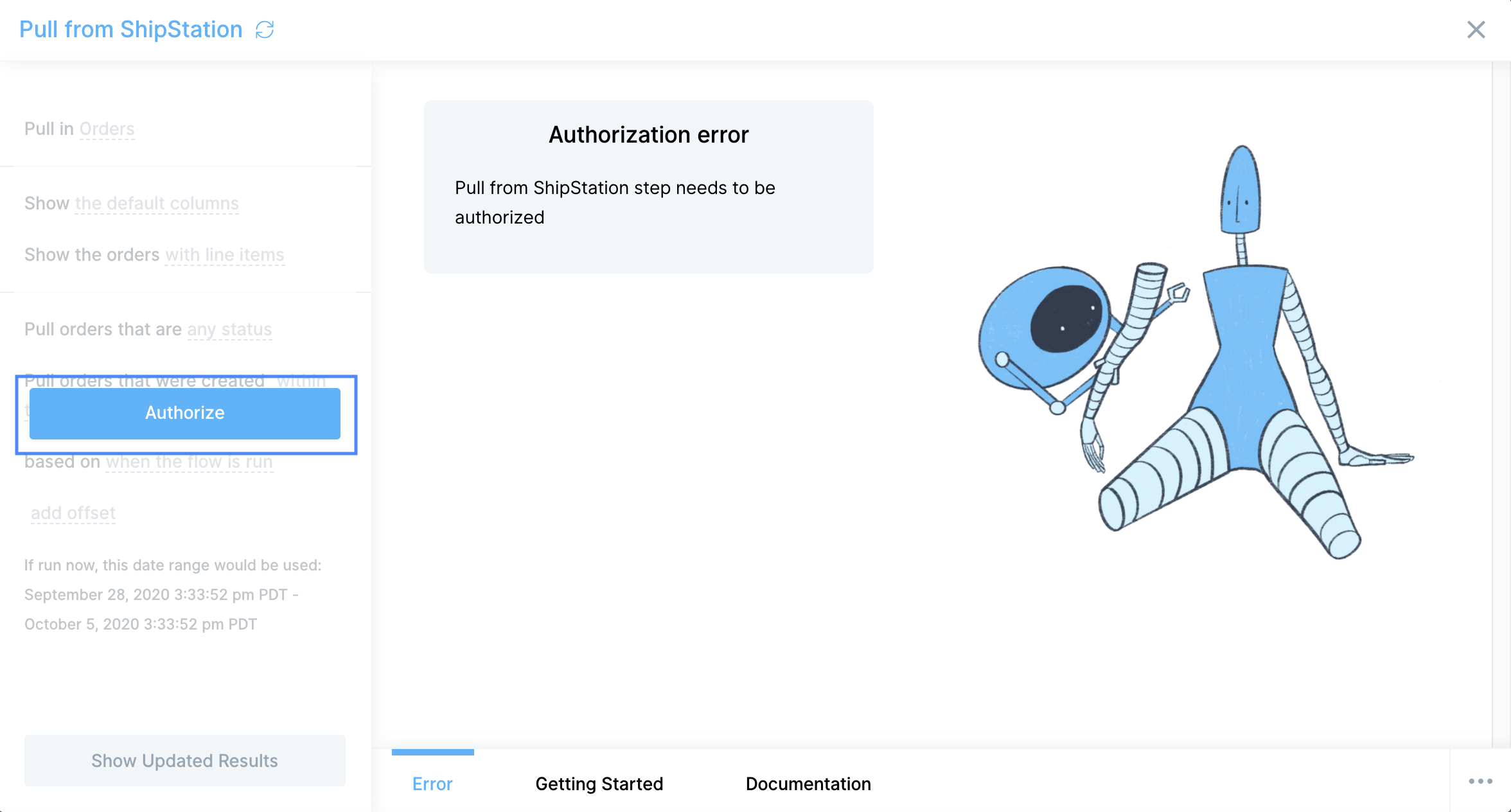
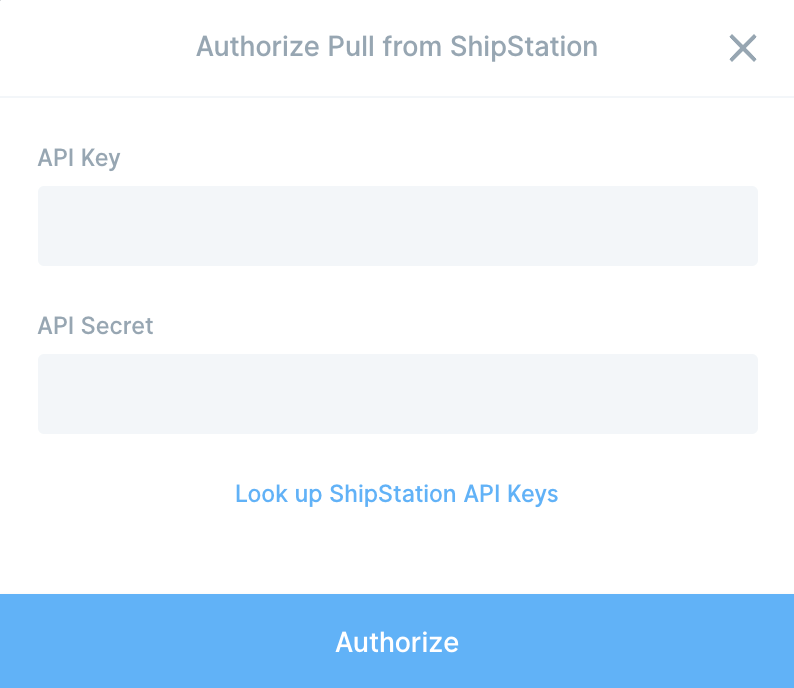
After clickingAuthorize, you’ll need to get your API Key and Secret and add them, which will enable this flow to pull from your ShipStation account. You can find your API Key and Secret here: https://ship11.shipstation.com/settings/api.
Default settings
By default, thstep will pull in Orders that were created within the last week. The orders pull defaults to also pulling in the line items for each order. This means that each row represents an item in an order. You can also pull in Shipments and Fulfillments. Across Orders, Shipments, and Fulfillments, you can modify the time frame, default or all columns, and you can filter based on things like status and carrier.Custom settings
Orders
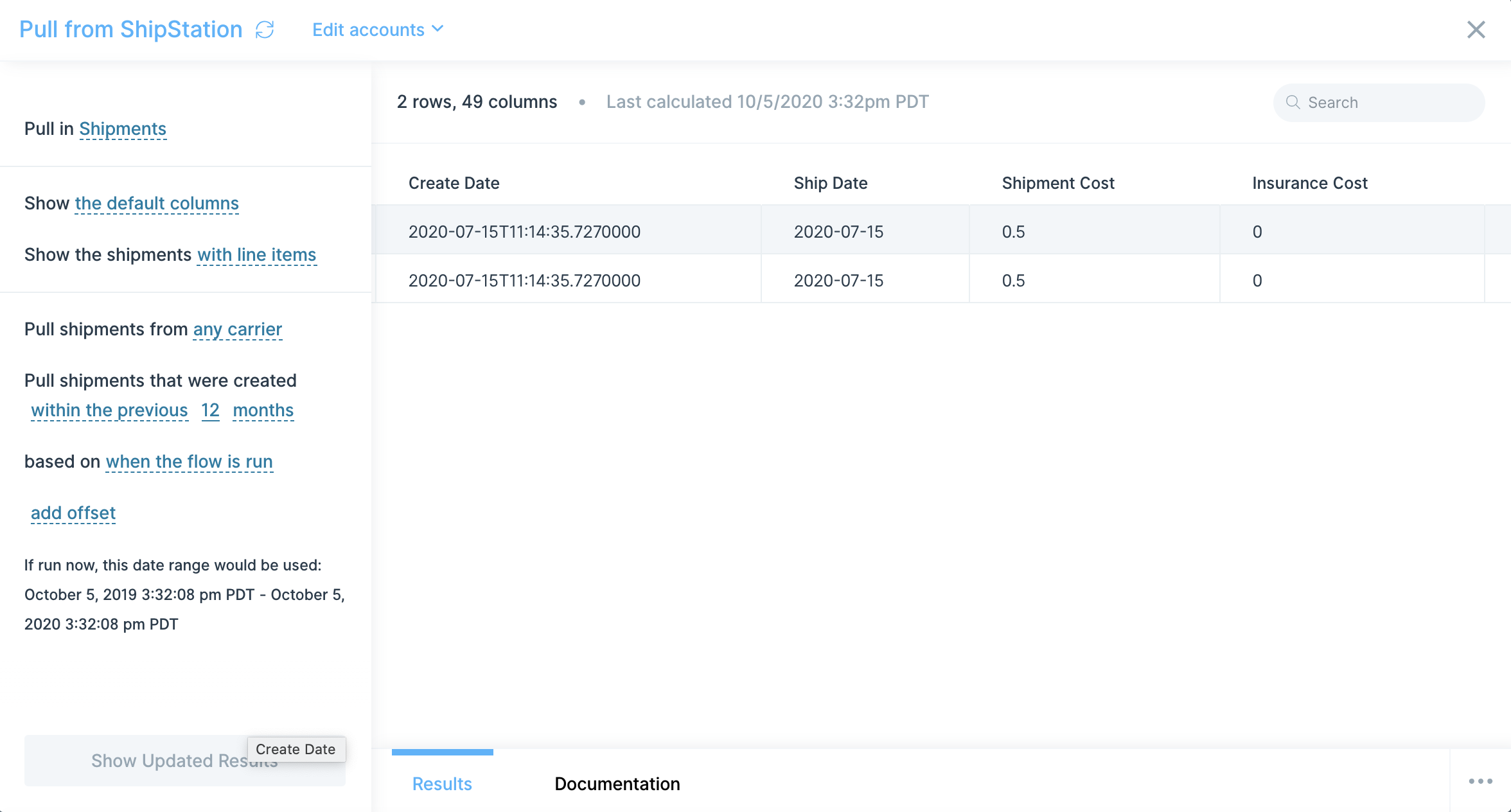
When pulling in shipments, you can select to pull in the default column set or all columns. By default, the Orders pull includes line items. You can change this by updating the settings to show orders without line items Orders can be filtered in this step to only include those with order status (i.e. Awaiting Shipment). Orders can also be filtered down by the date they were created.Shipments
Fulfillments
When pulling in fulfillments, you can select to pull in the default column set or all columns. Fulfillments can also be filtered down by the date they were created.Helpful tips
- This step is available starting at our Plus plan.
Pull carrier rates from ShipStation
The ShipStation API is used for managing and automating shipping tasks, integrating with e-commerce platforms, and streamlining order fulfillment and shipment processes. ShipStation is a beta integration which requires a slightly more involved setup process than our native integrations. Following the guidance in this document should help even those without technical experience pull data from ShipStation. If you run into any questions, shoot our team an email at support@parabola.io.Use Cases
🤝 ShipStation | Integration configuration
ShipStation API
ShipStation API reference docs:
ShipStation Authentication docs:
Instructions
1
Navigate to your ShipStation settings in your account.
2
In the API Keys section, create or regenerate your API Key and API Secret.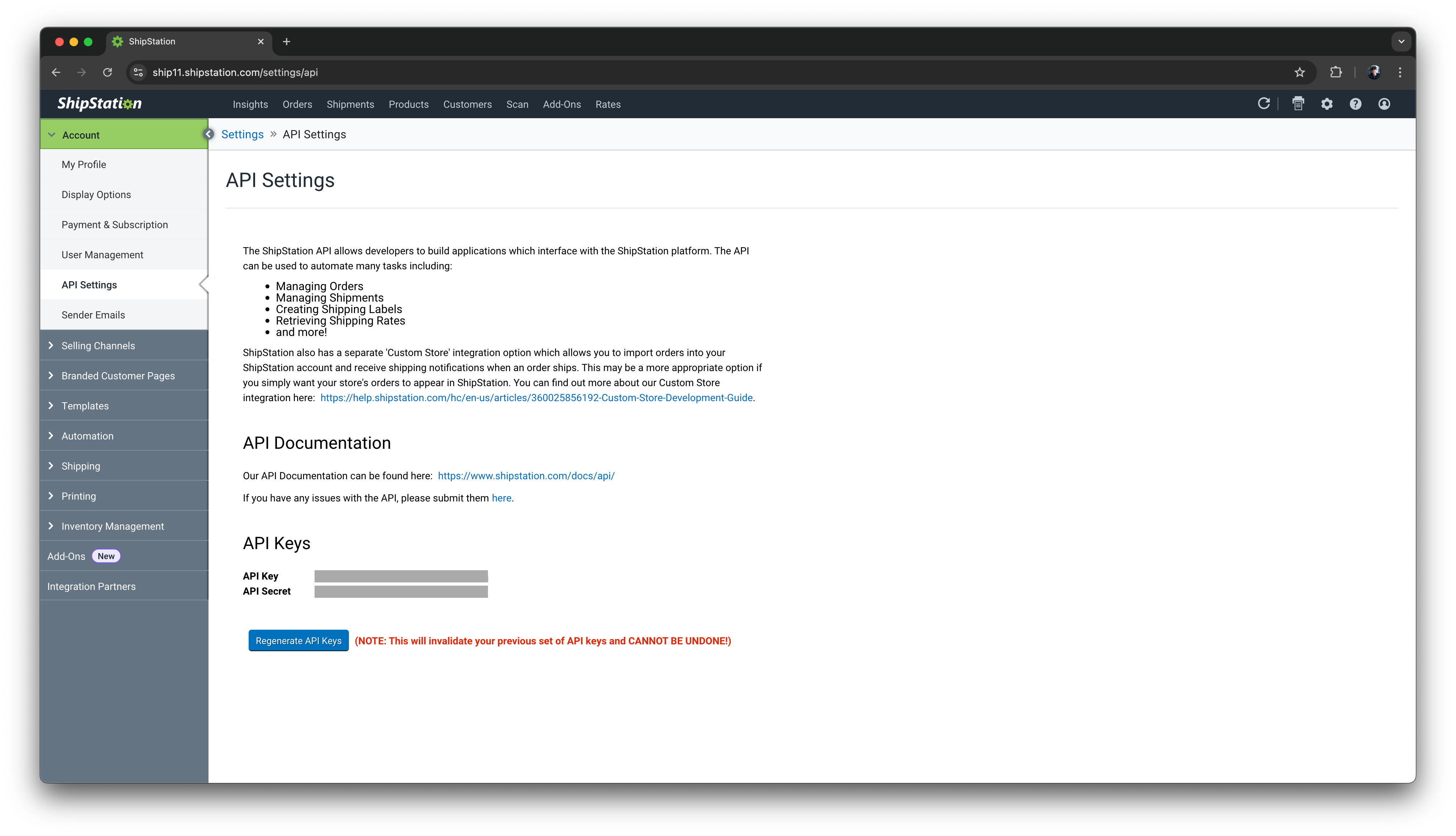
3
Save your credentials before connecting to Prowork.
🔐 Prowork | Authentication
1
Add a Pull carrier rates from ShipStation step template to your canvas.
2
Click into the Pull from API: Carriers step to configure your authentication.
3
Under the Authentication Type, select None.
4
5
Click into the Enrich with API: ShipStation Rates step and apply the same authentication settings used in steps 1-4.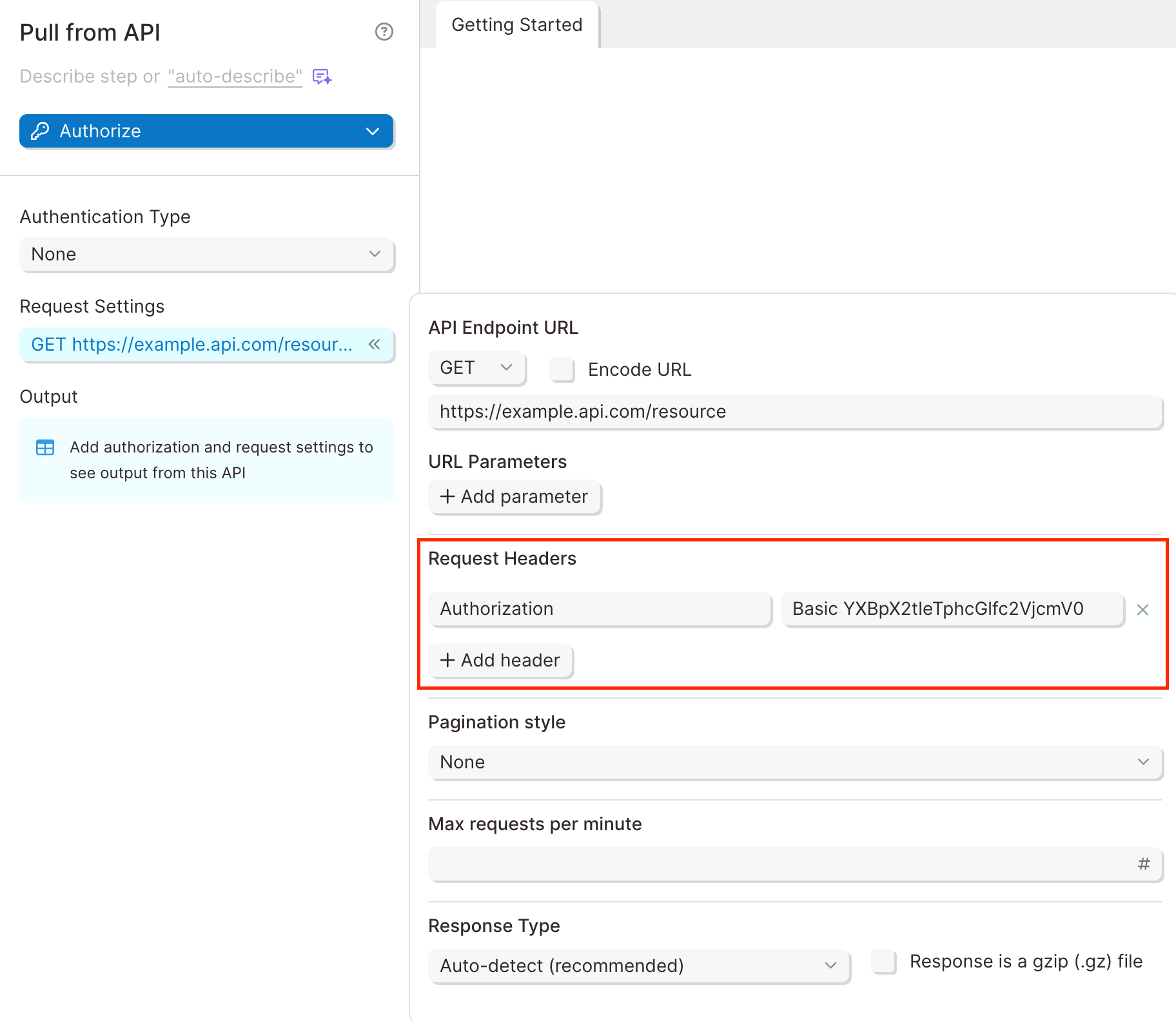
Example Screenshot
🌐 ShipStation | Sample API Requests
Calculate shipping rates by ShipStation carriers
Get started with this template.Load sample orders
1
Add a Use Sample data step to your canvas. You also can import a dataset with tracking numbers into your flow (Pull from Excel File, Pull from Google Drive, Pull from API, etc.)
2
Select the Ecommerce: Orders dataset and click Refresh Data.
3
Use an Add text columns step to generate a new column Merge.
- Set the column value to
1.
List all Shipstation carriers
1
Add a Pull from API step beneath the Use sample data step.
2
Click into the step. Under Authentication Type, select None.
3
Click into the Request Settings and configure a request to list all carriers in your ShipStation account:API Endpoint URL
Request Headers
Click Refresh data to display the results.
4
Select orders as a Nested Key.
5
Click Refresh data once more to expand the order data into a table.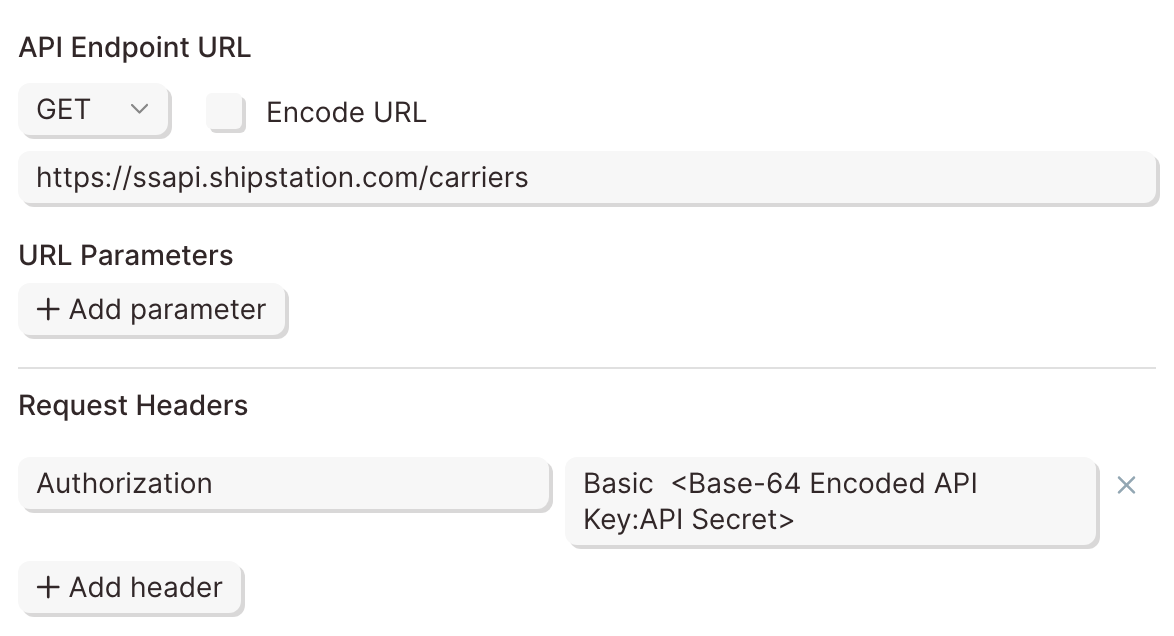
Example Screenshot
6
In the Edit columns step, keep the name and code columns.
7
Use an Add text columns step to generate a new column
Merge.- Set the column value to
1.
Map ShipStation carriers to sample orders
1
Use a Combine tables step and connect these steps:
- Input 1: Add text column (Load sample data)
- Input 2: Add text column (Import ShipStation carriers)
2
Click into the step to configure the settings.
- Keep all rows from Add text column (Load sample data)
- Keep only matching rows from Add text column (Import ShipStation carriers)
- Where the
Mergecolumn matches.
Merge product weight and dimensions
1
Copy and paste the Products - Weight and dimensions.csv file snippet into your flow:
parabola:cb:86331de2-e00b-4634-b629-d37098bbbdfe2
Use another Combine tables step and connect these steps:
- Input 1: Combine tables
- Input 2: Pull from CSV file
3
Click into the step to configure the settings.
- Input 1: Combine tables
- Input 2: Pull from CSV file
- Where the
Product TitleandProductcolumns match
Get carrier shipping rates for sample orders
1
Connect the dataset to an Enrich with API step.
2
Click into the step. Under Authentication Type, select None.
3
Click into the Request Settings to configure a request to get shipping rates for the specified shipping details:API Endpoint URL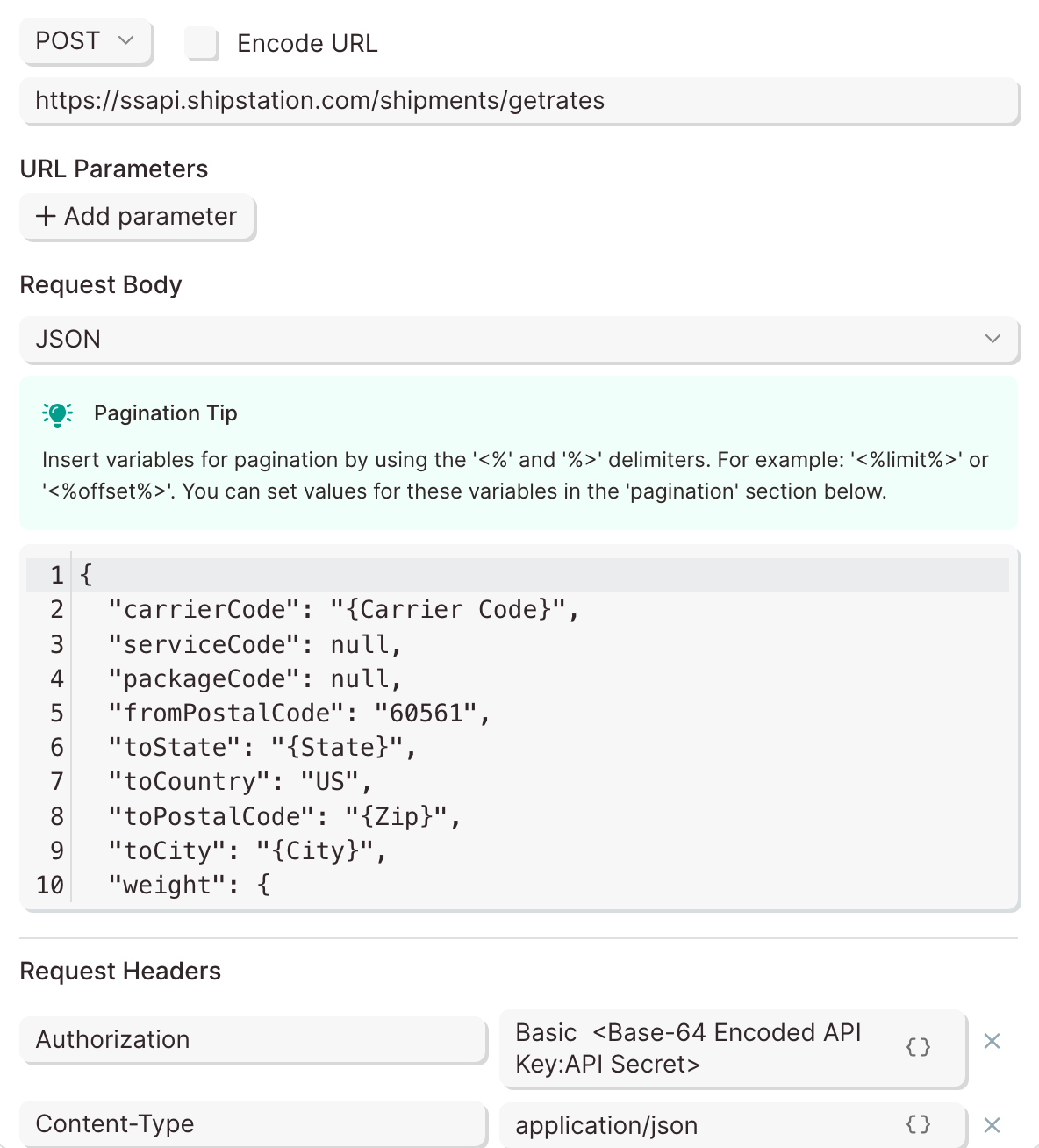
Request Body
Request Headers
Example Screenshots
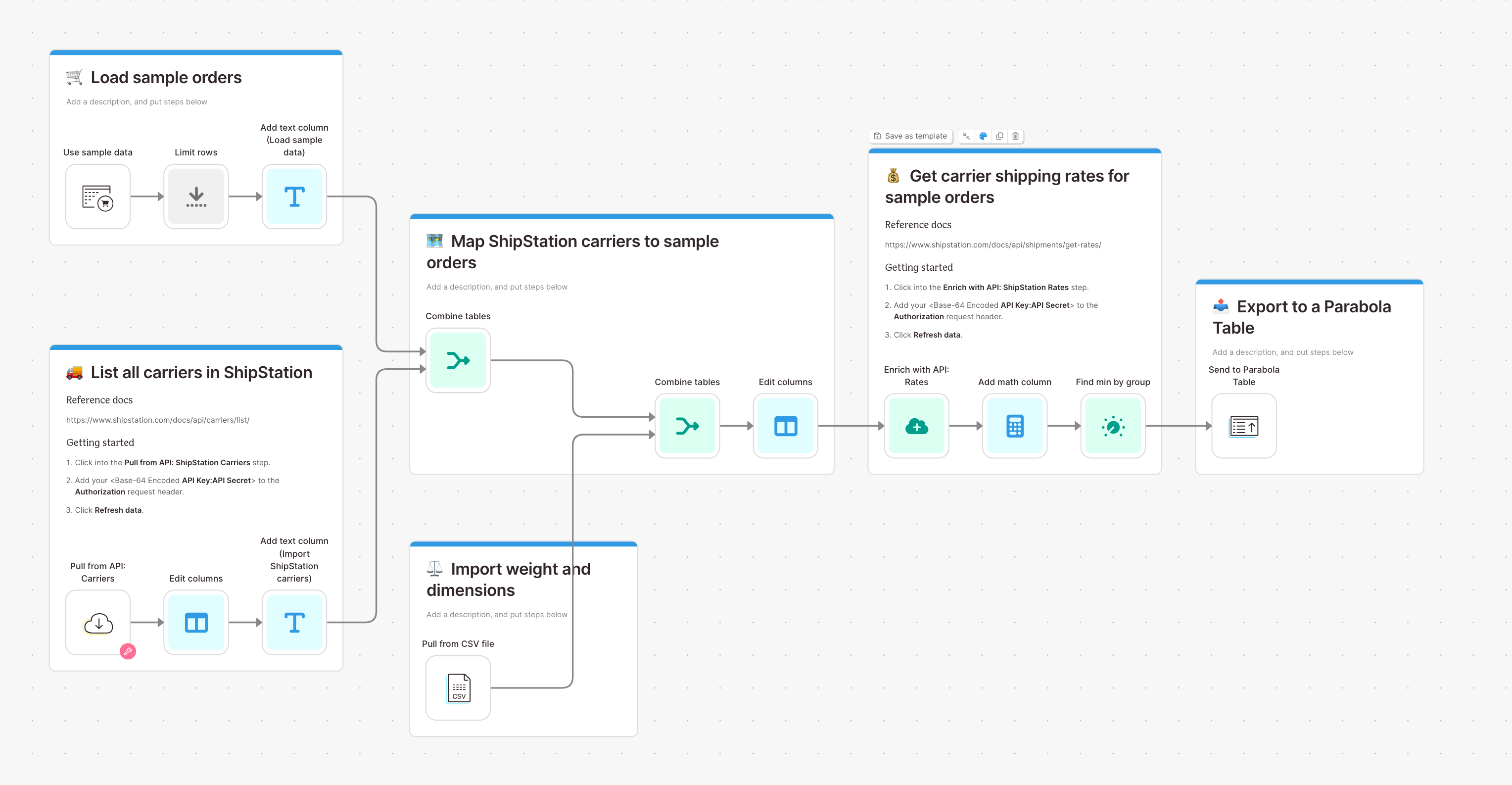
Template Screenshot
📣 Callouts
Note:The weight of the order must be provided in the API request. The dimensions are optional. Consider using an Add math column and Sum by group steps to calculate weight and dimension values by order and quantity.